Photo-to-Photo Morph Effect, with No Tags
Here is a limitation of Morph, it cannot change 1 photo to another. This example demo’s that issue. Slide 2 has an image. The animation goal is to have the image on slide 2 move-grow-and morph into the image on slide 3. Without morph object tagging there is no way to accomplish this (okay, we can insert a shape, fill with image and on the second slide change the fill to the other image – but this is a lot of effort and not needed if you read the next blog post!)

Here is how the Morph effect fails and reverts to a fade transition like effect.
[KGVID]https://thepowerpointblog.com/wp-content/uploads/2019/06/unnamed-file-1.mp4[/KGVID]
Up next, the exact same slide set and how to force Morph to accomplish what we want!
Troy @ TLC
The Presentation, Episode 79 – Writing for Presentations
A new episode of The Presentation Podcast with Troy, Nolan, Sandy and special guest Mort Milder is available today! Episode, #79 – Writing for Presentations (w/ Mort Milder). Listen in on Apple Podcasts, Stitcher, Google Play, Spotify and Soundcloud – just search for “The Presentation Podcast” – or go direct to the episode page here: https://thepresentationpodcast.com/podcast/79

Morph Using Object Tags vs. No Object Tags
Jake on the TLC Creative design team created this demo slide deck. The goal is to use a complex .svg vector art element and do all styling (color, size, position) directly in PowerPoint – mission accomplished. The second goal is to apply Morph transitions to create a session of seamless motion graphics:
Version 1: No Morph, all legacy animation and fade transitions. This is also how the Morph enabled version will present on systems that do not support Morph (where Morph basically is replaced with fade transitions). For best results on this version, no movement or resizing of the molecule elements or connectors was done, just recoloring (which was accomplished direct using PowerPoint fills, outlines and gradients).
Version 2: Use Morph throughout. But just adding Morph transitions leads to some unexpected animation effects that cannot be controlled no matter how things are setup on the slide. The overall result is a sense of motion and the molecule changing, but there are several areas where the molecule is not visually connected with connector lines flying to different (wrong) molecule elements.
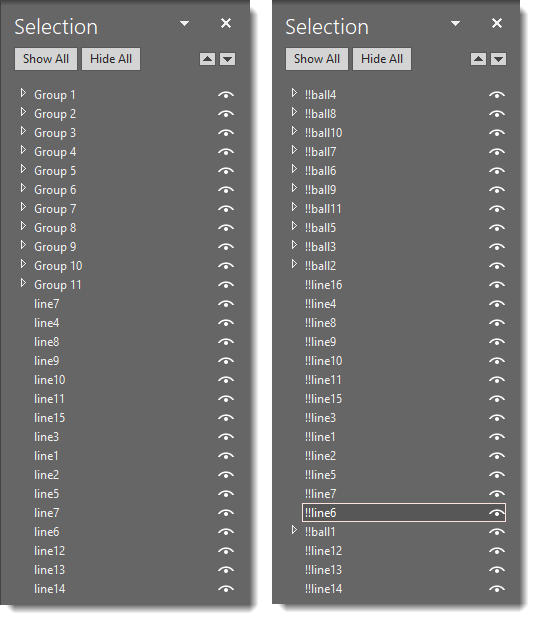
Version 3: Same Morph transitions, but taking time to add Object Tags (naming each art element in the Selection Pane) allows the designer to control Morph and force it so we know how exactly each object on the previous slide will animate and land on the following slide (see below image for Selection Pane comparison). YAY for the new Object Tagging feature to Morph!
[KGVID]https://thepowerpointblog.com/wp-content/uploads/2019/06/unnamed-file-7.mp4[/KGVID]
Left = version 1 & 2 selection pane with PowerPoint automated naming (which changes from slide to slide). Right = version 3 selection pane with each object named in the selection pane using the “Object Tagging” double exclamation “!!” (object names stay the same from slide to slide).
Troy @ TLC
Morph Object Tagging Is Here!

There is so much great motion effects that the Morph transition can create – and with PowerPoint’s recent update to include the “Morph Object Tagging” feature, I decided a blog post series of some new Morph tutorials and examples was needed. Check back over the next few weeks for lots of fantastic PowerPoint Morph content!
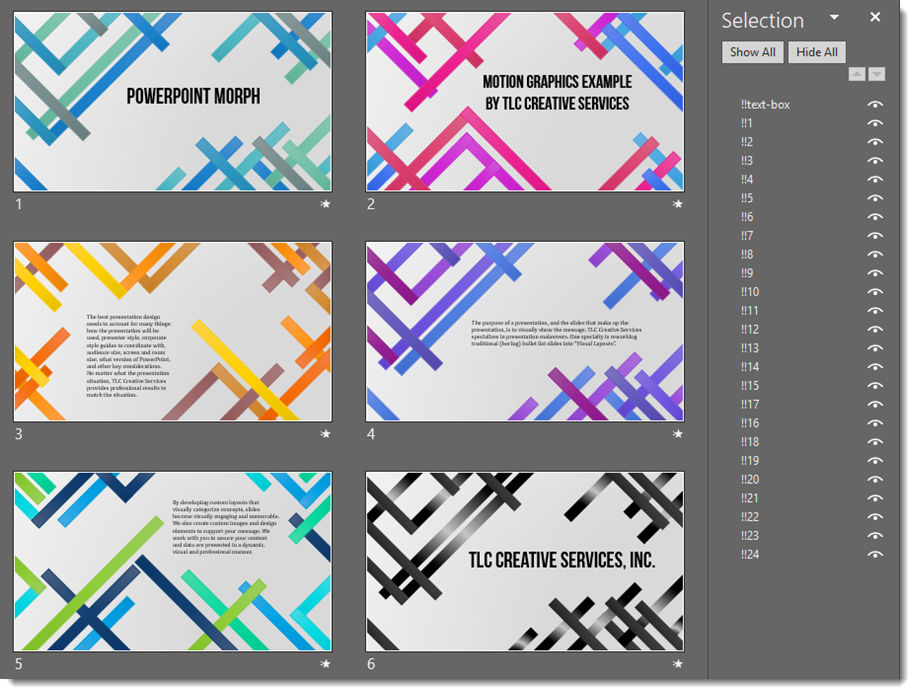
To get things started, here is a demo file one of the TLC Creative Design Team created. The only animation (aside from slide 1) is adding a Morph transition to each slide.
[KGVID width=”596″ height=”334″]https://thepowerpointblog.com/wp-content/uploads/2019/06/unnamed-file-8.mp4[/KGVID]
Only 6 slides and 0 animations
Troy @ TLC
Making The Memorial Day 2019 Video in PowerPoint
To create the Memorial Day 2019 video was first about finding the art assets.

- The US Flag was a vector art file downloaded from our Adobe Stock subscription. It was opened in Adobe Illustrator and saved as two art files; the flag with transparent “white” bands saved as an .svg, and the gradient white bands fills saved as an opaque .png.
- The white bands gradient was saved as a .png so PowerPoint image transparency could be applied.

- Next was searching our VideoBlocks.com account for the 4 videos.
- Each was downloaded as .MP4 video files and in PowerPoint each was sized, cropped and duration trimmed.
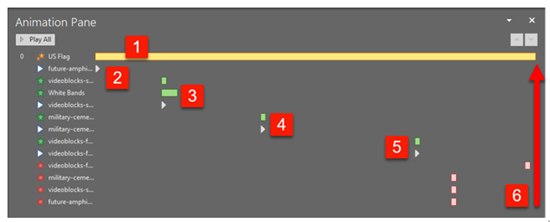
Setting the animation on the slide was simple, but did require a few rounds of revision.
1 For an additional layer of motion, the U.S. flag has a very slow, horizontal only, scaling. This slow animation was used as the duration for the overall video.
2. The first video begins playback immediately.
3. The second video fades in, on top of the first video that is still playing (goal is no static pauses) and starts playback at the same time.
4. Like videos 2-3-4, the third video is set to fade in and start playing just before the end of the previous video.
5. The duration of the fourth video was set to match the U.S. flag emphasis animation.
6. All 4 videos fade out just before the U.S. flag animation completes, leaving a static U.S. flag with white bands, where the white is actually the slide background color.
Done! All layout, video compositing, animation timing and export completed in PowerPoint (note: video from PowerPoint exported at 1280×720, 30 FPS with audio channel. The exported video then brought into Adobe Media Encoder to render a blog friendly under 12MB version).
[KGVID]https://thepowerpointblog.com/wp-content/uploads/2019/05/unnamed-file-1.mp4[/KGVID]
Troy @ TLC
Memorial Day 2019
Used PowerPoint to create a Memorial Day video as Lori and Troy of TLC Creative Services recognize the significance of why this day is important.
[KGVID]https://thepowerpointblog.com/wp-content/uploads/2019/05/unnamed-file-1.mp4[/KGVID]
New Presentation Podcast! Episode 78 – Animation Do’s and Dont’s
A new episode of The Presentation Podcast with Troy, Nolan, and Sandy is available today! Episode, #78 – Animation Do’s and Don’ts. Listen in on Apple Podcasts, Stitcher, Google Play, Spotify and Soundcloud – just search for “The Presentation Podcast” – or go direct to the episode page here: https://thepresentationpodcast.com/podcast/78