
If you are reading this post, I hope you’ve already read the previous post, “What is the PowerPoint Media Bar?”!
At TLC Creative Services, we leverage PowerPoint’s embedded media capabilities for many projects. So with that experience in mind, we have several audio/video tips and tricks for you! Here are a few of our favorite power user tips for PowerPoint’s playback media bar:

1. Volume
a. PowerPoint sets the volume at 80% when inserting videos or audio files. Click the speaker icon to adjust the preset volume (eg., make it quieter for videos that will be spoken over, make it louder for the presentation intro!) – or mute the volume if no audio is needed for that video. Save the presentation, and the volume setting will also be saved.

2. Presenter View
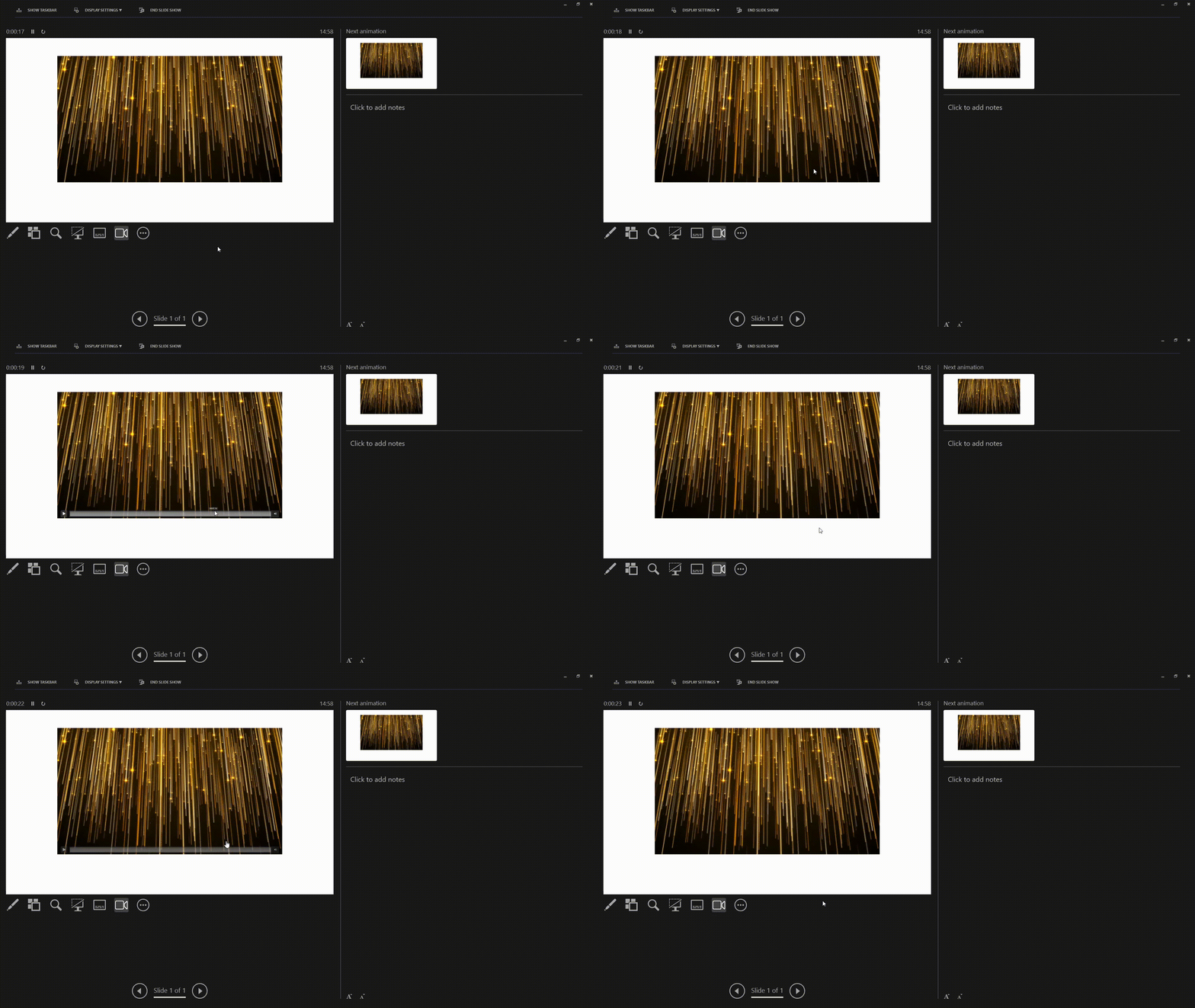
a. The slide preview is active for the playback media bar. Move the mouse over the Presenter View slide and video, and the playback media bar displays and becomes interactive (eg., you can pause, play, scrub, etc.).
b. BEWARE, the playback media bar also (unfortunately) is seen by the audience too! They just don’t see your mouse!
3. Turn Off the Media Bar
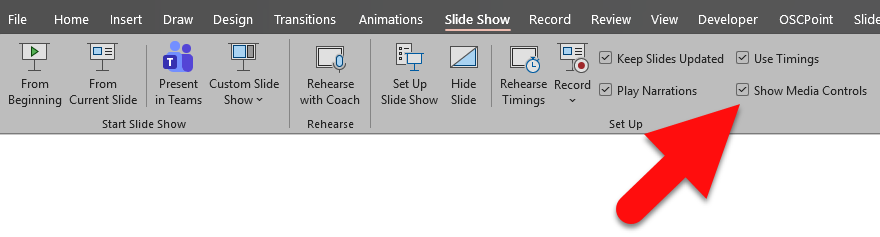
If you don’t want to have the media bar popup while presenting, PowerPoint has an option to turn off the media bar!
a. Go to the SLIDESHOW tab
b. In the SETUP section
c. Uncheck the SHOW MEDIA CONTROLS
NOTE: This (unfortunately) affects all media in the presentation, and cannot be set to only disable the playback media bar for specific videos ☹️
Troy @ TLC Creative Services