
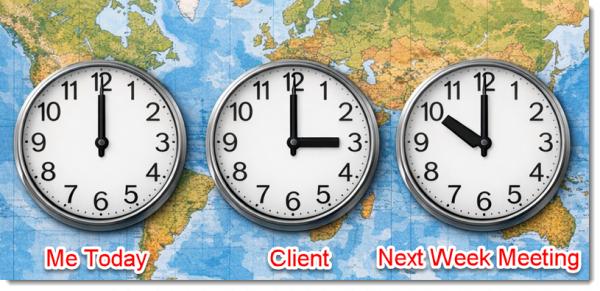
Meeting in different cities. Clients in different cities. Staff in different cities. Keeping track of time zones is another mental challenge.
Windows has the ability to add 2 additional clocks time zones to the task bar. But Windows 11 has changed how to set/update the additional clocks (side note: I hope you find this blog post helpful – but really, it is for me to have a reference of where to find these settings when I need to update my computer as I generally update one or both of the additional clocks weekly 😊).
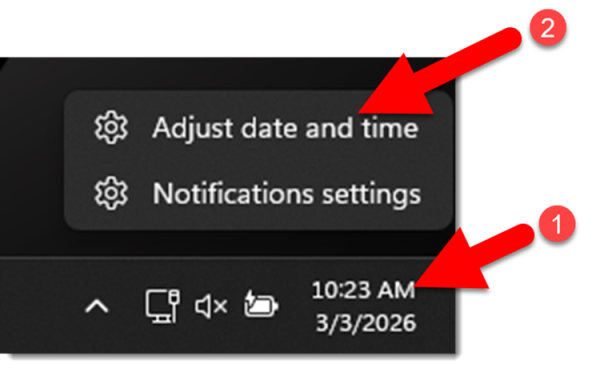
- Right-click the clock in the task bar.
- Select ADJUST DATE AND TIME
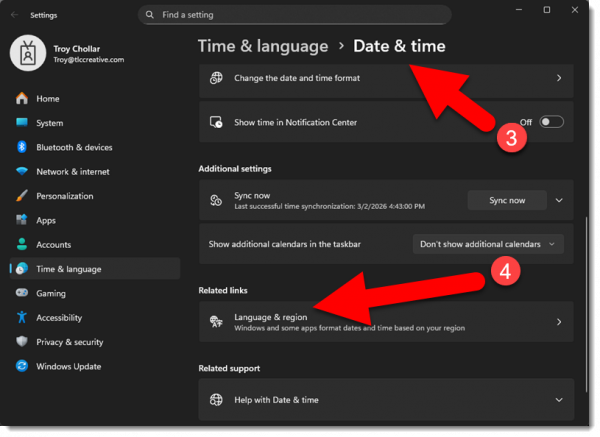
3. In the DATE & TIME section
4. Locate the LANGUAGE AND REGION section and click the arrow to go to the settings
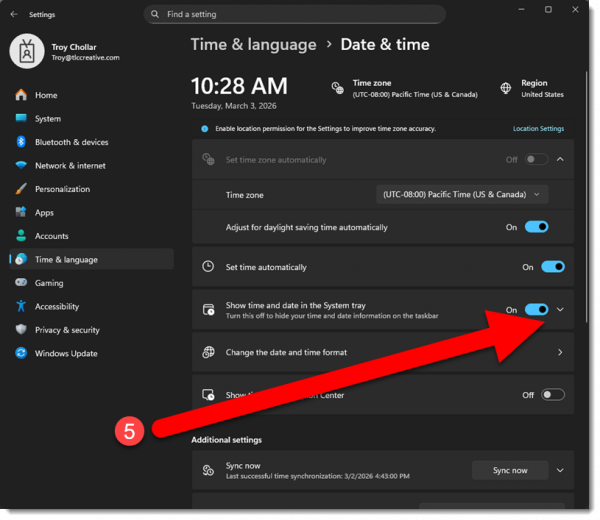
5. Located the SHOW TIME AND DATE IN THE SYSTEM TRAY section and click the arrow icon to expand
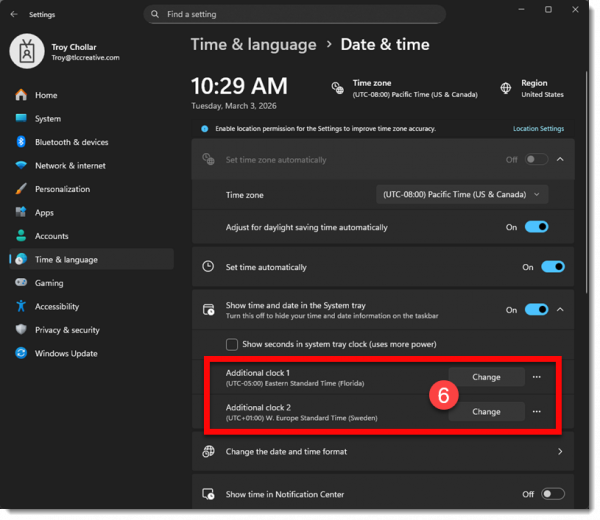
6. Windows 11 enables up to 2 additional clocks to be added. Click the CHANGE button.
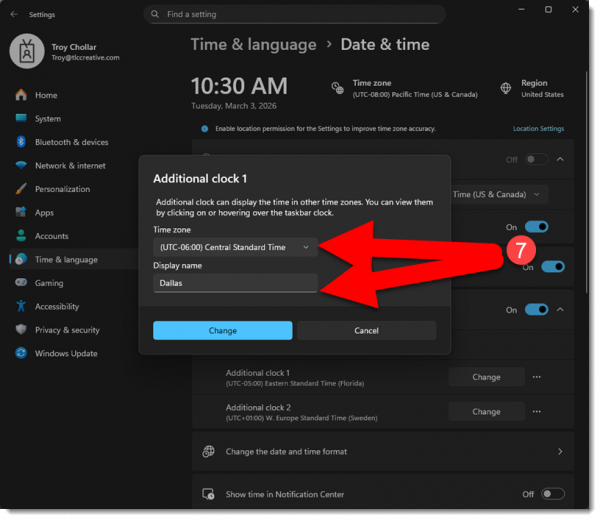
7. Select a time zone and give the additional clock a personalized name
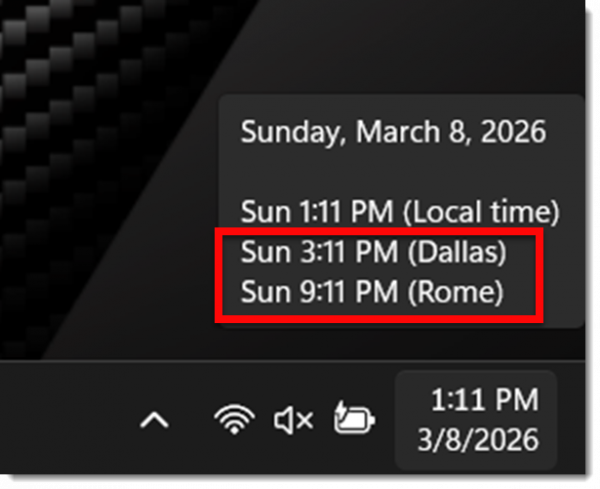
8. Done! Mouse over the lower right clock and the popup displays the 1 or 2 additional clocks.
-Troy @ TLC