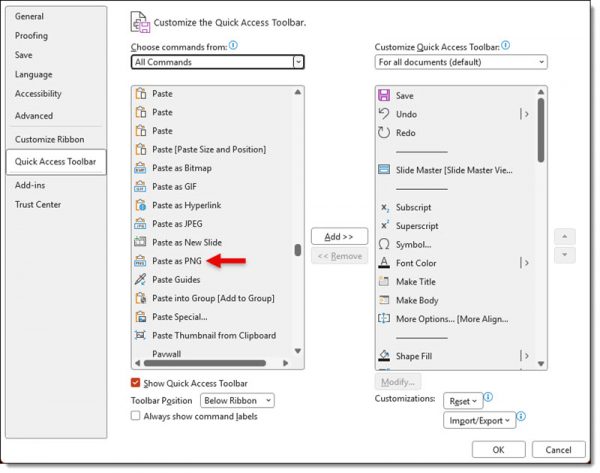
If you regularly use Paste Special in PowerPoint, navigating through Home > Paste > Paste Special every time can quickly become repetitive. The TLC Creative Services design team uses Paste Special dozens of times a day – most often to paste content as a PNG image. To optimize our workflow, we’ve added Paste Special as .PNG directly to the PowerPoint Quick Access Toolbar (QAT), turning a multi-click process into a single click.
The QAT is always visible, regardless of which ribbon tab is open. Adding frequently used commands means less time spent navigating menus and more time designing, this is definitely a great power-user setup hack!
Here’s how to add Paste Special to the Quick Access Toolbar:
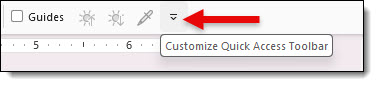
1. Click the small Customize Quick Access Toolbar arrow on the QAT
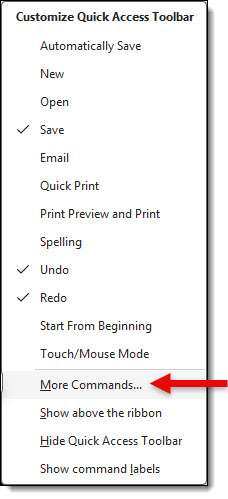
2. Select MORE COMMANDS
3. In the CHOOSE COMMANDS FROM dropdown, select ALL COMMANDS
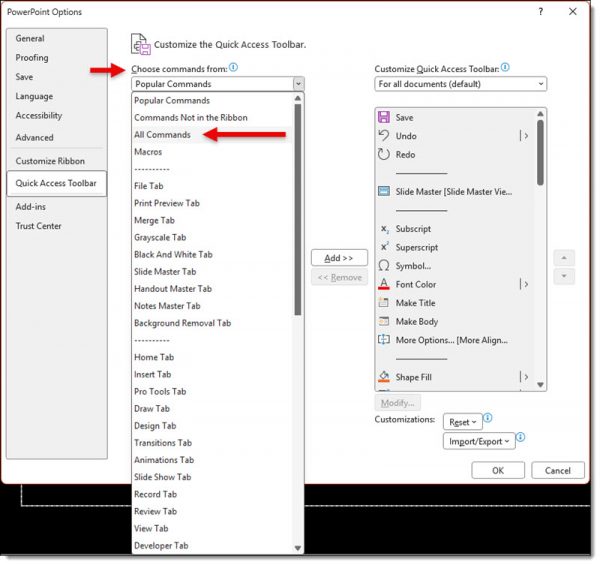
4. Scroll down to PASTE SPECIAL
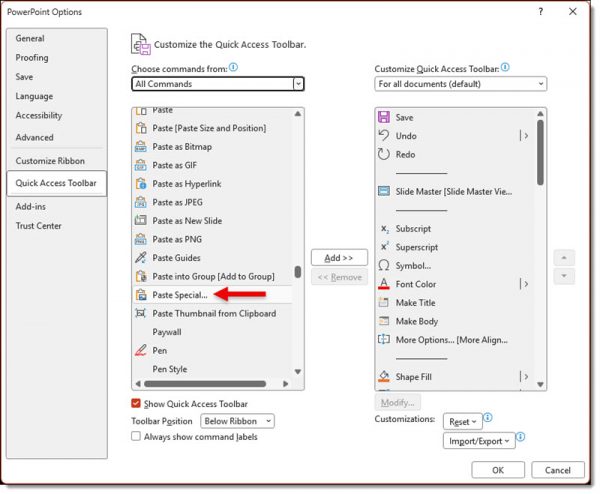
5. Click ADD >>
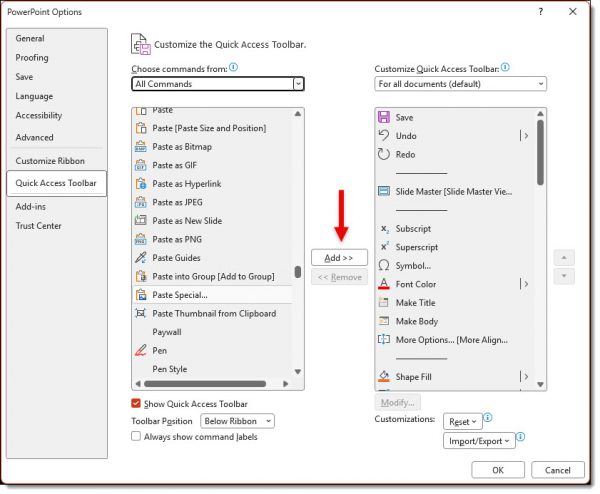
6. Optional – use the MOVE UP button to position it where you’d like on the toolbar
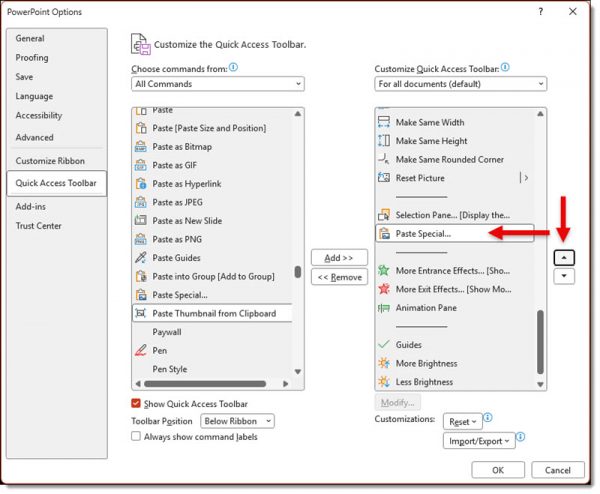
7. Click OK
The Paste Special button will now appear in the Quick Access Toolbar and be available no matter which ribbon tab is active.

Paste as PNG can also be added to the QAT by following the same steps and choosing PASTE AS PNG from ALL COMMANDS. While Paste Special offers several formats, the design team most often selects Picture (PNG) because it provides a great balance of quality and reliability. We still use other Paste Special options when appropriate, but PNG is our default choice for most design work.