
Most PowerPoint users simply press CTRL+V to paste copied content. Definitely the way to work (especially using a keyboard shortcut!). But, while this works most of the time, PowerPoint actually gives us much more control when pasting in content when using Paste Special.

Paste Special lets you choose exactly how copied content is inserted into your presentation instead of relying on PowerPoint’s automatic paste behavior.
Depending on what you’ve copied, PowerPoint can offer several paste options. Note: The options available change depending on the type of content on the clipboard. These include:
- PNG
- JPEG
- SVG
- EMF (Enhanced Metafile) – it’s an old vector graphic format, and PowerPoint still supports it!
- GIF
- Microsoft Excel Worksheet Object
- and more!
How to utilize Paste Special:
- Copy the PowerPoint content using CTRL + C

- In PowerPoint, go to the HOME tab
- Click the Paste drop-down arrow
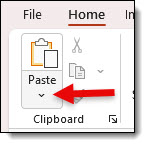
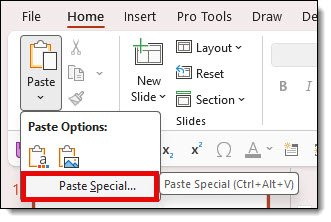
- Select PASTE SPECIAL
- Choose best option for content and click OK
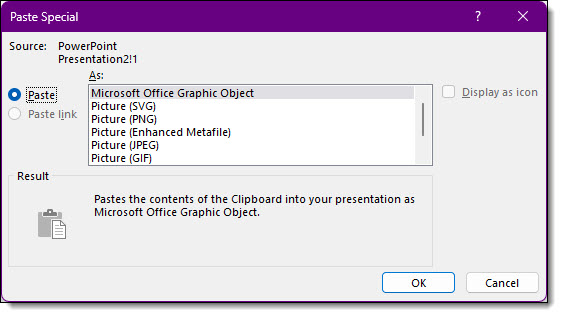
TIP: there is also a keyboard shortcut to open the Paste Special dialog! Use: CTRL + ALT + V.

Here are our 5 most commonly seen and used Paste Special options:
- Picture (PNG): usually the best choice for graphics, icons, screenshots, and illustrations. Supports transparent backgrounds, produces crisp text and graphics, lossless image quality.
- Picture (JPEG): designed for photographs rather than graphics. Smaller file size, uses lossy compression, text and sharp graphics may appear softer, transparent areas become a solid color (almost always a white background – the template background style does not affect this).
- Scalable Vector Graphic (SVG): vector-based graphic, so the graphic stays sharp when resized, often allows ungrouping into editable vector shapes.
- GIF: special note here, Paste Special as a GIF only supports static GIF images, not animated.
- PowerPoint Object: when copying slides or PowerPoint content this preserves the original object. Fully editable, retains animations, preserves PowerPoint formatting.
Return here for our mini-series of tips and tricks of using PowerPoint’s Paste Special feature!