
Speaker Notes have been part of PowerPoint for a loooong time. As a result, we’ve experienced many of the formatting, display, and export limitations that Speaker Notes has – usually during one of the many corporate event projects we handle.
However, limitations aside, Speaker Notes are definitely something in our standard workflow! Whether they be from a teleprompt system, using PowerPoint’s Presenter View, or separate “Notes Slides” (which is what we are going to talk about today), Speaker Notes are a must-use for us.
Notes Slides
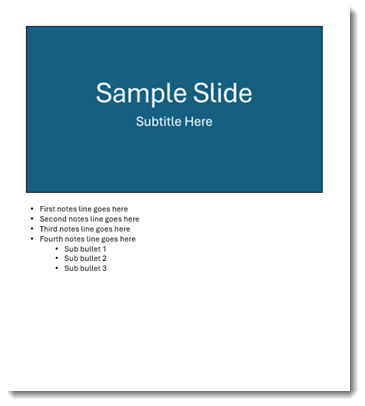
Lately, we have been asked more often to develop and manage “Notes Slides”. First, let’s describe and define what “Notes Slides” are, as they are a hack to presenting with PowerPoint (the same can be done with Keynote or Google Slides). These are slides that have notes for a presenter to reference, but are not shown to the audience
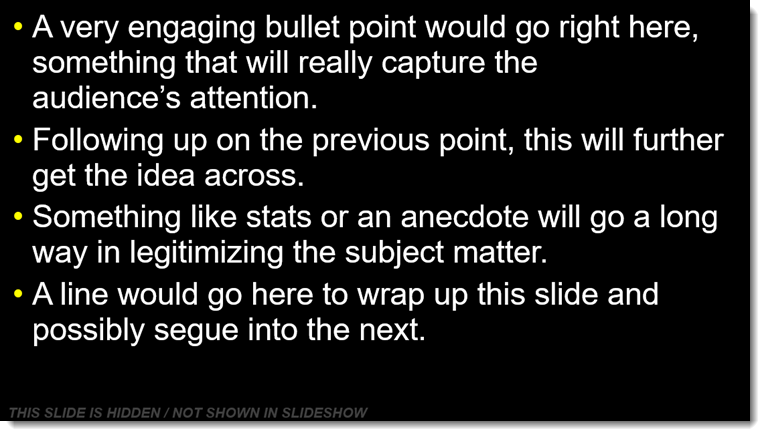
The idea is simple: for every presentation slide, create a parallel slide that has the presenter notes. We are not using a teleprompt system (though always our preference for stage presentations!), and we are not using Presenter View.
For example, on the left is the presentation of 10 slides. On the right is a matched set of 10 “Notes” slides, one notes slide for each presentation slide (and click-for-click aligned to any animations that may be used on the presentation slides, but that’s for another day).
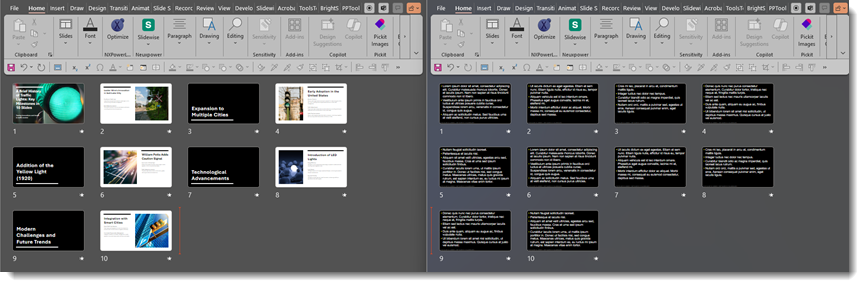
This example is based on a live event with at least 2 confidence monitors, viewable by the presenter from the stage. One confidence monitor shows the slide the audience sees on the screens, and the other confidence monitor shows the “Notes Slide” associated with that audience slide.
Presentation Pace and Timing
Another ask from presenters is to add timestamp notes or other indicators so they can target their pace for specific slides or pace their overall presentation. This is something we can easily do with Notes Slides (hint to Microsoft: this would be another good widget to add to Presenter View!).
Traffic Light and Traffic Bar
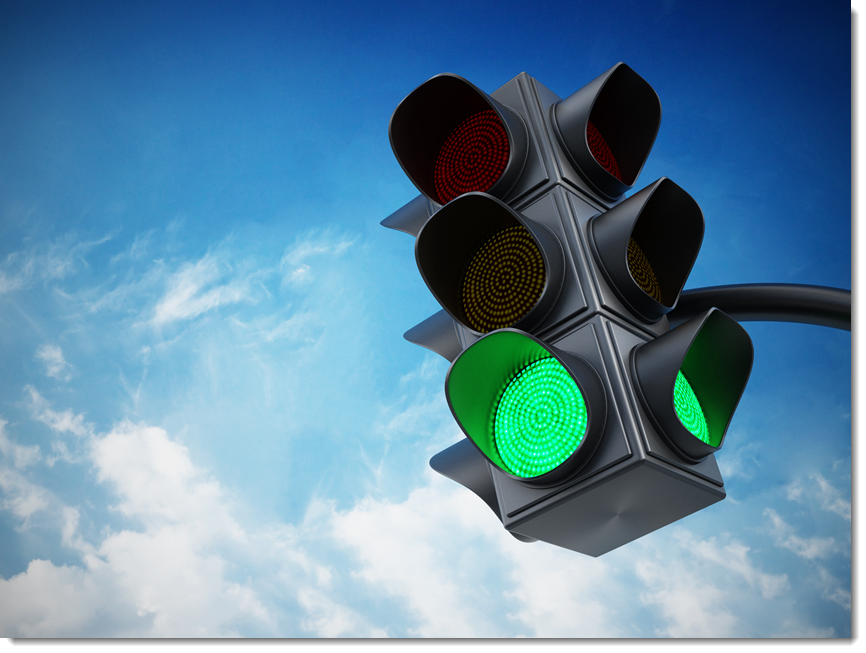
A novel and visual solution is to add an animated “traffic light” to each Notes Slides. The idea is that when the traffic light is green, the presenter is on pace and has time for the slide. When it is yellow, the presenter knows they need to wrap up that slide’s content. And when it shows red, it is time for the presenter to go to the next slide.
Here is one way the TLC Creative design team implements a “traffic light bar” in Notes Slides. We basically add a thin, animated PowerPoint rectangle with a gradient from green to yellow to red, positioned either along the top of the slide, the bottom of the slide, or vertically top-to-bottom on the side.

When used in a slideshow, it works just like a stoplight going from green to yellow to red. When animated with the “Wipe” animation, each bar is preset to finish animating at the allotted time for each slide. So, as you click on the Notes Slide, you see green – which means you are on track! When yellow appears, it is a reminder to wrap up. Red signals that it is time to move on to the next slide.
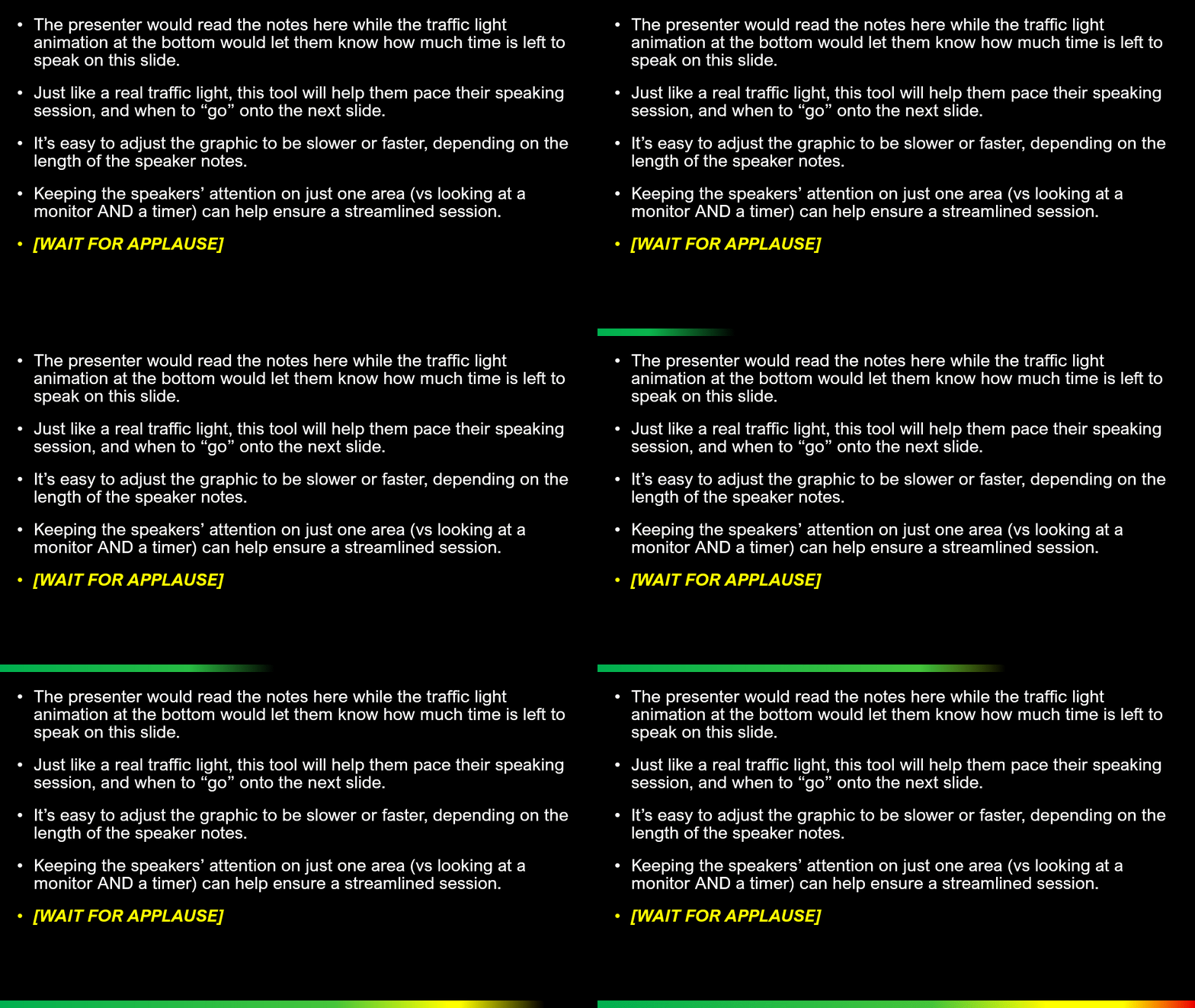
One key benefit is that the traffic light bar timing can be adjusted for each slide. The above example is a 10-second timer: green for the first 7 seconds; yellow from 8-9 seconds; red for the last half-second.
The goal is to make this visual simple and intuitive for presenters to monitor their pacing on each slide – the animating colors are easier to visually process than looking at an actual timer.
The result is less stress on stage, smoother timing, and audiences get the full story without the show running long. This is a small production trick that makes a big difference in live events and is quickly becoming a favorite among the executive teams we work with.
Create Your Own Traffic Light Bar
Creating a “traffic light” bar is simple:
- Add a thin PowerPoint rectangle
- Size it to fit across the top or bottom of the slide
- The goal is to be thin so it does not interfere with the notes, but is clearly visible as well
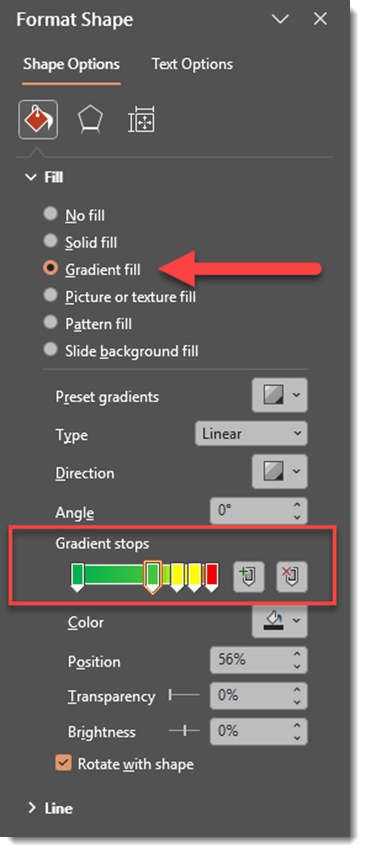
- Fill the thin rectangle with a gradient
- Right-click the shape
- Select Format Shape
- Go to Shape Options
- Go to Fill
- Select Gradient Fill
- Add gradient stops for the green, yellow, and red sections, keeping the yellow section at the 80-95% area and the red at the very end.
Animate the Traffic Light Bar
- With the shape selected
- Go to the Animations tab
- Choose Wipe, and in the Effect Options, set to Direction from the From Left
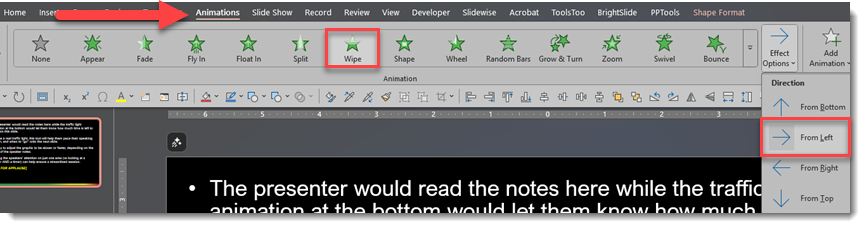
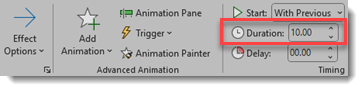
- Set the animation to start With Previous
- Update the animation duration to match the determined speaking time for that slide. For our example further above, the wipe animation duration is 10 seconds.
TIP: Adjust the yellow and red gradient stop positions to adjust when each traffic light color displays.
Happy Presenting
With Notes Slides and a traffic light bar working together, presenters know what to say and exactly how long they have to say it. The setup is quick and easy, and the payoff is a presentation that flows smoothly, stays on time, and delivers a stronger experience for the audience.
-Jake & the TLC Creative design team