
When using dynamic PowerPoint transitions there is a hack to giving the transition a custom middle color! For example, on this Reveal transition below, we see the slide background during the transition effect. It’s black or white by default, according to the Background Style of the master slide assigned. In this example the slide background is set to white, which is the mid-transition color we see.

However, there is a transition hack for PowerPoint’s dynamic transitions – the background color in the middle of the transition can be customized! To confirm, this is dependent on which transition is in use, and it will not work with all transitions (see transition types below).
For example, the Reveal transition above uses the CURRENT slide background color, which is white, as part of the transition. By default, this is the Background Style assigned to that Master slide (almost always white or black).
TIP: Use caution when changing Background Styles! Changing a Background Style has a lot of tangent updates that can change slide content.
SET THE SLIDE BACKGROUND COLOR
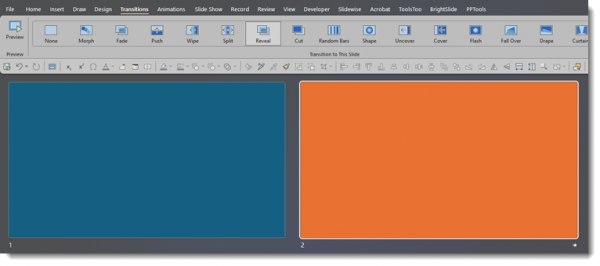
For example, create 2 slides, and set the first slide to a blue background and the second slide to an orange background. This must be the true slide background setting – it will not work if you add a blue or orange box to the slide – the background must be set via Format Background > Solid Color.
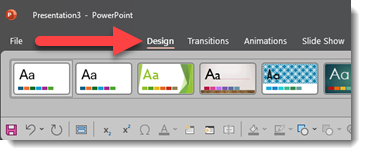
To set the slide background color, click on the Design tab and then the Format Background button to the right of the toolbar (or simply right-click off the slide and select Format Background).

With the SOLID FILL button selected, click on COLOR to change to blue for the first slide and orange for the second slide of the presentation.
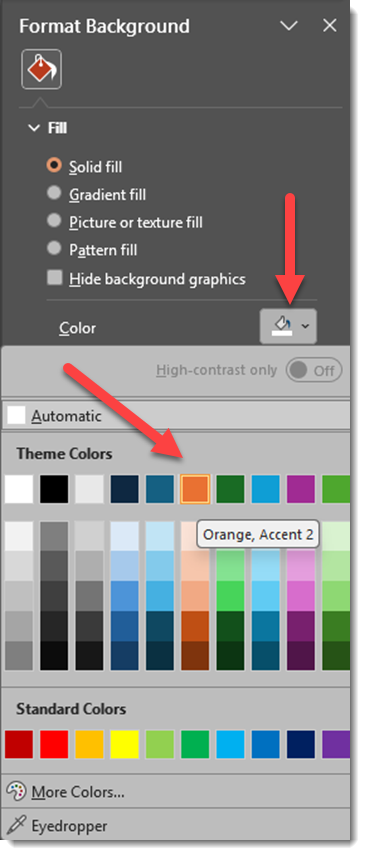
Now the Reveal transition has a subtle fade from blue to orange, which is like getting a bonus, custom visual effect!
However, the slide backgrounds are only going to be seen during the transition effect. To demonstrate this, let’s add our full slide images from the first example to our blue and orange slides (an image on each slide that “covers” the assigned color background).

The result: instead of the slides flashing to white during the transition, there is now a blue-to-orange color shift during the slide transition!

MORE OPTIONS
In addition to setting the background with a solid color, other options are supported, like gradients, and image backgrounds – if they are true embedded background images set in the Format Background dialog.
As an example, here the same Reveal transition is used. In the first slide, the background is the default black background. The second slide has a background image of colorful glitter. The Reveal transition adds the colorful glitter image as part of the transition!

THIS DOES NOT WORK EVERYWHERE
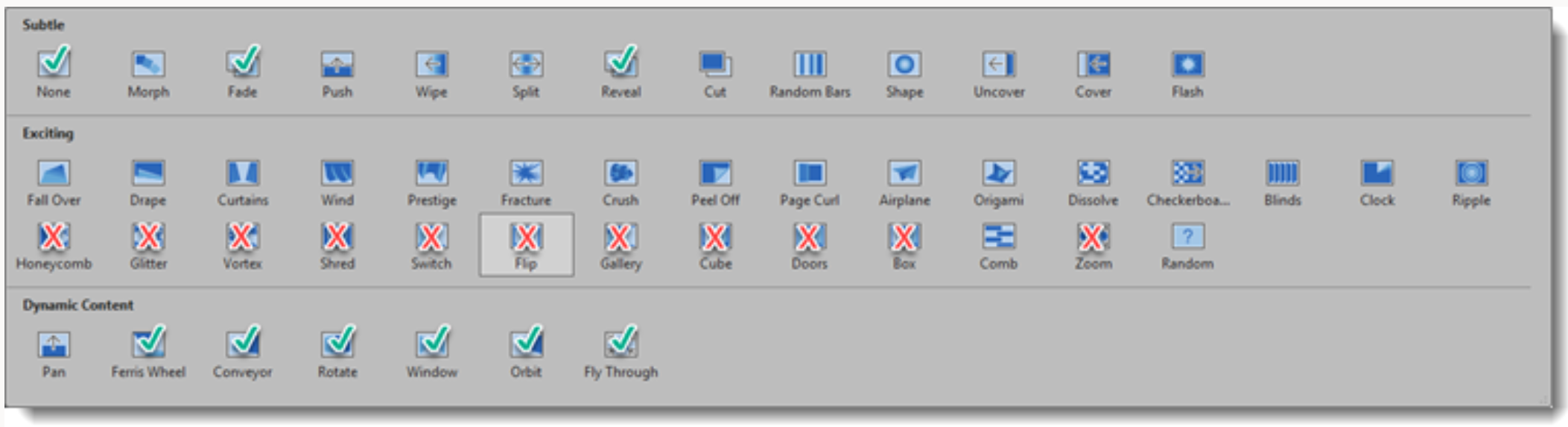
Unfortunately, this transition hack doesn’t work on all transitions. Transitions indicated below with a (✓) use the slide background color as part of the transition effect, and the color can be modified as we described above. The transitions, noted with an (x) use a black between color – that cannot be changed. And the transitions without a symbol do not have a “between color” for the transition.
Enjoy these PowerPoint transition hacks to further customize your presentations!
-The TLC Creative Services design team