
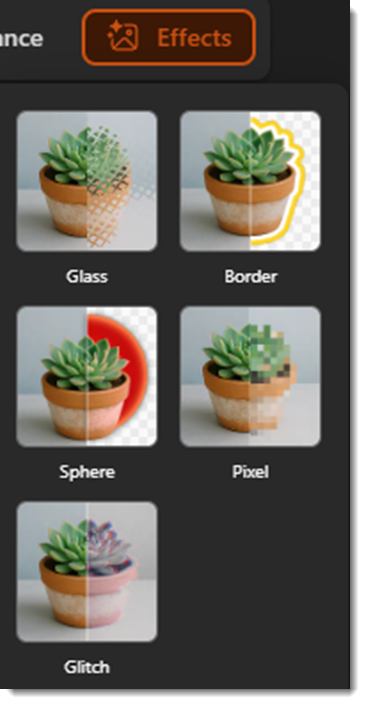
In our last post, we looked at how PowerPoint’s new AI powered Photo Editor can help fix a photo with a variety of tools. This time, we’ll cover the last photo editor tool in the tool bar, which is called “Effects.” These are styling effects, and currently, there are 5 different picture effects:
- Glass
- Border
- Sphere
- Pixel
- Glitch
To get to this menu, you simply click the Picture Format tab and then click Edit Picture to pull up the interface. Now, we can start editing pictures!
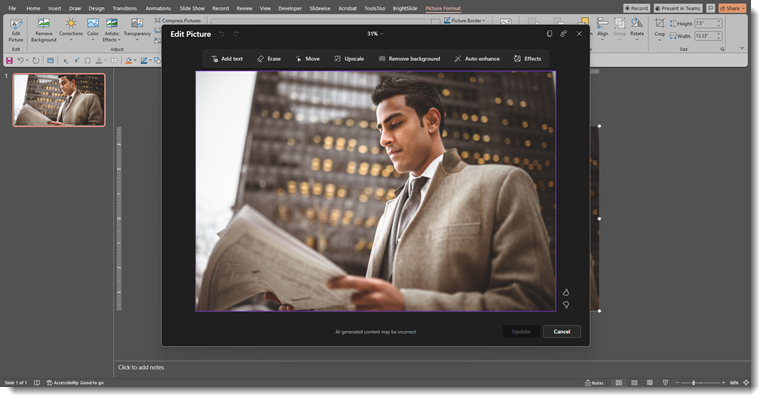
You will see the effects tab all the way to the right. Clicking this will bring up the menu with those 5 picture effects.
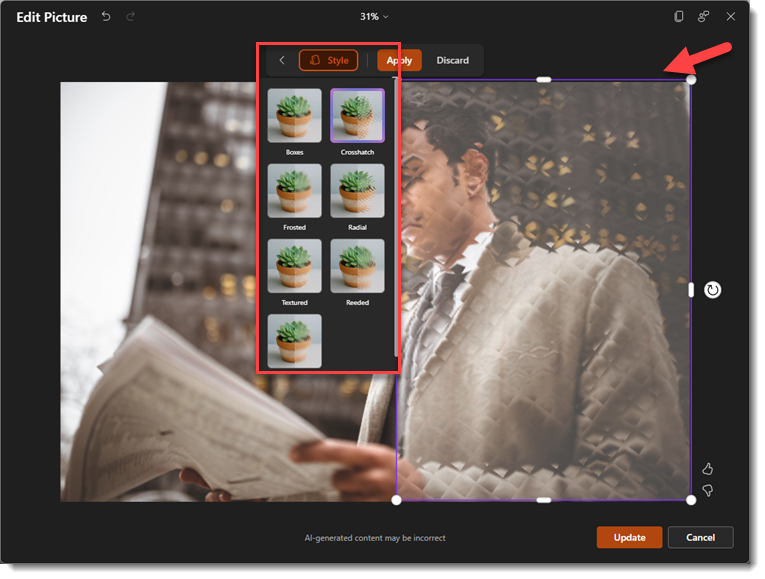
Glass creates a sort of frosted glass effect on your picture, and you can adjust how much of the picture uses the effect, and also change the style of the glass texture.
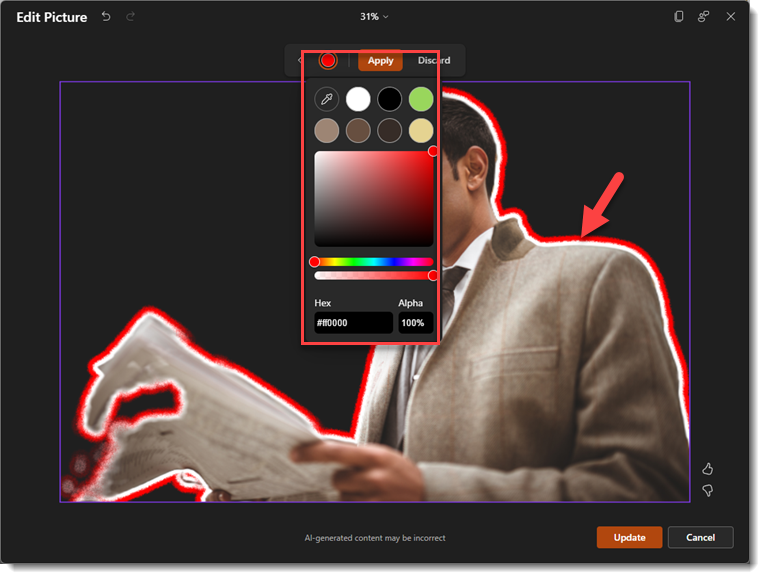
Border removes the background of the image, and then applies 2 borders to the image, an inner white border, and then another border that can be any color of your choosing.
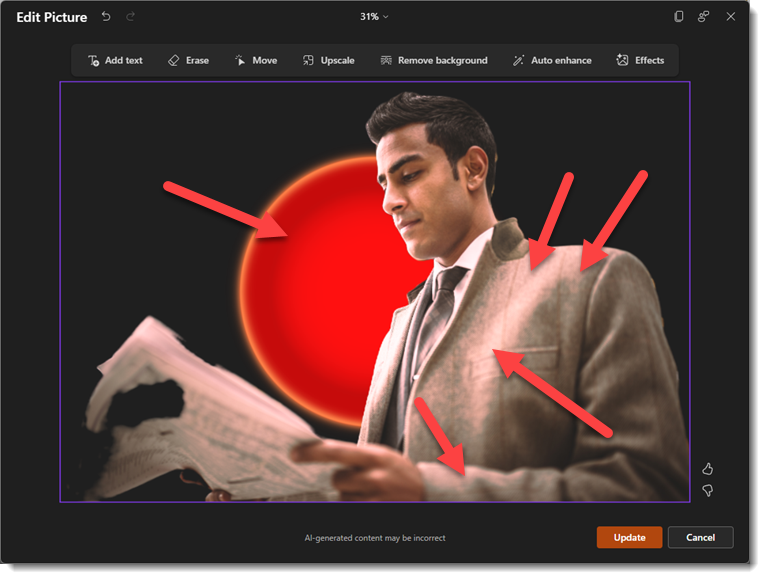
Sphere is sort of a unique effect, like Border, it removes the background, but this one adds a glowing sphere in the background, and subtle highlights to the subject that match whichever color you choose.
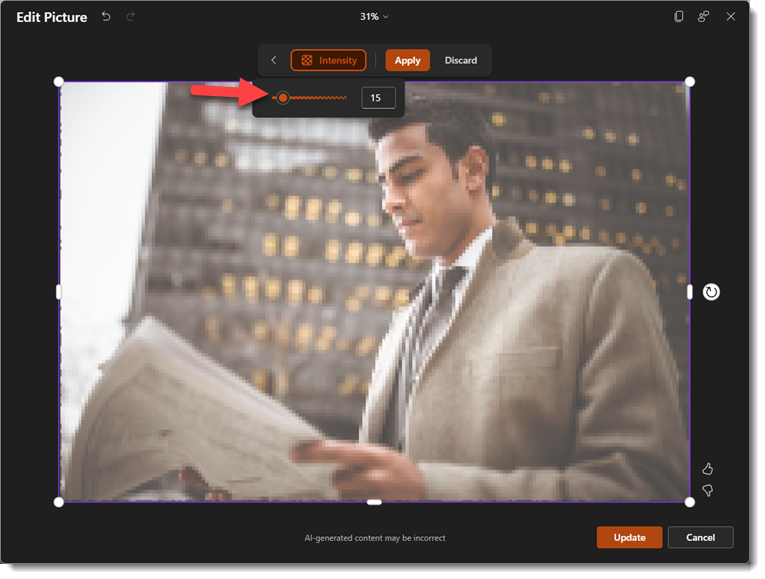
Pixel simply applies a pixelization effect to your photo, and you can adjust the area being affected, as well as the intensity of the pixels. The left side of the slider will create smaller pixels, while sliding it to the right will create larger pixels.
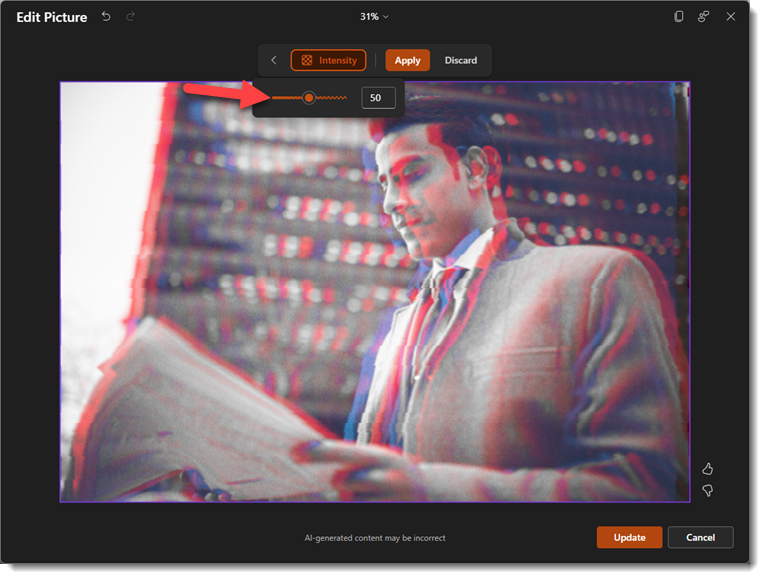
Glitch is a pretty cool effect that applies a glitchy look to the photo, and once again, this one has an intensity slider to adjust how pronounced the effect is.
The picture effects panel in the new Image Editor is a bit limited, but it can help make images more interesting, and you can even combine tools to push the image even further. Here’s an example using the background remover tool, glitch effect, and text effects all in one:

The new AI Image Editor toolbox in PowerPoint has introduced some genuinely useful creative tools right out of the box. While it won’t replace professional photo editing software (e.g. Photoshop, Figma, Affinity, etc.) for heavy lifting, it’s perfect for giving your slides a modern edge without the hassle of switching apps. It will be interesting to see where Microsoft takes this in the future, but for now, it’s a solid upgrade to our daily workflow!
-The TLC Creative Services design team