
After using PowerPoint daily for years, one starts to have a handle on everything the app is capable of. It becomes rare to stumble across a new shortcut that genuinely surprises you, let alone an extremely useful one. Recently, I discovered a keyboard combo that solves an annoying part of slide formatting: fixing capitalization.
I’m sure this has happened to some of you out there: you paste a list of bullet points from an email, and the text is all lowercase. Or you frustratingly leave Caps Lock on while typing a long title. Usually, the fix would involve deleting and retyping or hunting down the feature on PowerPoint’s ribbon.
It turns out that there is a keyboard shortcut that does it instantly: Shift + F3.
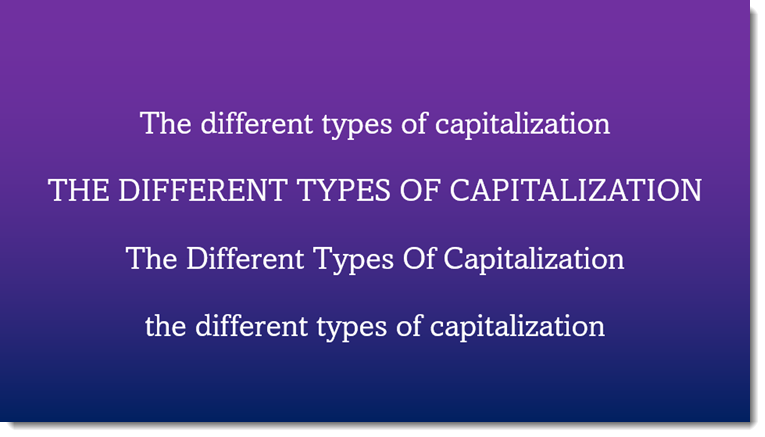
Shift + F3 is a universal “Text Case Cycler” for all Microsoft Office apps. It works in PowerPoint, Word, Outlook, etc. This keyboard shortcut cycles through 3 these capitalization options:
NOTE: This is one of Windows’ shortcut keys, meaning it’s the same shortcut in the web version of PowerPoint. For MAC users, the shortcut is Shift + fn + F3.
When trying to correct capitalization, basically, there are different ways to fix it:
- Retype everything. Sometimes it’s just a couple of words or a name that needs to be fixed, in which case simply retyping is quick and painless. Of course, anything more than a couple of words, and it turns into a slower process.
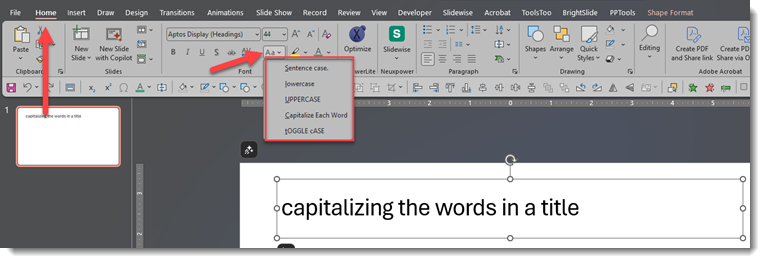
- Users more familiar with PowerPoint can use PowerPoint’s Change Case feature. Go to the Home tab > click the dropdown menu found under the font size.
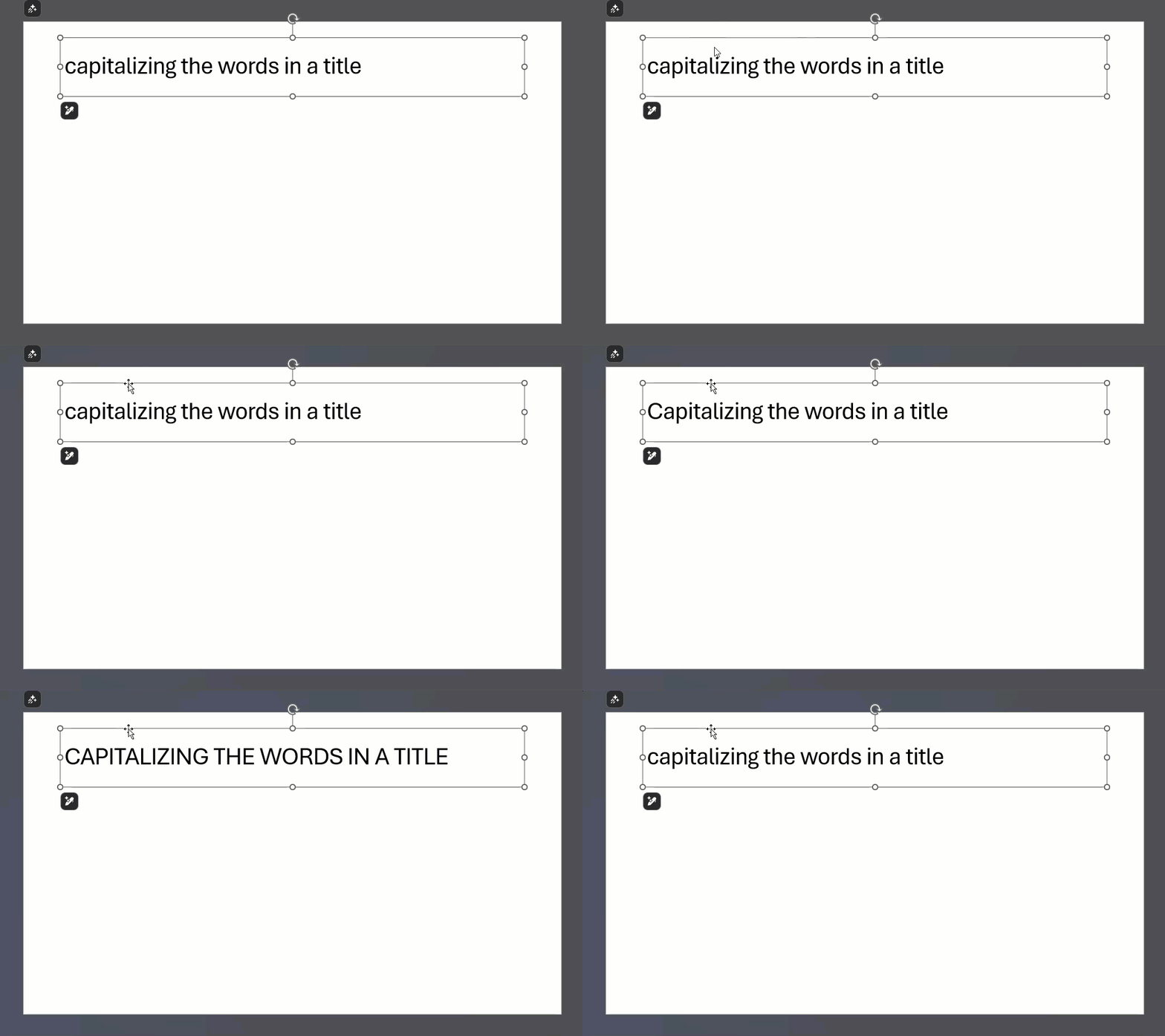
3. And finally, the ultimate keyboard shortcut: highlighting the text or clicking the text box and using the Shift + F3 keys. Do this one time for sentence case, two times for all caps, and three times for small caps (unfortunately, Capitalize Each Word is not included):
The best keyboard shortcuts aren’t the complex ones that launch macros; they are the simple ones that fix daily annoyances. Shift + F3 turns a five-second frustration into a split-second fix. It’s a tiny trick, but once you start using this hotkey, you’ll wonder how you ever managed without it.
-Jake @ TLC Creative Services, Inc.