Monthly Archives: March 2006

Which Projector Should I Buy?

This is a common question I get a lot. And because PowerPoint and Projectors are almost synonymous, I thought it might be good to give my standard answer here. I recently posted the below to the ‘What projector should I buy’ question in the PowerPoint Newsgroup.
——————————————–

With your budget ($4,000.00) and general description I am going to make a few guesses:
– Small audience viewing (25-100 people)
– Front projection (projector in front of screen, out by audience)
– Connecting computer direct to projector (ie. no switcher, scaler, etc.)

With those assumptions, at your budget there are not many systems that outshine the other. In other words, you will do good with just about any reputable companies projector. But here are a few key items to make sure are on the projector and to consider:
1. Bulb life (what is the life of the bulb – in hours)
2. Bulb replacement cost (this can be $75 to $700 – check before purchasing so you know what to expect)
3. It should be at least 1024×768, but better would be 1280×1024
4. Size; consider your travel and placement needs (things do not have to be large any more)
5. Noise; listen to the units operating noise level (because it will be out by the audience, check if the fans are to loud)
6. Quiet Mode; this is good if projector is used in a small setting, as it limits the output power, but also runs near silent.
7. Contrast; this is a tricky number and hard to use in side-by-side comparisons (different companies measure differently), but in general more is better
8. Lumens; at your budget go for 2,000+, the closer to 5k the better
9. Lens Shift is better than keystoning (this is the ability for the projector to move the image up or down without needing to adjust the front legs, which creates a distorted projection)
10. Warranty, carrying case, etc.

In addtion, do a google search for the unit(s) you are considering and read some reviews, as well as look for anything in ‘groups.’

Troy @ TLC
By |2016-09-16T11:31:11-07:00March 13th, 2006|Resource/Misc|

New Crystal Xcelsius Tutorial (by Glenna Shaw)

Glenn Shaw, a Microsoft PowerPoint MVP, has been up to her magic again. This time she has created a whimsical tutorial that explains and shows how Crystal Xcelius can be used to create truly dynamic charts/graphs for PowerPoint. Check out the “Visually Analyze Resource Impact” tutorial here.

Xcelius is a very powerful tool and can also be integrated into websites. For a really fun and whimsical example, check out Glenna’s Cinderella Project (as in Disney Princess).

Troy @ TLC

By |2016-09-16T11:30:34-07:00March 11th, 2006|Software/Add-Ins, Tutorial|

5,000 Patents and going strong!

So how big is Microsoft? Well on Tuesday Microsoft was issued their 5,000th patent! Sounds like a lot, but I did a quick search for IBM’s patents to put things in perspective. “In 2005, IBM received 2,974 U.S. patents… this is the thirteenth consecutive year that IBM has received more US patents than any other company in the world.”

But it does make Microsoft “among the top five technology companies in terms of patent filings.” That’s a lot of paper work – and I bet it is not doing much for the ‘paperless office…’ Here is a good write-up on the Microsoft milestone.

Troy @ TLC

By |2016-09-16T11:30:10-07:00March 9th, 2006|Resource/Misc|

Choose Your Own Adventure Presentation

So what do you do when your daughter’s teacher calls and says they are having a PowerPoint crisis… pack up a laptop and head to school. Fortunately this proved to be a fun project, fairly easy to solve and a unique use of PowerPoint. Unique enough to share here.

Remember as a kid reading the ‘choose your own ending’ books; each chapter ended with a “To go through left door turn to page 64” and “To go through the door on the right turn to page 71.” That is exactly what the elementary school class project was. In this case each slide was a portion of the story and the viewer has the option of going to one of two storylines. Fun and creative – but needed for an open house this Wednesday!

While in the classroom I designed and programmed the template file, which you can download here (feel free to view, use and distribute).

Because everyone from the Teacher, volunteers and students need to know what to do with the presentation template I headed back to my office and created this quick tutorial movie using Camtasia (which I supplied to my daughters instructor on CD). View the online version here.

I hope to have the completed student story posted on Wednesday or Thursday. And last, I have been asked by many to activate the ‘comments/feedback‘ features on the blog. Well here is one I am opening up to comment, so please feel free to share about PowerPoint in education or anything about this file and tutorial.

Troy @ TLC

By |2016-09-16T11:29:39-07:00March 7th, 2006|Portfolio|

Sometimes Mass Input is a Bad Thing

Okay, so this is a parody on Microsoft – and it is very funny. But it also applies to the way lots of slides and presentations are designed. The more people that need to provide input, the more content has to be added to each slide… Just something to think about (and figure out how to manage).

[UPDATE] The original link was taken offline this afternoon. So here is a fresh link. Click here to view.

Troy @ TLC

By |2016-09-16T11:28:55-07:00March 5th, 2006|PowerPoint|

Advanced Animation Timeline

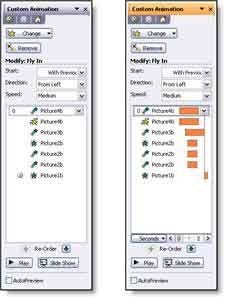
When you need to fine tune the animation timings, you need to display the very powerful Advanced Timeline. When you open the animation pane, which do you see:

With the advanced Timeline you can see the duration, start and end for each animation in relation to the other animations. For advanced animation needs the WITH PREVIOUS setting is utilized more and the animation start position and duration are adjusted with the Advanced Timeline (as example when a subtle overlapping animation is needed).
Show the Advanced Timeline
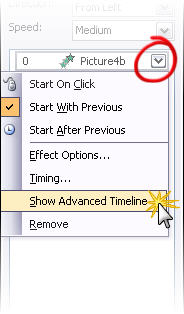
To see the Advanced Timeline, click any animation and choose SHOW ADVANCED TIMELINE.

There are some good examples of the advanced timeline in use on the Tutorials page.

Troy @ TLC

By |2016-09-16T11:28:21-07:00March 3rd, 2006|Tutorial|
Go to Top