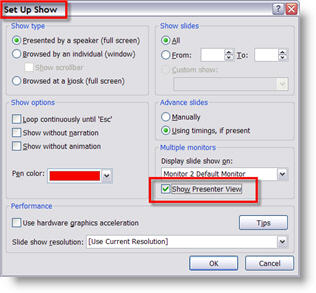
You carefully label all of the layers and saved out images from Photoshop with descriptive names. But once imported into PowerPoint you lose all reference to what image it is… Take this example:
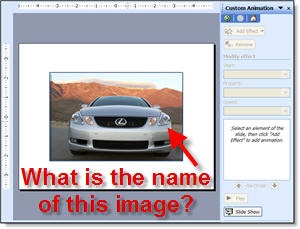
You have a dozen very similiar images in the presentation, but you need to verify what model this one is. Is it a 300, 350, 430… You know the file name says exactly what it is, but where is the file name to be found?
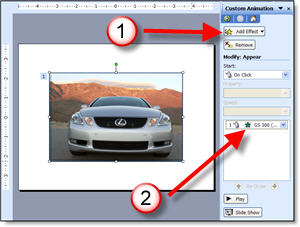
If you have an animation applied, open the CUSTOM ANIMATION PANE, click on the image and reference the animation, it contains the file name! If you do not have an animation applied – temporarily apply one so you can read the info. Here I quickly applied the first animation in my list, APPEAR. Now I can read the file name, verify what model vehicle it is, delete the animation and move on.
Note: Hovering over the animation will let the pop-up info appear, which is helpful for reading long file names that become cut off in the animation bar.
– Troy @ TLC