Monthly Archives: September 2006

Defining PowerPoint

Just a quick little interesting note. Here is the Wikipedia definition of PowerPoint:

“Microsoft PowerPoint is a ubiquitous presentation program developed for the Microsoft Windows and Mac OS computer operating systems. Being widely used by businesspeople, educators, and trainers, it is among the most prevalent forms of persuasion technology: according to its vendor, Microsoft Corporation, some 30 million presentations are made with PowerPoint every day.”

I just like the phrase “persuasion technology.”

-Troy @ TLC

By |2016-11-17T14:20:06-08:00September 9th, 2006|Resource/Misc|

Use PowerPoint Presenter View

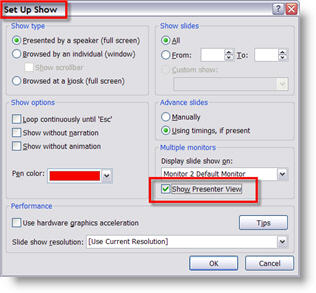
After activating Extended Desktop (Oct. 1 post) and setting up PowerPoint to display the presentation on the secondary monitor (Oct. 3 post), you have the option of displaying the Presenter View on your local monitor.

In PowerPoint go to: SLIDE SHOW >> SET UP SHOW. In the Multiple Monitors section check “Show Presenter View.”

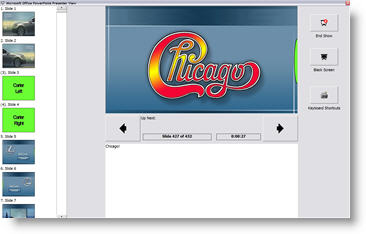
When you go into show mode your computer will display this view:

– Troy @ TLC

By |2016-11-17T14:19:16-08:00September 5th, 2006|Tutorial|

What is the File Name of that Image?

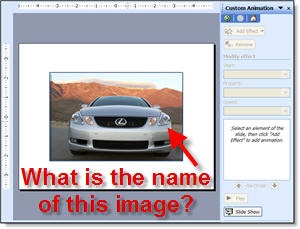
You carefully label all of the layers and saved out images from Photoshop with descriptive names. But once imported into PowerPoint you lose all reference to what image it is… Take this example:

You have a dozen very similiar images in the presentation, but you need to verify what model this one is. Is it a 300, 350, 430… You know the file name says exactly what it is, but where is the file name to be found?

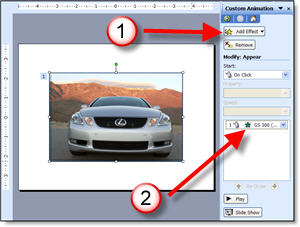
If you have an animation applied, open the CUSTOM ANIMATION PANE, click on the image and reference the animation, it contains the file name! If you do not have an animation applied – temporarily apply one so you can read the info. Here I quickly applied the first animation in my list, APPEAR. Now I can read the file name, verify what model vehicle it is, delete the animation and move on.

Note: Hovering over the animation will let the pop-up info appear, which is helpful for reading long file names that become cut off in the animation bar.

– Troy @ TLC

By |2016-11-17T14:19:35-08:00September 5th, 2006|Tutorial|

64 GIGABYTE USB Drive

Okay, so my earlier post seemed great. But of course they are not in full production yet. But today you can order the biggest USB drive available – 64 GB!!!

That is bigger than most laptop harddrive’s! Over 2X’s larger than my first computers hard drive and over 8X’s larger than my first laptops hard drive. And it can be yours for just over $2,500.00 (U.S.). Check it out here.

Troy @ TLC

By |2016-11-17T14:18:57-08:00September 3rd, 2006|Personal|

Need a BIG USB Drive…

Yesterday I read a post at GeekZone about an incredibly large in capacity, but small in size USB “thumb” drive. This is not a “pocket” drive, but a standard sized USB stick. And it is 16 Gigabytes!

I figure this is perfect when a client needs to hand me their 1.2GB PowerPoint presentation (true story) and the 4GB of support photos (now you see why the presentation was over a Gig). Check out the post here.

– Troy @ TLC

By |2016-11-17T14:16:58-08:00September 3rd, 2006|Personal|

Pro’s and Con’s of Webcast Formats

I have been doing a lot of webcast projects lately. Most involve syncing a PowerPoint presentation with video of the presenter. One client’s IT department needed more information to determine which format fit their needs best so I provided this quick run down on the pro’s and con’s of the formats we were discussing:

Flash Legacy (.swf)
Pro: This format is virtually guaranteed to work on all computers, through firewall settings and has an install rating of over 98% of all computers worldwide.
Con: It is not optimized for live video, so it produces larger files and does not stream as well as an .flv

Flash Video/Flash 8 (.flv)
Pro: This format is optimized specifically for video. It produces good size files and streams extremely well (even if file is larger than a .swf it streams much smoother and faster).
Con: Still requires many computers to do the free upgrade, which is permitted through most corporate firewall systems (although it can be problematic in a tightly controlled corporate IT setting).

Windows Media Video (.wmv)
Pro: Optimized to playback on Windows PCs and now works on all Macs that have the Flip4Mac QuickTime add-in (included in a free auto update, so installed on majority of Mac systems). Can be embedded in webpage or forced to launch player application on computer.
Con: Larger file sizes than .flv (similar to .swf), fewer pre-load options (eg: a status bar before playing).

All of this is very simplified information, but it provides a quick overview of some common formats. Stay tuned for a very detailed set of posts on Streaming Media formats I have been working on.

– Troy @ TLC

By |2016-11-17T14:15:05-08:00September 1st, 2006|Resource/Misc, Tutorial|
Go to Top