The PowerPoint® Blog

I work with PowerPoint on a daily basis and I am very honored to be a Microsoft PowerPoint MVP. We have a talented team of presentation designers at TLC Creative Services and ThePowerPointBlog is our area to highlight PowerPoint tips, tricks, examples and tutorials. Enjoy! Troy Chollar

Resize Images Instantly!

Placing oversized images into a presentation only makes the presentation file oversized. I could suggest everyone go through my process; open each image in PhotoShop, crop, resize, optimize color, save as a .jpg or .png (as appropriate). But that is a lot of effort, and not the fastest process for a general use presentation.

Or, thanks to my brother-in-law who introduced me to Microsoft PowerToys, you could use Image Resizer. Once installed, simply right-click the image file in Windows Explorer, choose Resize Pictures and from the simple dialog choose a size and you are done! This free Microsfot application is somewhat limited in what it can accomplish, but it makes the process nearly instantaneous – produces good quality images – and works with .jpg and transparent .png images. Check out the details here.

Troy @ TLC

By |2016-09-16T11:18:34-07:00January 25th, 2006|Tutorial|

Disaster at the Server Level

Today has proven to have its challenges… Yesterday my web hosting server crashed. After many hours dealing with tech support it became obvious that the only item I would not be able to get back online was this blog.

So today I have started from scratch – reinstalling the blog software, building a new database, and uploading/re-creating as many of the posts as possble. I am sure to be missing a few posts, but the extended effort has the blog up and running again. I guess the only upside is that I did upgrade a few features and fix a couple of bugs from my first round of installs. Sometime technology makes for a big headache!

Troy @ TLC

By |2016-09-16T11:18:04-07:00January 24th, 2006|Personal|

Simultaneously View & Edit Presentations

For final edits on a presentation I take advantage of dual monitors, with PowerPoint on one screen and the slideshow on the other. As I adjust elements I can see the updates immediately.

If you do not have a dual monitor setup, you can do something similar by running the presentation in a smaller window by holding down the CTRL key while clicking the SLIDE SHOW icon in the lower left. You can move back-and-forth between the slideshow and edits while seeing the updates immediately.
CTRL + Click to start show in window

Troy @ TLC

By |2016-09-16T11:17:41-07:00January 20th, 2006|Tutorial|

Add Captions/Subtitles To Movies – Easily!

With Today’s realease of Camtasia 3.1 a number of great tools and output options have been added. One of the very cool features is an intuitive and powerful captioning feature. PowerPoint MVP Glenna Shaw has created a set of examples that show the results. The movie file is from one of my clients (SWOT Expert). I supplied the movie and text file of the narration. Glenna created English Captions and with the help of PowerPoint MVPs Ute Simon and Enric Manas translation, she created German and Spanish subtitles.

The process is so streamlined in Camtasia that Glenna told me all three versions were created in less than 1.5 hours!

Check out the samples here:
English Captions
Spanish Subtitles
German Subtitles

Troy @ TLC

By |2016-09-16T11:17:21-07:00January 18th, 2006|Software/Add-Ins|

Turn Off PopUp Toolbar If Not Used

During church service I noted a very distracting onscreen prescence. Perhaps you have seen it too. During a slide show do you see this in the lower left corner:
Onscreen Navigation PopUp Toolbar

If you do not know what it is or how to use it, I recommend turning it off. The PopUp Toolbar is designed for onscreen interactivity (advance, go back, notate, end, etc.) and is especially useful for tablet PC operation. But the vast majority of people (myself included) have no use for this tool. It is easy to turn off (more…)

By |2016-09-16T11:16:59-07:00January 16th, 2006|Tutorial|

Files That Will Not Go Away

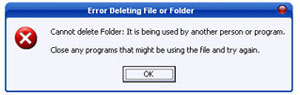
Ever try to delete a file (any type of file) and instead get a message like this:

Delete File Error Message

I had one that just would not go away. Very frustrating. After a bit of searching the web it was easy to see I was not the only one with troublesome files. I solved the problem (eg. deleted the file) with a free little application called unlocker.

Troy @ TLC

By |2016-09-16T11:16:23-07:00January 14th, 2006|Resource/Misc|

2006 Detroit Auto Show Kia Presentation

Today the presentation I have been working on for the past several weeks went off great! The Detroit Auto Show hosts “press days” before it opens to the public. On these days all of the auto manufacturers wow the press with keynote speeches, incredible staging and unveiling of new cars and of course great PowerPoint presentations! This year I am working with Kia as they recap their steady growth and unveil the new “Soul” concept sport utility vehicle.

Just two posts ago I mentioned OfficeFX for it motion backgrounds, transitions and text antialiasing. I used it extensively on this presentation.

Troy @ TLC

Here are a few photos of my work at the ’06 Auto Show: (more…)

By |2016-09-16T11:15:38-07:00January 9th, 2006|PowerPoint|

NXPowerlite 2.1

NXPowerLite has released version 2.1 of their PowerPoint optimizing program. I have spoken with the guys at NXPowerLite for the past few years and earlier this year I tested version 2.0. On that version I noted that almost my entire wishlist had been incorporated! Most notable is support for .png with transparency images. Now v2.1 overcomes CMYK problems and a few other fixes.

I highly recomend it as a solution for oversized presentation files. Get it here.

Troy @ TLC

By |2016-09-16T11:15:18-07:00January 8th, 2006|Software/Add-Ins|

From Good to WOW with OfficeFX

I just finished adding a new project overview to the TLC Creative website. It includes a movie of a walk-in looping presentation I developed for an event, which highlighted the event sponsors. Online is a write-up and movie that shows how it was transformed from good to WOW!

Basically, after developing a custom PowerPoint presentation, I used OfficeFX‘s ability to render realtime 3D moving backgrounds and transitions to add that extra something special! To see the write-up and movie click here.

Troy @ TLC

By |2016-09-16T11:15:01-07:00January 7th, 2006|Portfolio, Software/Add-Ins|
Go to Top