Resource/Misc

.TTF vs .TTC Fonts and PowerPoint for the Web

Our design team recently noted a problem with a template project we were developing. Having a problem with PowerPoint is unfortunately part of the design process, it is part of “working within the limitations of PowerPoint.” But this problem was not making sense. After lots of internal troubleshooting, I started an email conversation with Microsoft Dev and Product Managers about it. This led to discovering something new. Unfortunately, the discovery did not fix the problem, and it led to discovering what Microsoft shows as working, does not – ugh!

So, here’s the deal, PowerPoint is really, really bad at helping users with font management. One glimmer of positive news is Microsoft’s investment in Cloud Fonts. These are fonts that Microsoft owns (or owns usage rights to), that Microsoft applications recognize, and if a font is not installed on your computer, it is automatically downloaded, installed and the document updates to display the correct font. We call these “Microsoft Safe Fonts” and encourage clients to stay within this set of fonts so everyone knows everyone will see the same thing.

I am going to avoid going into all the ways MS Office fails to manage, help or inform users if a non-standard font is not available when a presentation is opened – or this will become a very long, very negative rant. I am going to stick to Microsoft Cloud Fonts, because these are the good thing, but also the bad. Microsoft has a webpage, Clouds Fonts in Office, with information about what Cloud Fonts are and a list of every cloud font available (go to the page here). It is also fairly up to date showing as of this post, it was last revised just a few months ago on April 27, 2021.

Expand the “Cloud Fonts List” and it is (now) important to note there are two file formats for the fonts. They are either .TTF or .TTC. On the technical side, .TTF is “true type font” which is a mainstay in the font file format options. .TTC is “True Type Collection” and less used. But it should be used more because it is on the technology side of things, a great option. The “collection” part of the True Type Collection format means it can have several variations of a font in a single file vs. needing to manage multiple files, one for each variation. On the image below, left is the font name, middle the file name with file type extension, and right is the version number of that file.

Expand the “Cloud Font Availability by Application” section and there is a nice, organized cross reference of what devices and versions of PowerPoint will work with what (note: it is wrong, we will get to that shortly).

For TLC Creative Services we have studied this information in detail, and I have had the opportunity to interact directly with the Microsoft developers asking clarifying questions. I feel I have a particularly good understanding of fonts on the technical side (hey, years of print design and production makes you obsess over fonts), and a very good understanding of how Microsoft applications, especially PowerPoint, are setup to work with fonts – including where they do not work (that list is much longer than what does work). So when one of our design team emails me saying there is a font display problem, I am prepared to address it and find a work around.

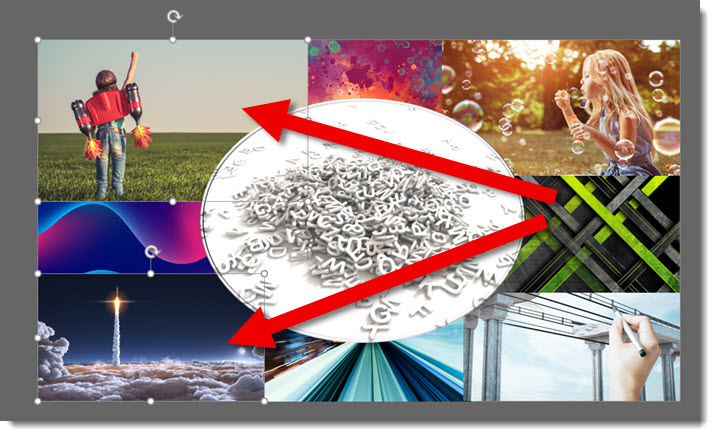
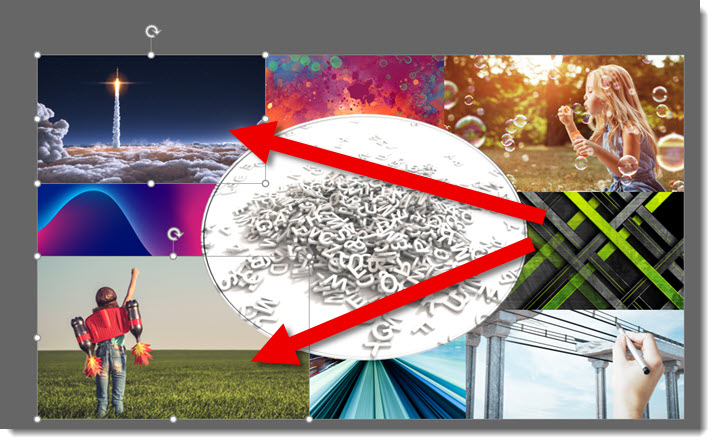
This is same PowerPoint template open in two different versions of PowerPoint. The slide title font is clearly not displaying the same. The immediate questions are; is this a custom font that is not installed on one device? Are we sure this is a Microsoft safe font (eg. font listed on the Microsoft Cloud Fonts in Office web page)? What are the devices? Are both connected to the internet (a cloud font cannot download and install if there is no internet available)? And many other questions to go down the list of potential problems.

This is the same presentation template file open on the same computer, each on a separate monitor, each in a different PowerPoint application. The left image is the file open in Microsoft Teams (aka PowerPoint for the Web). The right part of the image is the file open in the Windows Desktop version of PowerPoint. So, the availability of the cloud font is the same for both because they are the same file being viewed on the same computer – WHAT IS HAPPENING HERE $#@%!?

Here is where things went even further down, in regard to trust. We now know, because of this accidental discovery, there a HUGE MISSING COMMUNICATION piece from Microsoft. Before I rant any further, one of the internal Microsoft managers did promise that a fix for this is in process. No timeline given to this issue we have all been living with for the past 2-3 (?) years of using Microsoft Cloud Fonts, but I am hopeful this blog post will be outdated and just a timestamp of an old problem soon.

The .TTC file format for fonts is very cool. It allows a single file to hold all of variations of a font. As example, the font being used for slide title text is UD Digi Kyolasho. It has 6 styles, or variations, as it extended font family. With a .TTC, a single file is all that is needed, because it has all 6 variations within it.

Well, it turns out that the .TTC format is to cool for PowerPoint, specifically PowerPoint for the Web (without testing to confirm, I am expanding this to include PowerPoint for Android, IOS and any other version that is not a desktop version). PowerPoint for the Web is unfortunately not able to use those multiple versions of the font in the .TTC file. PowerPoint for the Web can only use the first version of the font family. We would all be okay with this limitation – if we knew about it. The cross reference compatibility chart above makes no mention of .TTC fonts not being supported by PowerPoint for the web and implies they are supported (big oops!).

From our template project, the UD Digi Kyolasho font is a Microsoft Cloud Font. Why the left image (PowerPoint through Microsoft Teams) displayed the N-B variation, which is the correct font family, but wrong version, and the right image (PowerPoint through Desktop PowerPoint) displayed the correct NK-B variation has been a painful journey. We had to explain to the client that the template design will not display the slide title text as expected when viewed in Microsoft Teams or anything other than the desktop PowerPoint app. This is a corporation that has adopted Microsoft Teams and file collaboration as a workflow (Microsoft should be ecstatic!). This is a large corporate client (I am guessing a Microsoft customer with 5000+ seats to Microsoft Office) that trusts us to provide guidance on how best to work with PowerPoint, and they are not excited about Microsoft right now…

I mentioned above that Microsoft said they have a fix in process. This is not a Microsoft only problem. PowerPoint for the Web and other web-based applications cannot fully use .TTC fonts. We can live with another limitation; I just wish Microsoft would have informed everyone of the limitation. The solution that is in process is converting all .TTC fonts to individual .TTF files. When rolled out, the above template will work on all PowerPoint end points, because there will be 6 separate font .TTF files, one for each variation of the UD Digi Kyolasho font. Until I see the font list updated to .TTF files, we are removing .TTC fonts from our “safe fonts” list… ugh!

Troy @ TLC

By |2021-07-11T23:17:22-07:00July 12th, 2021|PowerPoint, Resource/Misc|

Listen to episode 129 of the Presentation Podcast!

This is a great episode! Troy, Nolan and Sandy are joined by Jole Simmons and Lisa Marie Grillos of the Presentation Junkies podcast for a crossover event released on both The Presentation Podcast and Presentation Junkies podcast. As group we have the classic presentation designers meet up and talk presentation, our backgrounds, what we are doing now and have plans for the future, our favorite clients – least favorite clients, and some Windows vs. Mac talk. Join us for the conversation here!

By |2021-07-04T10:50:19-07:00July 6th, 2021|Resource/Misc|

Ranked in the Top 15!


This month we received a wonderful email letting us know The PowerPoint Blog was “selected by our panelist as one of the Top 15 PowerPoint Blogs on the web.” Thank you Feedspot for the recognition!

See all 15 presentation podcasts in the Feedspot recommended list here.

– Troy @ TLC

By |2021-06-17T16:54:13-07:00June 30th, 2021|Resource/Misc|

A Better Way to Hide Slides

Quick, which is the hidden slide!?

PowerPoint does not make it easy. There are visual indicators; the page number has a (thin, small) line through it and the slide itself is (faintly) dimmer than the others. And this is if you are in PowerPoint slide sorter view. On a printout, if the hidden slides are included in the printout, there is NO indicator if a slide is included in the slideshow or skipped because it is hidden.

Back in September 2016 I shared my solution, a .png image overlay to visually show when a slide is hidden (if you need a 4×3 version of the hidden overlay, find it on the Sept. 2016 blog post here).

Jump to present day 2021 and 4×3 is not the size presentations we create any longer. So here is an update with a 16×9 version of our Hidden Overlay image.

With the Hidden Overlay .png it is much easier to know which slides are hidden (hint: the slide on the left is the hidden one 😊).

One issue that comes up with adding the Hidden Overlay, if you manually go to this slide, everyone sees a giant “Hidden” across the slide. This is overcome with a preset animation that makes the hidden image not show up to the audience. Download the sample slide and try it.

Download the 16×9 Hidden Overlay .png here.

Download a slide with the Hidden Overlay and disappear animation preset here.

Troy @ TLC

By |2021-06-12T13:28:58-07:00June 28th, 2021|PowerPoint, Resource/Misc|

Fake People Images for Real Presentations

Presentations can use lots of images. For the random person image, there are many royalty free image sites (eg. legal to use images, not randomly copying an image owned by someone else and adding to a presentation). But in a twist of technology, there is another option.

The “This Person Does Not Exist” website is a never ending display of deep fake people headshots. You do not know what is going to displayed, just keep refreshing the page to get a different image. Also, once an image is gone, you are not going to find it again!

Go to https://thispersondoesnotexist.com/. It is a very simple website. No navigation, menus, or text. Just a photo of a person – that does not exist (more on this in a moment).

What is a “deep fake”? Search the web for details. My simplistic answer is, a deep fake is a photograph generated through AI algorithms that pull details from many photos (many of the source photos already fake images) to composite a new, very realistic looking image. So the above image is literally no one. This is not a real person. He does not exist. And yes, he looks very real (tip: don’t believe any image on social media!).

I said the ThePersonDoesNotExist.com website has no content beyond the photo. But it does. In the lower right is a popup information box that has some information and links to 3 Youtube videos the author of this website created to explain, and inform, what Nvidia’s (yes the graphics card company) Style GAN2 software is. The summary is, StyleGAN2 is the AI system that created all of these very realistic, but fake, people images.

Check out Henry AI Labs video # 1 on YouTube for some fascinating information on how Deep Fake images are created (it is link “1” in the info popup).

So, why include a website like ThePersonDoesNotExist.com on a presentation design blog?

Because of what we started with, presentations need lots of images – people images. I am not speaking with authority here, but if the image is of a person that does not exist, was generated by an AI algorithm and available to anyone with no copyright notice, I am going with the idea that this is a perfect, legal and random “person” image that can be used in a presentation!

The images from this site are 1024×1024, so not quite full screen. They are also in the .jfif file format, which most people have not used (it is a fancy .jpg, just use it).

Jake at the TLC Creative studio created a few example slide layouts with images from this site in use. And the names were created on a name generator site!

Fake names. Fake images. Real slides.

– Troy @ TLC


By |2021-06-21T10:45:13-07:00June 21st, 2021|Resource/Misc|

Listen to The Presentation Podcast

New episode released today! Listen here.

Can a presentation designer be an integral part of the eLearning content development? This episode Troy, Nolan and Sandy talk with Mike Taylor about all things eLearning and focus on how PowerPoint as an app can be integral to the process and how being a presentation designer can make you a valued part of the process.

By |2021-06-12T13:35:12-07:00June 15th, 2021|Resource/Misc|

Do We Need a Blob Generator? Yes!!

In designing a slide if you find yourself in need of a formless random blob during your creative endeavors, blobs.app has you covered. Shout out to Nolan Haims for cluing us in on this cool tool during a tech tips discussion at The Presentation Podcast!

You can generate blobs of different complexities and randomness, as outlines, color filled, gradients, patterns, even images, and save them as SVG files, or copy the SVG or Flutter code after you’ve created a blob. Modify the variables on the right and click the “Change Blog” button on the left for endless options.

To get this blob into PowerPoint, simply add it as an image, selecting the .svg file you downloaded. Like any .SVG the shape fill, outline, transparency, and styling effects like drop shadow or 3D Rotation can be applied. Further, the blob is a vector shape. Select, ungroup and then right-click and choose Edit Points to modify the shape in any way.

Whether you need some amorphous shapes for buttons, or photos, or something to frame some text, this tool will quickly get you the random shapes you need, and thanks to saving as an SVG file, PowerPoint will let you further modify or format these shapes to meet any of your design needs!

Create your own blobs here.

Josh @ TLC

By |2021-05-17T17:09:52-07:00May 28th, 2021|Resource/Misc|

Microsoft has 5 New Fonts!

Microsoft is rolling out 5 new fonts and we couldn’t be more excited! All 5 are Microsoft Cloud Fonts, meaning they are available on every endpoint with Microsoft Office. These are available now and we do not have to worry that a client will not have them and fonts will default to some other randomly assigned font. Windows, Mac, IOS, Android, PowerPoint for the web – these fonts will work for everyone.


Besides showcasing 5 great new options to incorporate into our designs and templates, Microsoft is making waves with news of replacing its long-standing default font, Calibri. Since 2007, Calibri has been the default font for all Microsoft programs including PowerPoint. At its inception, Calibri was designed to perform on lower resolution displays to optimize legibility, using technology that the company no longer uses.

Sample images of each font is below. Each uses the default kerning (space between letters). The top line is with Bold applied, and the lower line with the name of the font is in the standard weight.

Up first on the list is TENORITE, by Erin McLaughlin and Wei Huang. A personal favorite, this font is round and wide, with narrow kerning, making it great for all caps headlines and titles.

Then there is BIERSTADT, by Steve Matteson. A modern take on the mechanical, grid-based style stemming from swiss typography. Tenorite incorporates some organic elements that really makes it stand apart from its institutional roots.

Next up is SKEENA, by John Hudson and Paul Hanslow. With a emphasize on contrast, the font’s distinct variations between thick and thin add a stand-out contender to the list, great for presentations with a lot of copy.

That brings us to SEAFORD, by Tobias Frere-Jones, Nina Stössinger, and Fred Shallcrass. While this the most old-school font of the bunch, there is nothing old about the approach they took designing this font face. Inspired by armchairs, this font is sturdy and worth sitting with for some time.

And last but not least GRANDVIEW, by Aaron Bell. This highly mechanical, German-derived option, is the most rigid of the additions. Grandview retains readability exceptionally compared to it’s ancestors and will be a great option especially when it comes to data visualization.

These fonts are available now and according to the Microsoft press releases, by the end of 2022 one of them will become the default option across all Microsoft programs.

Sara @ TLC

By |2021-05-23T09:53:21-07:00May 26th, 2021|Resource/Misc|

Alphabetizing Made Easy

One of our go-to resources is a surprising one – The Alphabitizer (https://alphabetizer.flap.tv) is helpful in many ways. We use it to alphabetize presenter names during a show, organize presentation titles, and more. It also has helpful features like automatically capitalizing names in the list and randomizing items in a list in the case instead of alphabetizing.

First just insert the random list of names, titles, or whatever it is:

Then use the options to the left to perform whatever function is needed. For this example, the goal is the staff names organized by last name.

And voila, a super-quick alphabetized list! The options can be changed one at a time, so the list could be run multiple times until the final list is whatever is needed. For example, it could be run once to alphabetize, once to capitalize, and again to number.

By |2021-05-04T12:44:04-07:00May 24th, 2021|Resource/Misc|
Go to Top