Monthly Archives: October 2006

The Many Flavors of DVI

Everyone is excited about DVI. And for the PowerPoint world it is important to be in-the-know as it has become a mainstay in connecting projectors and monitors to our computers for presentations.

Yes, it does mean an all digital signal. No, most people cannot see a difference between it and a analog signal. But as the image moves to more hi-def, especially with lots of motion (think PowerPoint animations, motion paths, slide transitions, etc), there is a difference to be seen. So know your DVI before investing in new hardware, or being asked advice.

There are 3 flavors of DVI:
DVI-A (Digital Video Interface, Analog)
DVI-D (Digital Video Interface, Digital)
DVI-I (Digital Video Interface, Integrated)

– Troy @ TLC
By |2016-11-17T14:29:22-08:00October 17th, 2006|Resource/Misc|

My Desk This Week

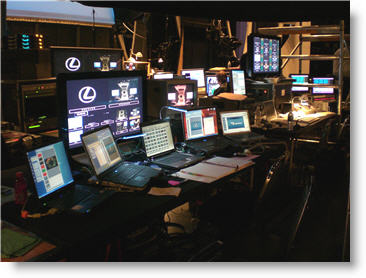
I have not shared a lot of “work” photos lately and a few emails have asked, so here is my “desk” from this past week. Yes all of the computers and monitors in the foreground are mine (actually one computer is not there).

– Troy @ TLC

By |2016-11-17T14:28:59-08:00October 16th, 2006|Personal, Portfolio|

Another MVP Year!

I recently received a great email from Microsoft – recognition as a PowerPoint MVP for another year! There are currently 28 PowerPoint MVPs globally and it is a great gathering of backgrounds and talent, one I am honored to be a part of.

– Troy @TLC

By |2016-11-17T14:27:18-08:00October 15th, 2006|Personal|

Laptop Consideration #2

On my new graphics powerhouse laptop I was excited with it having both VGA and DVI output. This is great as number of larger shows this year have requested DVI output.

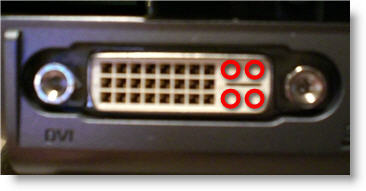
Again, I did not even think about looking further into things but was surprised when I started using the computer. There are a few flavors of DVI, the most common on computers, monitors, etc. is DVI-A. Well, this laptop surprised me by having a DVI-D connector. This is a big deal as it really limits the DVI options. On the plus side – it does have screw down connectors…

The big difference is it is missing the 4 connector slots that DVI-A (and DVI-I) connectors use (should be where the red circles are). Hmmm – maybe this is not the laptop to invest an additional 3 systems in.

– Troy @ TLC

By |2016-11-17T14:26:55-08:00October 13th, 2006|Resource/Misc|

Flyody Landis Makes Case with PowerPoint

My neighbor (we live in the same town of 93,000 people) and fellow cyclist (he may ride a bit more than me), Floyd Landis rolled out key elements of his defense against doping charges in an online presentation Thursday, several months before the cyclist is to present his case to an arbitration panel in hopes of keeping his Tour de France title.

Early Thursday, Landis posted a PowerPoint presentation prepared by Arnie Baker, a retired doctor and longtime coach and adviser, as well as several hundred pages of documents related to the charges on his Web site, www.floydlandis.com (links to box.net, use PublicAccess/PublicAccess to login and download).

Many thanks to PPT MVP Glenna Shaw for letting me know about the neighborhood news.

– Troy @ TLC

By |2016-11-17T14:26:37-08:00October 12th, 2006|PowerPoint|

Laptop consideration #1

I recently purchased a new laptop to test before purchasing several (needed to run large multi-screen presentations). The computer has lots of power, but there are a few things that caught me off guard that are not a part of the “usual” specs.

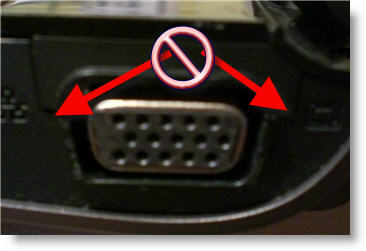
I have a very small Sony laptop I use as my personal/travel computer. One disadvantage of it is the lack of screw downs to secure the VGA cable. In this case not much of a problem, as it is not a show computer.

But on this new computer, a full featured graphics powerhouse with 256MB graphics chip, 2 GB RAM, dou core processor, etc., they are also missing. A feature I did not even think to look for as I figured it as a standard issue item. Guess I was wrong.

– Troy @ TLC

By |2016-11-17T14:26:18-08:00October 11th, 2006|Resource/Misc|

Extended And Smoother Animations

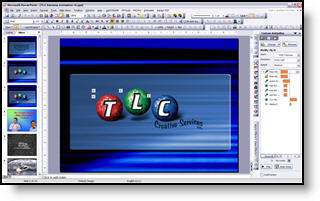
I personally do not use the Presenter View, but I do run many presentations in a similiar format – with slideshow on the secondary monitor/projector and PowerPoint in edit mode on the primary monitor.

Just like Presenter View, animations can be problematic. Each slide redraws in the edit mode and while it is updates processing power for animations is reduced. But there are some steps to take to minimize the animation lag.

There is a lot of processing power used with each slide transition if you have:
– Slide preview at 100%
– Both left and right action panes open
– PowerPoint running full frame

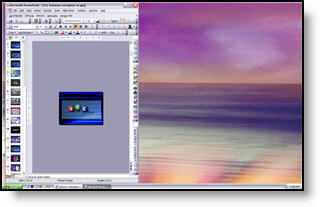
I have found better results when PowerPoint runs like this:
– Close the right action pane
– Reduce size of thumbnails in left action pane, or close all together
– Make slide preview 25% (active slide in center)
– Reduce the actual application window to run in a small vertical area

– Troy @ TLC

By |2016-11-17T14:26:01-08:00October 9th, 2006|Tutorial|

Word of Caution About Presenter View

If you opt to use PowerPoints Presenter View and the presentation contains lots of animation, test your output.

Because the presenter view redraws the slide display it can interfer with animation playback, making it visibly stutter or look choppy.

No easy cure, just something to be aware of.

– Troy @ TLC

By |2016-11-17T14:25:41-08:00October 7th, 2006|Tutorial|

Send Presentation to Second Monitor/Projector

With the computer set for Extended Desktop mode (see October 1 post), next is to setup PowerPoint to make use of the second monitor.

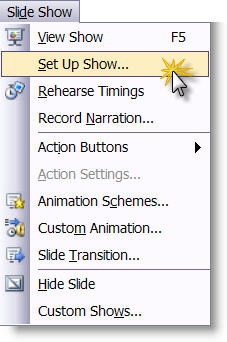
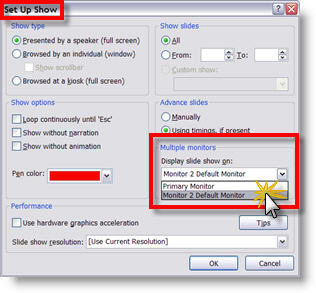
In PowerPoint go to: SLIDE SHOW >> SETUP SHOW

In the Multiple Monitors section click the drop down menu and select “Monitor 2 Default Monitor.”

Now the slide show will be on the second monitor (usually a projector) and your monitor will remain in Slide Design Mode.

– Troy @ TLC

By |2016-11-17T14:25:04-08:00October 3rd, 2006|Tutorial|

Check For, and Turn on, Extended Desktop

If you want to use PowerPoint’s Presenter View, or display the presentation through a projector while having slide design view or slide sorter view on your monitor, the computer must support Extended Desktop.

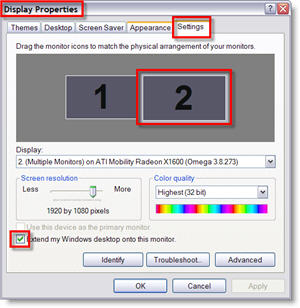
To see if your computer supports extended desktop go to: START >> CONTROL PANEL >> DISPLAYS >> SETTINGS tab. If you have two monitor icons, you should be good to go.

Click on monitor 2 and then activate the “extend my windows desktop onto this monitor.”

– Troy @ TLC

By |2016-11-17T14:24:43-08:00October 1st, 2006|Tutorial|
Go to Top