
Daily Archives: December 18, 2006

What is a “Key Frame”

A movie is a series of images played rapidly to create movement. Remember webcasts are all about throwing away unneeded data. The Key Frame is a critical component in what the file size will be.

Video software takes the original movie and compresses it. The Key Frame compression process only keeps the changes from one frame to another. So if you have a PowerPoint slide on Frame 1 and the only difference in Frame 2 is the mouse moves, Frame 2 will only consist of the part that shows the mouse movement.

With compression there are two types of frames:
1. Key Frame: the entire frame
2. Delta Frame: only has the area that changed

Key Frames
Within video software is the option to change the Key Frame Rate. The fewer Key Frames you use the smaller the file size. Here are two examples:
1. For PowerPoint content, where little changes from frame-to-frame, use a high Key Frame Rate (10-80).
2. For live video, where the constant motion has lots of change from frame-to-frame, use a low Key Frame Rate (1-12).

Frames Per Second and Key Frame Rate
Within video software the Frames Per Second (fps) can be adjusted. We need to consider the fps when setting the Key Frame Rate. We need to really consider how much changes from frame-to-frame how often. Here are to examples:
1. If encoding at 30 fps and the Key Frame Rate is 80, a new Key Frame will occur very quick – about every 2.5 seconds.
2. If encoding at 5 fps and the Key Frame Rate is still set at 80, the Key Frames are nearly 40 seconds apart.

– Troy @ TLC
By |2016-11-17T15:23:04-08:00December 18th, 2006|PowerPoint, Resource/Misc|

High Bandwidth Media on Lower Bandwidth Connections

In the Bandwidth Math posts, the formulas figured how a movie would play if it was just sent directly to the computer playing in real-time. To play a movie of any decent size and audio quality you would need a pretty fast connection. Fortunately we have ways to get around that!

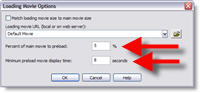
1. Buffer a portion of the movie before playback begins with a PreLoader. People are patient for a short time. So without stretching that patience, let their computer buffer a portion of the movie, so as it plays, the next sections download. This could allow a high bandwidth movie, that according to the formula would need a 1.1 Mbps connection, to play smoothly on a 768 Kbps connection – because even though it is not downloading fast enough for the connection, we gave it a head start which allows it to outrun the viewer’s connection speed.

Most software makes this very easy. Here is Camtasia’s Preloader options:

2. Self-Paced Presentations have a built-in PreLoader effect. When the presentation pauses between slides, the person is busy reading the content on the slide AND their computer is busy downloading even more of the movie!

3. Break into a series of smaller linked movies. The smaller the file size (even if it has a large playback area) the faster it will play. So if the 20 minute presentation with 10 slides at 320×240 is a 50 MB file, it is geared towards High Bandwidth viewers. But if it is broken into 10 (seamlessly) linked movies that are roughly 2 MB each, now the same movie and playback size is viewable by much lower bandwidth connections.

4. Lower the Audio quality. If your presentation has music in the background, it does not need to be high fidelity stereo quality. Same goes for sound effects and speaker narrations. This will make the file size smaller. Encode it as:
– Mono vs Stereo.
– .MP3 vs .Wav
– 8 bit vs 16 or 24 bit
– 22,050 or 44,100 Hz vs 96,000 Hz

These are just a few tips. Look through all of the options offered with the software you are using to develop the streaming media and take the time to experiment with them by creating multiple versions.

– Troy @ TLC

By |2016-11-17T15:23:26-08:00December 18th, 2006|PowerPoint, Resource/Misc|
Go to Top