Monthly Archives: March 2026

Windows 11 Additional Clocks

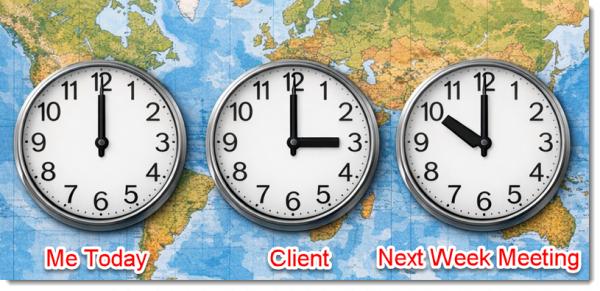
Meeting in different cities. Clients in different cities. Staff in different cities. Keeping track of time zones is another mental challenge.

Windows has the ability to add 2 additional clocks time zones to the task bar. But Windows 11 has changed how to set/update the additional clocks (side note: I hope you find this blog post helpful – but really, it is for me to have a reference of where to find these settings when I need to update my computer as I generally update one or both of the additional clocks weekly 😊).

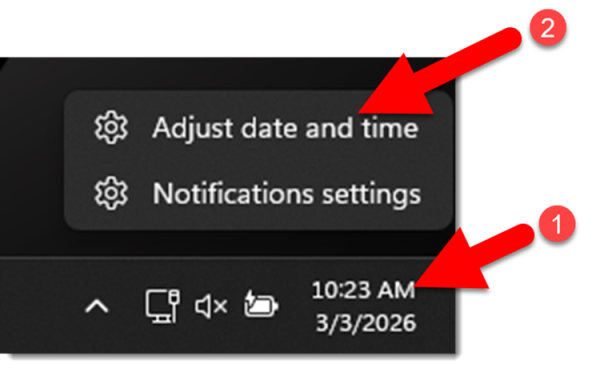
  1. Right-click the clock in the task bar.
  2. Select ADJUST DATE AND TIME

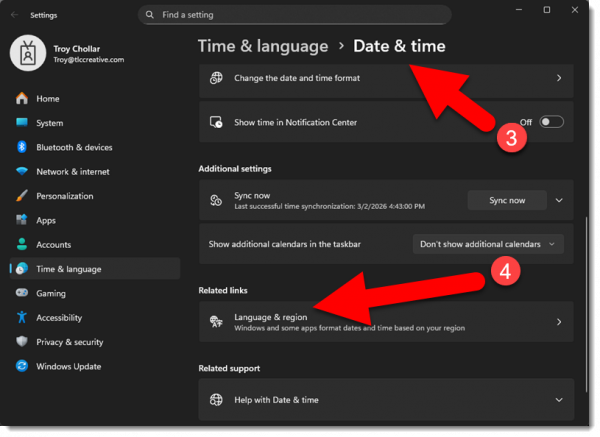
3. In the DATE & TIME section

4. Locate the LANGUAGE AND REGION section and click the arrow to go to the settings

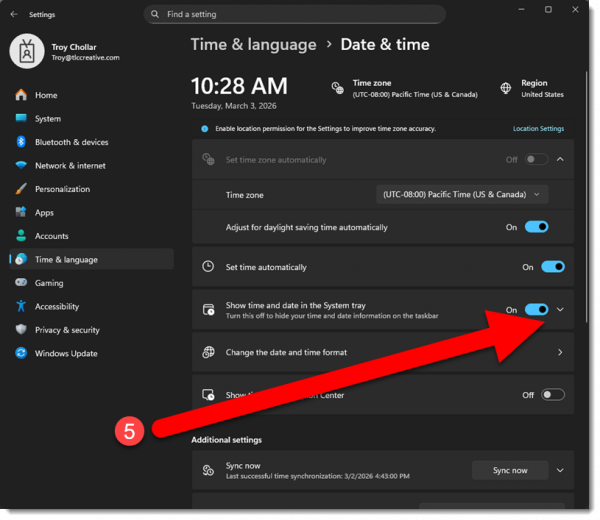
5. Located the SHOW TIME AND DATE IN THE SYSTEM TRAY section and click the arrow icon to expand

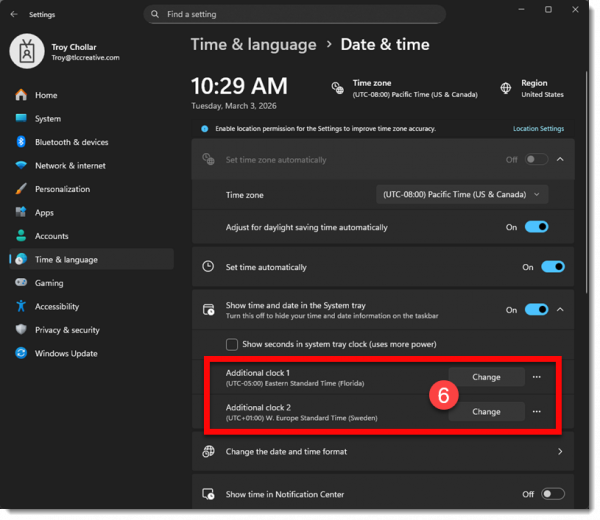
6. Windows 11 enables up to 2 additional clocks to be added. Click the CHANGE button.

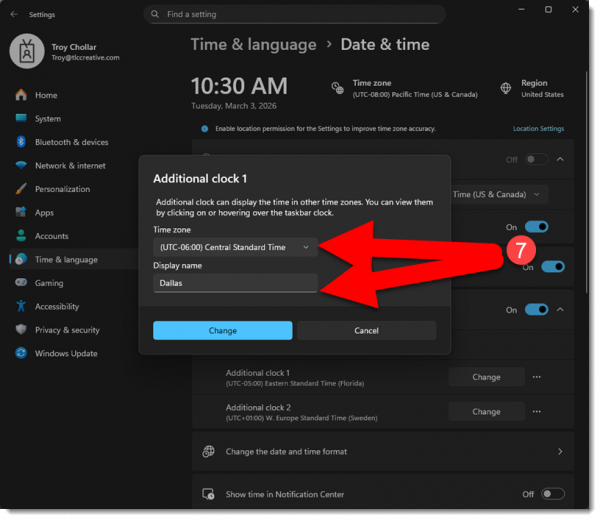
7. Select a time zone and give the additional clock a personalized name


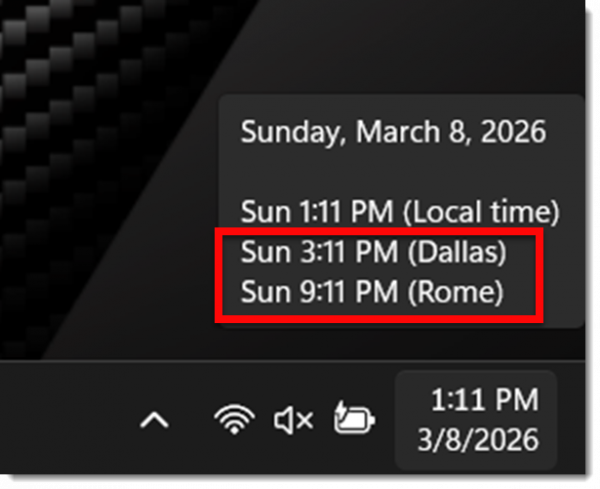
8. Done! Mouse over the lower right clock and the popup displays the 1 or 2 additional clocks.

-Troy @ TLC

By |2026-03-08T13:15:07-07:00March 12th, 2026|Resource/Misc|

PowerPoint For WEB Makes Selections Like Adobe Illustrator – Really!

At TLC Creative Services Inc, we spend every day inside PowerPoint, and most of the time, our muscle memory serves us well. We know the keyboard shortcuts, the menus, the add-ins and, of course, how to manipulate and format objects. But there is one specific UI inconsistency that creates chaos with our workflow, and it’s when we switch between the Desktop and Web versions of PowerPoint. This is not a missing feature; it’s literally how you select objects.  

Let’s start outside PowerPoint, in Adobe Illustrator. First, Illustrator is a much (much) more robust vector image app vs. PowerPoint (but PowerPoint does have a lot of vector image editing and creation features!). The most basic feature is selecting elements or objects. Illustrator has a few variables based on the tool being used, but we are keeping this very simple – and Illustrator’s process is very simple. When drawing a selection marque in Illustrator, if ANY pixel of an object is within the selection, that object is included in the selection. 
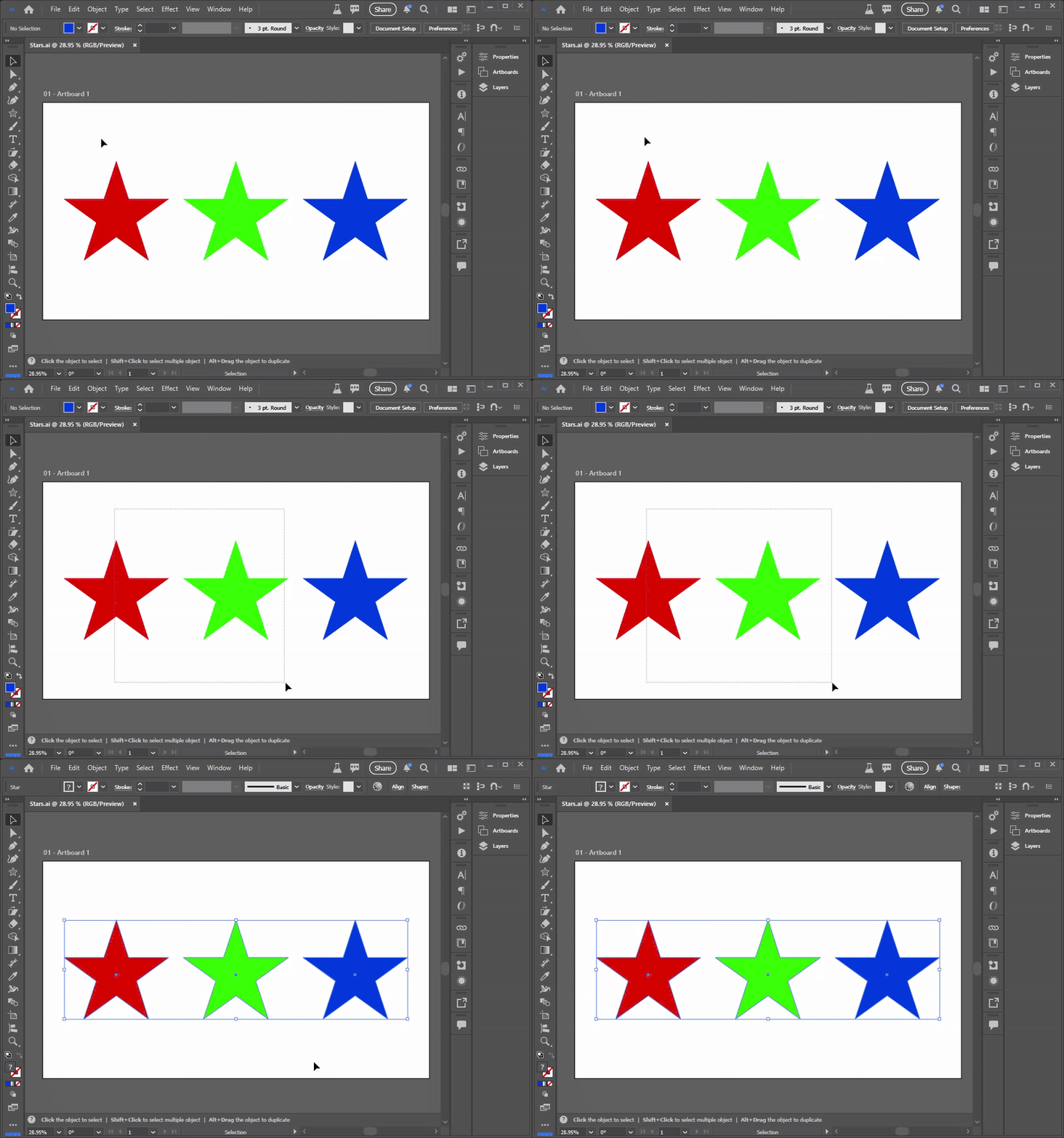
Okay, that is how most graphic designers learn how object selection works. But the rules change in PowerPoint – and they change based on which PowerPoint app version is being used! Desktop or Web. 

If you’ve been using Desktop PowerPoint for years, you are used to the strict selection rule (which is completely different from Illustrator). To select an object or a group of objects by dragging your mouse, you must fully enclose all objects. If you draw a selection box around a group of items, but miss even just one corner by a pixel, that object is ignored and isn’t included in the selection.  
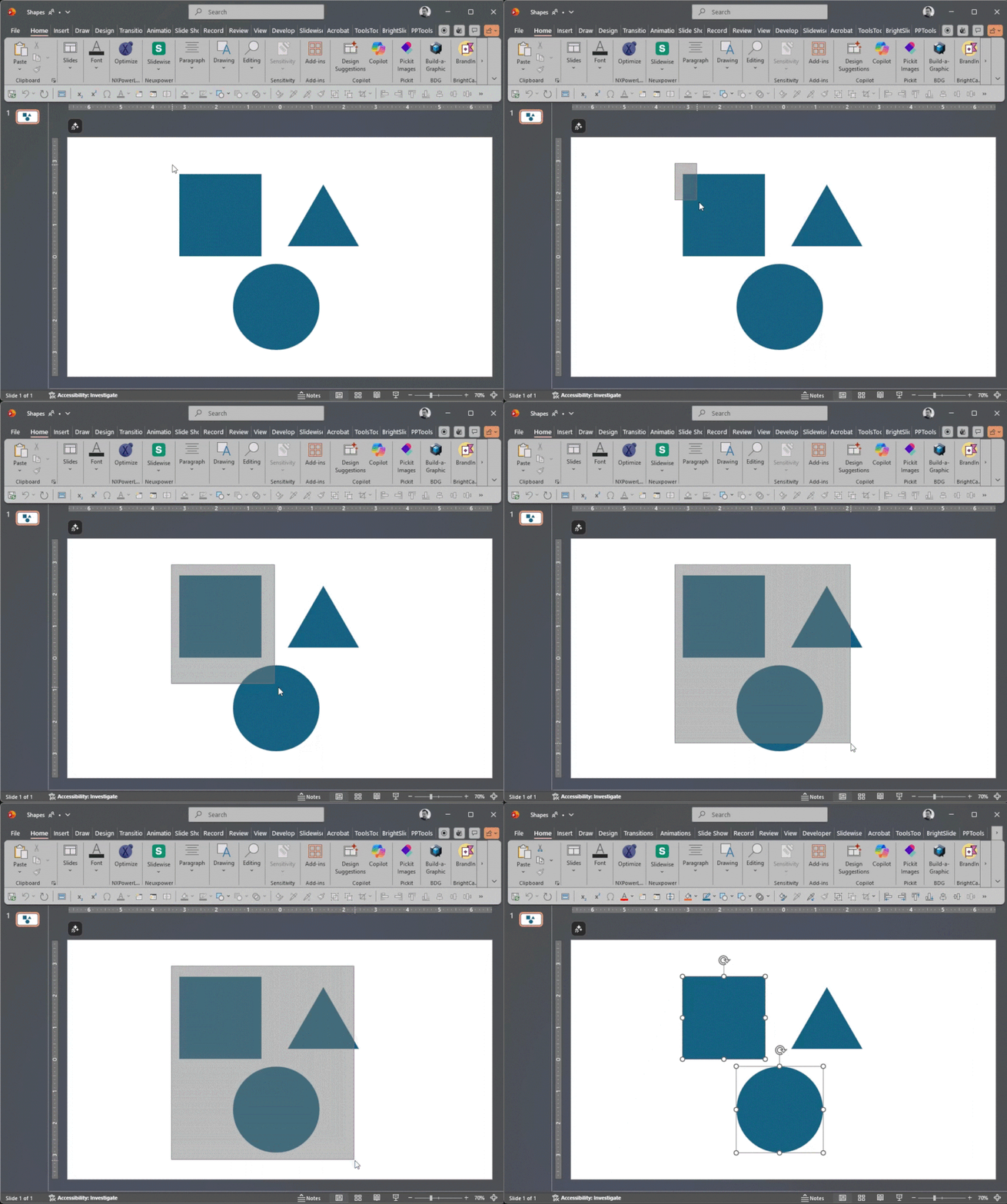
PowerPoint forces you to be deliberate. You must draw a massive box to ensure the entire object is “roped” in. Miss just one pixel, and that object is not part of the selection. This can be used to the advantage of the designer, or it can become a tedious part of the object selection process!  

But take the same slide and the same objects to PowerPoint for Web, and the rules change completely! PowerPoint for Web behaves much more like Adobe Illustrator. Draw a selection marque, and if the selection box touches even just one pixel of an object, it’s included in the selection. So yes, you can enjoy Adobe Illustrator-like selections in PowerPoint…for Web. 
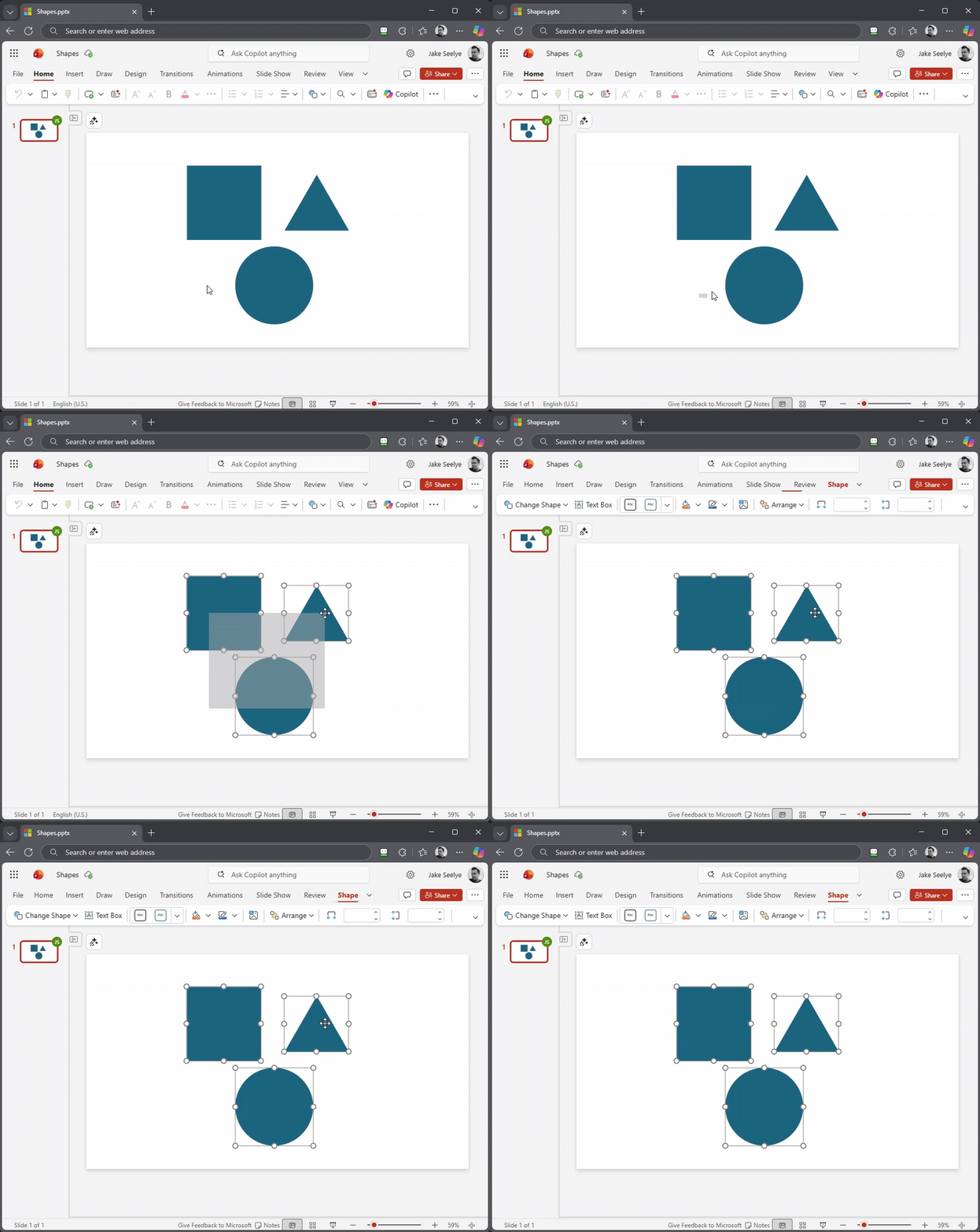
It seems like a small detail, but when you’re moving fast, the inconsistency in selection methods between Adobe Illustrator and PowerPoint, and between Desktop PowerPoint and PowerPoint for Web, can easily throw off muscle memory workflows!  

Our ask of the PowerPoint Dev team – please add a preference setting in the future to both Desktop and Web versions of PowerPoint to toggle this behavior! Until then, you simply must remember which “mode” your brain needs to be in when you’re designing in the worlds of Adobe and Microsoft.  

Talk about a difference in user interface design! Which selection do you prefer, the precision of Desktop or the speed of Web?

-Jake and the TLC Creative Services Design Team 

By |2026-02-24T02:06:01-08:00March 10th, 2026|PowerPoint|

PowerPoint Shortcut – Shift+F3 (WOW!)

After using PowerPoint daily for years, one starts to have a handle on everything the app is capable of. It becomes rare to stumble across a new shortcut that genuinely surprises you, let alone an extremely useful one. Recently, I discovered a keyboard combo that solves an annoying part of slide formatting: fixing capitalization.  

I’m sure this has happened to some of you out there: you paste a list of bullet points from an email, and the text is all lowercase. Or you frustratingly leave Caps Lock on while typing a long title. Usually, the fix would involve deleting and retyping or hunting down the feature on PowerPoint’s ribbon.  

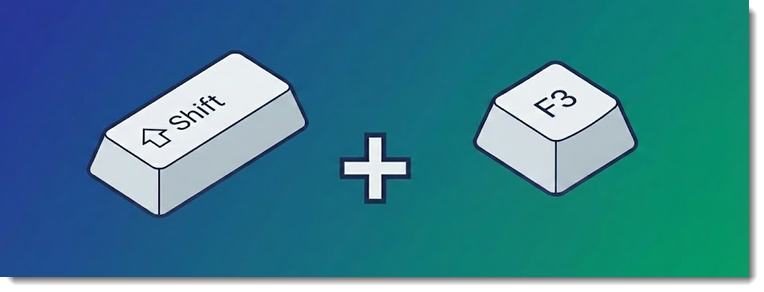
It turns out that there is a keyboard shortcut that does it instantly: Shift + F3.  

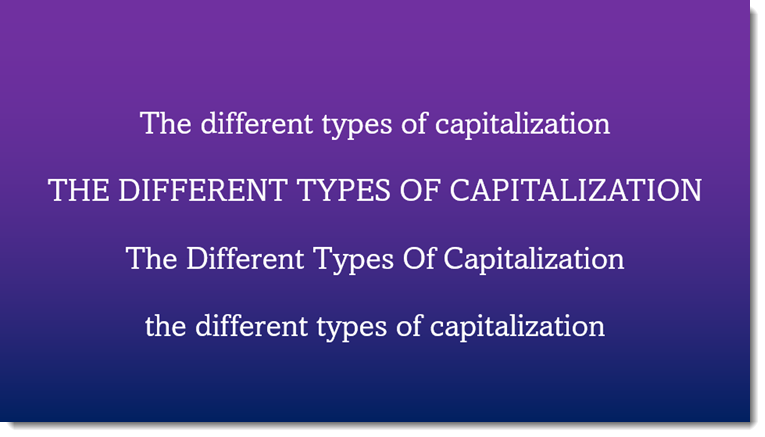
Shift + F3 is a universal “Text Case Cycler” for all Microsoft Office apps. It works in PowerPoint, Word, Outlook, etc. This keyboard shortcut cycles through 3 these capitalization options: 

NOTE: This is one of Windows’ shortcut keys, meaning it’s the same shortcut in the web version of PowerPoint. For MAC users, the shortcut is Shift + fn + F3. 

When trying to correct capitalization, basically, there are different ways to fix it: 

  1. Retype everything. Sometimes it’s just a couple of words or a name that needs to be fixed, in which case simply retyping is quick and painless. Of course, anything more than a couple of words, and it turns into a slower process.  
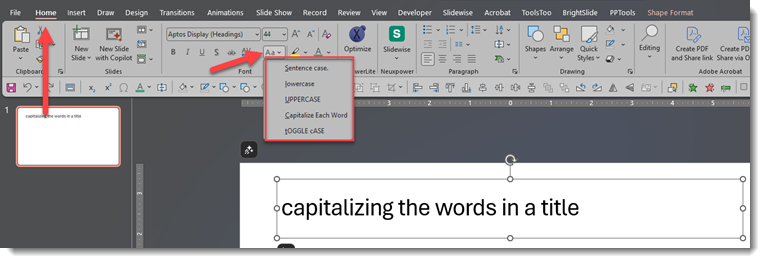
  2. Users more familiar with PowerPoint can use PowerPoint’s Change Case feature. Go to the Home tab > click the dropdown menu found under the font size.  

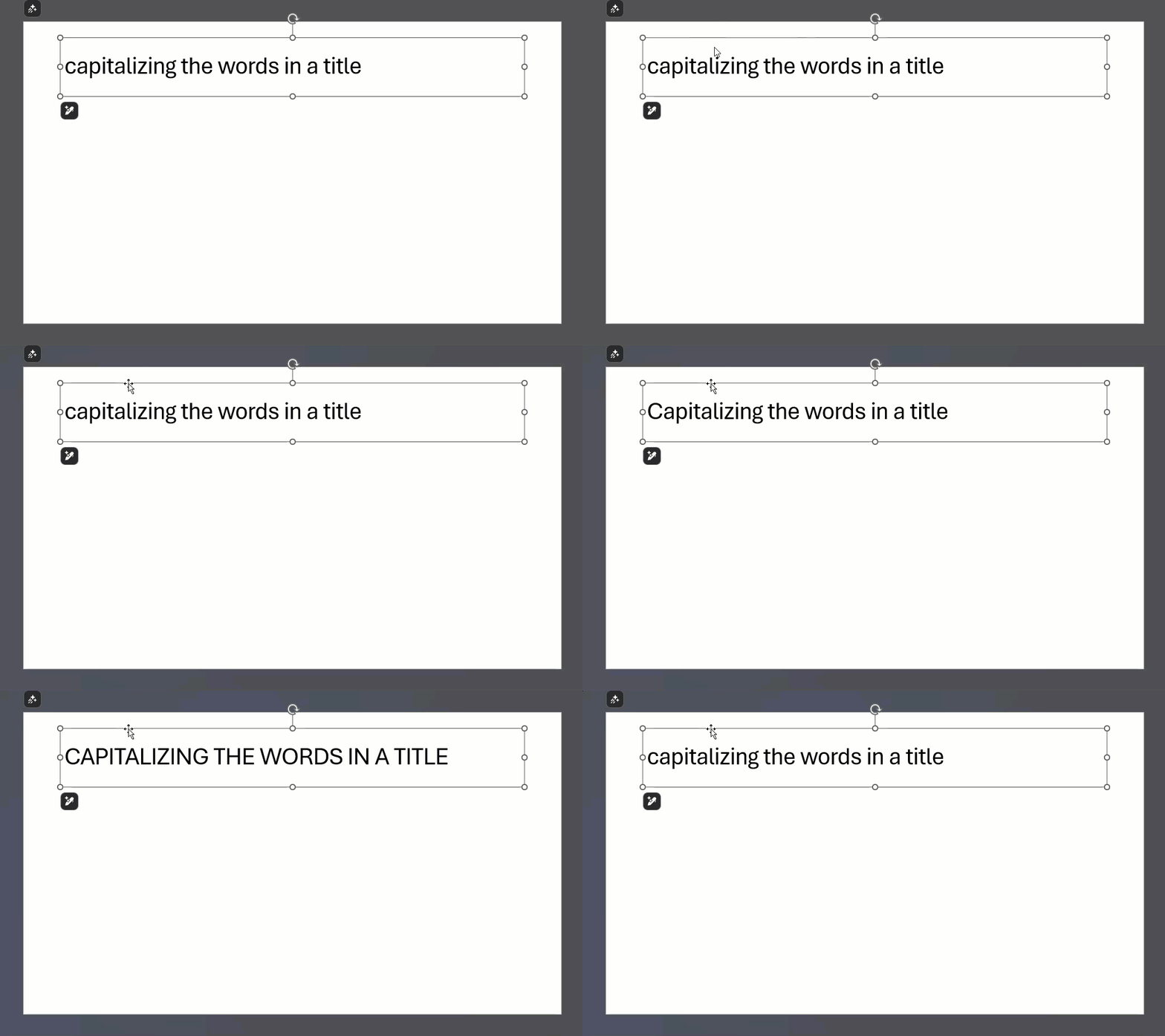
         3. And finally, the ultimate keyboard shortcut: highlighting the text or clicking the text box and using the Shift + F3 keys. Do this one time for sentence case, two times for all caps, and three times for small caps (unfortunately, Capitalize Each Word is not included): 

The best keyboard shortcuts aren’t the complex ones that launch macros; they are the simple ones that fix daily annoyances. Shift + F3 turns a five-second frustration into a split-second fix. It’s a tiny trick, but once you start using this hotkey, you’ll wonder how you ever managed without it. 

-Jake @ TLC Creative Services, Inc.

By |2026-02-12T06:34:11-08:00March 5th, 2026|PowerPoint|

New Podcast Episode Available! “Behind the Scenes: Lori Chollar’s Ultrawide Presentation Session at the Presentation Design Conference”

New episode of The Presentation Podcast now available, listen to here!

This episode of the Presentation Podcast we talk with Lori Chollar, CEO of TLC Creative Services, Inc. We get a behind-the-scenes look at Lori’s experience presenting at CreativePro’s Presentation Design Conference.

Lori shares insights into the process of being asked to present, preparing her session content, and the conference experience. On the presentation side, we talk about the technical and creative challenges, workflow tips, and the evolution of presentation technology as related to creating ultrawide presentations to fill the amazing LED wall configurations at events. Listen in to gain valuable perspectives on both the art and logistics of modern presentation design!

Listen on your favorite podcast app, or at The Presentation Podcast site here.

By |2026-02-28T10:47:40-08:00March 3rd, 2026|Resource/Misc|
Go to Top