
A Look Back to a Christmas-Themed PowerPoint Template from Christmases Ago
Our Look Back series is revisiting past blog posts. With Christmas on the horizon, we’re looking back at another fantastic (and free to download and use!) PowerPoint template that a member of our team made eleven years ago, back in 2014!
The template is a 16:9, .pptx file, seasonal, festive, and still perfect for anything Christmas-y this year!
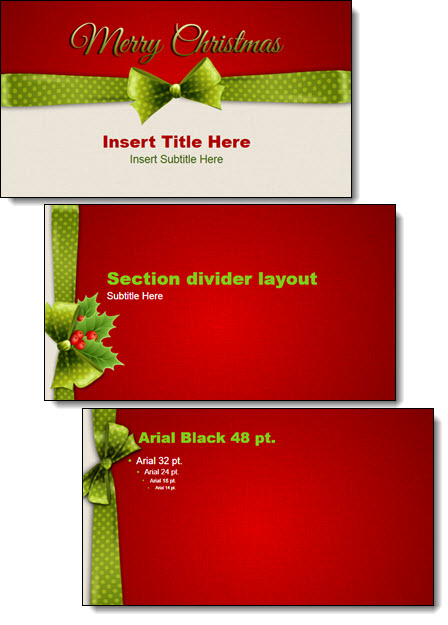
This full-feature template is free to download and use. Search for many other free templates on The PowerPoint Blog. Download this one here!
-Happy Holidays from the TLC Creative presentation design team
Use Copilot to Create an Editable PowerPoint Table!

AI tools like Microsoft Copilot are making many everyday workflows faster and smarter. And as a result, the TLC Creative design team has been putting Microsoft 365 Copilot to the test!
This time, we wanted to test a common presentation design task we often have: to see if Copilot can streamline the process of converting an image of a table into an editable PowerPoint table.
Note: We are using the paid Microsoft M365 Copilot subscription, vs. the free Windows M365 Copilot. With the paid subscription Copilot is available within PowerPoint, but for this post, all of the Copilot prompting was done in the M365 Copilot app, not from Copilot inside PowerPoint.
Goal
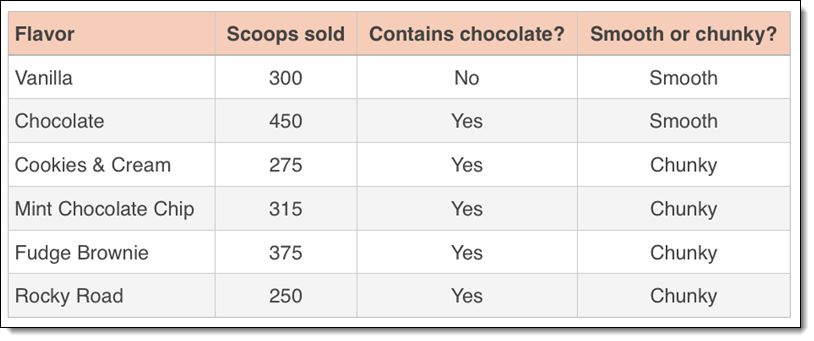
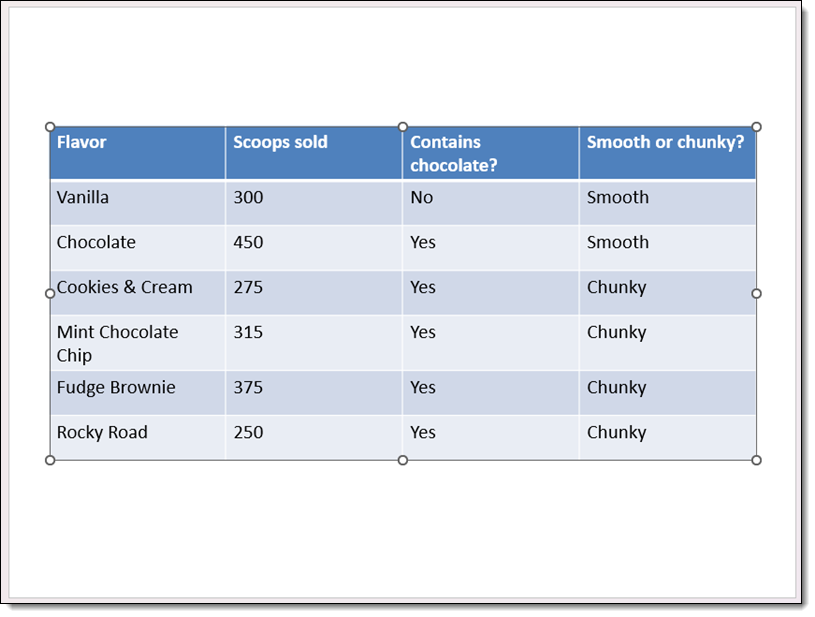
We started with a simple goal: turn this image of a simple data table into a usable, editable table on a PowerPoint slide.
Our Process
- Open M365 Copilot.
- With the paid version of Copilot, the options of “Work” or “Web” are available. We opted to keep the information internal to our organization and used the “Work” option.
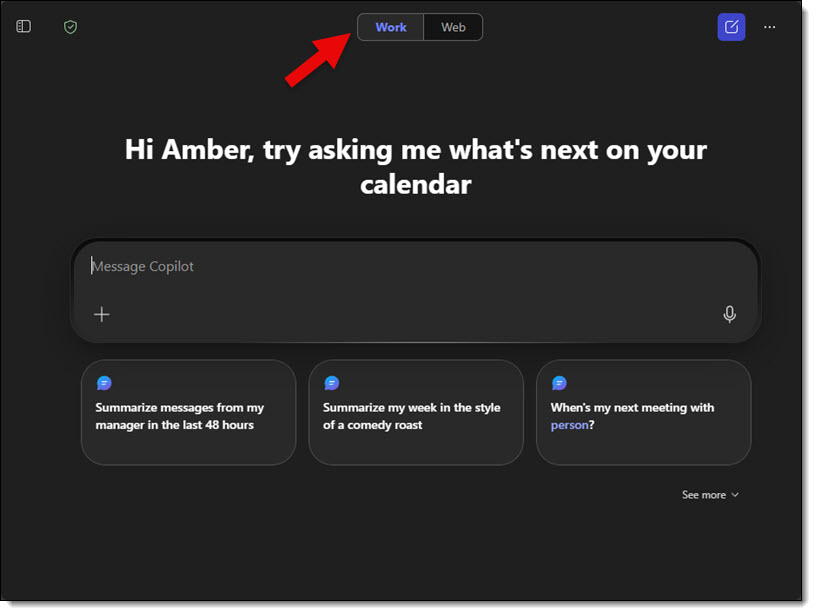
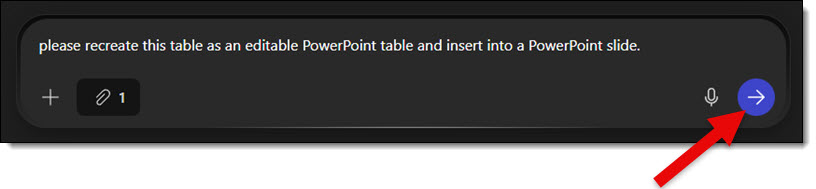
- We used this prompt: “Please recreate this table as an editable PowerPoint table and insert it into a PowerPoint slide.”
Note that we included 2 phrases we felt were important in order to get a workable result: “editable PowerPoint” and “insert into a PowerPoint slide.”
- Then we clicked the “+” icon and the ADD CONTENT option to give Copilot our image of the table.

- We then uploaded the image of the data table from our computer.

- Next, we clicked the process button to complete the upload.
Copilot then analyzed the image and provided a downloadable PowerPoint file.
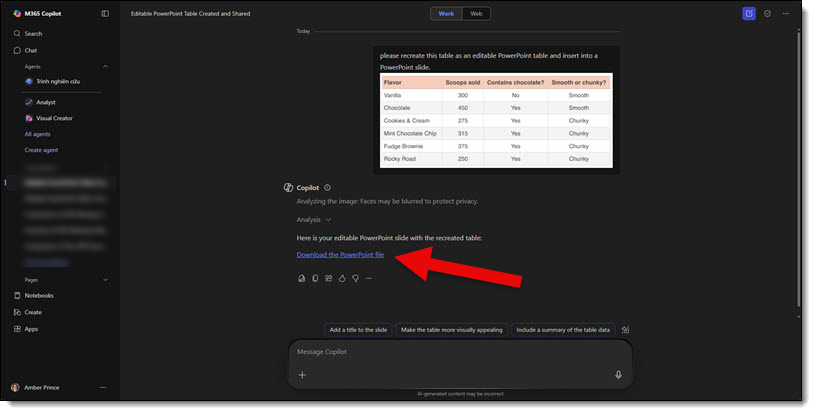
Opening the slide Copilot gave us, it is great to see that the table Copilot generated wasn’t just an image. It is a fully functional table with editable data in each cell! Here is the slide and PowerPoint table – and yes, Copilot gave us a 4×3 aspect ratio slide (weird!).
As expected, we discovered that the prompt verbiage can make a big difference. Testing some alternate prompts didn’t yield editable tables and simply produced an image of the original image, but said image was placed on a slide. And with one prompt, Copilot simply inserted the original image onto a slide – not helpful. But as summed up by one of our design team members, “It was kind of difficult to get Copilot to fail. It almost always produced a slide with an editable table.” And this is a good thing to hear!
Using our same test table image, here are a few prompts that did fail, along with the results:
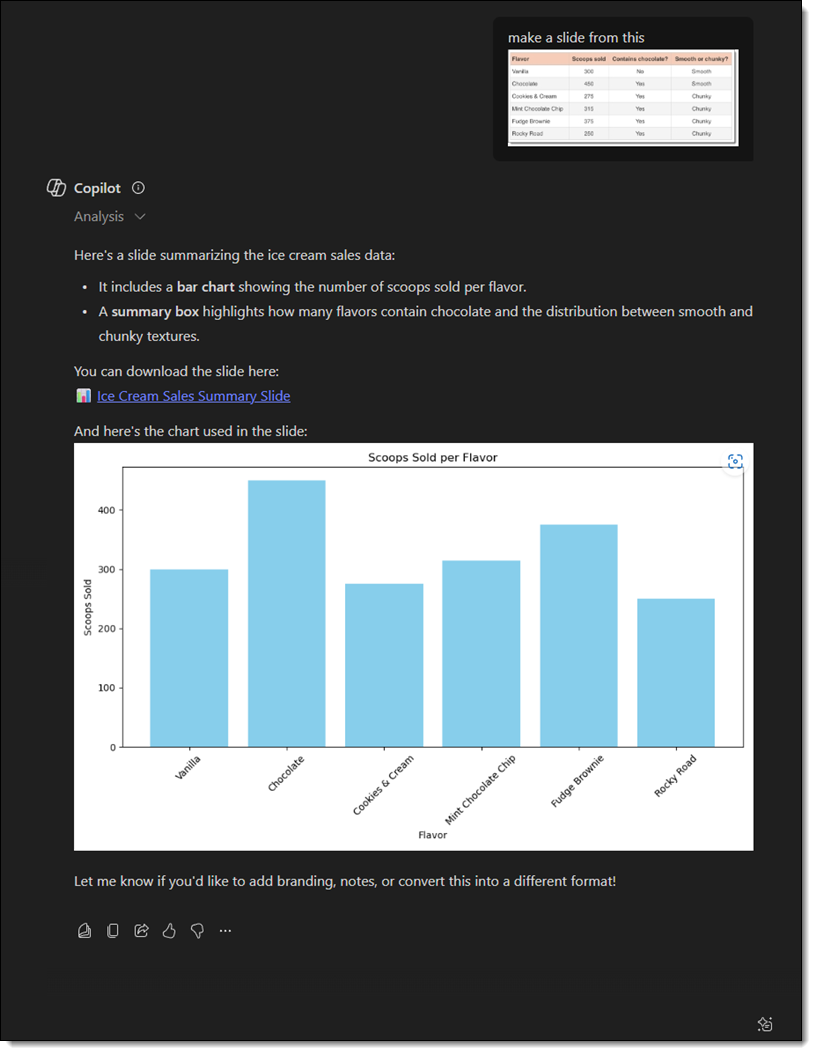
1. “Make a slide from this.” Copilot created a chart using the data and gave a summary – no PPT slide produced.
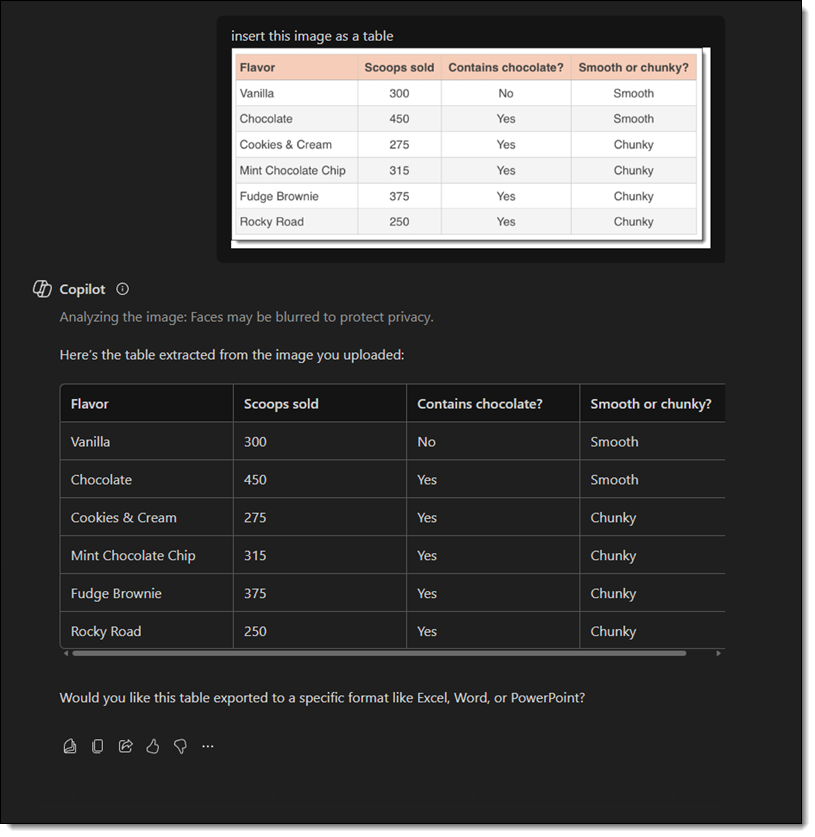
2. “Insert this image as a table.” Copilot created a table, but it was within Copilot itself – no slide produced. The text was able to be copied/pasted, and Copilot did ask if I wanted the table in a specific format, which included PowerPoint.
3. “Create a layout like this one.” Same result as #2 – a table and summary of the table were created in Copilot.
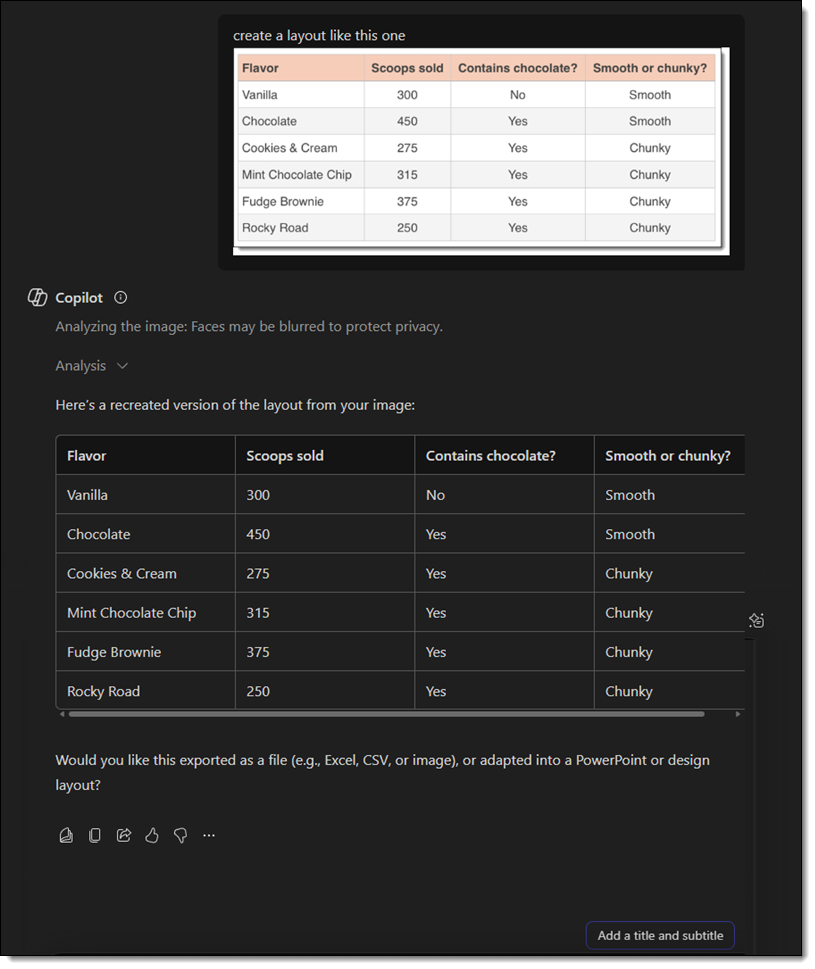
While Copilot won’t always interpret things perfectly, with the right prompt, it can be very helpful in converting a data image into real, editable content, saving a lot of manual effort. It’s simply all about how you phrase your prompt!
-The TLC Creative Design Team
Animating an Instant Camera – Using Barbie Polaroids!

Bringing a Camera to Life with PowerPoint Animation
When one of our favorite brands approached us with a creative request, we knew we were in for a fun challenge! For this project, they wanted a camera animation — complete with a flash and a photo magically “printing” from it.
The goal? Make it feel like the camera was taking a picture — all within PowerPoint. But like most creative adventures, this one had a few interesting twists behind the scenes.
Preparing the Assets for Animation
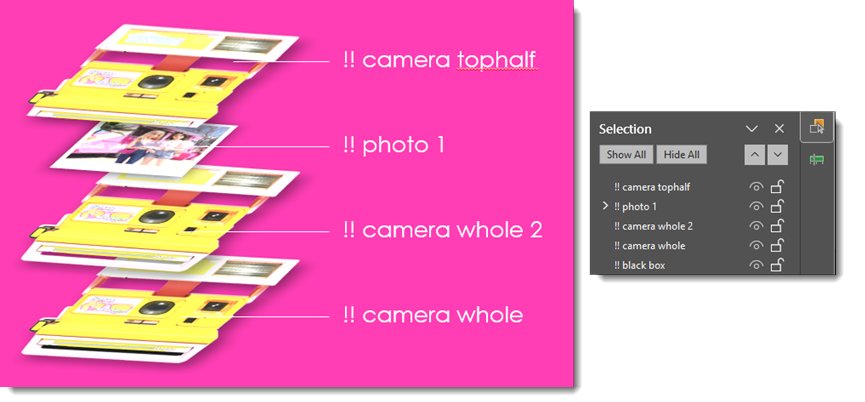
To create the illusion of a flash and photo ejecting from the camera, we needed to gather the image components and, in some cases, make some specific modifications. For the photo to look like it is coming out of the camera, we needed 2 layers of the camera image, with the bottom layer being the full camera and the top layer cropped right to where the photo will spit out.

Making the Magic with Morph
The star of the show? PowerPoint’s Morph transition. We used Morph to animate the photo “printing” out of the camera.
The trick was placing the camera on Slide 1 with a slightly squished photo, hiding under the first camera layer. Then, as the slide animates, the photo comes out of the camera on a motion path, making it appear as if it’s animating out of the camera at the correct angle (this is why we squished the photo).
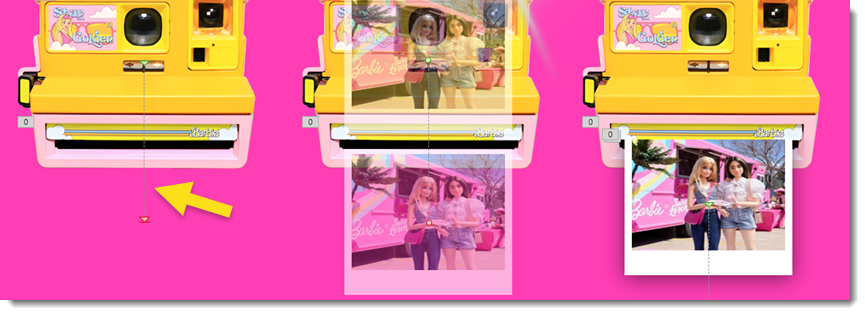
Then on Slide 2, with the photo already visible, we let Morph do the interpolation and stretch the photo to its normal un-squished size as it moves into position with the other two photos joining it. The illusion was smooth and seamless as you see here.
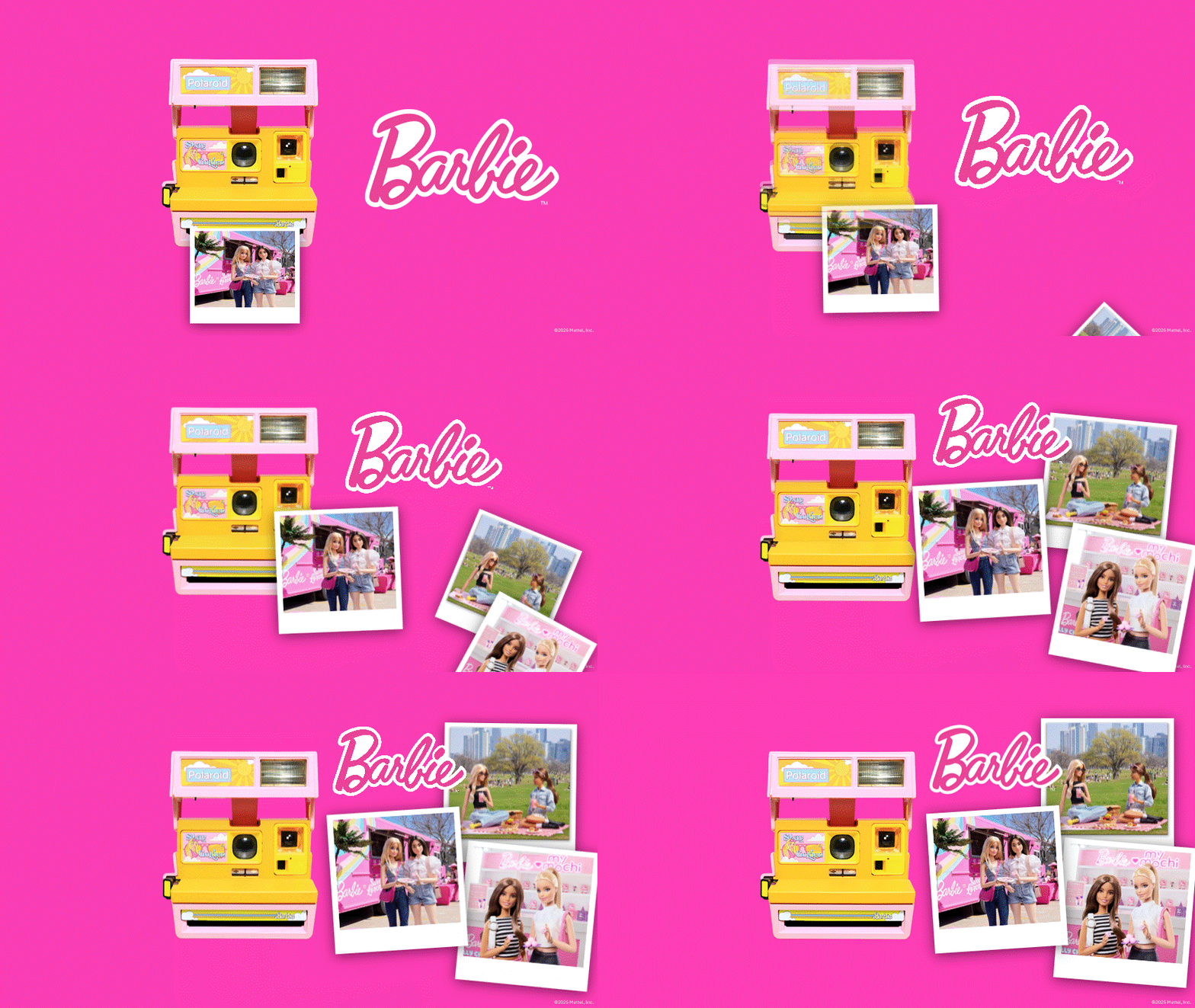
However, this part of the animation was problematic at first – our camera was popping on top of our photo for a brief moment during the morph animation, which clearly looked wrong. With a few extra layers and proper labeling in the selection pane, we essentially added a duplicate camera image underneath the photo and animated it to appear as the other camera layer disappeared.
To further play into this camera moment, we used the flash burst asset created earlier and animated it to quickly appear and then disappear using simple fade-in and disappear-out animations timed to the sequence.
The Final Touch
To tie it all together, we made sure the colors, timing, and movement all aligned with our favorite doll’s playful and stylish brand. The end result? A moment of animated delight that felt right at home in this fabulously fun and pink world.

– Christie and the TLC Creative design team
A Look Back the 2024 TLC Creative Christmas Card – and our Christmas Lights Display
Last year, the TLC Creative Design team put together a very (if we may brag) cute “AI” inspired Christmas card to send out to friends and colleagues.
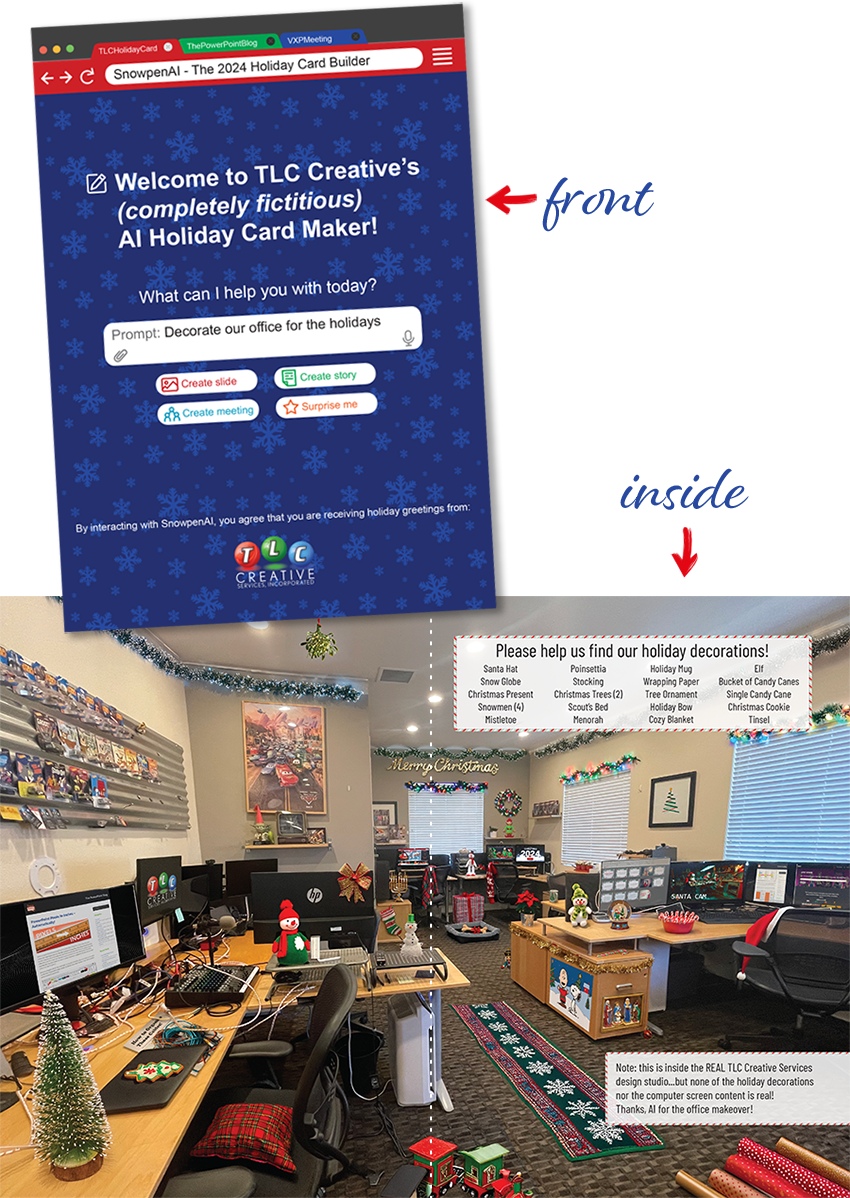
View the 2024 post here, which also has a collage of TLC Creative holiday cards over the years.
What fun do you think we’ll include in this year’s card? Just a couple more weeks until we reveal!
And enjoy this video from 2023. Troy and Lori always enjoy a lovely Christmas lights display at their home, and we’re all too happy to revisit!
New Podcast Episode, #235!
New episode of The Presentation Podcast now available!

NEW EPISODE of The Presentation Podcast releases tomorrow, Tuesday, December, 2nd 2025! Drawing from years of experience, this episode has 25 things NOT to do in PowerPoint. Design things, template setup things, presenting things. This is literally decades of experience – and frustration – as Troy, Nolan and Sandy break down 25 common PowerPoint pitfalls with their top tips, expert recommendations and actionable advice to help everyone avoid these all-too-common PowerPoint mistakes. Listen on your favorite podcast app, or at The Presentation Podcast site here.
A Look Back to Christmas 2021 for Holiday Presentation Inspiration
Back in 2021, the TLC Creative Design Team created a cheerful, Christmas-themed PowerPoint template (original post, December 24, 2021). And four years later, it’s still a favorite for spreading seasonal joy – download this FREE template for your holiday cheer announcements and presentations!
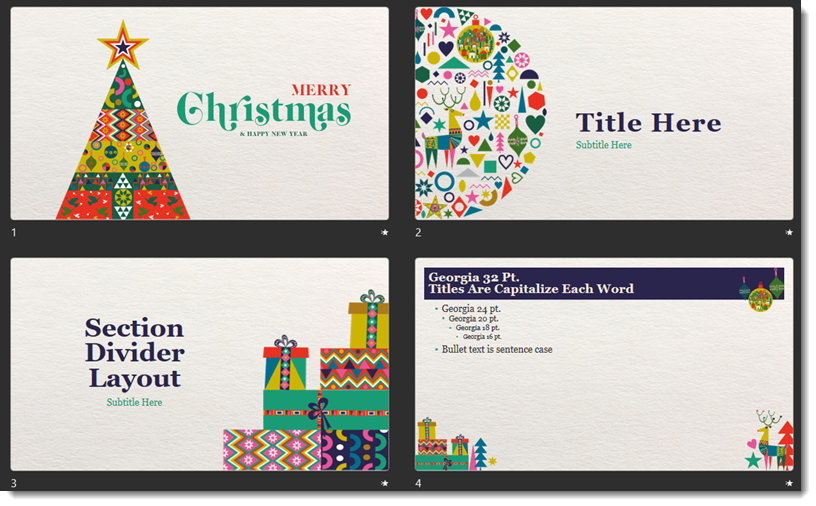
This template is sure to bring charm to any seasonal presentation. Whether you’re planning a holiday event, sharing year-end progress, or sending good cheer to colleagues and clients, it’s the easiest way to dress up your message with holiday flair.
It’s also completely free to download! PowerPoint, 16×9 aspect ratio, download here.
-Happy and Joyous Holidays from the TLC Creative Design Team
Thanksgiving Themed Stop Motion
We’re getting into the Thanksgiving spirit with this fun stop motion animation that Amber from the TLC Creative Presentation Design Team created. She brought a festive message to life using a festive typography-focused design in PowerPoint. Check out the exported animated GIF!

Behind the Scenes
- PowerPoint was used as the design app, and exported as an animated GIF
- The PowerPoint file was set up as a square page (10”x10”)
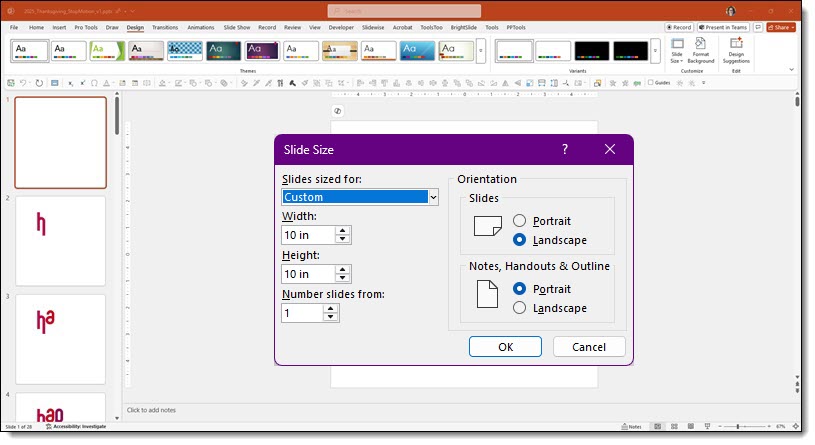
- No PowerPoint animation was used
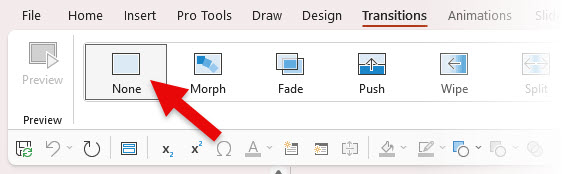
- No slide transition effects were used for these slides
- In total, 28 slides were needed to create the animation effect, including planning for the loop
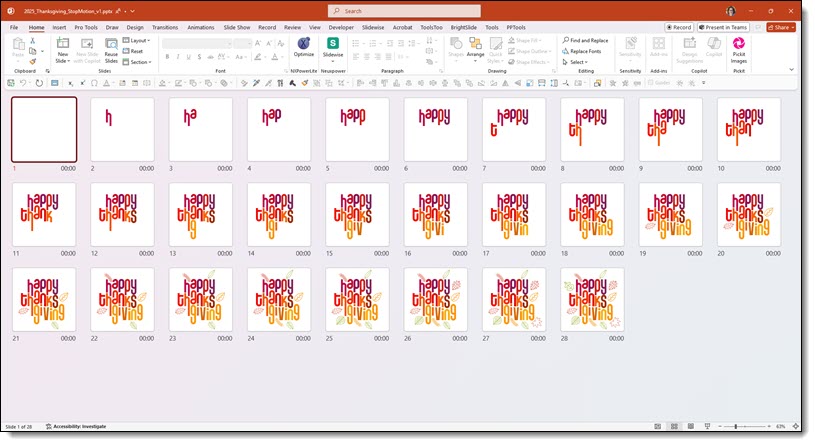
All animation is achieved by hard cuts from one slide to the next.
Run as a slide show to confirm the “animation” effect. Then exported from PowerPoint as an animated GIF. The result is a stop motion style animation that seamlessly loops!
-Amber and The TLC Creative Design Team