The PowerPoint® Blog

I work with PowerPoint on a daily basis and I am very honored to be a Microsoft PowerPoint MVP. We have a talented team of presentation designers at TLC Creative Services and ThePowerPointBlog is our area to highlight PowerPoint tips, tricks, examples and tutorials. Enjoy! Troy Chollar

Outstanding Presentations Workshop 2012 Start Tomorrow!

Tomorrow starts the best value on the internet for PowerPoint training. PowerPoint MVP Ellen Finkelstein has setup an 8 part PowerPoint Webinar series entitled “Outstanding Presentations Workshop 2012.”

Each week is a different presentation expert and included with the registration is the ability to watch the recorded sessions over the next 2 months. Oh, and registration is $7 – not per session, but $7 for all 8 sessions!

9/18 Real-World Makeovers
– By: Rick Altman, Host of The Presentation Summit

9/25 Create Amazing Custom Graphics
– By: Sandy Johnson, PowerPoint MVP

10/2 Dynamic PowerPoint for Games, Tutorials and More
– By: Glenna, PowerPoint MVP

10/9 – NO SESSION (Hope everyone is at The Presentation Summit!)

10/16 10 Evil Little Secrets about PowerPoint
– By: Ric Bretschneider, PowerPoint MVP

10/23 Create Slides that Look Handmade
– By: Geetesh Bajaj, PowerPoint MVP

10/30 Create Charts That Don’t Make Their Eyes Bleed
– By: Echo Swinford, PowerPoint MVP

11/6 A Theme Runs Through It (Slide Masters and Themes)
– By: Julie Terberg, PowerPoint MVP

11/13 Make a Lasting Impression by Visualizing Business
– By: Ellen Finkelstein, PowerPoint MVP

To get more information and register, go here.

– Troy @ TLC
By |2016-08-16T09:08:16-07:00September 17th, 2012|Resource/Misc|

Preparing for the Presentation Summit

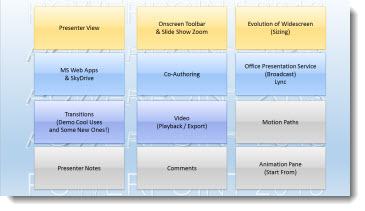
With The Presentation Summit just a month away, I am now focused on getting my PowerPoint 2013 session ready to present! If you have not been at one of the past Presentation Summits (formerly “PPTLive”) and you use PowerPoint – this is definitely one event to be at. It has the highest concentration of PowerPoint MVPs and a large group from the Microsoft Office and PowerPoint team all in one place just hanging out for several days talking with everyone. Plus, this year is at a great property in Scottsdale, Arizona, the Fire and Ice Resort – which I have been at for a few executive events in the past (nice place!). Details are at the Summit website here.

After this past month of PowerPoint 2013 blog posts, which did not cover a number of my favorite new features, I am excited about this year’s Presentation Summit and my session. I had some fun with a video intro to my session, which was put together before the Public Beta was released:
[youtube src=”https://www.youtube.com/embed/H2hieSSw8Hg?rel=0″]

The schedule has great presenters and topics one after another every day. Echo Swinford and I were elected to have sessions on the upcoming PowerPoint 2013. We have some overlapping topics as Echo talks from the designer perspective and I cover what’s new from the presenter perspective. Check out the Seminar Schedule here.

Hope to meet you in Arizona.
– Troy @ TLC

By |2016-08-16T09:08:37-07:00September 7th, 2012|Resource/Misc|

Microsoft Has a New Logo

On August 23, Microsoft revealed their new corporate logo, which was originally released 25 years ago.

The logo, like virtually every design element coming out of Microsoft right now, is pulled from the Metro style guide. The new design is a modification of the current logo, with boxes (ie. Tiles) that are equilateral and in a symmetrical layout with the four colored boxes forming a single larger box. The type is equally streamlined into the Metro styling with font selection and grey color.

Here is Microsoft’s logo unveiling with its tie ins to the other major Microsoft brands:
[youtube src=”https://www.youtube.com/embed/OzkZWvAJUr0?rel=0″]

– Troy @ TLC

By |2016-08-16T09:09:14-07:00September 5th, 2012|Resource/Misc|

PPT 2013 – Improved Presenter Notes

Okay, the title is a bit misleading for this one. It is not so much the presenter notes that are improved, but rather the way you open/close the presenter notes.

Here is my sample slide, which is not showing the Presenter Notes:

New in PPT 2013 is the addition of a NOTES button on the bottom of the UI.

Click the NOTES button and the Presenter Notes open – no need to fiddle with positioning the cursor and getting the double arrow cursor so you can click and drag to raise up and open the Presenter Notes.

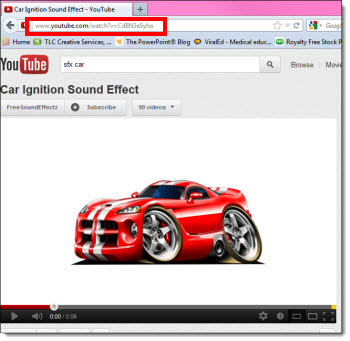
Here is a video of the NOTES button in action
[youtube src=”https://youtube.com/embed/pr5op_ibccE?rel=0″]

– Troy @ TLC
By |2016-08-16T09:10:22-07:00August 31st, 2012|PowerPoint|

PPT 2013 – Resume Viewing When Reopening Presentation

This is a nice addition to PowerPoint and a really well planned and implemented function – Resume.

Here is a presentation for a recent project. Note it has 14 slides.

Before closing the presentation, I am on slide #5.

When I reopen the presentation:
1. I am always viewing slide #1.
2. I have a message on the scroll bar informing me of the last slide I was looking at before the presentation was closed, along with the date and time.

I can choose to work on slide 1, manually go to any slide in the deck, or click the RESUME box and automatically be taken to that slide – in this case, slide #5

– Troy @ TLC
By |2016-06-23T13:56:26-07:00August 29th, 2012|PowerPoint|

PPT 2013 – Shape Combine Tools

PowerPoint 2007 improved the shape edit tools – ie. Bezier lines (see this Aug. 2009 blog post). While not perfect and very simple – compared to “real” vector editing applications like Adobe Illustrator – they were a great addition to PowerPoint and made lots of design needs available inside PowerPoint.

PowerPoint 2010 added another shape edit toolset called “Combine Shape.” They were a great move forward in developing custom vector images inside PowerPoint. But, the real issue was no one knew the tools were there as you had to manually add them to the ribbon. For PowerPoint 2013, Microsoft has “surfaced the feature” – which means it is now on the ribbon by default.

But the default ribbon tools in the “Shape Combine” section do not offer all of the tools – including a new feature that is great! Here is my sample slide with 3 rectangles.

I am going to access the Shape Combine tools using the MERGE SHAPES drop down menu on the Format tab.

First up is the UNION tool, which takes all 3 selected shapes and creates 1 custom shape (Note: The blue shape was the first selected, so the new shape uses its styling):

When you edit this new shape, each corner is editable over the single custom shape:

Second option in the MERGE SHAPES is the COMBINE tool. This is 1 shape again, but identifies the overlapping sections and knocks them out to create a unique shape:

Again, when you edit this shape with the EDIT POINTS, it is a single image, with each corner an editable point – and a few unusual edit points:

Third in the menu is something new – FRAGMENT. This has some real power and will eliminate many trips to Adobe Illustrator or lots of time using PowerPoint’s Edit Points tool to create custom shapes. Every overlapping section becomes a unique shape. I quickly selected each and added different fill colors for each to make it easy to see the result.

INTERSECT is next and it identifies the overlapping sections where all selected shapes overlap and removes all but the overlap:

And last in the Merge Shapes menu is SUBTRACT which again identifies all of the overlap sections and based on the first shape selected deletes the overlaps:

So if you did not know of the Shape Combine tools in PPT 2010, or if you have used them and now are excited about the FRAGMENT tool, PowerPoint 2013 is certain to prove more powerful in creating custom shapes!

– Troy @ TLC

By |2016-08-16T09:11:36-07:00August 27th, 2012|PowerPoint|

PPT 2013 – Datasheet is Back!

I admit, I am not a number person. That also means I am not an Excel person. So when PPT 2007 came out and the simple Datasheet editing of chart data was replaced with a full Excel experience, I was not the happiest designer in the building. Of course, in the long run, it has forced me to face Excel much more and become much more proficient with it.

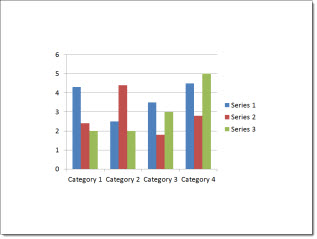
Now, with PPT 2013, it the best of the old and new! Insert or edit a chart and PowerPoint offers the nice, simple and easy to use Datasheet.

But this is not the Datasheet of old. It is more like Excel Lite, as it is not an independent application like the legacy version, but a simplified Excel editing window. So, if you love Excel, or need more functions than the Datasheet offers, just click the Excel icon.

Now the chart data is being edited in the full Excel experience.

– Troy @ TLC

By |2016-08-16T09:12:38-07:00August 24th, 2012|PowerPoint|

PPT 2013 – Comments

Comments, notes from a reviewer to the presenter or presentation designer, have been a feature of PowerPoint for several versions. With PPT13, the comments interface gets a makeover and greatly enhances their usability.

Along the bottom of the UI is a new “Comments” button.

Click the “Comments” button and a new information pane opens that is a central information area for all comments in the presentation.

1. Add a new comment to a slide with this button.
2. To go to the previous or next comment use these buttons. This will automatically jump slides as needed.
3. Each comment shows who authored the comment, the date/time it was added, their comment and if they are a contact in your Outlook or Lync with an avatar – it will also show.
4. Reply direct to a comment in the Comments pane.

5. Each comment will show all replies. In addition, the onslide indicator (which is only visible while editing the slides and hidden from view during slide show) stacks to show multiple answers.

The ribbon also has a new section with the Comments tools, all of which can be accessed through the comments pane.

To remove/delete a comment, there are lots of options:
– Click the X next to the comment.
– Right-click the comments icons and select delete.
– On the ribbon in the Comments section, select delete.

I feel this is a great usability advancement for the tool and will go a long way in making this a more common use tool. Also, the comments work in legacy versions (PPT 2010, 2007, 2003) with no problem – but without the new Comnents Pane.

– Troy @ TLC
By |2016-08-16T09:12:56-07:00August 22nd, 2012|PowerPoint|

PPT 2013 – ClipArt is Gone!

The long use name “ClipArt” can easily be argued that it has outlived is namesake. ClipArt has me imagining simple, flat, and generally bad vector images. So, with that image in our mind, it is often difficult to click the INSERT CLIPART button in PowerPoint 2010.

PPT 2013 has progressed and the “Insert ClipArt” button has been replaced with “ONLINE PICTURES”

The “Online Pictures” button brings up a new dialog. The “Office.com” search goes to the same image catalog as the previous “Insert Clipart” function. The Bing Image Search is a nice addition to have work directly in PPT. And the options can be customized to your workflow. The Public Beta links to a Skydrive account, Office 365 account, Flickr – and the future should offer us many more options as third party companies add the coding to tie in with Office 2013!

– Troy @ TLC
By |2016-08-16T09:13:26-07:00August 20th, 2012|PowerPoint|

PPT 2013 – Motion Paths

The Motion Path tool has the same features – ie. no changes to the type of motion paths or how they are executed. But there is a big change in the editing functionality.

Here is my slide with a Motion Path applied to the car image.

Selecting the object (the car image in this demo) is all the same functionality.

But when the actual Motion Path line is selected (ie. the dotted line), a ghosted (semi-transparent) image in the end position is seen!

This is a great function addition to this tool.

Note: If you work with Motion Paths, in any version of PPT, I highly recommend the free Motion Path Tools add-in here.

– Troy @ TLC

By |2016-08-16T09:14:23-07:00August 17th, 2012|PowerPoint|
Go to Top