The PowerPoint® Blog

I work with PowerPoint on a daily basis and I am very honored to be a Microsoft PowerPoint MVP. We have a talented team of presentation designers at TLC Creative Services and ThePowerPointBlog is our area to highlight PowerPoint tips, tricks, examples and tutorials. Enjoy! Troy Chollar

Recolor .png Images in PPT

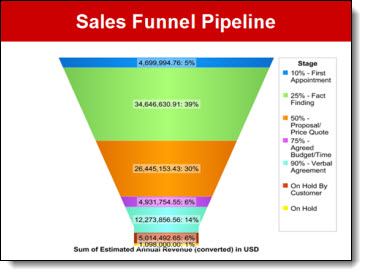
I am continously reflecting on how much more I can do inside PPT 2010 vs. going out to an external application such as Photoshop when developing slides. Here is an example from a recent project that was done in PPT in a matter of seconds vs. opening image in Photoshop, adjusting, saving, importing new version of image.

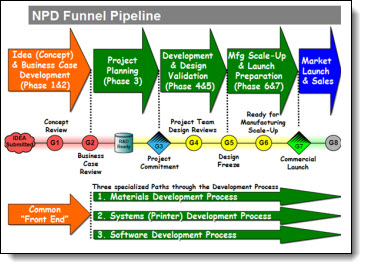
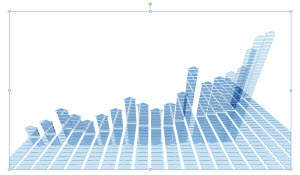
Here is my highly stylized trend line (used on a slide to show the economy is making progress, without showing any detailed numbers or facts). It is a .png image I prepared in Photoshop and inserted into the presentation.

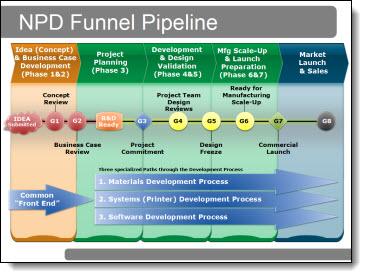
Here is the same image, now full screen and on the presentation template backgound – it does not have enough contrast against the background.

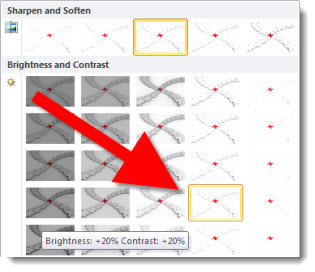
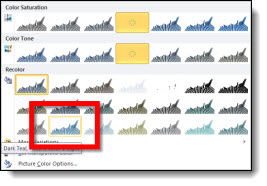
By selecting the image and then going to FORMAT >> CORRECTIONS I used the presets (all based on the template color scheme) to recolor the trendline image to a color with more contrast.

Done. Move on to next slide.

– Troy @ TLC

By |2016-08-16T10:51:13-07:00November 3rd, 2010|Tutorial|

Happy Halloween!

Trick or Treat! That is what I will be hearing all evening from my daughters and the neighborhood kids – and it is great. I had the TLC Creative design staff develop a treat for everyone – a free Halloween themed PowerPoint .pptx template.

Download here (255K) . The ‘Happy Halloween’ text at the top was created in PPT 2010.

– Troy @ TLC

By |2016-08-16T10:51:30-07:00October 31st, 2010|Templates/Assets|

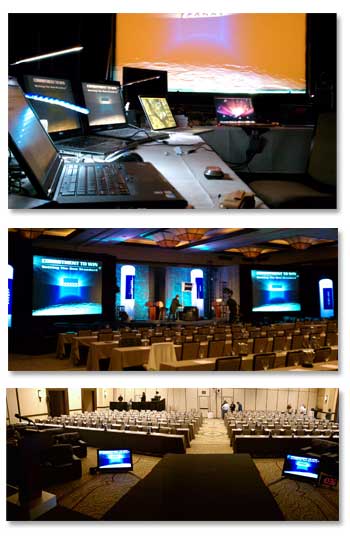
3 Views of a Corporate Show

Here is my show I just finished and the three views of it.

1. My view, the Graphics View.
2. The audience view.
3. The presenter view.

And all three views have the PowerPoint slides.

– Troy @ TLC

By |2016-08-16T10:52:11-07:00October 29th, 2010|Personal|

Being In The Audience…

On most projects my work area is setup backstage. But on this particular project, there was no backstage (front projection), and the tech table was completely in use. So I basically setup shop in the audience.

– Troy @ TLC

By |2016-08-16T10:52:41-07:00October 27th, 2010|Personal|

Green Screen Video for PPT Slides

On a recent show I was asked to develop the speaker IMAG slides with a curved design to match the set design (IMAG = Image MAGnification, and for this event it was live video of the speaker). The solution was to work with the video switch department and setup a green screen video area. Here is my slide:

We went with the standard green screen green. The key was to assure no slide had any solid green on the left half of the slides. During the show, the video switch would bring in the camera shot (rectangular) and it would fill the curved green area to create a custom speaker IMAG window.

– Troy @ TLC

By |2016-08-16T10:53:00-07:00October 25th, 2010|Personal, Resource/Misc|

Small Textures for Big Images

This is can be a great visual effect that can make large images out of very small files. The concept of using repeating pattern images to fill a large object has been used, by me, since the 1980’s for web design. It is still a valuable tool to use for presentations today. Here is an example:

1. Here is my very small image. It is a .png image, 102×102 pixels and only 2KB file size.

2. Here is the large rectagle shape on my slide.

3. I then change the fill from SOLID to PICTURE OR TEXTURE FILL, then FILE and finally choose my seamless texture image.

4. This is the first result – which is not the final result.

5. Click TILE PICTURE AS TEXTURE.

6. This is now the same image. It can be resized, to any size and the pattern background does not distort or loose quality.

7. In addition any of the formatting options can be applied, because it is a PowerPoint shape. Here I used the 3D Rotation and a drop shadow to create a new, very small file size, image for my slide.

– Troy @ TLC

By |2016-08-16T10:54:04-07:00October 23rd, 2010|Tutorial|

Presentation Summit – MVPs

The 2010 Presentation Summit concluded today and it was a really great event. It is the one public event each year that has a large gathering of the Microsoft PowerPoint MVPs – and Microsoft PowerPoint developers and managers.

Here is our MVP group this year:

Glen Millar, Elen Finkelstein, Julie Terberg, John Wilson, Troy Chollar, Echo Swinford, Glenna Shaw, Ric Bretschneider, Geetesh Bajaj, Sandy Johnson (not pictured)

– Troy @ TLC

By |2016-08-16T10:54:58-07:00October 21st, 2010|Personal|

Presentation Summit – Garr Reynolds

Garr Reynolds (author of Presentation Zen) was the morning keynote speaker at this year’s Presentation Summit – live from his home in Japan.

This was probably one of the most engaging remote/webcast presentations I have seen.The small rectangle in the lower left is the webcam Garr had of the audience. He managed a very entertaining and audience interactive presentation.

– Troy @ TLC

By |2016-08-16T10:59:57-07:00October 19th, 2010|Personal|
Go to Top