The PowerPoint® Blog

I work with PowerPoint on a daily basis and I am very honored to be a Microsoft PowerPoint MVP. We have a talented team of presentation designers at TLC Creative Services and ThePowerPointBlog is our area to highlight PowerPoint tips, tricks, examples and tutorials. Enjoy! Troy Chollar

Webinar on PowerPoint Add-Ins

This is a bit informational and a bit self-promotion – on Friday, June 20th I will be speaking for AudioSolutionz (a division of Eli Research) on what PowerPoint add-ins I use daily. I will also be overviewing a number of add-ins out there as well as an open Q&A session (about add-ins).

Click here for the Audio Solutionz page with all the details (and fees).

– Troy @ TLC
By |2016-11-17T12:57:35-08:00June 9th, 2008|Resource/Misc|

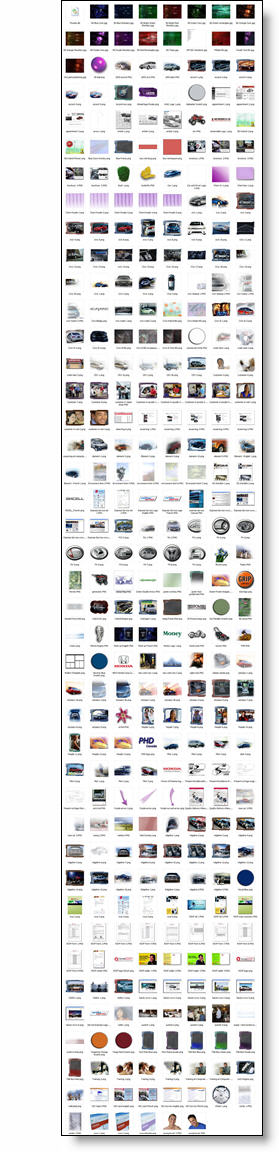
It Takes A Lot Of Images To Convey A Message

I am preparing material for a PowerPoint/Design course and this is screen capture of my images folder from a recent project. My message is that a presentation is more than bullet points and an image can be more effective. I practice that message and this is shows the number of images prepared in Photoshop for a recent presentaiton.

– Troy @ TLC

By |2016-11-17T12:57:59-08:00June 6th, 2008|Portfolio, PowerPoint|

MS Fluent User Interactive Demo

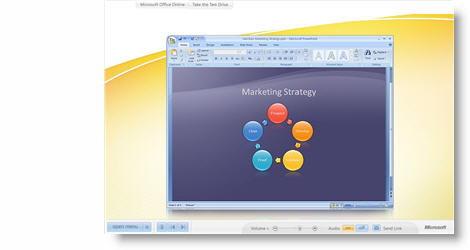
Not up to speed on the new Ribbon interface… Have 10 minutes to kill… Check out this nifty interactive Flash demo on why the Ribbon was designed and interactive tutorials for each of the Office apps.

Click here to open. If you want to skip ahead, PowerPoint is Chapter 6.

– Troy @ TLC

By |2016-11-17T12:58:19-08:00June 4th, 2008|Software/Add-Ins|

PPT Graphics for Video

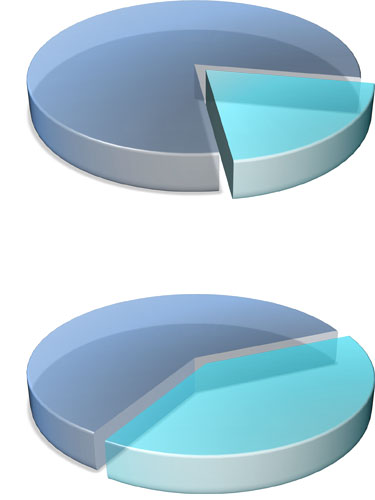
PPT 2007 has some great visual effects. For a recent project I was developing the PowerPoint presentations for speaker support. I was asked by the video production company that was creating videos for the same meeting if I could create a number of graphics that would have a coordinated look with the presentations. Among the graphics I developed these two piecharts (client data removed):

Each was saved out of PowerPoint as a .png which preserved the transparency and allowed the video editor to place the graphic over the motion background. They also animated from 1 piechart to the other showing growth. Pretty cool stuff!

– Troy @ TLC

By |2016-11-17T12:59:13-08:00June 2nd, 2008|Portfolio, Tutorial|

Free PowerPoint Webcast Hosted by Microsoft

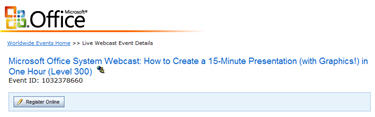
Microsoft recently announced a webcast they are hosting with my friend and author Cliff Atkinson as the speaker. They summarize it as “learn the tips and tricks you need to complete a Microsoft Office PowerPoint 2007 presentation in record time”.

When: June 12, 2008
Time: 9:00am PST
Cost: Free!
More Info: here (note: to register you will need a Windows Live/Hotmail account to login)

I am on showsite that day, but if schedule allows I’ll be there!

– Troy @ TLC

By |2016-11-17T13:00:00-08:00May 30th, 2008|Resource/Misc|

Master Slide “Slates” (2)

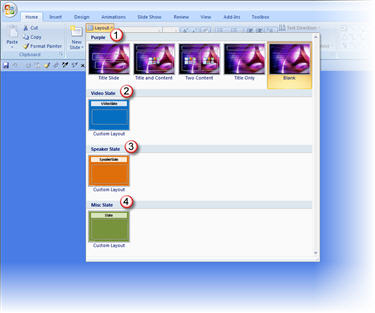
One of the nice elements of PPT 2007 ribbon is the way it previews master slide options. Here is a recent presentation with 4 master slides:

This really shows the slates mentioned in the previous post. For this presentation I only have one background for the speaker content (#1 – Purple) and 3 slates. Of note: I color code the speaker slates so I know what type of information it contains before reading it (especially when viewing slides in slide sorter view). Here the breakdown of each:
1. Content background and the 5 layout options developed for it
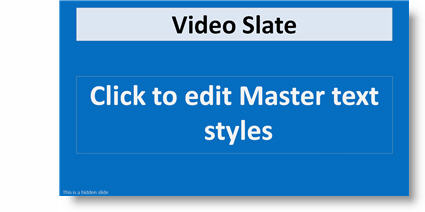
2. Video slate: hidden slide that tells me what video is to run at that point of the presentation
3. Speaker slate: hidden slide that tells me which speaker will be on stage (this presentation has numerous presenters)
4. Misc. slate: hidden slide that is used to tell me everything else, from web demo to break

– Troy @ TLC

By |2016-11-17T13:00:44-08:00May 28th, 2008|Tutorial|

Master Slide “Slates”

Everyone is familiar with a movie scene slate:

It is used during filming to allow the editors to identify everything. It is not intended for the audience to see, just the behind the scenes people. Well I use similiar idea when developing presenattions. These are hidden slides that are not designed for the audience.

These are used for speakers, videos, or anything special such as sound effects, stage direction, etc.

– Troy @ TLC

By |2016-11-17T13:01:24-08:00May 26th, 2008|PowerPoint, Tutorial|

Good PPT Article All Should Read

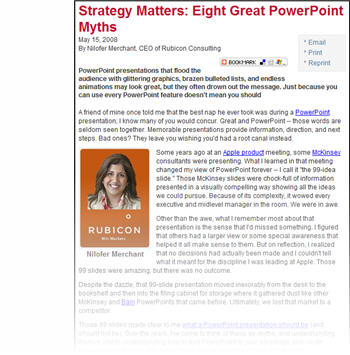
Last week a great article on PowerPoint presentations came out on bMighty by Nilofer Merchant (most likely posted many other places as well).

The article is “Strategy Matters: Eight Great PowerPoint Myths” which you can read here. It has a good message – don’t use animation for animation, don’t use too much content on a slide, and the presentation is to support the speaker who is to convey the message to the audience (not read the slides or let the presentation tell the story).

My only caution is that the author is not overly objective about the proper use of animation (myth #5) and draws the line on its use by throwing it out… maybe she has seen to many bad presentations.

– Troy @ TLC

By |2016-11-17T13:01:45-08:00May 23rd, 2008|PowerPoint, Resource/Misc|

Preserve Master Slides (2)

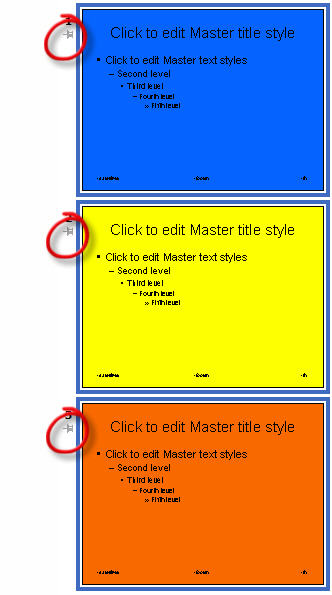
As follow up to the previous post. If you have several master slides that do not have the thumbnail icon such as this:

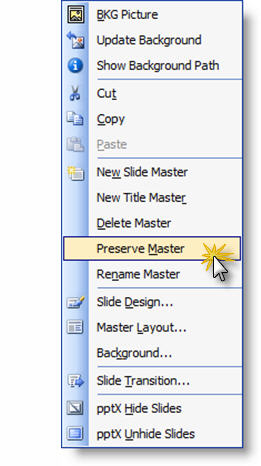
You can select them all, right click any of the selected, choose ‘Preserve Master’:

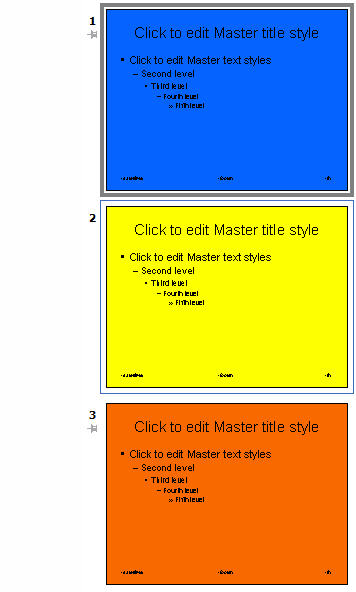
All of the selected master slides have the thumbtack icon applied simulataneously:

– Troy @ TLC

By |2016-11-17T13:02:09-08:00May 21st, 2008|PowerPoint, Tutorial|

Preserve Master Slides

Multiple master slides are fantastic! But every now and then you have a presentation with multiple masters and go to use one that you know is a part of the file and it’s not to be found – ahhh! Well you can prevent this from happening by first assuring that all master slides are set to be preserved – which is another way of saying ‘do not delete, even if not used’.

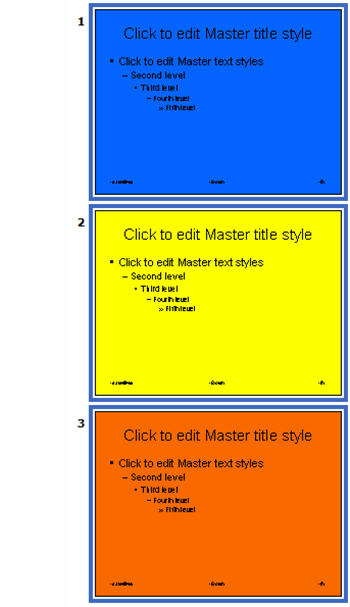
Here is my sample presentation with 3 master slides:

Notice that master slides 1 and 3 have a little thumbtack icon:

This indicates the master slide is preserved and will not be deleted unless you specifically remove it (that is good!). There are 2 easy ways you can preserve a master slide and add the thumbtack icon to it.

1. Use the ‘Preserve Master’button on the master slide toolbar:

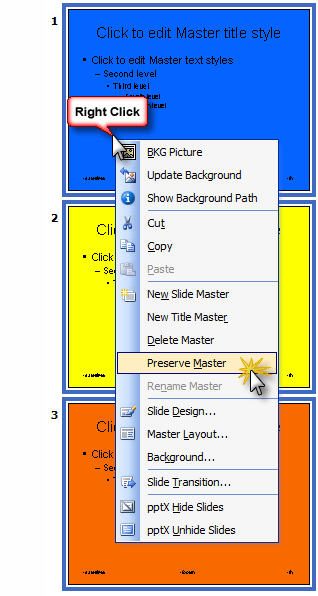
2. Right click the master slide and from the pop up menu choose ‘Preserve Master’.

– Troy @ TLC

By |2016-11-17T13:02:37-08:00May 19th, 2008|PowerPoint, Tutorial|
Go to Top