
I work with PowerPoint on a daily basis and I am very honored to be a Microsoft PowerPoint MVP. We have a talented team of presentation designers at TLC Creative Services and ThePowerPointBlog is our area to highlight PowerPoint tips, tricks, examples and tutorials. Enjoy! Troy Chollar

Crayon Physics Deluxe!
Yesterday’s post about Crayon Physics turns out to be just the beginning! The developer is creating a deluxe version of the game called Crayon Physics Deluxe.

You can sign up to be notified when available and there is a great youtube video of it in use (too bad the developer does not have Camtasia Studio installed). Check it out here.
– Troy @ TLC
Crayon Physics
So I am reading Forbes Magazine this week and read a fun blip about a game that uses a real physics engine and is based on the kids story “Harold and the Purple Crayon”

Having read the book with my kids we search for it (note: magazine URL is wrong), did a little reading, downloaded and installed. Warning – this simple activity is an addictive time killer! The game is called Crayon Physics.

It is a free download here. Looks simple enough to be created in PowerPoint, but has some amusing and amazing interactions with the objects you create. Have fun – but don’t waste to much time!

– Troy @ TLC
Gmail’s PPT Viewer
Ever been on a computer that did not have PPT installed (it’s rare, but does happen). You can install the PPT Viewer from Microsoft or if the presentation is simple you can just send it to a gmail account.

Within Gmail (Google’s email application) an email with a PowerPoint presentation can now open PowerPoint attachments as slideshows, without having to download anything. Just click “View as slideshow” next to the .ppt attachment you want to preview. It only views the legacy format .ppt, so no PowerPoint 2007 (.pptx) presentations yet.
– Troy @ TLC
PowerPoint MVP Group Shot
There are around 30 PowerPoint MVPs globally. This is probably the largest group shot we will get – 18 PowerPoint MVPs and a selection of Microsoft’s great PowerPoint developers.

I am in the back row center.
– Troy @ TLC
Animated Object Goes Opaque (2)
Another emphasis animation that just does not work with images that have transparent, or semi-transparent areas is the VERTICAL HIGHLIGHT. Here is our sample image, which as a nice drop shadow and no background so it will work on any color background.

We then apply the VERTICAL EMPHASIS animation:
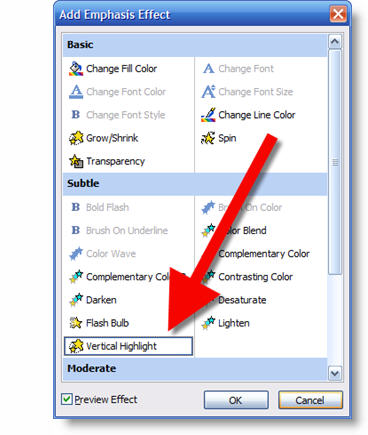
But when animated the nice transparent background becomes opacue/solid:

An alternative is to create the same effect with some advanced animation. First is to apply a GROW/SHRINK animation:
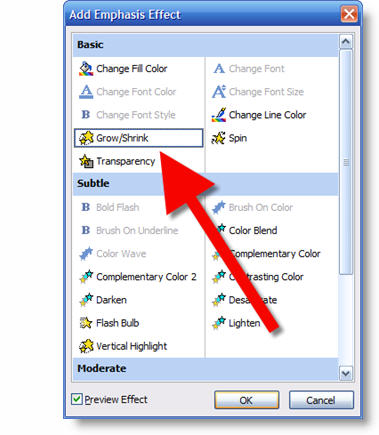
In the animation setting on the EFFECTS tab we need to:
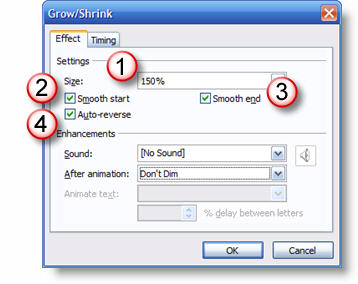
1. Size needs to be greater than 100, how much will depend on your slide
2. Turn on SMOOTH START
3. Turn on SMOOTH END
4. Turn on AUTO REVERSE
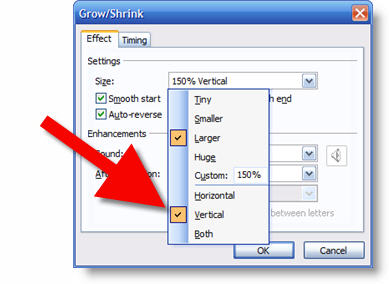
The key to this effect is to use the drop-down and change the animation from BOTH to VERTICAL only:
– Troy @ TLC
Animated Object Goes Opaque (1)
Many of the emphasis animations do not respect the transparent properties of an image – whether it be a .png with alpha channel transparency or an image where PPT ‘Set Transparent Color’ tool was used. In most cases you can use some more advanced animation to create the same effect and not have the opacity problems.
Here is our image. It is a .png image created in Photoshop and it has no background.

But if we apply the TEETER emphasis animation
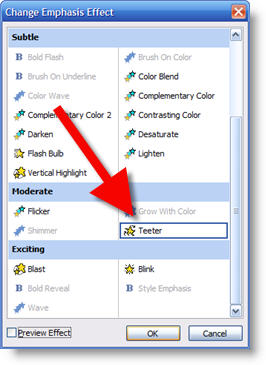
When animated the background changes from transparent to a solid color (blue in this instance)

We can create the same effect with some custom settings on the SPIN emphasis animation. So the first step is to apply the SPIN emphasis.
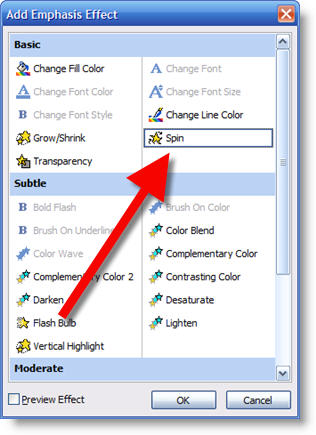
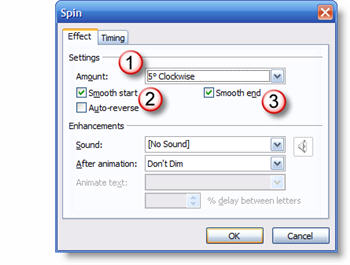
Then go into the animation properties and on the EFFECT tab change:
1. Amount from 360 to 5
2. Turn on Smooth Start
3. Turn on Smooth End
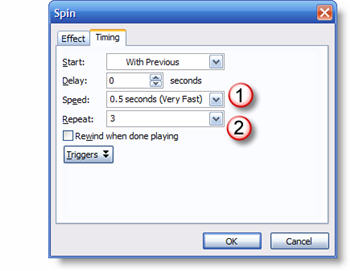
Then in the TIMING tab change:
1. The speed to VERY FAST (or faster)
2. Repeat to 3 times
Now the object will “teeter” and maintain its transparent background!
– Troy @ TLC
Color for the Medical Template
To help a medical device company stand out I introduced some bold coloring. I also used shadowing, bevels and negative space to create the content area. Here is the template developed for medical device maker, Zylon.
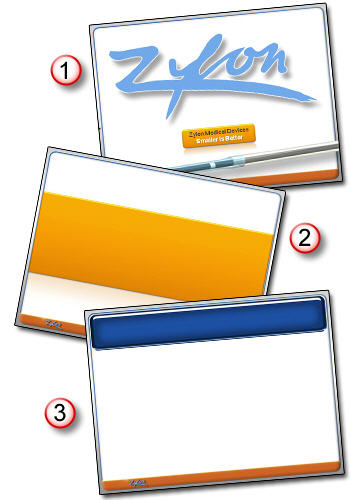
1. Theme Graphic
2. Title Slide
3. Content Slide
– Troy @ TLC
Dark Knight PPT
I recently had a project with the upcoming Batman movie, The Dark Knight. Had a lot of fun getting sneak peaks at images and footage of the movie. I was tasked with developing a PowerPoint template that carried the dark color scheme and edgyness of the movie. Of course using an all black color pallette is not that easy, but it did prove to be a fun challenge! Here are the 3 slide layouts used for the template:
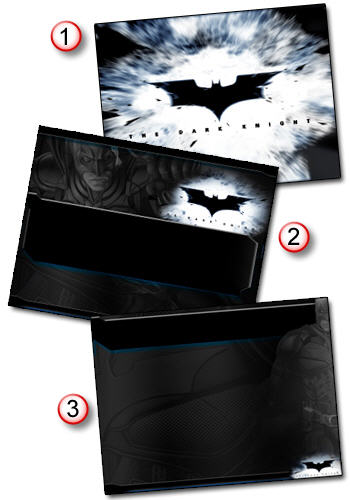
1. Theme Graphic
2. Title Slide
3. Content Slide
– Troy @ TLC
Hanging Out with PowerPoint Gurus
Last week I had opportunity to spend some time with a group of the Korean PowerPoint MVPs. Despite communication challenges we showed off some recent projects and I do not need to understand a presentation to be impressed by it. This group of guys can put together an animated slide that is tops!

– Troy @ TLC