The PowerPoint® Blog

I work with PowerPoint on a daily basis and I am very honored to be a Microsoft PowerPoint MVP. We have a talented team of presentation designers at TLC Creative Services and ThePowerPointBlog is our area to highlight PowerPoint tips, tricks, examples and tutorials. Enjoy! Troy Chollar

ClickArt online royalty free art

Many years ago for images in our projects we relied on $300-500 per disk photo CDs and for vector art things like the 20 CD ClickArt 1 Million collection. Well, ClickArt is back – and now online.

Although it features lots of photo images, they are relatively small at 800px wide and 72 dpi. The offering is wide, with many having those same 80/90’s fashions I remember from use years ago. But many are ultra new and even the same images I have pulled from sources like Photos.com (of course much smaller file size here).

And if you need vector art (aka: clip art or line art), having a searchable database and unlimited downloads for a year is worth the price!

As for price, they are currently offering a 1 year, unlimited download for only $40.00!!

Click here to check out all the details.

– Troy @ TLC
By |2016-11-17T16:33:02-08:00October 24th, 2007|Software/Add-Ins|

Make All Files Have SameTime Stamp

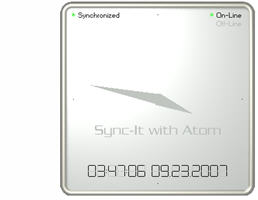
When working on multiple computers it is critical to be able to tell which files are new, or old, based on their time stamp. The solution is to run an application that updates the computer clock to an atomic clock through the internet.

I run SYNCIT With Atom on all of my computers, but there are tons of applications available. I have mine set to update/verifty clock accuracy every 45 seconds. And guarantee I know which file is the latest-and-greatest based on the time stamp – no matter what computer I was working on.

Click here to go to info/download page.

– Troy @ TLC

By |2016-11-17T16:32:45-08:00October 22nd, 2007|Software/Add-Ins|

Make Text MORE Legible

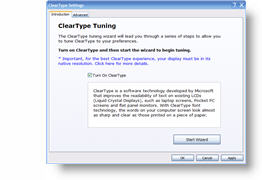
Another free application from Microsoft that ranges from good-to-great depending on your monitor is the CLEARTYPE TUNER. It basically tweaks the way Windows displays text on an LCD monitor.

It does not hinder, or noticably improve, displaying through a projector – and depending on your monitor it may or may not make a noticeable difference (on my 1900×1200 WXGA monitor it made a very noticeable effect, on a 1440×900 monitor it gave no noticeable difference).

Click here to go to download page

– Troy @ TLC

By |2016-11-17T16:32:14-08:00October 19th, 2007|Software/Add-Ins|

Be Visual with Active Apps

Being a graphic designer I admit that I understand things better when I can see them. One of the great features of the new Vista OS (and on Macs for awhile) is the ability to rollover the taskbar tab and see a thumbnail of the current application content. If you are running XP you can add this type feature to the Alt-Tab method of choosing your application.

With the Free Microsoft ALT-TAB tweak installed instead of seeing just the application/file name as you alt-tab through the active items, you see a thumbnail of the current content.

Click here to go to the download page at Microsoft.

– Troy @ TLC

By |2016-11-17T16:31:55-08:00October 17th, 2007|Software/Add-Ins|

Download More

I often, as I am sure you do, have to download lots of files for a project (PowerPoint, Photoshop, images, PDFs, etc.). Unless all are on an FTP site I can access with an FTP application your browser limits you to 2 simultaneous downloads. Great if I was on a bandwidth limited dial-up modem, but I have a 15mb/s connection and want to download more.

The good news is this limitation can be overcome, but you have to do a bit of digging and adding values. I have all of my computers set to allow up to 10 simultaneous downloads. Here’s how:

1. Go to START >> RUN >> REGEDIT
2. Click on HKEY_CURRENT_USER
3. Click USER
4. Click SOFTWARE
5. Click MICROSOFT
6. Click WINDOWS
7. Click CURRENTVERSION
8. Click INTERNET SETTINGS

Now that you have burrowed deep into the OS, you need to add to new values (the ones that say let me download up to 10 files simultaneously).
9. Right-click anywhere in the right pane
10. Select NEW
11. Select DWORD VALUE

These next steps you will repeat twice, once for each needed value.
12. Double-click the newly created NEW VALUE #1 icon
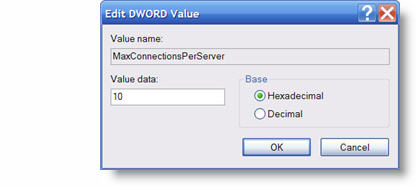
13. In the Value Name area type “MaxConnectionsPerServer”
14. In the Value Date area type “10”
15. In the Base area click DECIMAL
16. Click okay

Do it again.
17. Repeat #12-16, but in the Value Name area type “MaxConnectionsPer1_OServer”

You are now free to download up to 10 files simultaneously (provided you have enough bandwidth with your internet connection)!

– Troy @ TLC

By |2016-11-17T16:31:34-08:00October 15th, 2007|Tutorial|

Make Your Desktop Presentation Worthy

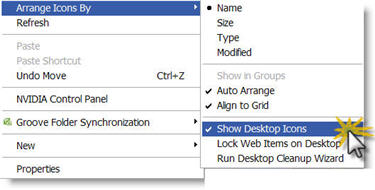
This is one of the nifty features of Windows (XP) that no one seems to know about. Before a presentation, I use the “show/hide desktop icons” feature to hide every single item on my desktop. That way if I need to exit a presentation for any reason, the only thing projected is a my desktop wallpaper. After the presentation, I restore all in just one click.

1. Right-click desktop
2. Go to Arrange Icons By
3. Select Show Desktop Icons
4. Let the screen refresh (may take a few moments) and you are left with a completely clutter free view!

– Troy @ TLC

By |2016-11-17T16:31:04-08:00October 12th, 2007|Tutorial|

Reorganize the Task Bar

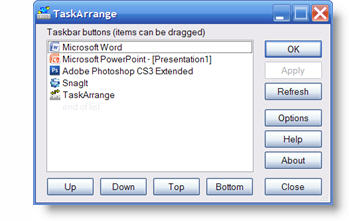
If you have multiple presentations, several applications and numerous windows explorers open – the task bar becomes crowded and confusing. For just situations, I use the free application ‘Task Arrange.’

This lets me group all of my presentations together, slide outlook to the far left, etc. Or another practical use (this week in particular) is designing a multi-screen show and being able to move the presentation tabs to the visual order (ie. left screen appears on the left, center in the center and right screen presentation is the right tab).

Click here to go to Task Arrange’s download page.

– Troy @ TLC

By |2016-11-17T16:30:36-08:00October 10th, 2007|Software/Add-Ins|

Download or View PDF?

This is a browser add-in that I recently was told about and I like it. The frustration is when you click on a link to a PDF it is up to your browser settings whether it opens the PDF or downloads it (and Adobe’s default setting is to open it).

If I know I want to download the PDF there are three choices:
1. Right-click the link and choose ‘save file as’
2. Click the link, have it open, then click the save icon
3. Install the “PDF Download” add-in

With ‘PDF Download’ installed, every time a PDF link is clicked a dialog asks if it should be opened or saved – brilliant!

– Troy @ TLC

By |2016-11-17T16:30:04-08:00October 8th, 2007|Software/Add-Ins|

Rotate Pictures in Windows Explorer

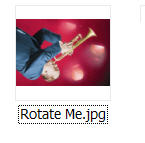
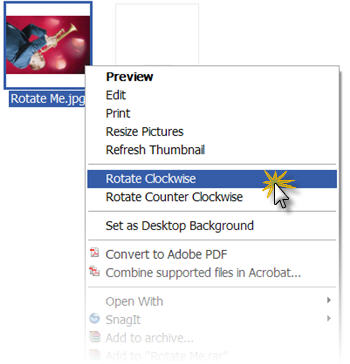
If you have bunch of images to insert into a presentation, but some are rotated (ie. taken in vertical layout with a digital camera) they can easily be rotated BEFORE inserting into the presentation.

1. Open Windows Explorer
2. Set View to thumbnail or filmstrip
3. Select image(s) to rotate
4. Right-click and choose the rotation (clockwise or counter clockwise) needed

– Troy @ TLC

By |2016-11-17T16:29:23-08:00October 5th, 2007|Tutorial|

Image Resizer

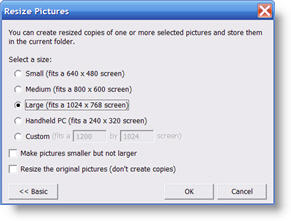
This free application from Microsoft has some great uses. Basically it does exactly what the name implies, it adds the ability to resize images. But this one is accessible from a right-click on any image.

It is a limited use application, in that it offers only four preset image sizes. If you click the ‘Advanced’ button it also offers the ability to set a custom size. Another nice feature is you can select multiple image files and convert all to a new size as a batch process.

You can get more info and download from here.

– Troy @ TLC

By |2016-11-17T16:28:35-08:00October 3rd, 2007|Software/Add-Ins|
Go to Top