The PowerPoint® Blog

I work with PowerPoint on a daily basis and I am very honored to be a Microsoft PowerPoint MVP. We have a talented team of presentation designers at TLC Creative Services and ThePowerPointBlog is our area to highlight PowerPoint tips, tricks, examples and tutorials. Enjoy! Troy Chollar

CNET review of Office 2007

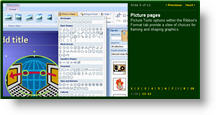
Just this week CNET has posted a very good review of PowerPoint 2007. It is in a quick read format that is comprised of 12 topics, each with a screen capture and few paragraph description.

Take a few minutes and click through this informative overview here.

– Troy @ TLC

By |2016-11-17T14:12:35-08:00August 20th, 2006|PowerPoint|

Great “PhotoShop” Shadows Inside PowerPoint

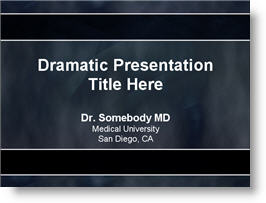
Often you have a nice, well designed slide such as this title slide. It does not really need any images or animation, but it would be nice to give it a bit of depth.

Adding a soft, PhotoShop, drop shadow to the title text helps the slide differentiate itself from the “standard” PowerPoint content and add some depth and appeal.

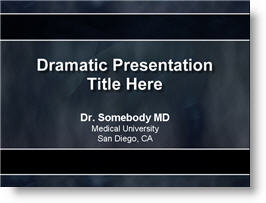
This effect was created in less than 4 seconds using PPTXtreme‘s SoftShadow add-in. I selected the text box and clicked on the QuickShadow button.

Looking closer you can see the smooth feathered black shadow that was applied to each letter. Something that helps the text float above the background artwork.

– Troy @ TLC

By |2016-11-17T14:12:17-08:00August 18th, 2006|Software/Add-Ins, Tutorial|

How Long Was Each Slide Displayed?

Turning PowerPoint presentations into webcasts has become a fairly routine request. One of the more difficult aspects of recreating a presentation is knowing when the presenter advances the slide. This is critical in syncing video of the presenter with the slides. Here is one method I have used – and best of all it is built into PowerPoint!

A few points about this process:
1 – This is at larger conferences where I am backstage running the presentations.
2 – I am running a backup computer and I run this timer on it.
3 – I use a remote system so both computers advance simulataneously.

(1) With the presentation open go to SLIDESHOW >> REHEARSE TIMINGS
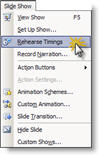
(2) The slide show begins and a pop-up timer is visible.
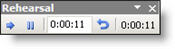
TIP 1: As soon as the Timer window is visible click the PAUSE button. When the meeting begins click the PLAY button (the last thing I want is to have to many things distract me at the beginning of a meeting!).

TIP 2: Even though the timer is running on the backup computer, drag the timer to the very bottom so it is virtually invisible – just in case you have to switch to it!

(3) When the presentation is done click YES to the save the timings.

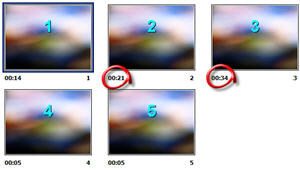
(4) Each slides time onscreen is seen next to the slide thumbnail. Be sure to do a SAVE AS to keep these timings for reference when building the webcast.
– Troy @ TLC

By |2016-11-17T14:11:56-08:00August 16th, 2006|Tutorial|

The Two Looks of a PowerPoint Table

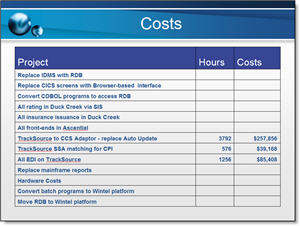
A recent project involved taking a good presentation and making it great. I had some very clean and easy to read PowerPoint tables. They conveyed the information and made good use of the tools in the application. Here is the original:

But the goal was to add visual dynamics to the presentation and this means making all elements coordinate with a common color scheme, font use and positioning. Here is the same table with some additional formatting:

– Troy @ TLC

By |2016-11-17T14:11:38-08:00August 14th, 2006|Portfolio|

PowerPoint Quotes – Funny and True.

Reading the latest edition of PC World I came across a quote that had me rolling in laughter. Peter Norvig (an executive at Google) said, “Powerpoint is like having a loaded AK-47 on the table. You can do very bad things with it.”

Funny – and true. It is not a bad program as Mr. Tufte says. But it can be used very poorly. So I went online and found a few more good quotes:

“PowerPoint is the Rodney Dangerfield of software: it gets no respect.”
– Ken Goldberg, the Berkeley engineering professor

“If you like overheads, you’ll love PowerPoint.”
– Edward Tufte

Hmmm… maybe some things to ponder today…

-Troy @ TLC

By |2016-11-17T14:11:19-08:00August 12th, 2006|PowerPoint, Resource/Misc|

Template and Tutorial Highlighted in August Newsletter


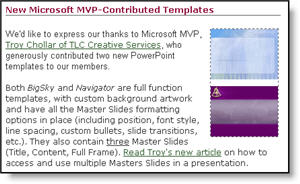
Presenter’s University asked if TLC Creative Services would contribute some PowerPoint templates to their resource library. I was very excited to find out the templates and adjoining tutorial were highlighted in their August newsletter that just went out.

There are now two full function PowerPoint templates available for anyone. Because one of the templates I developed included an additional master slide I also developed a tutorial on accessing and using additional master slides in a presentation.

Click here to download templates from Presenter’s University (may need to go through free registration process).

Click here to see the tutorial on accessing and using additional Master Slides.

– Troy @ TLC

By |2016-11-17T14:10:45-08:00August 10th, 2006|Personal, PowerPoint|

Visio is Nifty, But Not Pretty

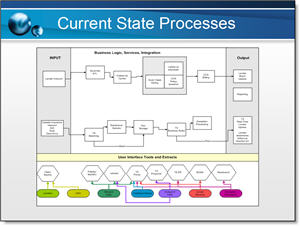
MS Visio is a great tool for putting complex processes into a visual layout. But, like most business applications, it does not have a lot of visual aesthetics. Here is a slide from a recent project:

The best thing about this slide (to me), is the client was able to quickly create something that showed me exactly what they wanted.

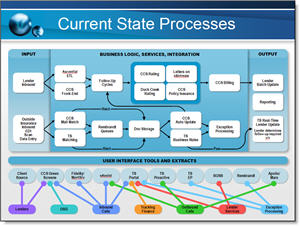
My job was to inject some visual dynamics to the presentation. So a few hours of working in PhotoShop and PowerPoint the same information now looks like this:

Same information – just a slightly enhanced presentation of it!

– Troy @ TLC

By |2016-11-17T14:10:25-08:00August 8th, 2006|Portfolio|

Ugly Hyperlinks in Your Presentation?

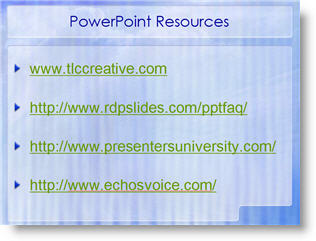
For reference you add a URL to a slide. But the text changes color, an underline is added, and in general is ugly!

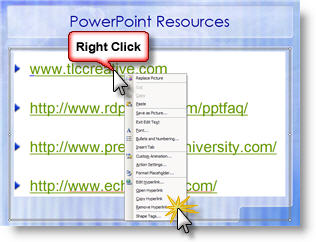
You have options to bring back the aesthetics of your slide – here is the easiest. Select the text box and right click on the hyperlink and choose REMOVE HYPERLINK.

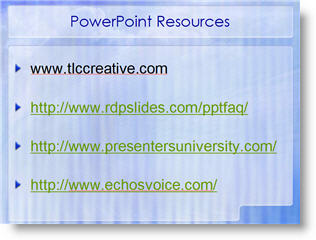
This strips out the active link programming and changes the URL into plain text. It will not be able to be clicked as an active link after this. The result is happy, beautiful, text once again!

– Troy @ TLC

By |2016-11-17T14:09:45-08:00August 6th, 2006|Tutorial|

Use “Blank” for Your Browser Home Page

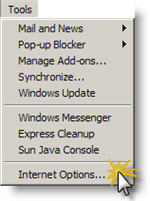
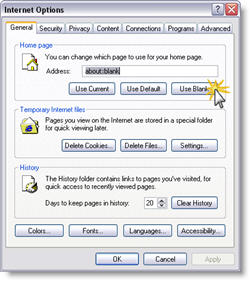
My preference when it comes to a browser Home Page is to have the browser open with nothing (zip, nada, white space). It takes time to load a page, which is usually not the one I want to see. Here is how to setup Internet Explorer:

(1) Go to TOOLS >> INTERNET OPTIONS

(2) On the General tab, click USE BLANK button.

-Troy @ TLC

By |2016-11-17T14:09:25-08:00August 4th, 2006|Tutorial|
Go to Top