The PowerPoint® Blog

I work with PowerPoint on a daily basis and I am very honored to be a Microsoft PowerPoint MVP. We have a talented team of presentation designers at TLC Creative Services and ThePowerPointBlog is our area to highlight PowerPoint tips, tricks, examples and tutorials. Enjoy! Troy Chollar

SMK-Link Navigator – How To Train an Additional Receiver

TLC Creative Services really likes the SMK-Navigator presentation remote. We have used them for several years, but it is not for the presenter, it is the remote we use backstage to run the computers while the presenter has a cue light remote that signals when to advance the content.

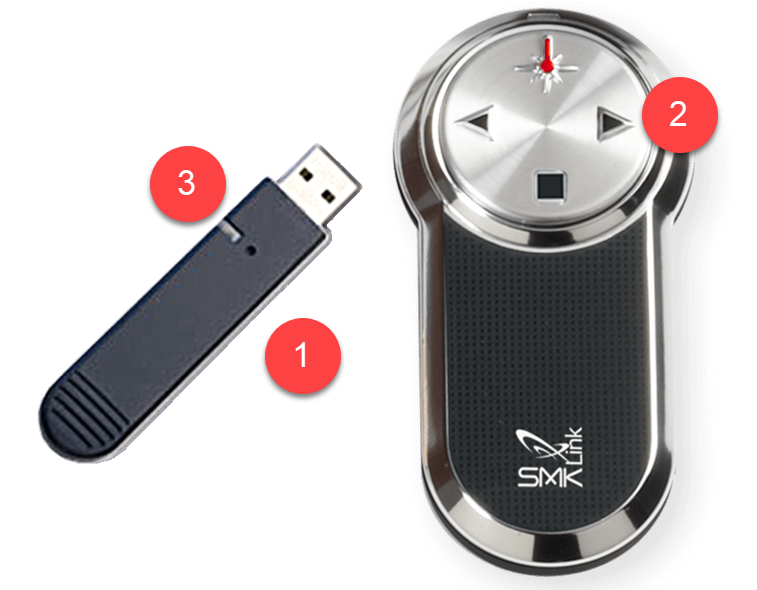
One of the key features of the SMK-Navigator remote is the receiver, the unit connected to the computer, can be sync’d to a remote. More importantly a single remote can be connected to 2-4-12 computers!

The key to the great feature is knowing how to program, or train, the additional remotes to the receiver.

 1. Remove USB Receiver from USB port, wait 5 seconds and reconnect.

2. Press and hold the Next button (right arrow) for 10 seconds until red light rapidly flashes.

3. Click the advance button on the remote and the LED light on the receiver should turn solid green (and then back to a slow flashing green).

Done! Now that receiver will work with that remote. Repeat for as many computers as you want the remote to simultaneously control.

Troy @ TLC

By |2019-08-08T13:52:49-07:00August 14th, 2019|Resource/Misc|

No Video Playback, Try These Nvidia Settings

Out of the box we found that our new fleet of show computers did not play .MP4 videos in slide show. We checked PowerPoint was up to date (Offie 365, 64-bit). We confirmed Windows 10 Pro was up to date. We confirmed we had the most current Nvidia drivers. To make things more confusing, videos would play in slide edit view, but not in slide show. A very frustrating situation!

Fortunately for our IT manager, I have already encountered Nvidia and PowerPoint issues. After a few setting updates in the Nvidia control panel, everything works great. Let me share the settings we use on our Nvidia graphics card laptops.

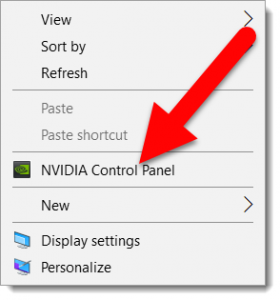
Right click desktop and select “Nvidia control panel”


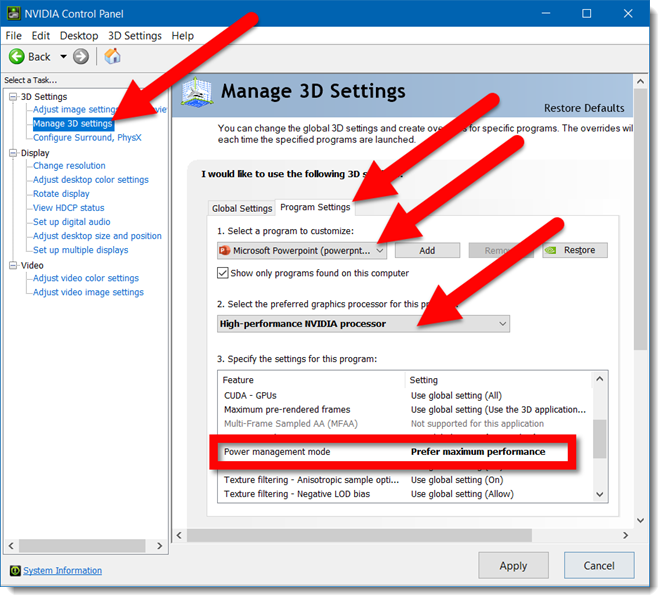
Go to MANAGE 3D SETTINGS and set these PowerPoint specific settings:

  • Go to PROGRAM SETTINGS tab
  • Select MICROSOFT POWERPOINT from program drop-down list
  • Change Preferred Graphics Processor to HIGH PERFORMANCE NVIDIA PROCESSOR
  • Change POWER MANAGEMENT MODE to PREFER MAXIMUM PERFORMANCE


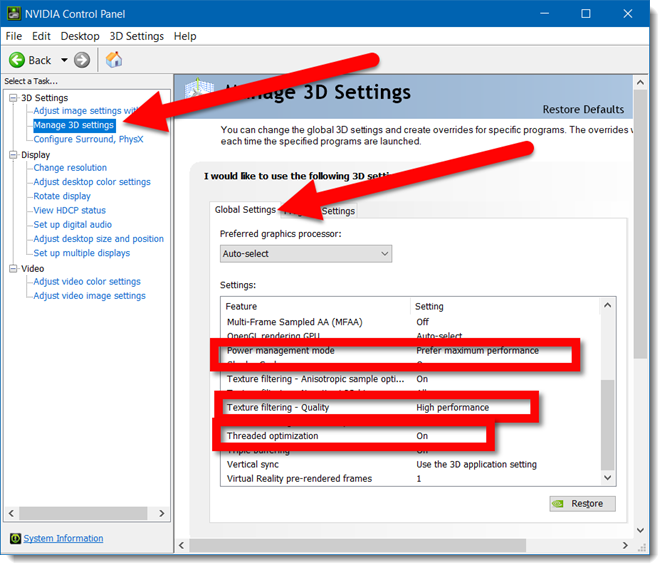
Go to MANAGE 3D SETTINGS and update these global settings:

  • Power Management Mode = Prefer Maximum Performance
  • Texture Filtering – Quality = High Performance
  • Threaded Optimization = On


This final Nvidia setting is not a factor in videos actually playing, but it can affect the video quality. The issue is the default color space is not actually pure white and pure black. So if you have seen a video with a white background that does not match the slide white background, this may be the reason.

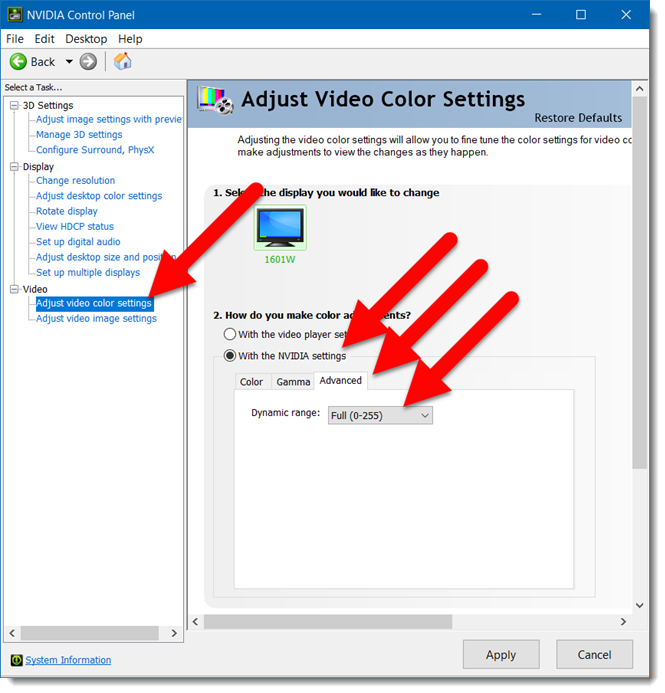
Go to ADJUST VIDEO COLOR SETTINGS

  • Select WITH THE NVIDIA SETTINGS
  • Go to the ADVANCED tab
  • Dynamic Range = FULL (0-255)
  • Click APPLY

Hopefully you have not encountered videos not playing issues, but if you have, and you have an Nvidia graphics chip, these options solve things for you!

Troy @ TLC


By |2019-08-08T13:44:01-07:00August 12th, 2019|Resource/Misc|

How To Correctly Capitalize Each Word

Capitalize My Title is an online app that applies the professional typesetting rules to title capitalization. You paste in a sentence and get back the same sentence updated to each word capitalized based on Title Case, AP/APA/Chicago/MLA style, UPPERCASE, lowercase, and more.

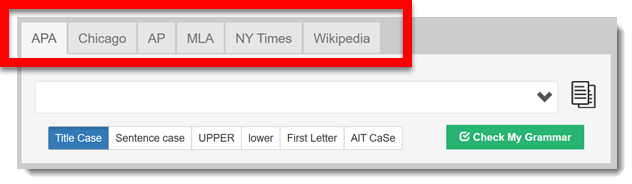
The top tabs select which typography rules to follow (I recommend APA or Chicago as these are the most common/universal)
The bottom set of tabs is the selection of Capitalization option.
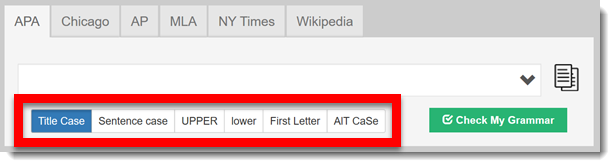
  • Title Case
  • Sentence Case
  • UPPER
  • Lower
  • First Letter
  • AIT CaSe

“Title Case” is the option I recommend using, as this is where many do not know the rules and ultimately have slides with content that is not aligned to the professional typesetting standards. A good rule of thumb is to capitalize words that are more than 3 letters long, unless it is the word at the beginning of a sentence, and unless that word falls into one of the many special instance rules.

1. Manually type or paste text into app. Text is automatically updated based on the top tab option and bottom tab option. 
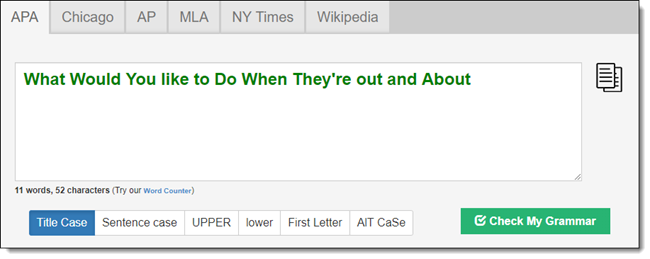
Note: tabs can be changed and see if any of the different rules or titling options change the results. As example: on this sample sentence I would capitalize “Out” but the official rules do not…

Tips for PowerPoint text

(From Christie on the TLC Creative design team) The first item I check on any presentation is going through all my titles to ensure consistencies. A helpful tip for medical presentation is to look for any disease, medical terms, drug names, etc. that should never be capitalized. Because the web app will not recognize these words, after I go through all slide titles using the “Capitalize My Title” website, I do a quick review to double check the specialty words are capitalized correctly as it was intended since the 

Troy @ TLC

By |2019-06-24T09:53:30-07:00August 8th, 2019|Software/Add-Ins|

Podcast 83

A new episode of The Presentation Podcast is available today! This episode join Troy Chollar of TLC Creative, Lori Chollar of TLC Creative. Richard Goring of BrightCarbon, and Tara Sheffield of SlideRabbit for a conversation about the experience of taking (and passing!) the Presentation Guild, Specialist Level Presentation Certification. , Nolan, and Sandy is available today!

Episode, 83 – We Took The Presentation Professional Certification – and Survived! is a must listen to for anyone considering taking the new presentation industry certifications. Listen in on Apple Podcasts, Stitcher, Google Play, Spotify and Soundcloud – just search for “The Presentation Podcast” – or go direct to the episode page here: https://thepresentationpodcast.com/podcast/83


By |2019-08-06T06:16:04-07:00August 6th, 2019|Resource/Misc|

Skype For Businss Official Retirement Date Set

Well, after the previous post, this is timely, although not eminently soon.

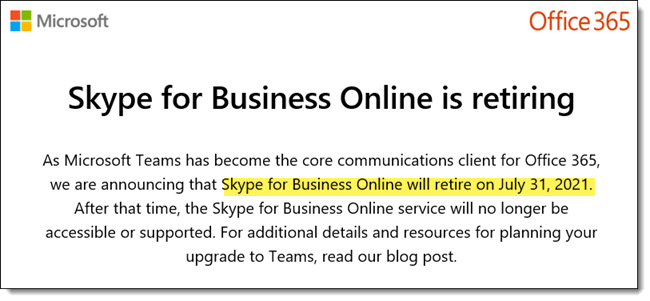
I just received an email from Microsoft announcing Skype for Business is officially being retired and we must move to Teams. The good news is, it is almost 2 years away (July 31, 2021)! I am hopeful that the Microsoft Teams interface will be streamlined (eg. to not take up nearly an entire monitor) before we are forced to switch over.

Troy @ TLC

By |2019-07-31T14:58:28-07:00August 2nd, 2019|Software/Add-Ins|

Give Me Back My Sykpe for Business!

Microsoft is making the move to Microsoft Teams. But if you looking to stick with Skype for Business a bit longer, Microsoft does not make it is easy to find. These steps worked for us (as of today):

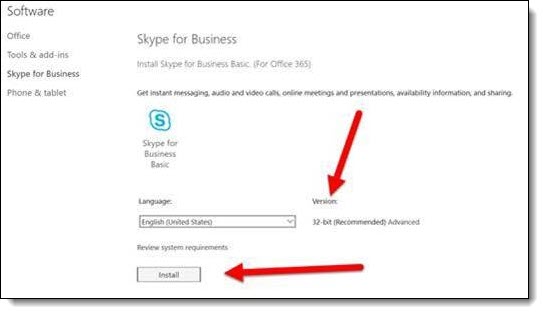
– Log into your O365 account

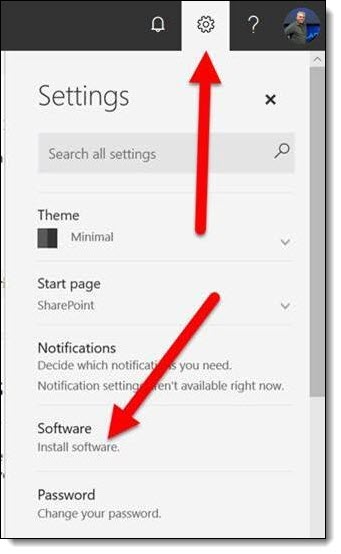
– Click settings GEAR

– Click INSTALL SOFTWARE

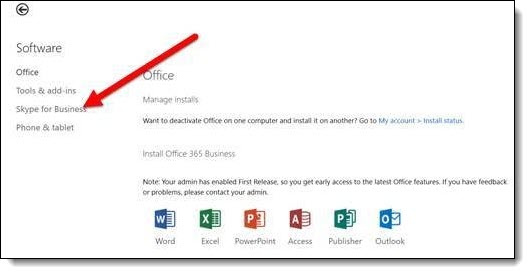
– Ignore the list of installable apps and click SKYPE FOR BUSINESS link on the left

– Pick 32 or 64 bit (match to your version Office) and install

– You have Skype for Business again! Previous settings should be preserved, but you may need to log in and adjust app preferences if not retained.

Troy @ TLC

By |2019-07-31T14:51:05-07:00August 1st, 2019|Resource/Misc|

Windows Emoji Keyboard

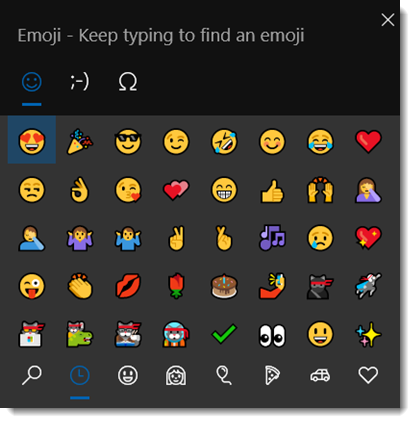
Microsoft Windows added a very cool emoji keyboard, or at least a dialog to point and select emoji’s. To open, click the Windows Key and the period key.

Click any emoji and it will be added to virtually any app text box selected (😎🤷‍♂️👍, see I just added three emoji’s to this blog post – but being over the age of 35 I have no idea what I just said…). 

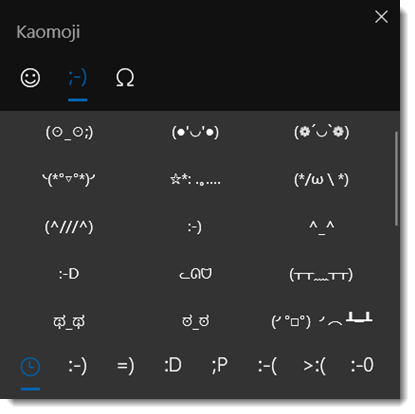
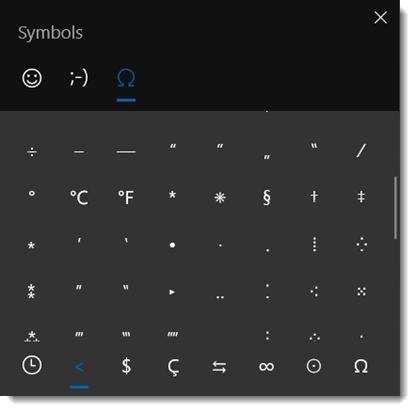
There are 3 tabs; Emoji (full color), Kaomoji (traditional ASCII emoji’s), and Symbols (well, symbol characters)

Troy @ TLC

By |2019-07-24T16:52:12-07:00July 30th, 2019|PowerPoint, Software/Add-Ins|

The Microsoft Office Insider Newsletter – Get It.

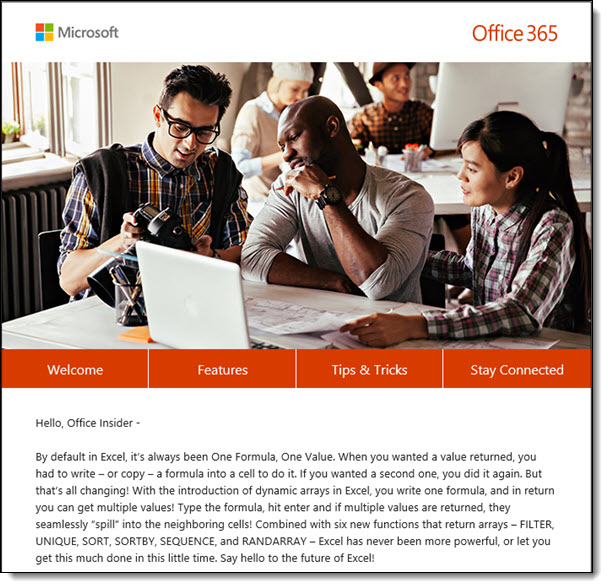
The Microsoft Office Dev teams have been doing a good job of getting new release and Tips & Tricks posted on the Microsoft Office blogs. But it is a separate blog for every product and some products have more then one blog… I really like the Microsoft Office Insider (Email) Newsletter, which is a nice summary of the hottest news and announcements on the many Office blogs compiled into a nicely formatted HTML email. 

I find this a great resource for reading not only about PowerPoint and Excel features that are a part of my daily work life, but seeing info about other apps I generally do not subscribe to their blogs, such as Android and IOS releases, Dynamics, and others. You can sign up to have the free Microsoft Office Insider newsletter show up in your inbox here.

Troy @ TLC

By |2019-07-13T15:34:26-07:00July 24th, 2019|Resource/Misc|
Go to Top