The PowerPoint® Blog

I work with PowerPoint on a daily basis and I am very honored to be a Microsoft PowerPoint MVP. We have a talented team of presentation designers at TLC Creative Services and ThePowerPointBlog is our area to highlight PowerPoint tips, tricks, examples and tutorials. Enjoy! Troy Chollar

Microsoft Has Removed The Font Icons in the Font Drop Down!!

PowerPoint has always lagged behind in font management, it is something that seems to have never been a priority for the dev team. And I have had a list of needed tools and ideas for implementation I have shared with the Dev Team at Microsoft over the years. But suddenly (this can be the evil side of subscription software), the only font management tool PowerPoint offered to indicate if a font is installed on a computer was removed!!!

This image is from a May 2016 post that shows the font drop down list in PowerPoint 2016.
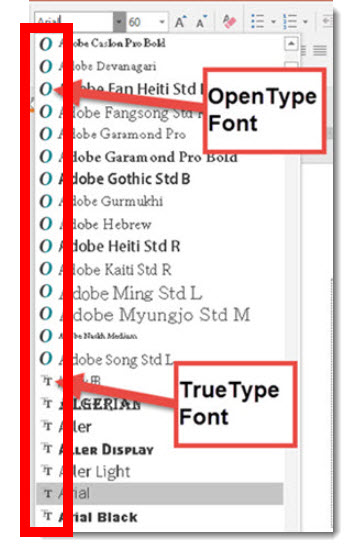
Note the small icons that indicate if a font is a TrueType or OpenType. The key is if the font is not installed on the computer, the font name is listed but no icon was shown – because the font is not available there is nothing to provide details on the font type. This missing icon was immeasurably valuable in troubleshooting font defaults (when slides do not display text as designed because PowerPoint randomly assigned an installed font for the missing font used). 

This is a feasible feature at best, but it provided some help in identifying font issues.

Here is the font drop down menu from today, PowerPoint 2016, Windows Office 365, 32-bit – no font installed icons!!
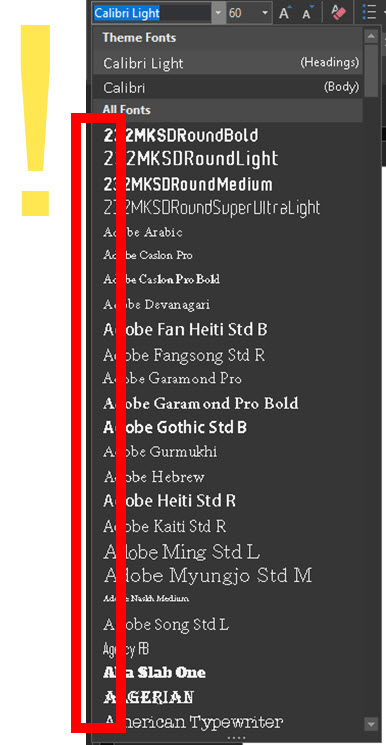
 

Note 1: back in October 2014 I posted about the same icons being removed from the Replace Font dialog – and Microsoft has still not made updates to put them back into that dialog.

Note 2: Several of the PowerPoint MVPs tested on their computers and it looks like the 64-bit version may still have the icons, the 32-bit version does not. Non Office 365 versions still have the icons.

Final word – Arghhh!

Troy @ TLC
By |2017-01-06T11:17:17-08:00January 8th, 2017|PowerPoint|

Making the TLC Christmas PowerPoint Animation

We have received many compliments on the Christmas animation the TLC design team created this year (Thank You!). To answer some of the  questions:

  • Yes, all of the animation is 100% PowerPoint, no video was used.
  • Yes, several of us used the new Morph animation/transition.
  • The opening and closing segment of the snowman was PowerPoint, but no animation, just very fast auto transitions to create a stop motion style effect.
  • No, we did not add the music in PowerPoint. Well, the Cat Meowing Christmas Carol was part of Amber’s animation, but the full track was added after the PowerPoint animation was exported (so we did use a video editing app, but only for the music bed).
  • We compiled all animation files into a single PowerPoint slide deck and exported that as a single video.
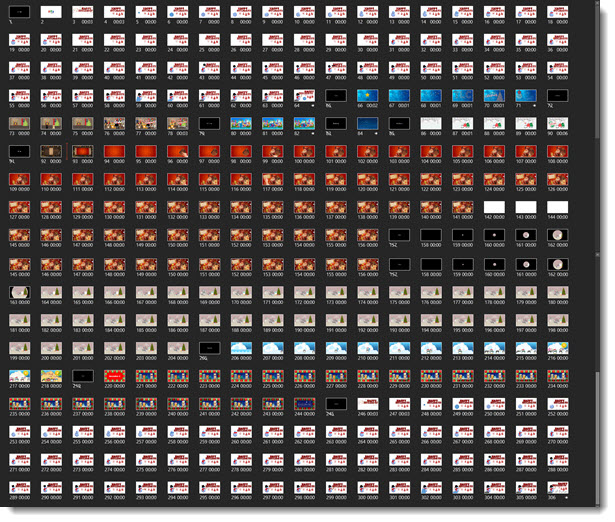
  • There was a total of 306 slides in the compiled presentation.

Christmas animation

– Troy @ TLC

By |2016-12-22T11:39:36-08:00January 4th, 2017|Resource/Misc|

11 Year Anniversary!!

11 years ago today, Troy started The PowerPoint Blog. Here is the very first post (reposted) that started it all!

Happy New Year! So, with the new year comes new resolutions. I figure I have thought about adding an informative and engaging blog for quite a while, so now must be the perfect time to start!

Why a PowerPoint blog? Well, I think there is a need for a good resource that focuses on the development/creation side of presentations. And because that is what I do every day, I should be able to offer up a steady stream of good (if not entertaining) information. Enjoy!

Troy and Daughter @ Disneyland Christmas '05

– Troy @ TLC

By |2016-12-21T22:12:27-08:00January 1st, 2017|Personal|

Happy New Year PowerPoint Animation

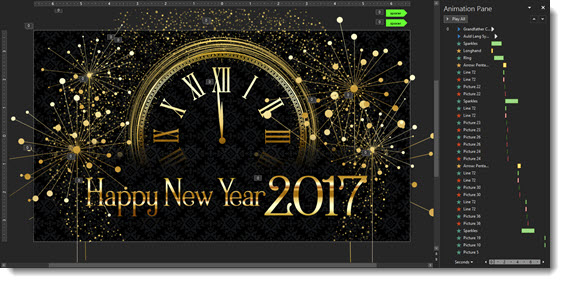
This is the final day in the studio for us before 2017 begins! Many thanks to Wanda on the TLC Creative design team for creating this fun Happy New Year PowerPoint animation!

[KGVID]https://thepowerpointblog.com/wp-content/uploads/2016/12/unnamed-file-1.mp4[/KGVID]

The presentation is a single slide with many layers of custom images, music and SFX embedded, and lots of PowerPoint animation.

New Year PowerPoint Animation

Editable PowerPoint slide can be downloaded here.

– Troy  @ TLC

By |2019-10-31T22:09:02-07:00December 30th, 2016|PowerPoint|

Green Screen Holiday Greeting (fun)

Christmas Greetings from Troy and Lori of TLC Creative Services, Inc. Many thanks to the Video Resources team for letting us jump in and make a fun Christmas greeting in their very cool green screen studio!

[KGVID]https://thepowerpointblog.com/wp-content/uploads/2017/12/unnamed-file-4.mp4[/KGVID]


– Troy @ TLC 

By |2019-10-31T22:08:17-07:00December 28th, 2016|Personal|

The 2016 TLC Team PowerPoint Holiday Animation!

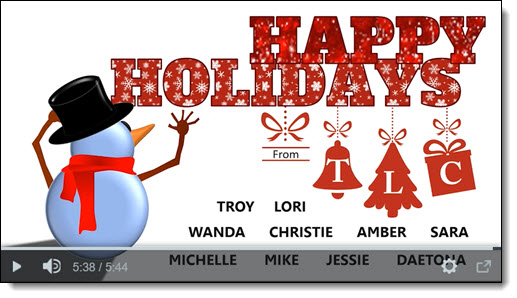
Each year, everyone on the TLC Creative Design Team has a lot of fun creating an amazing holiday animation entirely in PowerPoint. Here is our 2016 edition!

[iframe src=”https://www.screencast.com/users/TLCCreative/folders/Christmas Animations/media/431d1842-dcfd-44dc-a2bb-0e50e73df05b/embed” width=”640″ height=”360″]

[br]

You can see a number of our past year animation compilations here.

Holiday Animation

– Troy @ TLC


By |2016-12-22T13:59:00-08:00December 26th, 2016|Resource/Misc|

Modern Design in 2017

My fellow Microsoft MVP and presentation trainer, Ellen Finkelstein made a post entitled “10 Tips for Modern Design in 2017” (see post here). She then organized a blog roundup on the same topic.

modern design in 2017

Here is the TLC Creative Services list of Modern Design Trends we see for 2017:

  • More Motion:

    Morph has simplified adding complex animation to presentations and allowed a greater number of users to now add motion to their slides without investing hours into a single slide.

  • Color Blocks:

     We see a merging of flat design (no bevel, reflection, etc.) and a move away from textures and gradients to the use of large color blocks as the accent graphics and layout framing devices.

  • More Visual Layouts

    Even if not used, the addition of Designer in PowerPoint (see post here for review), is raising awareness of how slide layouts can be improved over simple (and often boring) bullet lists. For years, TLC Creative has developed what we call “Visual Layouts” for bullet list slides, and we are excited to see more awareness and requests for more professional slide designs in 2017.

  • More Navigation:

    PowerPoint has always had Custom Shows, but they are tedious to setup. With the addition of Zoom, setting up elegant non-linear navigation is much cleaner and intuitive.

  • Better Organization:

    Sections have been available sense PowerPoint 2010, but only recently have we seen more presentations leveraging the Sections tool. The small feature improvements, such as ability to copy a Section and its slides to another presentation, are making Sections a more powerful and flexible tool to use.

  • More Vector:

    Vector graphics, those that can be resized without quality loss and modified using PowerPoint’s fill-outline-styling tools, will get a huge boost with the new .SVG file format support (look for a full blog post series on SVG later this month!).

– Troy @ TLC

By |2016-12-23T10:14:45-08:00December 23rd, 2016|Resource/Misc|

Save AND Apply PowerPoint Chart Styles

Formatting the visual styling of charts can be… tedious. When a presentation has a number of charts, all needing the same visual styling, saving a chart template can be a huge time saver!

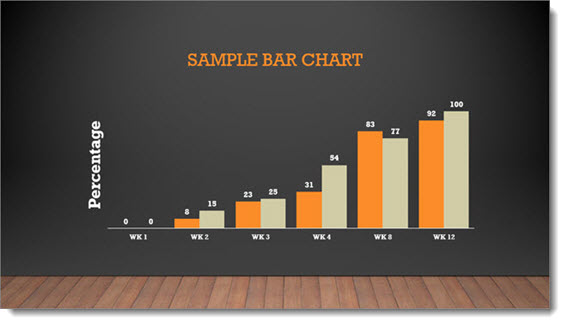
  1. Format a chart with all of the visual styling. Here is the sample stylized chart for this tutorial.
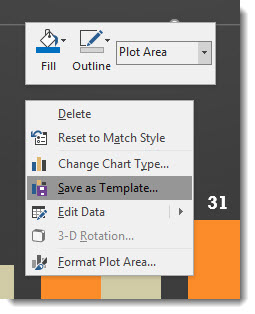
  2. Right click the chart and select SAVE AS TEMPLATE

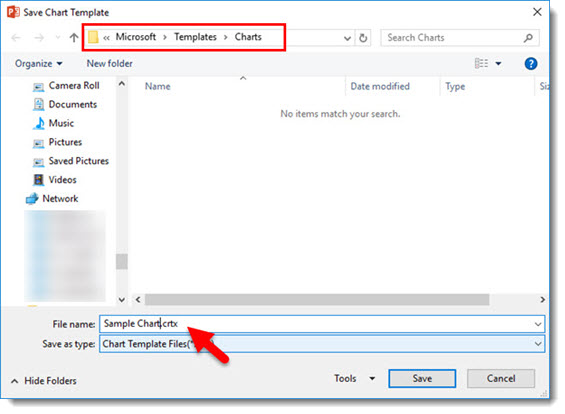
  3. In the SAVE CHART TEMPLATE dialog, give the chart template a (short) name that helps identify the styling (ie. project name, type of chart, colors used, etc.). The Chart Template is automatically saved into the Microsoft/Templates/Charts folder (and must be in this folder for PowerPoint to use it).
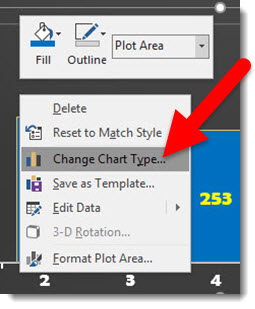
  4. To apply the chart template styling to a chart, select a chart, right click and select CHANGE CHART TYPE
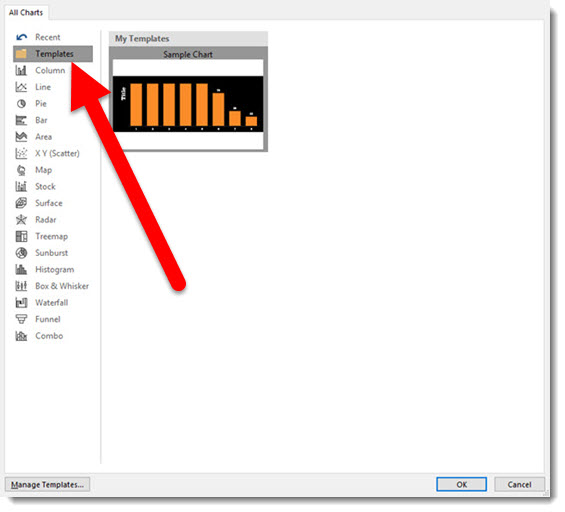
  5. In the Charts dialog, select TEMPLATES and the custom template to apply
  6. Click OK and done!


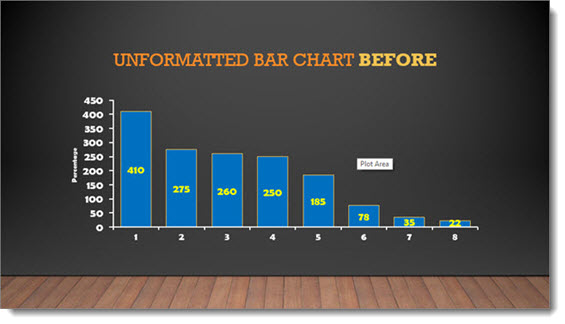
Here is an unformatted chart.

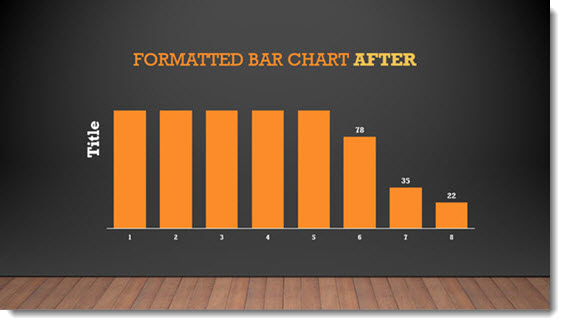
And here is the same chart with the above chart template (4 clicks and formatted!).

NOTES:

  • Chart Templates are local to a computer, they DO NOT travel with a presentation.
  • Chart Template thumbnails are very limited in the visual and description, so if you have many it can be difficult to tell them apart.
  • Right-click to Save Template was introduced with an Office365 PowerPoint 2016 update, I have not tested in previous versions. 


Troy @ TLC

By |2016-12-13T14:51:28-08:00December 21st, 2016|Tutorial|
Go to Top