Resource/Misc

Create Presentations? Listen to this Episode of The Presentation Podcast!

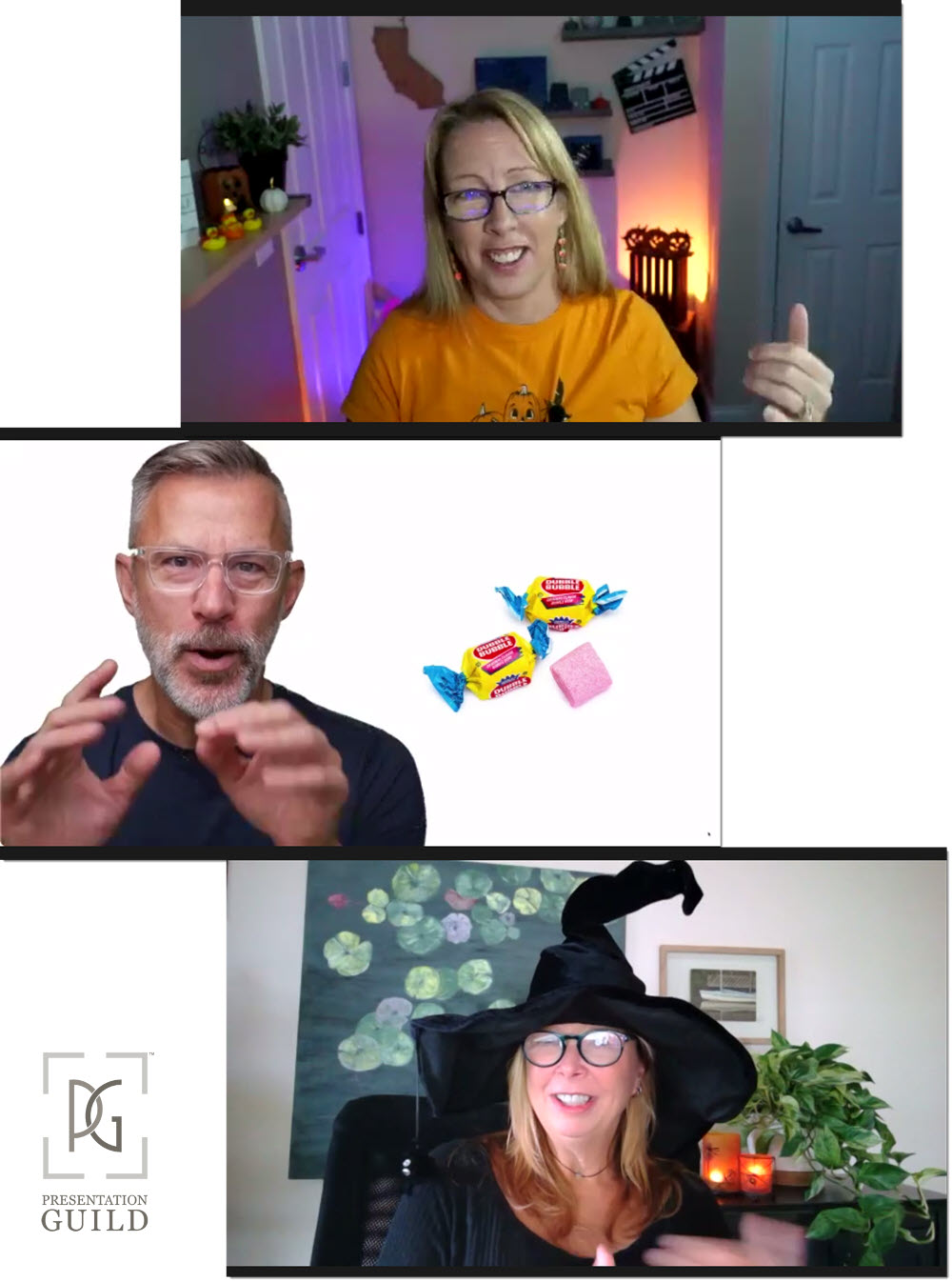
What do presentation designers do when they need to create a presentation for themselves? Do we follow our own best practices, or do we take shortcuts? Troy, Nolan and Sandy are joined by Lori Chollar of TLC Creative Services, and as a group we to explore that question – and there are terrific tips and ah-ha moments for everyone during this episode!


episode 134

By |2021-09-21T09:22:00-07:00September 21st, 2021|Resource/Misc|

Be on the Presentation Guild Board!

The Presentation Guild has announced that next year’s Board of Directors elections with occur soon, and anyone that is a Presentation Guild member (and if you read this blog, you should be!) is welcome to nominate themself, or any other Guild member.

More information, and the nomination form, here.

Troy @ TLC

By |2021-09-14T21:55:01-07:00September 15th, 2021|Resource/Misc|

Noun Project PowerPoint Add-in Does .SVG Images!

The Noun Project is the first 3rd party plugin we have seen that enables .svg images to be added direct to slides (others insert .png images). Which makes it exciting to say “The inserted icons are now vector .svg!”

Note noun project is a nominal annual fee ($40). It is a web adding, go to the insert tab select “Get Add-ins” and search for “Noun Project”.

The add in is found on the insert tab and clicking the ICONS button opens a right action pane that shows the Noun Project library.

If you have not paid for the service, you will see the icons that are locked.

Search for an icon category or key words. Click the selected icon, then click the INSERT ICON button.

All icons insert as vector .svg graphics. Resize large or small with no quality loss. select and change the fill color, outline, apply styling effects. Ungroup the icon in order to enable the ability to edit the shape(s)!

Christie @ TLC

By |2021-08-22T11:44:09-07:00September 9th, 2021|Resource/Misc|

New Presentation Podcast Episode!

If you know about the Presentation Summit, an annual presentation focused conference, this is a great podcast episode to listen to! Rick Altman, founder and director of the Presentation Podcast, now in its 19th year (!) talks with Troy, Nolan and Sandy about the hybrid attendee plans for this year and gives some insights into the excitement coming to this years event (and a special discount promo code!).

Listen to the podcast episode 132 here.

By |2021-08-18T09:03:45-07:00August 17th, 2021|Resource/Misc|

Color Blindness InDepth

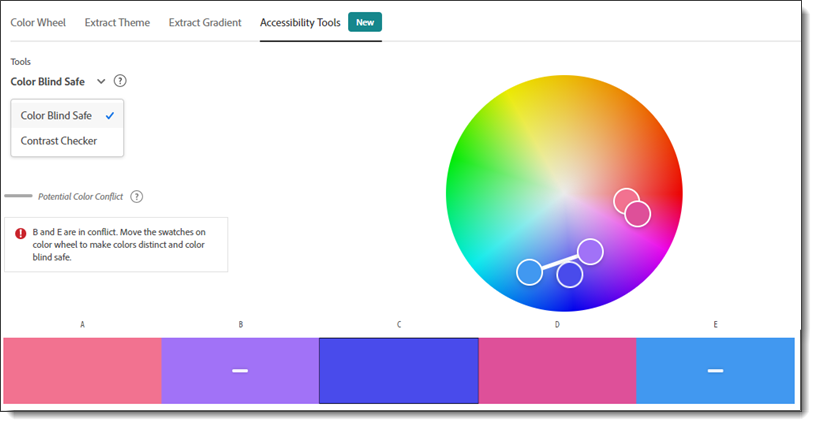
For presentations there is a lot of talk about designing with color blindness in mind. But how much do we know, and understand, color blindness?

[videopack id=”15216″]https://thepowerpointblog.com/wp-content/uploads/2021/08/Rotating-Color-Dots.mp4[/videopack]

I found a nice overview article of color blindness that explains what it is, the types of color blindness (there are 5) and more – all in simple language making it a quick read that I found easy to understand. So, sharing an online resource I found that should be of interest to anyone looking at their slides through the color-blind view.

Article is here.

Troy @ TLC

By |2021-08-14T08:44:31-07:00August 16th, 2021|Resource/Misc|

New Podcast – Everyday Business Storytelling with Janine Kurnoff

New episode and presentation conversation available today!Once upon a time, finding a book on presentation design was almost non-existent. On this episode we get to spend some time with the co-author of “Everyday Business Storytelling”, one of the latest entries into the presentation space. All three of us; Nolan, Sandy and Troy, read the book, found it full a great information and examples and are excited to have a conversation with Janine Kurnoff about it!

Listen here.

By |2021-08-02T20:24:57-07:00August 3rd, 2021|Resource/Misc|

Make Slides “Vimeo” Safe

Many have heard the term “video safe” or “Title Safe” when creating graphics for video production. It is the idea that some of the outer edge of the graphic may be cut off, blocked, or not visible, so do not put any “real” content all the way to the outer edge. I always like to know about the environment where the presentation will be shown. Are there any physical obstructions blocking any part of the screen? Is there any other content on the screen? How low is the bottom of the screen (will the front row of people obstruct the rest of the audience from seeing content)?

The questions have shifted over the past year and an overwhelming large number of presentations have been given over virtual platforms. TLC Creative has done plenty of Zoom meetings. And for higher production value events we have embraced the Vimeo live streaming services (not the actual platform, we host events on our virtual meeting platform, VXP Meetings, and embed the Vimeo live stream players for each meeting room on it).

If you know a presentation will be viewed using Vimeo, this post is for you. The Vimeo player, both on-demand video and live stream video, have some interface overlays that need to be accounted for in the presentation design – or graphics that will be used in video production. Below is a download link to an overlay graphic we created that visually shows where the Vimeo interface elements are, and if your content is going to be obscured (if the viewer moves their mouse over the video player and activates the Vimeo interface).

Download the 16×9, 1920×1080 .png overlay image HERE.

Troy @ TLC

By |2021-07-11T22:24:55-07:00July 19th, 2021|Resource/Misc|

I can do that?! BrightSlide Swap Objects

Sometimes easy, but repeatedly done, tasks are made easier with some smart coding. That is exactly what BrightSlides “Swap Objects” feature does. It makes a fairly easy formatting task, as easy as 2 clicks! As example, on my sample slide of a photo collage, swapping the top left and bottom left images is a 2 click process.

Click 1 – select the objects.

Click 2 – go to Brightslide and click SWAP OBJECTS.

Done!

Tip: hold the SHIFT key and click SWAP OBJECTS. This temporarily adds the anchor dialog to the ribbon. Choose which of the 5 anchor points to use when switching objects.

Note: this is probably obvious, but is an object is locked (PowerPoint Selection Pane and Lock Object padlock), it cannot be moved and the BrightSlide Swap Objects will not work.

BrightSlide is a FREE add-in, with both Windows and Mac versions. Get it here.

Troy @ TLC

By |2021-07-11T16:37:53-07:00July 14th, 2021|Resource/Misc, Tutorial|
Go to Top