Tutorial

What’s an “Ogg”?

.MP3 and .Wav are audio file formats. Another is .ogg, which is much common but with many .mp3 players supporting it you are likely to encounter one when developing a presentation at some point.

Vorbis is the group behind the .ogg format and it is for the most part a higher quality file than an .mp3. The Ogg Vorbis is a fully open, non-proprietary, patent-and-royalty-free, general-purpose compressed audio format for mid to high quality audio and music. Here is what an “ogg” looks like:

Unfortunately PowerPoint does not support the .ogg format, so if someone sends one to you for a presentation you will need to convert it to another format (.mp3 or .wav) in an audio editing application.

-Troy @ TLC

By |2016-09-16T11:38:38-07:00April 4th, 2006|Tutorial|

Making a Small .Wav

So, for maximum useability it great to embed multimedia into the presentation. PowerPoint allows the .wav audio format to embedded – great! But the .wav format makes the largest file size – bummer! The good news is, with a basic audio editing application you can dramatically reduce the size of your .wav files.

Here is my sample audio file; a huge 22MB!

Original .wav is 22MB!

I opened the file in Sound Forge Studio, went to Save As, choose .wav as the format and then clicked on the ‘Customize’ button to further modify the settings. As you can see I:
– Reduced the SAMPLE RATE to 22,050 (from 44,100)
– Reduced the BIT DEPTH to 8 (from 16)
– Changed the CHANNELS to mono (from stereo)
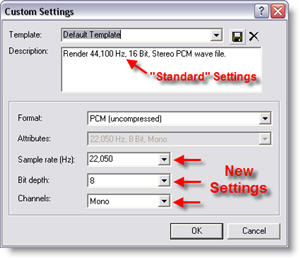
Custom Settings for Presentation .Wav files

Needless to say, this is a lower quality audio track than the original. But most presentations are viewed with computer speakers, have no stereo recording attributes and act as an enhancement to the presentation – no one will notice 🙂

Here is the same audio file saved with the above settings – a mere 2MB!

Using optimized settings it is now 2MB

For comparison, here is what the same file looks like saved as a lower quality .MP3 (64k, 16 bit, stereo), but higher quality than our optimized .wav the .MP3 is only 1MB:

As a lower quality .MP3 it is only 1MB

You will need to find the balance between the benefits of larger – embedded audio and smaller linked audio to know which is better for your presentation. Best of luck!

-Troy @ TLC

By |2016-09-16T11:37:08-07:00April 2nd, 2006|Tutorial|

.Wav – The Exception To The Rule

As we know, multimedia files are linked to the PowerPoint presentation. The exception is the .wav audio file. This file can be embedded in the presentation!
Positive: It is a part of the presentation, so there are no links to worry about.
Negative: .wav is one of the largest audio file sizes, so the presentation gets much larger.

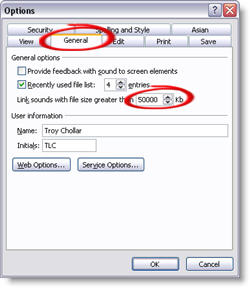
By default PowerPoint will embed a .wav file if it is under 100k – which is a very short audio file (1-5 seconds). You can increase the size PowerPoint will embed up to 50 MB. Go to: TOOLS >> OPTIONS >> GENERAL tab >> change the 100k to 50000k.

Update so .wav files up to 50MB can be embedded

Troy @ TLC

By |2016-09-16T11:36:40-07:00March 31st, 2006|Tutorial|

Where’s the Music?

I hear about this problem lots and lots: “I created my presentation, sent it (via CD, email, intranet, etc) and the other person sees the presentation but does not hear the music – what happened?”

PowerPoint is limited in its ability to embed any multimedia, instead it links to an external file and plays it. So when you add an .mp3 music track to a presentation – it is not inside (embedded) with the presentation – and it MUST be distributed with the presentation for it to work. Here is the best practice:
– Copy the selected audio file to the same folder as the presentation
– Insert the audio file into the presentation
– Always send a copy of the presentation AND the audio file


Next, the exception to the rule.

Troy @ TLC

By |2016-09-16T11:36:21-07:00March 29th, 2006|Tutorial|

New Crystal Xcelsius Tutorial (by Glenna Shaw)

Glenn Shaw, a Microsoft PowerPoint MVP, has been up to her magic again. This time she has created a whimsical tutorial that explains and shows how Crystal Xcelius can be used to create truly dynamic charts/graphs for PowerPoint. Check out the “Visually Analyze Resource Impact” tutorial here.

Xcelius is a very powerful tool and can also be integrated into websites. For a really fun and whimsical example, check out Glenna’s Cinderella Project (as in Disney Princess).

Troy @ TLC

By |2016-09-16T11:30:34-07:00March 11th, 2006|Software/Add-Ins, Tutorial|

Advanced Animation Timeline

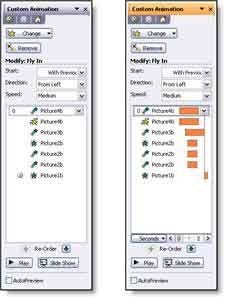
When you need to fine tune the animation timings, you need to display the very powerful Advanced Timeline. When you open the animation pane, which do you see:

With the advanced Timeline you can see the duration, start and end for each animation in relation to the other animations. For advanced animation needs the WITH PREVIOUS setting is utilized more and the animation start position and duration are adjusted with the Advanced Timeline (as example when a subtle overlapping animation is needed).
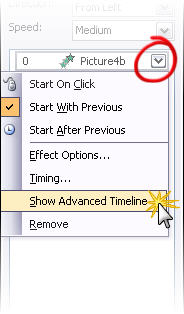
Show the Advanced Timeline
To see the Advanced Timeline, click any animation and choose SHOW ADVANCED TIMELINE.

There are some good examples of the advanced timeline in use on the Tutorials page.

Troy @ TLC

By |2016-09-16T11:28:21-07:00March 3rd, 2006|Tutorial|

Rename Master Slides

Things can get confusing working with a presentation that has multiple masters. Especially if the Master Slides are very similiar (eg. One with a primary bullet, one without). The solution is to name the Master Slides to something meaningful. I have added a tutorial on renaming PowerPoint Master Slides here.

Troy @ TLC

By |2016-09-16T11:26:55-07:00February 25th, 2006|Tutorial|

PPT + .png transparent images = ugly print

If you have ever printed a presentation that contained a .png image with transparency the results were certainly less than desirable. Here is the printed slide with a number of transparent .png images – not so good…
Tech Table
Note the jagged edges around the 3D spheres, Missing portion of background, solid/jagged dropshadow around the person.

○ The solution is a few easy steps and provides ‘picture’ perfect printouts.
○ Go to SAVE AS and export all slides to .JPG images. It is a good idea to save all of these to a new folder (Note: For higher quality images I use the PPTXtreme Import/Export add-in for this process. I export slides at 1600×1200 pixels for better quality).
○ Create a new presentation
○ Import all of the .jpg images/slides using the Photo Album feature, PPTXtreme’s Import/Export add-in, or Shyam’s Image Importer add-in.
○ Print

Here is a slide that was exported as a .jpg, then placed on a slide and printed
Tech Table

Side Note: If you delete all slides from real presentation, do a SAVE AS, then insert all of the .jpg slide images the master slide, header/footer and properties information will be preserved.

Troy @ TLC

By |2016-09-16T11:26:34-07:00February 23rd, 2006|Tutorial|

Movies and PowerPoint

https://www.tlccreative.co…ials/movies.htm

Frustration is getting things working perfect on your computer and then discovering they do not work on another computer. This is a very common tech support call I get when it comes to movies playing in PowerPoint.

Knowing some of the behind the scenes workings of PowerPoint and multimedia. I added a page that covers the big points and offers a few solutions that I have had good results with. To see it click here.

By |2016-05-12T10:02:59-07:00February 4th, 2006|Tutorial|
Go to Top