What You Do Not Know – Use a Slide Remote

Control PowerPoint with a remote, not the keyboard. Listen to the full conversation at The Presentation Podcast, episode 192.

Control PowerPoint with a remote, not the keyboard. Listen to the full conversation at The Presentation Podcast, episode 192.

This is another computer setting that can make a difference in running a presentation. Set the desktop background to the meeting theme graphic so you can exit from slide show, have the audience see a meeting related image, and then seamlessly start the presentation again. Listen to the full conversation at The Presentation Podcast, episode 192.

This is a Windows and Mac tip. Only keep the OS task bar visible on the main monitor. Turn it off on the external monitors, which is where the slideshow is seen. Listen to the full conversation at The Presentation Podcast, episode 192.

Presenter View option to swap displays. Move the Presenter View screen to the review room to show slide sorter layout and the embedded presenter notes. Listen to the full conversation at The Presentation Podcast, episode 192.

Presenter View’s Grid View is a “slide sorter view” for the presenter, or person running the presentation, the audience does not see it. Listen to the full conversation at The Presentation Podcast, episode 192.

Use the powerful, and persistent, Eye Dropper Format Tools. But you need to add them to your QAT. Listen to the full tip at The Presentation Podcast, episode 192.
On this once-every-4-years event, I had to have some PowerPoint animation fun.

The behind the scenes is this animated .GIF was created with 3 slide layouts with transitions and animation, then exported from PowerPoint to animated .gif.
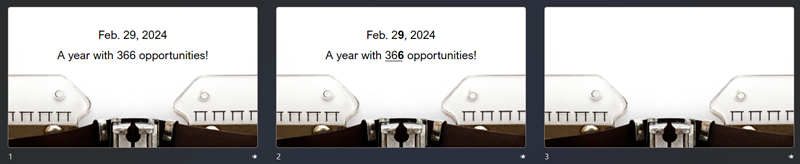
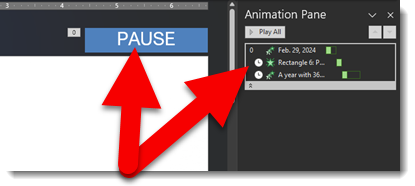
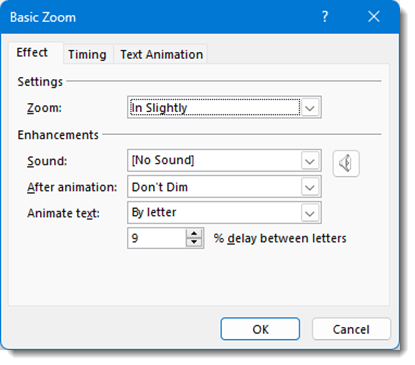
The only PowerPoint animation is on slide #1 for the text:
Happy Leap Year 2024!!
Troy @ TLC

PowerPoint’s Image Crop tool is fantastic. Combine it with Crop to Aspect! Get the full tip at The Presentation Podcast, episode 192.

Start a PowerPoint presentation from the the app or from the keyboard. Here is a quick audio takeaway from the conversation. Listen to the full conversation at The Presentation Podcast, episode 192.
The previous blog post sharing the TLC Creative 2023 Christmas Card had a nice 3D layout to the card. That layout was entirely created in PowerPoint!
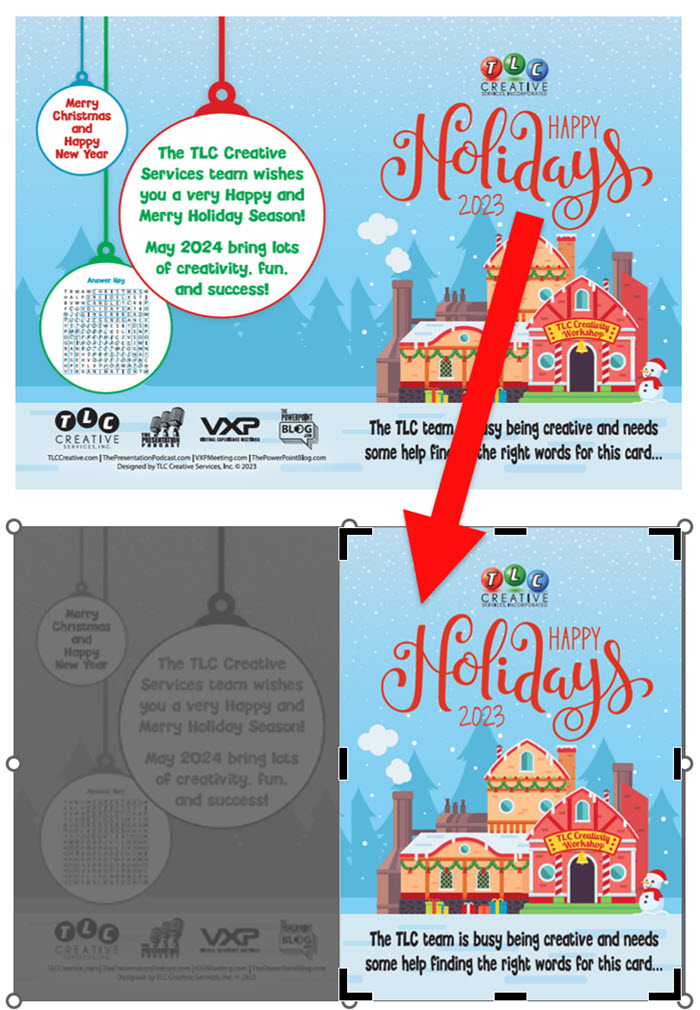
Step 1 was adding images of the outside and inside print layouts. Then cropping the image to just one side.
Next is to use PowerPoints’ 3D perspective options. Apply to the image.
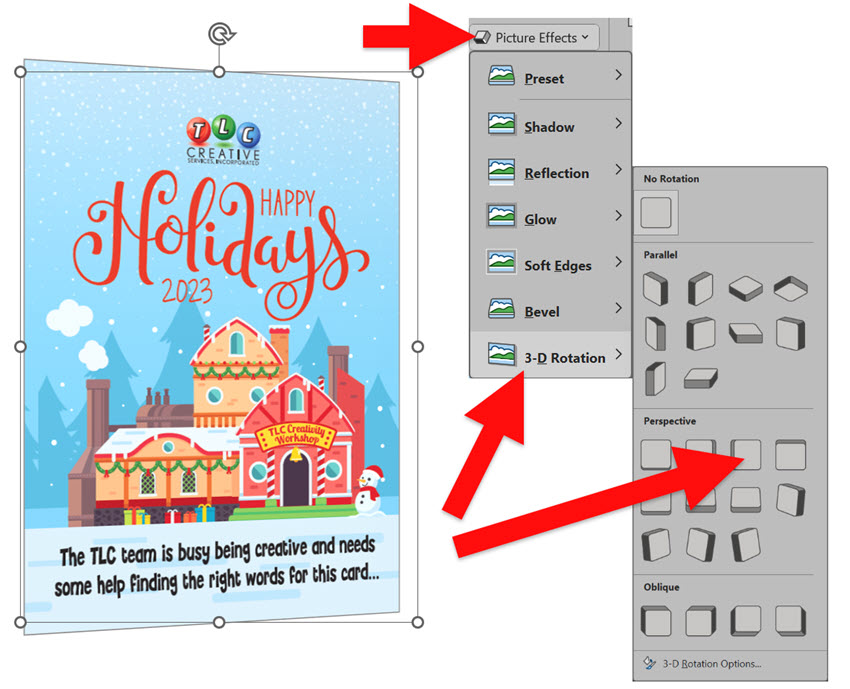
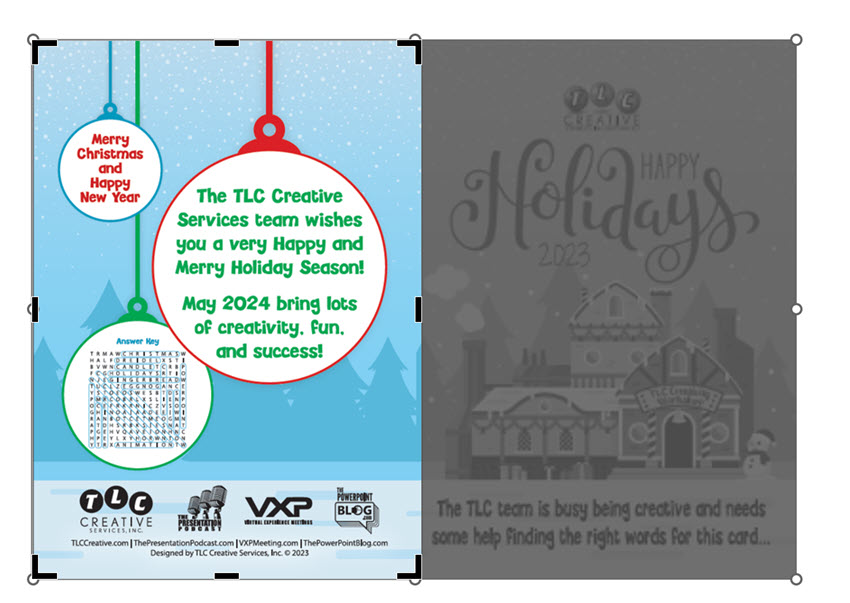
Duplicate the image and adjust the crop to display the other half.
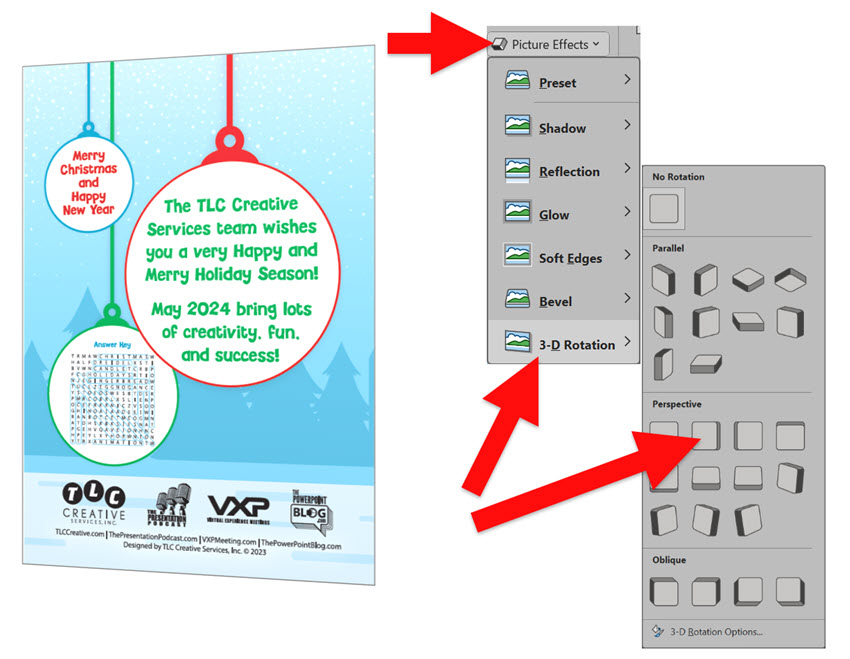
Update the 3D perspective to the opposite perspective.
Now move the two perspective images to align.
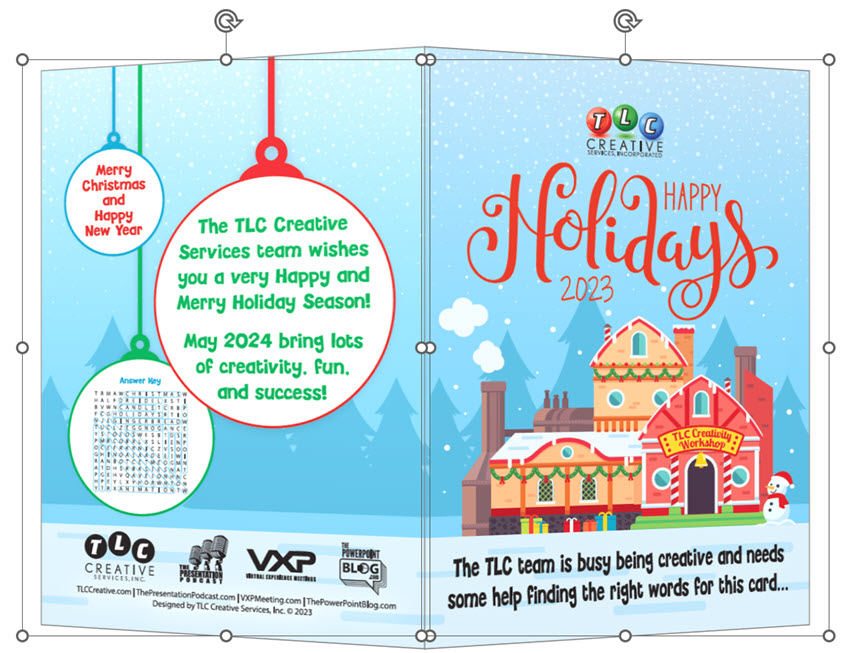
Group both images and add a PowerPoint drop shadow.
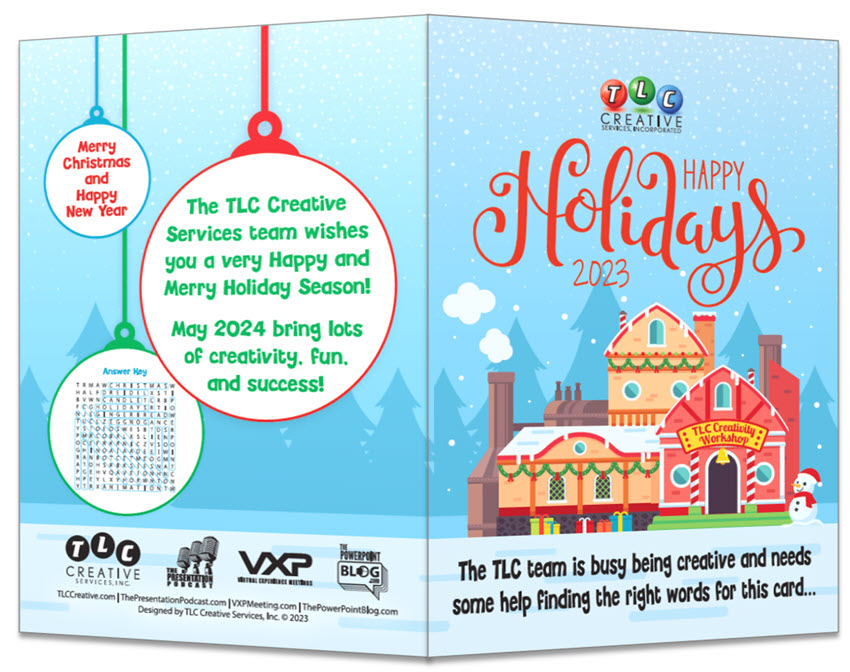
Done! Repeat for the interior layout using the desired 3D perspective (see my 3D perspective applied to the inside and outside layouts on the previous post).
Troy @ TLC