
Type a Registration Mark
If you need to add a registration mark to your text the common solution is to:
– Go to INSERT
– GO to SYMBOL
– Go to NORMAL TEXT and hunt for the registration mark symbol
But there is a an easy and quick way that never has your fingers leave the keyboard. Just type “(R)”. Done.

– Troy @ TLC

Backstage in Las Vegas
Spent last week working in Las Vegas and the new Palazzo hotel (part of The Venetian) is highly recommended. The staging looked great with 2 high-def screens (I controlled) and a lot of smaller support screens (moving video elements) and the set lighting and PPT template color scheme changed with each presenter.

Backstage was the usual glow of computer displays.

Here are the computers I supplied for the event:
1. Primary Left Screen
2. Primary Right Screen
3. My personal production computer
4. Backup Left Screen
5. Backup Left Screen
6. Backup graphics operator personal computer
And although I don’t gamble, this one caught my attention:

– Troy @ TLC
Group Items with Keyboard Command in PPT 2003
Sometimes I just assume that old tricks are known and used by all. Here is one that I use daily, but had to demonstrate to a client. Here is my sample slide that has 4 elements I want to group:
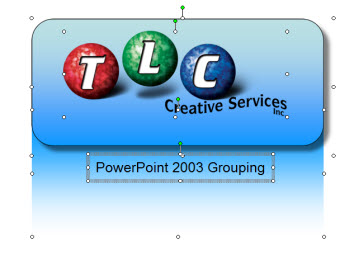
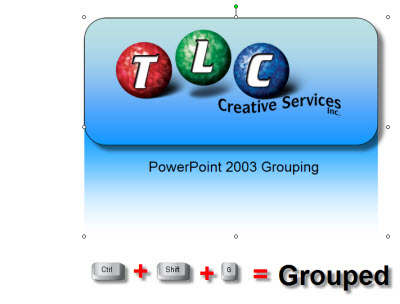
To group, select all, press CTRL + SHIFT + G. Done!
– Troy @ TLC
Where are the File Properties in PPT 2007?
The ribbon interface was designed to be intuitive and make things easy to find. But there are exceptions to everything, like not having an ‘Insert Slide’ on the Insert tab and finding the file properties for the presentation.
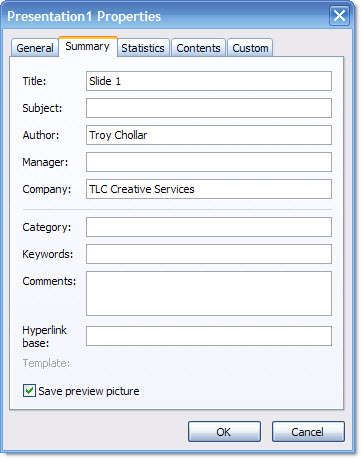
In PPT 2003 you go to FILE >> PROPERTIES and this dialog appears:
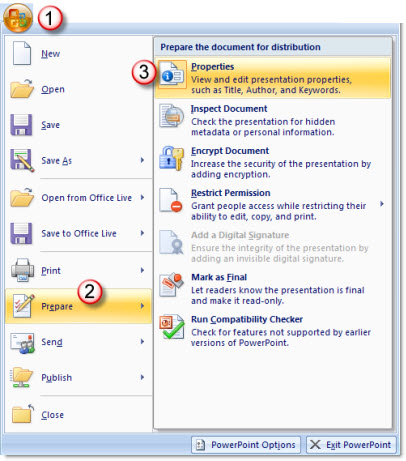
To find this information in PPT 2007 it is not as obvious, although it does have a nice layout when found. To open the file properties in PPT 2007:
1 – go to the OFFICE BUTTON
2 – go to PREPARE
3 – select PROPERTIES
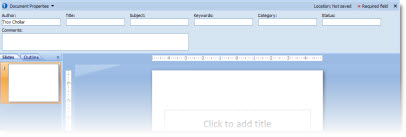
The properties information appears inline just above your slides.
– Troy @ TLC
Another – BETTER- Way to Nudge/Move a Chart in PPT 2007
I received an email from my friend Ute, a PowerPoint MVP from Germany who directed me to one of her video tutorials with the clue that “strg” means CTRL.
You can watch the tutorial here (it is in German).
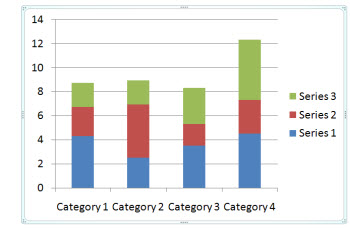
Here is my sample chart. Note the full selection line around it when clicked.
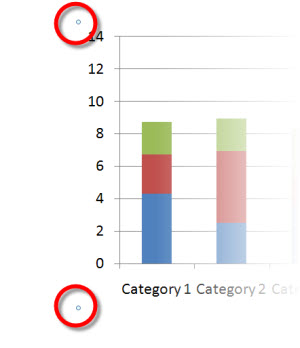
But if you CTRL CLICK on the chart you get a different selection, 4 dots.
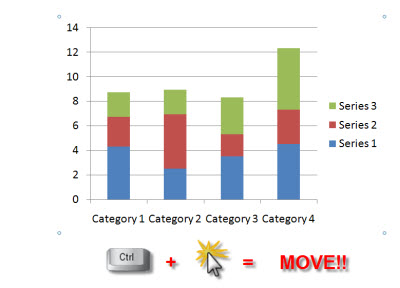
With the CTRL CLICK selection the arrow keys allow you to move the chart!
Thanks Ute!
– Troy @ TLC
Move a PPT 2007 Chart
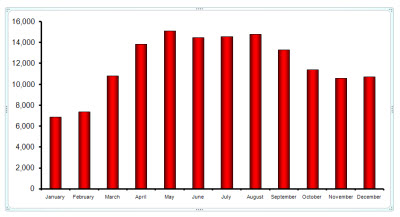
Here is my PPT 2007 slide with a nice stylized chart:
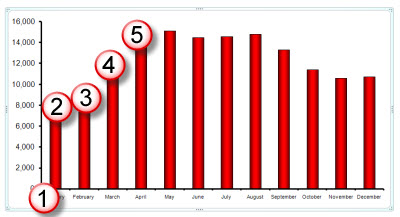
The frustration is when you want to nudge the chart into position using the arrow keys it does not move… Each click of the arrow key just changes the selected item within the chart:
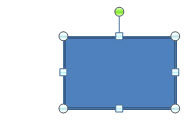
My solution is this – a standard autoshape box:
When you select a chart in PPT 2007 AND any other object, the focus is now on the group of items, not the individual chart. So using the arrow keys moves both items.
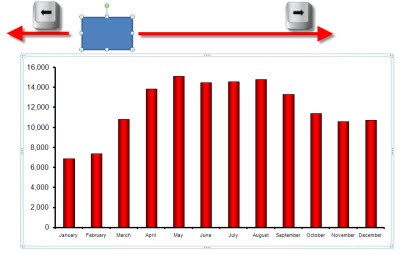
Move the chart into position, then delete the temporary box. Done.
– Troy @ TLC