
PPT Autoshape BG (2)
To create visual depth I layered some semi-transparent gradients to create lighter and darker areas (that were not overly linear). The second autoshape is a gradient, that begins with the darker blue and goes to transparent.
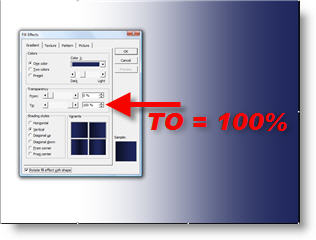
Here is this element placed over the right side of the slide. Layered on top of the first full size autoshape the upper right now has a larger dark area than the rest of the slide.

– Troy @ TLC
PPT Autoshape BG (1)
My goal was to use a blue from the corporate color scheme and develop a visual with a sense of depth and subtle motion.
The first element is a full screen autoshape. The base color is a blue from the corporate color scheme. The secondary color is a darker version of the same blue.
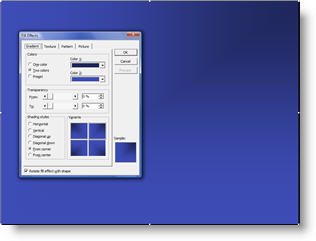
Using the FILL EFFECTS options the darker blue radiates from the top right corner. Next we begin layering autoshapes.
– Troy @ TLC
Creating a Background w/ PPT Elements
On a recent project the specs were to develop a visually dynamic presentation, but maintain an extremely small files size (goal = under 2MB for 75-100 slides – with images!).
The first place was to begin with the template backgrounds. Because native autoshapes are vector based, they have the smallest files size – especially when needed as full screen images.
Here is the content slide developed using just autoshapes:

Over the next few posts we’ll build the background one autoshape at a time.
– Troy @ TLC
PFC Pro 2007
I have been fortunate enough to beta test and enjoy using the PFC Media add-ins since their inception. For those unfamiliar PFC stands for “Plays For Certain”. If you look at my top 10 recommended PPT add-ins on the TLC Creative website you will see PFC Media listed. The developer goes to enormous effort to assure this software works!

Just a few weeks ago the official 2007 compatible version of PFC Pro was released. If you add movies to presentations, I definitely endorse this as the best solution available. Click here for the PFC website.
Kathy Jacobs’ full review of PFC Pro 2007 is posted here.
– Troy @ TLC
PointClips.com = Great PPT Images
Jeff Koke of PointClips recently emailed me a few samples of their PowerPoint images. Pointclips offers “hand-crafted artwork and icons, built in PowerPoint.”

What impressed me was that not only did I see good quality, but that all were made of grouped vector images (autoshapes) and could be resized and even re-colored as needed! Sure you could (maybe) create all of these images yourself, but why spend hours doing so…
The left image is from PointClips free downloadable sample. On the right is a number of the elements ungrouped – all editable autoshapes!

Individual images for $5 and collections of 50 images for $99. Check them out here.
– Troy @ TLC
Solving PPT 2003 & Vista Problems
Here are the steps to solve the two usability problems with Vista and PPT 2003 described in the previous two posts:
1. Locate the actual .exe for PowerPoint 2003 (C: >> Program Files >> Microsoft Office >> Office 11)
2. Right click the POWERPNT.EXE
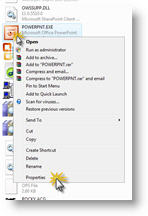
3. Go to the COMPATABILITY tab
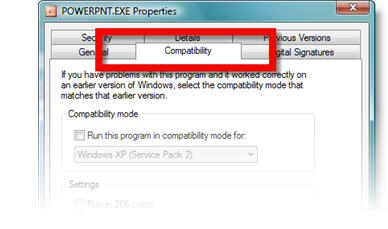
4. Check the DISABLE VISUAL THEMES option
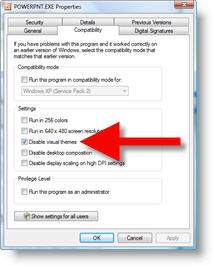
5. Click OKAY and launch PowerPoint 2003
So I can pass along others experiences with Vista, send me an email (link is on the right) letting me know if things do, or do not, work on your computer – or if things work with earlier versions (PPT 2000, XP, etc.).
– Troy @ TLC
VIsta & PPT 2003 Jumping Objects
A problem I have encountered on Vista computers here (Vista Ultimate) and several others I have spoken with have experienced is truly frustrating. Note: this may be caused by Logitech or Wacom drivers, but I have not had time to test to verify.

In PowerPoint 2003 you go to click on any object – image, text box, autoshape, etc. – and it jumps up and to the right. It’s not your unsteady hand, but a Vista “incompatability.” There is an easy solution up next.
– Troy @ TLC