
Extended And Smoother Animations
I personally do not use the Presenter View, but I do run many presentations in a similiar format – with slideshow on the secondary monitor/projector and PowerPoint in edit mode on the primary monitor.
Just like Presenter View, animations can be problematic. Each slide redraws in the edit mode and while it is updates processing power for animations is reduced. But there are some steps to take to minimize the animation lag.
There is a lot of processing power used with each slide transition if you have:
– Slide preview at 100%
– Both left and right action panes open
– PowerPoint running full frame
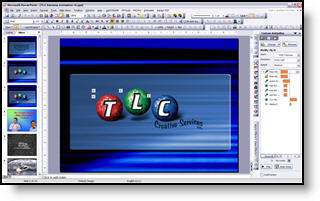
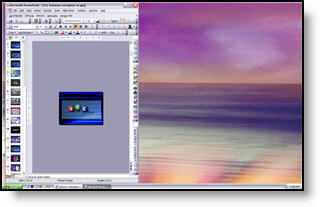
I have found better results when PowerPoint runs like this:
– Close the right action pane
– Reduce size of thumbnails in left action pane, or close all together
– Make slide preview 25% (active slide in center)
– Reduce the actual application window to run in a small vertical area
– Troy @ TLC
Word of Caution About Presenter View
If you opt to use PowerPoints Presenter View and the presentation contains lots of animation, test your output.
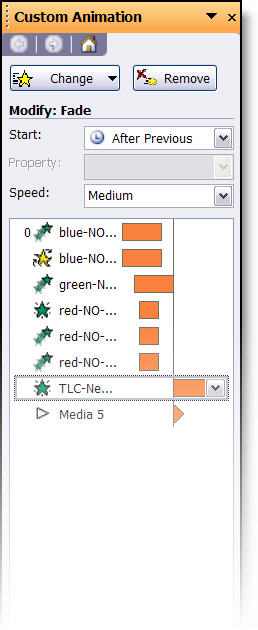
Because the presenter view redraws the slide display it can interfer with animation playback, making it visibly stutter or look choppy.
No easy cure, just something to be aware of.
– Troy @ TLC
Send Presentation to Second Monitor/Projector
With the computer set for Extended Desktop mode (see October 1 post), next is to setup PowerPoint to make use of the second monitor.
In PowerPoint go to: SLIDE SHOW >> SETUP SHOW
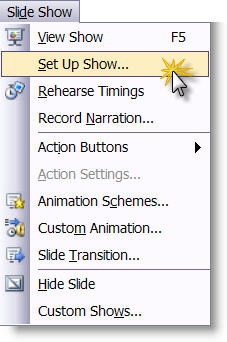
In the Multiple Monitors section click the drop down menu and select “Monitor 2 Default Monitor.”
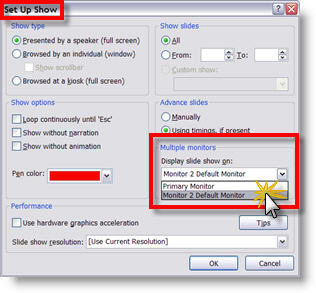
Now the slide show will be on the second monitor (usually a projector) and your monitor will remain in Slide Design Mode.
– Troy @ TLC
Check For, and Turn on, Extended Desktop
If you want to use PowerPoint’s Presenter View, or display the presentation through a projector while having slide design view or slide sorter view on your monitor, the computer must support Extended Desktop.
To see if your computer supports extended desktop go to: START >> CONTROL PANEL >> DISPLAYS >> SETTINGS tab. If you have two monitor icons, you should be good to go.
Click on monitor 2 and then activate the “extend my windows desktop onto this monitor.”
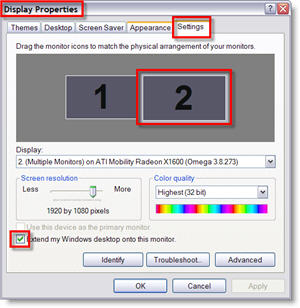
– Troy @ TLC
A Day of Indepth Training
From the middle of August through the middle of the upcoming November we have been in continuous motion. Lots of great projects, super clients and variety. Here are a few photos of a recent “Advanced PowerPoint Training Day.” Lori and I met with a core team of presentation developers at their corporate office for an entire day of indepth how-to’s and design ideas geared to expanding their corporate presentations.
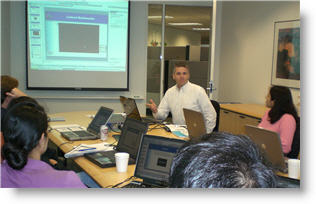
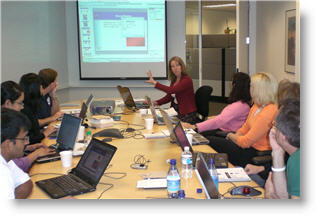
– Troy @ TLC
Animated Frame Entrance
Using native PowerPoint elements and animations, add a dynamic entrance to photos.
1. Insert a photo, or other graphic, to a slide.

2. Add a Line Color (aka stroke) to the photo. Use a color that coordinates with the image or background and is thick enough to be visible (sample here is 2 1/4pt.).

3. Now add a rectangle autoshape. Size it to be slightly larger than the photo and set the Fill to none. Add the same Line Color and weight as applied to the photo.
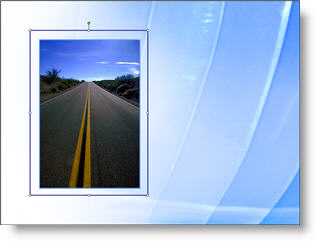
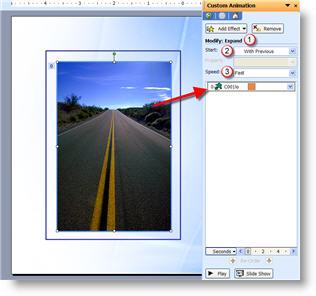
4. Animate the photo: EXPAND, FAST, WITH PREVIOUS
5. Animate the frame: COMPRESS, FAST, WITH PREVIOUS
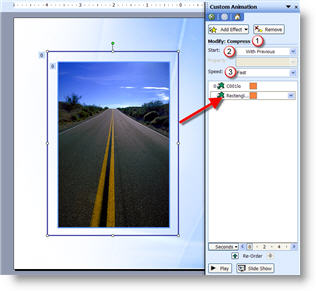
Done! I have also uploaded a sample presentation of this animated slide. Click here to download.
Troy @ TLC
Graphics Cards For PowerPoint
Looking to purchase a new computer, or upgrade the graphics processor of a desktop. Have have added a write-up that overviews the 4 categories of graphics processors and makes some general recommendations specific to presentation use.
Click here to view on TLCCreative.com
-Troy @ TLC