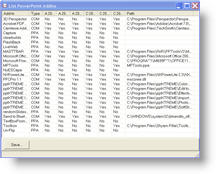
The Icons of Office 2007
After awhile you most likely just look through your list of applications for an icon vs. the name. So get ready to learn some new sights. Here are new application icons of Office 2007.

– Troy @ TLC
PPTLive 2006
The PPTLive conference wrapped up and was a great event! One of the personal highlights is having the opportunity for so many of the PowerPoint MVP’s to be together and have some fun!

Another highlight was presenting the Day 2 General Session on Animation with my wife and business partner, Lori!
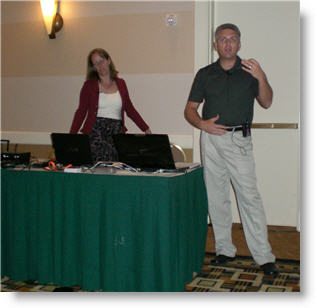
Stay tuned for some posts on things learned, recaps of sessions I spoke at, etc.
-Troy @ TLC
Make the “Hidden” Marker Disappear
So you designed a presentation using a ‘hidden’ graphic to identify the hidden slides during review. Then during the show you manually enter the slide number to show the hidden slide. Now the audience sees the slide AND the full slide ‘hidden’ graphic – oops.
In this case all can work out with a little custom animation. Here is our example slide:
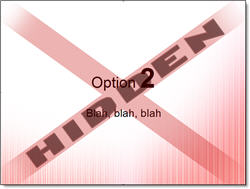
The animation for this slide has both lines of text with animated entrances:
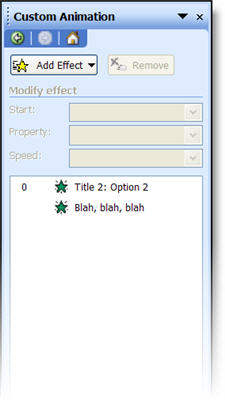
The solution is first to apply an Exit animation to the hidden image. I use EXIT >> DISAPPEAR >> WITH PREVIOUS.
The second step is to make this the first animation in the sequence.
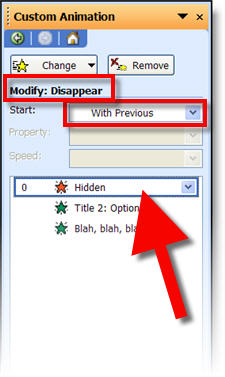
Now you have added a custom graphic that makes it easy to identify which slides are hidden – in slide sorter and printouts. The slide can also be used during a presentation, because the hidden graphic is never shown in slide show mode!
– Troy @ TLC
Download the TLC “Hidden” Graphic
Because of some requests over the past few days (thanks for all send over emails) everyone is free to use the link below to download the “Hidden.png” graphic I developed in PhotoShop a few years back.

Click here to download.
(Note: download is a small 100k .zip file)
– Troy @ TLC
Show A Hidden Slide During A Presentation
A hidden slide does not show up during a slide show – unless the slide is manually brought up.
If slide 3 contains optional information that you have hidden, it can be show by typing “3” + “ENTER.” This brings up the hidden slide #3 for your presentation.
– Troy @ TLC
Make a Hidden Slide Seen
The ‘hidden slide’ feature is great. It can be used to design a master presentation that contains a couple of versions of key slides – just hide the ones that do not apply to that audience. Or you want to edit a slide, but keep the original for that ‘just in case’ scenario.
No matter what the use, the one constant is that it is difficult to identify which slides are hidden. You have to look for the small hash mark here:
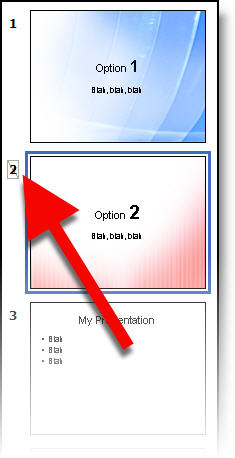
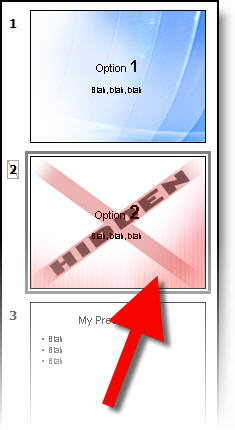
Not only is small, put the is no way to identify hidden slides on a printout. This poses a large problem when supplying printouts to clients for review. What I have done is create a semi-transparent, slide-sized “hidden” graphic in PhotoShop that is inserted on hidden slides. Easy to see in the slide sorter and very obvious in printouts.
– Troy @ TLC