
Listen to The Presentation Podcast
New episode released today! Listen here.
Can a presentation designer be an integral part of the eLearning content development? This episode Troy, Nolan and Sandy talk with Mike Taylor about all things eLearning and focus on how PowerPoint as an app can be integral to the process and how being a presentation designer can make you a valued part of the process.
How Big is This Image?
Looking at an image on a slide, it is not easy to know what the original image size is. Is it HUGE, adding unnecessary file size? Or is it tiny and not going to display well? There is a quick and easy way to figure out original image sizes within in PowerPoint:

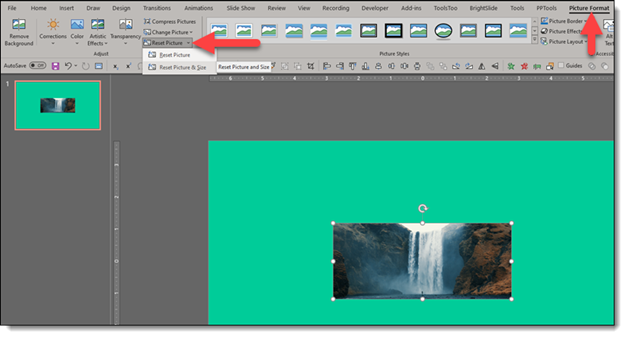
On this example slide, the image is on the slide relatively small. But is this its real size?

To visually see the true size of the image, go to the top menu and click the Picture Format tab, then select the “Reset Picture” dropdown, and choose Reset Picture and Size
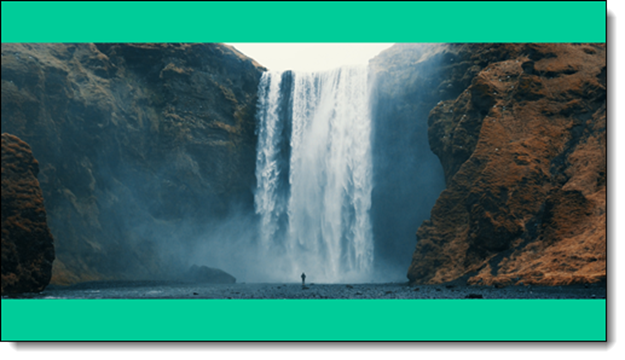
Once the picture has been reset, it will size to its real size. With this example, the image was MUCH larger than its displayed size (which depending on animation needs, could be okay to keep as is)
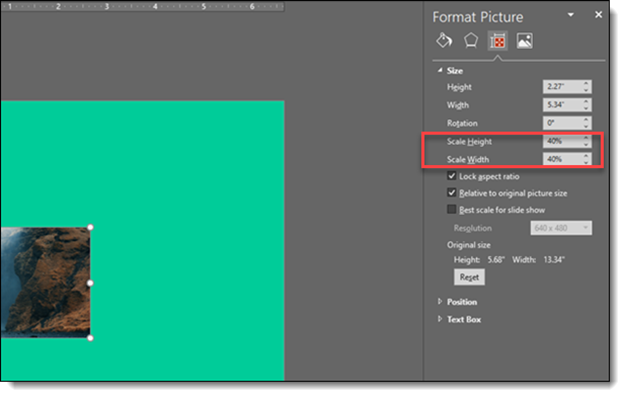
If you are “numbers” person, click on any image. Go to the “Size and Properties” tab in the Format Picture settings. Look at the Scale Height and Scale Width percentage. For our example image it shows the small image is displayed at only 40% of its original size. That tells us the image is much bigger, could easily fill the slide at its native 100% size – or it is bigger than needed for the slide and adding to the file size of the presentation.
Just a few tricks of where to look, or what to do, to know if the image on a slide is what you need as far as its file size.
Jake @ TLC
PowerPoint Custom Color Schemes and “Indian Jones”
Our final custom PowerPoint color scheme is inspired by the classic trilogy of Indian Jones. The PowerPoint slide shows the reference image, the color chips, and you will need to download the PowerPoint file to enjoy the creative color naming.
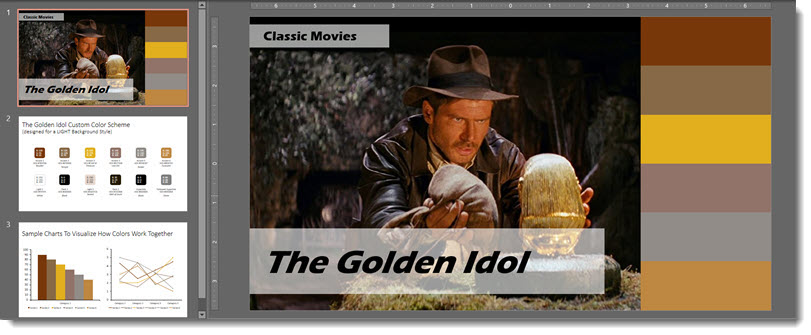
Indiana: Warm yellow tones, set as a monochromatic scheme. Colors taken from the main character clothing and the objects in the surrounding background.
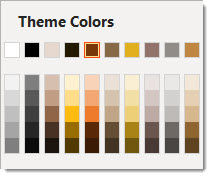
Download the PowerPoint deck with preset color scheme here.
PowerPoint Custom Color Schemes and “Princess Bride”
Part 4 of our internal design exercise is the very classic movie Princess Bride. The PowerPoint slide shows the reference image, the color chips, and you will need to download the PowerPoint file to enjoy the creative color naming.
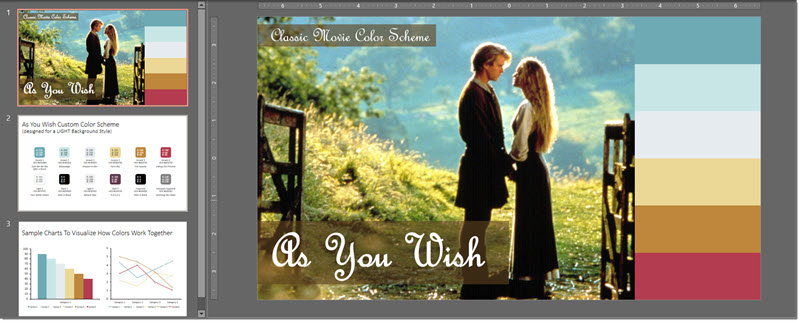
Princess Bride: Soft, light colors for an analogous scheme. Colors taken from the main characters and the surrounding background.
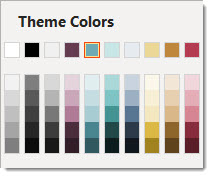
Download the PowerPoint deck with preset color scheme here.
PowerPoint Custom Color Schemes and “Beetle Juice”
Part 3 of our internal design exercise is the classic movie Beetle Juice. The PowerPoint slide shows the reference image, the color chips, and you will need to download the PowerPoint file to enjoy the creative color naming.
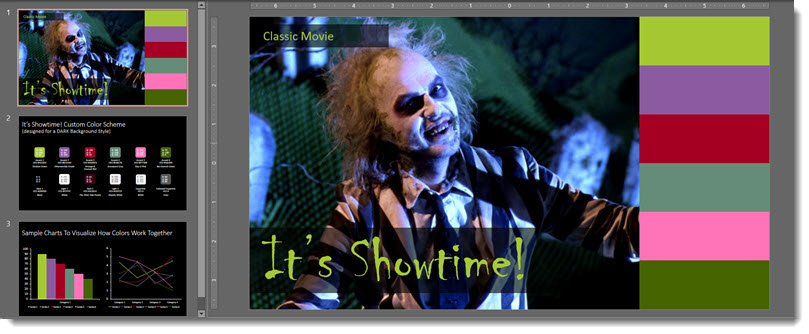
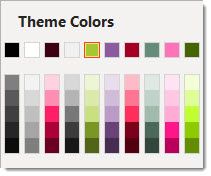
Beetle Juice: A mixture of muted and bright colors. Greens and purple taken from the main character and background objects. Other colors are not pulled directly from the image but are complimentary to the movie’s aesthetic and undertone.
Download the PowerPoint deck with preset color scheme here.
PowerPoint Custom Color Schemes and “Splash”
Part 2 of our internal design exercise is the classic movie Splash. The PowerPoint slide shows the reference image, the color chips, and you will need to download the PowerPoint file to enjoy the creative color naming.
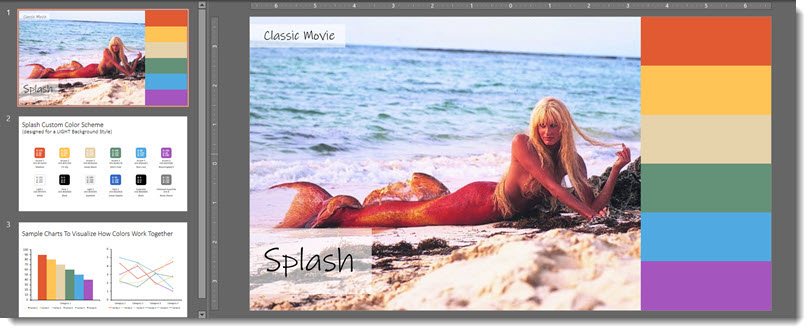
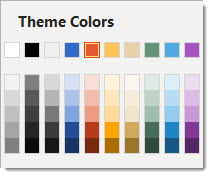
Splash: Vintage, warm rainbow tones. Inspiration from reds and yellows of the fin and tan of the sand. The cool tones taken from the different hues of the ocean.
Download the PowerPoint deck with preset color scheme here.
PowerPoint Custom Color Schemes and the Movies
As an internal design project we explored creating custom PowerPoint color schemes (that can also be applied to other Office apps such as Excel and Word). A custom color scheme (this is not a full tutorial) is created by selecting a master slide (if there are multiple master slides in a presentation, each can have their own preset color scheme) and going to DESIGN > VARIANTS > COLORS > CUSTOMIZE COLOR.

For this internal exercise, the design team picked a “classic movie”, found a reference image, and assembled a color scheme that they felt aligned with the movie. The results were so good, we had to share a few of the creations! This is a 6 part blog series, highlighting 6 classic movies (note, “classic movie” as interpreted by our design team!) and the corresponding custom PowerPoint color schemes. And, each will be downloadable 🙂
To start things off, from Christie, is a true classic – the original Wizard of Oz.
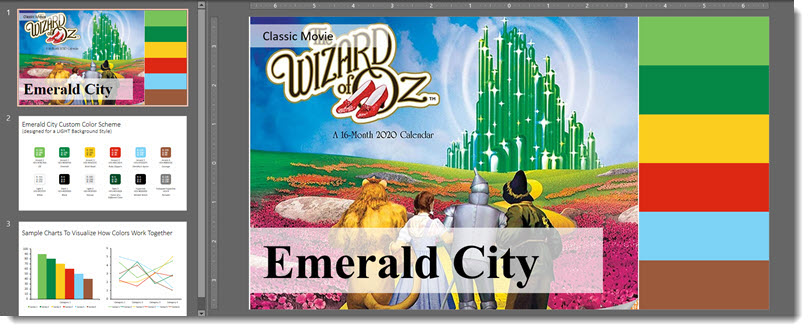
Wizard of Oz: warm saturated tones. Greens and yellow taken from the main focal point of the emerald city and yellow brick road. The reds, blue and brown mainly from Dorothy’s aesthetic, hair, dress, and shoes.
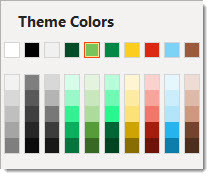
Download the PowerPoint deck with preset color scheme here.