
A Look Back at Using PowerPoint’s Picture Fill for Dynamic Slide Design
Two years ago, we wrote a blog post about one of PowerPoint’s most underutilized features: the PICTURE FILL option.
This option, with creative use, can take a presentation slide from good to GREAT! So, let’s revisit how to take stock vector art (such as .svg) and make it dynamic using PowerPoint’s Picture Fill.
First, is adding a nice Christmas tree .svg graphic that is appropriately themed for this time of year.
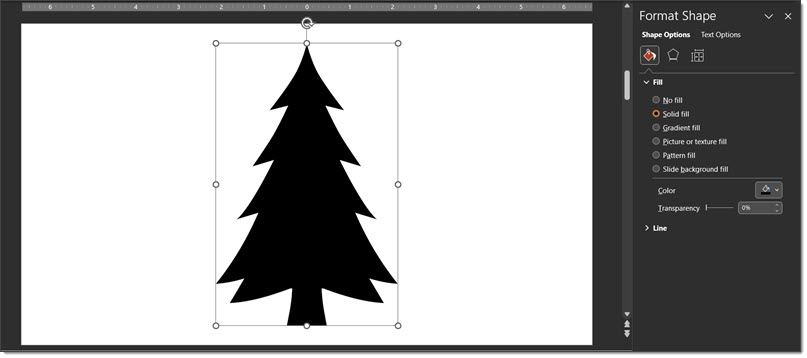
COLOR FILL
Obviously, we can use the paint bucket to change the color of the tree, but a step further is to use PowerPoint’s gradient fill option.
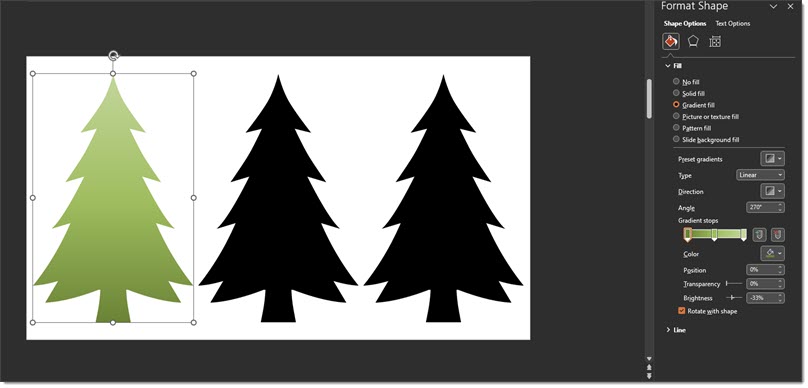
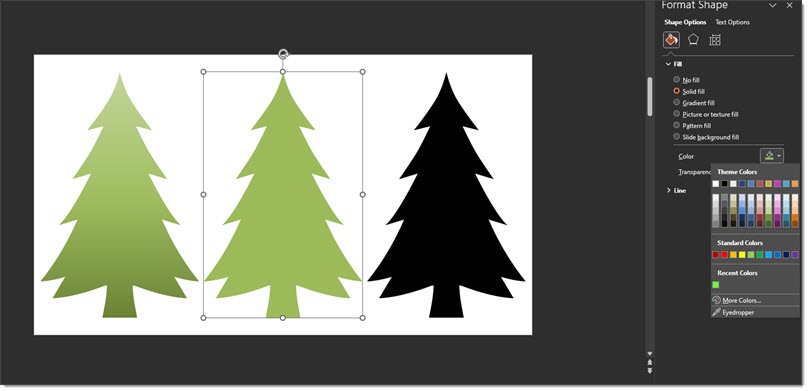
A gradient fill (left tree image) is a bit more stylized than solid green (middle tree image).
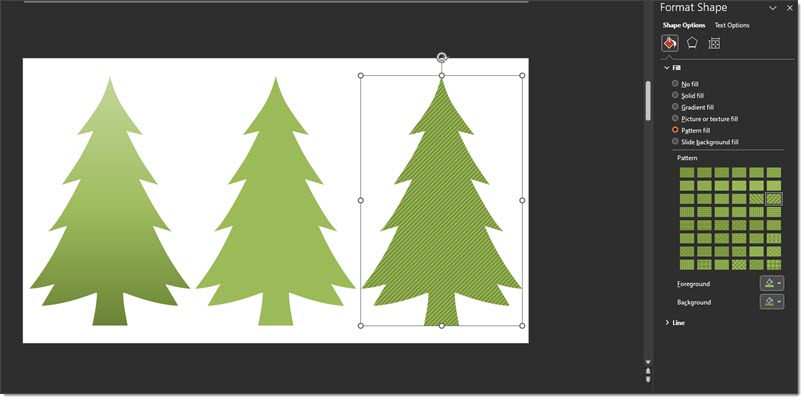
But maybe hold off using the pattern fill options for this example (right tree).
Just as a note: if you’re doing a pattern fill, the pattern colors and the background color can both be customized – but still, let’s hold off on using the pattern fill for this slide!
PICTURE FILL
And while these are all nice options, we can get an even more realistic result if we use the Picture Fill option! To use this option, select your vector art on the slide > open the FORMAT SHAPE dialog > then select PICTURE OR TEXTURE FILL > then locate the photo image you want to use within your computer.
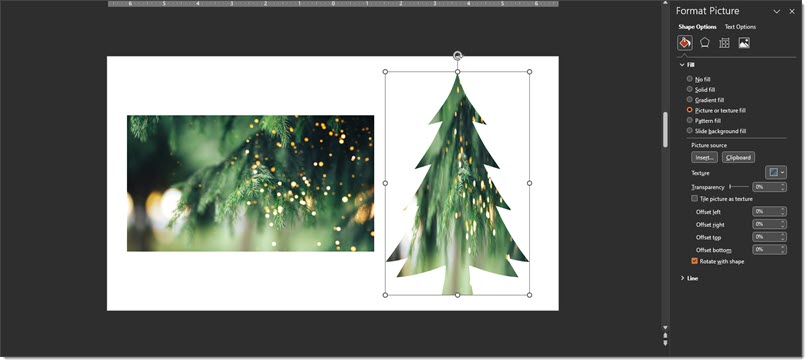
Here’s a tip! If you don’t want to go through the above rigamarole, you can also CTRL + C the photo image you’d like to use, and then simply click on your vector image and paste the photo into your vector art!
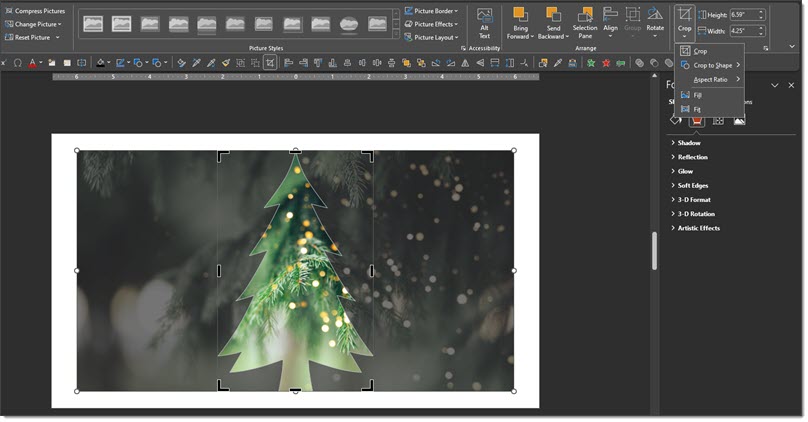
You’ll also notice that the inserted image is distorted to fit into the size of the vector art (the tree). You can adjust the distortion and size by using PowerPoint’s CROP tool.
First, select the tree > click the CROP tool > adjust the width of the fill image with its size/shape points. This, of course, applies to vector art of any shape or size!
And here is the final slide from our December 21, 2023 blog post – polished vector art and all design created directly in PowerPoint. Download this slide to use in your own presentations here!

-Troy @ TLC (with special thanks to Christie for this design example, created 2 years ago!)