The PowerPoint® Blog

I work with PowerPoint on a daily basis and I am very honored to be a Microsoft PowerPoint MVP. We have a talented team of presentation designers at TLC Creative Services and ThePowerPointBlog is our area to highlight PowerPoint tips, tricks, examples and tutorials. Enjoy! Troy Chollar

Developing the Perfect Template

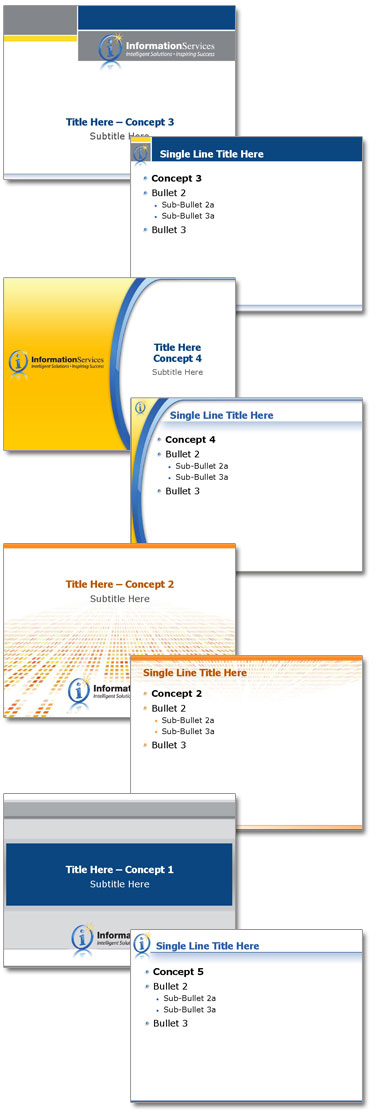
On this template project, we worked out the technical needs (PPT 2007, color scheme, logo, etc.) but there was no input on design direction. So the project evolved with an initial design blitz of layout and design styles. Based on continuous input, the design was narrowed and refined to the perfect set and then finalized with all PowerPoint presets and delivered as a distribution ready .potx.
– Troy @ TLC
By |2016-08-16T10:25:53-07:00February 24th, 2011|Templates/Assets|

Manage Multiple Time Zones with Windows 7

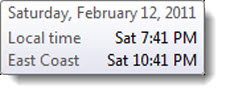
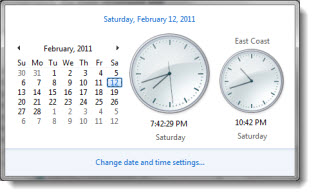
Last week, when working on the East Coast, a different time zone than home, I was asked how I managed to keep track of things in the different time zones. Windows 7 has a great little feature to add multiple time zones to the clock.

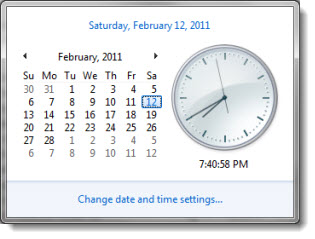
1. Click the time in the lower right on the task bar and click “CHANGE DATE AND TIME SETTINGS”

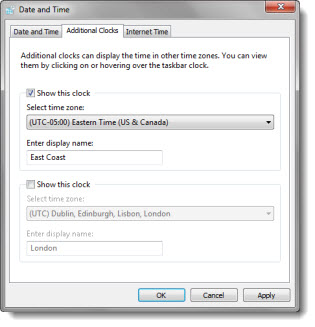
2. In the DATE AND TIME dialog, go to the ADDITIONAL CLOCKS tab and setup 1 or 2 additional time zones and name them

3. Now the taskbar shows both (or all three) time zones

4. If you click on the time in the task bar, you now see clocks for both time zones active there as well

– Troy @ TLC

By |2016-08-16T10:26:28-07:00February 22nd, 2011|Personal, Resource/Misc|

Hmmm, SlideRocket’s latest promo seems off track to me

Last week, SlideRocket, which I like a lot, announced their “It’s ‘Say No To PowerPoint’ Week” promo. But the tagline really got me wondering how they define a presentation.

“SlideRocket is celebrating national “Say No to PowerPoint Week” by challenging people to say “yes” to stunning presentations. It’s time to say rest in peace to presentations 1.0 and embrace a new way of presenting that engages the mind and senses. To help drive a stake through the heart of “Death by PowerPoint,”…”

In the now famous Edward Tufte statement about “Death By PowerPoint,” a huge generalization was made – that all PowerPoint created presentations are bad. Definitely not a true statement, as presentations developed by applications other than PowerPoint can be bad too. The reality is, not all presentations are bad – not all presentation good. Not all presenters are bad, and not all presenters are good.

The SlideRocket promotion bothers me in that it also wants to generalize that all PowerPoint created presentations are bad (wrong) and that all SlideRocket created presentations are good (wrong).

– Troy @ TLC

By |2016-08-16T10:27:29-07:00February 20th, 2011|Personal, Resource/Misc|

Ascend or Float Up?

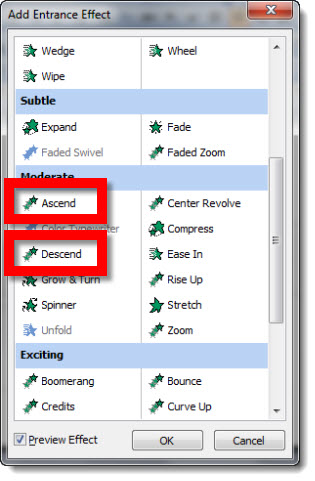
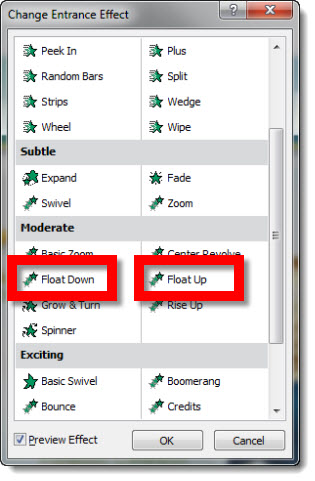
In PPT 2003 and 2007, I made lots of animation effects with the “Ascend” and “Descend” entrance animations.

In PPT 2010, it was a near panic when these popular animations were not found. But, nothing to fear, the same animations effect have been renamed “Float Up” or “Float Down.”

– Troy @ TLC

By |2016-08-16T10:28:23-07:00February 16th, 2011|Tutorial|

Is the “Compress” Animation Gone in PPT 2010?

PPT 2003 and 2007 gave us the “compress” entrance animation, which I have used lots. In PPT 2010, it is mysteriously missing from the animation options. But is it really gone?

To get it back, here is one solution:
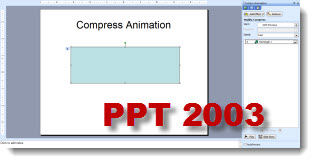
Create a single slide presentation in PPT 2003 or 2007 that has a single shape with the Compress animation (or download one below). Here is mine from PPT 2003:

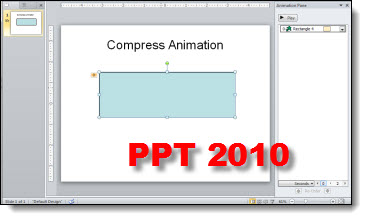
Open the slide in PPT 2010:

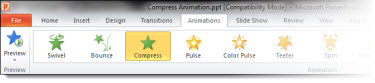
Interestingly, when you select the animated shape and go to the Animation tab, it shows the Compress animation!

Use the Animation Painter to pickup the Compress animation from the sample shape and apply to any element in your presentation.

Download Compress animation slide here.

– Troy @ TLC

By |2016-08-16T10:28:49-07:00February 14th, 2011|Tutorial|

Time – Person of The Year (comment)

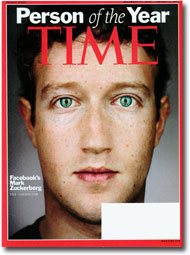
Flying across country to meetings has a few advantages: no cell phone, no internet/email and lots of time to catch up on reading. Earlier this week, I caught up on some magazines. Time magazine’s Person of the Year issue had several great articles.

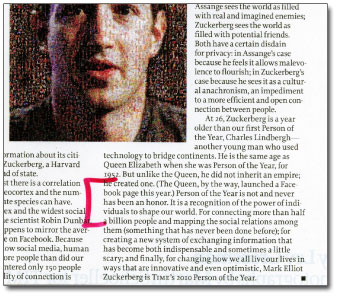
The main story about Facebook founder Mark Zuckerberg was great. This statement at the very end of the article about Time Magazine’s qualification for being selected was insightful:

Person of the Year is not and never has been an honor. It is a recognition of the power of individuals to shape our world.

– Troy @ TLC

By |2016-08-16T10:29:05-07:00February 12th, 2011|Personal|

Blank Screen or Static Logo ?

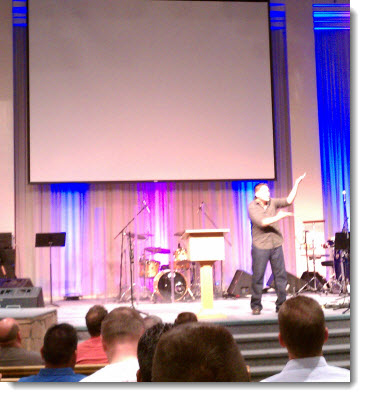
At a recent event I attended, one speaker was dynamic, engaging and a very good speaker. He did not have a PowerPoint presentation and did not need one to hold the audience attention. But it was distracting to have the large blank screen above him.

Distracting black or event theme graphic? A static theme graphic becomes part of the staging, blends in and does not draw attention to a screen that the audience is looking for something on it.

– Troy @ TLC

By |2016-08-16T10:29:38-07:00February 10th, 2011|Personal, Resource/Misc|

iPad for PowerPoint Presentations

Recently, I read an article that talked about various approaches and issues with presenting a PowerPoint presentation from an iPad. The general information on technologies and ultimately issues to be aware of when importing a PowerPoint presentation into Keynote were all good. Also, I think the iPad is fantastic and one gets used daily here at TLC.

But the conclusions should definitely make everyone concerned with the ability to present anything visually dynamic at this point on the iPad:

“While the iPad is a credible candidate for road warrior presenting, content authors need to take care with the content they generate. The golden rules can be summarized as:
1. Keep it simple – don’t use advanced features of PowerPoint as it’s likely Keynote will not support them.
2. Fonts – make sure you are only using one or more of the 7 common fonts (see appendix below).
3. Transitions – use fade and wipe only.
4. Video – don’t use it unless you’re a video formats wizard!
5. Aspect Ratio – Design for 4:3 aspect ratio before you start doing anything.
6. Graphics Engine – Don’t manipulate images in any way in PowerPoint. Do it externally and then import the finished image or use the copy/paste special trick.”

Based on expert opinion, a presentation should not use animation, transitions, any image effects, any text effects, video or specialty fonts… I think that describes presentations developed with PowerPoint 95.

– Troy @ TLC

By |2016-08-16T10:29:55-07:00February 8th, 2011|Personal|

How To Move An Object Seamlessly With Multiple Motion Paths

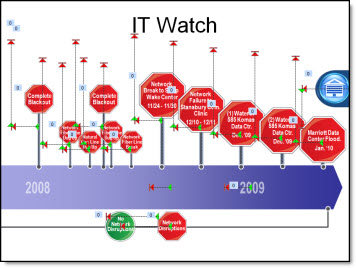
Motion path animations are a great feature, but using them beyond the basic can be confusing. For example, here is the slide from yesterday’s timeline sample:

The animation effect was great and the design of it relied on a lot of motion paths. This is a quick step-by-step example of moving an object to two positions with motion paths.

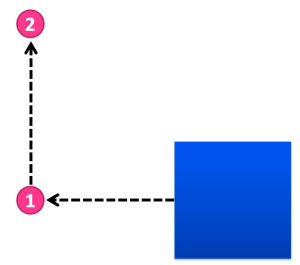
1. The blue box is the object to move. First to area “1” and then to area “2.”

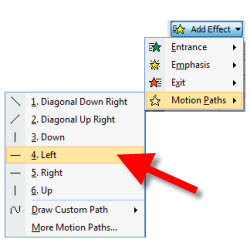
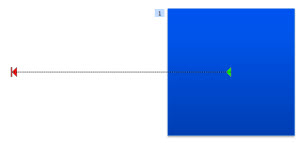
2. Moving to area “1” is easy. Select the box and add a Motion Path to the left.

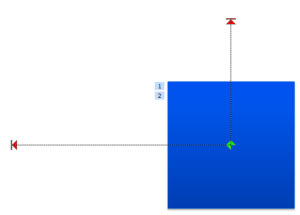
3. To move to area “2” is a bit more involved. First, add a Motion Path up. Note: It is added to the existing position. During slide show the box will move to the left, then jump back to the original location and move up – not the seamless effect wanted.

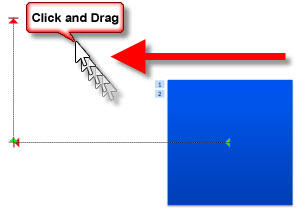
4. Select the “up” motion path. Note: You must be in the Animation tab to view motion paths and select them. Then, click and drag it over so it’s green start is exactly aligned with the first motion paths red end.

5. Done. Now, the box will seamlessly move to area “1” and then up to area “2.”

Download presentation with this sample animation (17K). Note: if your browser changes downloaded file to”.zip” rename to “.pptx”.

– Troy @ TLC

By |2025-01-02T13:41:38-08:00February 4th, 2011|Tutorial|
Go to Top