The PowerPoint® Blog

I work with PowerPoint on a daily basis and I am very honored to be a Microsoft PowerPoint MVP. We have a talented team of presentation designers at TLC Creative Services and ThePowerPointBlog is our area to highlight PowerPoint tips, tricks, examples and tutorials. Enjoy! Troy Chollar

Stopsigns on the Timeline

Timelines are a staple for presentations. But memorable, content applicable, and legible timelines are not. Here is a timeline developed for a recent client that tied in with the visual style of the presentation and emphasized the key message with animation.
[youtube src=”https://www.youtube.com/embed/CsTi7dV7now?rel=0″]

The timeline was spread across two slides to make the design (and modification) easier. In the full presentation there were several on-click animations to coordinate with the speaking points and the slide transition acted as one of the clicks to advance to the next point.

– Troy @ TLC
By |2016-08-16T10:30:39-07:00February 2nd, 2011|Portfolio|

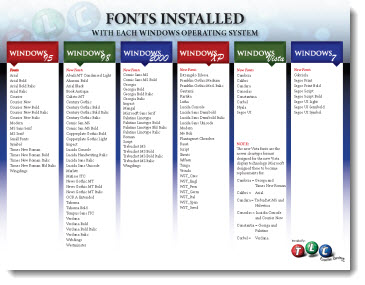
Fonts Installed With Each Operating System – Since Windows 95

Some things should be easy to look up, find and reference. Some things are not easily found. Such was the case when I needed to answer a simple question – “Is that font installed with Windows 2000?” Of course, I could not reply with my first thought (“Why are you using Windows 2000!”) as that would most likely not create a good relationship with a new client. And because I no longer have any Windows 2000 computers to check, I did a quick web search. An hour later, I was frustrated with using an hour of my day to answer a simple question, that I should know the answer to.

So, several more hours of research and design and I am confident I can avoid this situation again. Here is my solution, a list of fonts installed with each Windows Operating System since Windows 95 (and yes, Windows Millenium is missing – I purposefully chose to skip over it):

Note: No guarantee that nothing is missing, especially if using a non-English install.
Download the PDF here.

– Troy @ TLC

By |2016-08-16T10:31:13-07:00January 31st, 2011|Personal, Resource/Misc|

35 PowerPoint Template Projects (TLC Portfolio)

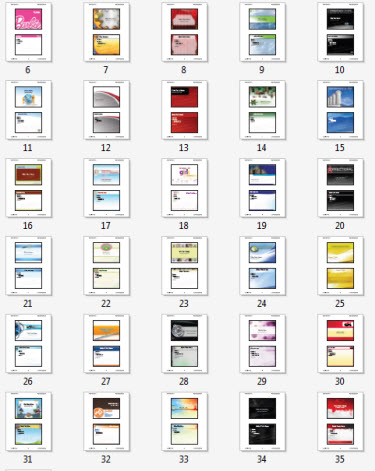
I have compiled a PDF that highlights 35 PowerPoint templates developed in 2010. The goal is provide a simple annual portfolio of template projects for reference on the diversity of clients and design styles.

For 2010, I had over 125 template projects. This is was simplified to include only 4×3 templates (no 16×9 widescreen or custom aspect ratios), publicly viewable and with no client content. Also, most templates include more than a Title and Content background and layout, but for a simple approach this is all that is included. Finally, all projects are specific to a paying client and templates cannot be released to anyone other than that client, so this is only a portfolio piece.

Download the 2010 PowerPoint templates portfolio PDF here (8.8 MB ).

– Troy @ TLC

By |2016-08-16T10:31:33-07:00January 31st, 2011|Personal|

6 PowerPoint tips for young PR and marketing professionals

This article was posted this week in the Midland Daily News. It is short, clear and has a good summary of items to consider when developing a presentation.

(Summary)
1. Use the audience’s language.
2. KISS – Keep It Short and Sweet.
3. Be consistent.
4. Prove your points.
5. Call to action.
6. Review the presentation.

View the full story here.

– Troy @ TLC

By |2016-08-16T10:31:55-07:00January 27th, 2011|Personal|

Baseline Shift/Offset Any Text, Any Amount

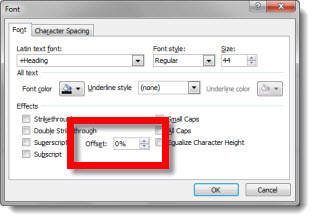
If you need a custom super-script registration mark, or special text layout, using the OFFSET option can be the solution. Select text to adjust, open font dialog, and customize the Offset box.

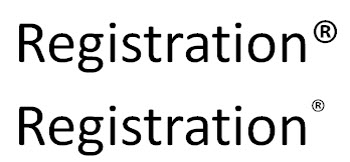
Here is the standard super-scripted registration mark and a customized registration:

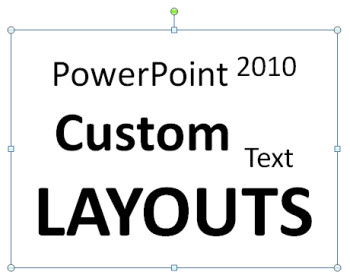
Another use of the text offset can be custom layouts such as this:

Note: I am not saying this is a good layout idea, just that it is possible all within one text box.

– Troy @ TLC

By |2016-08-16T10:32:10-07:00January 25th, 2011|Personal, Tutorial|

Hawaii 2011 – Time to Leave

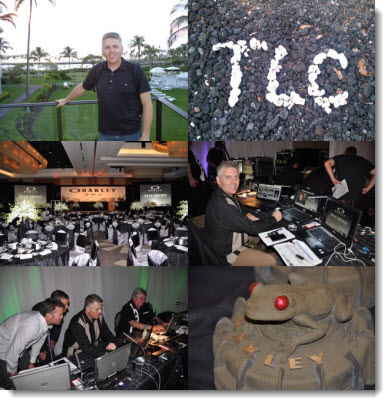
I interrupt the tutorial series on Baseline Shift to say goodbye to Hawaii (the Big Island) as I fly back today. I know lots of people that do not look forward to the winter months (they generally live in snow areas), but meetings tend to be in great, warm, places during the winter. So I look forward to the winter each year (Cabo San Lucas, Hawaii, San Francisco, Florida and a family ski trip to Utah for the 2011 Winter)!

– Troy @ TLC

By |2016-08-16T10:32:36-07:00January 23rd, 2011|Personal|

Baseline Shift = “Offset”

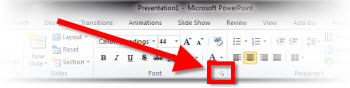
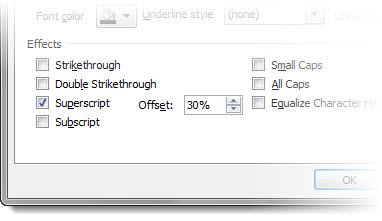
When a super-script or sub-script is applied, there is actually an automated adjustment to PowerPoint’s OFFSET function. To access, highlight text and click the arrow on the bottom right of the FONT group to launch the FONT DIALOG BOX.

Super-script text is a 30% baseline shift/offset and sub-script text is a -30% baseline shift/offset.

– Troy @ TLC

By |2016-08-16T10:32:59-07:00January 21st, 2011|Personal, Tutorial|

What is Baseline Shift?

Baseline shift = “To move a selected character up or down relative to the baseline/level of the surrounding text.

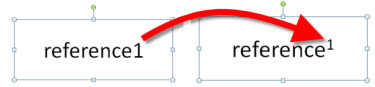
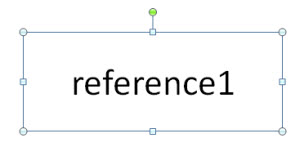
Baseline shift is an essential typography fine tuning function. The most common use of it in PowerPoint is when a super-script or sub-script is applied to text. For example, here is my sample text:

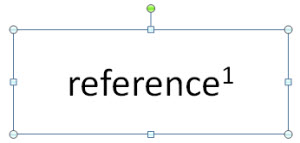
After applying the super-script function, the number 1 is raised up higher than the text next to it – the baseline has been shifted.

– Troy @ TLC

By |2016-08-16T10:36:01-07:00January 19th, 2011|Personal, Tutorial|

Collapse the Ribbon

Sometimes having a bigger work area makes designing slides easier. A larger monitor or higher resolution monitor is an option, or just temporarily removing the ribbon is an easier option.

Standard ribbon (taking up screen realestate)

Collapsed ribbon (with more screen realestate for the design work)

– Troy @ TLC

By |2016-08-16T10:36:28-07:00January 16th, 2011|Personal, Tutorial|

Using BackGround Removal and Blur Tools (by Ric Bretschneider)

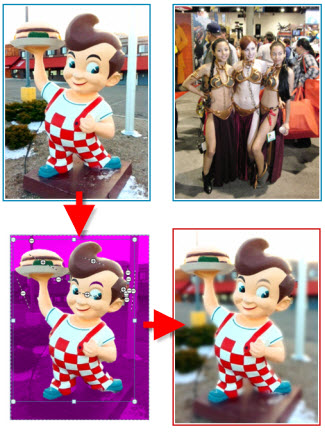
PowerPoint MVP Ric Bretschneider added a great tutorial to his personal blog this week called “The PowerPoint Blur Trick”.

The image effects are done by combining the Background removal tool, duplicate images, and the Blur tool – all really good ways to achieve ‘Photoshop’ images direct in PowerPoint.

Check out the full tutorial here.

– Troy @ TLC

By |2016-08-16T10:39:09-07:00January 13th, 2011|Tutorial|
Go to Top