I work with PowerPoint on a daily basis and I am very honored to be a Microsoft PowerPoint MVP. We have a talented team of presentation designers at TLC Creative Services and ThePowerPointBlog is our area to highlight PowerPoint tips, tricks, examples and tutorials. Enjoy! Troy Chollar
Animation Using Super Wide Panoramic Photo
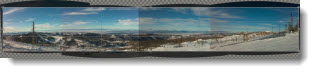
Using the panoramic image from the previous post, here is a sample animation. Actually the audience sees a continuous animation, but from the designer view is a series of slides that use Slide Transitions for the animation effect.
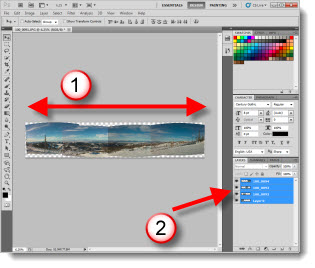
1. Insert panoramic image (it is almost 5Xs the width of a slide)
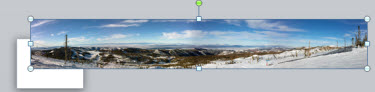
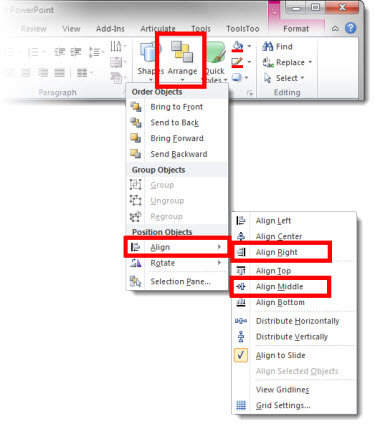
2. Position it by using the Align tools. (1) Align left. (2) Align Middle.
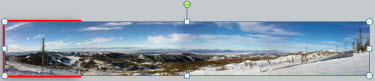
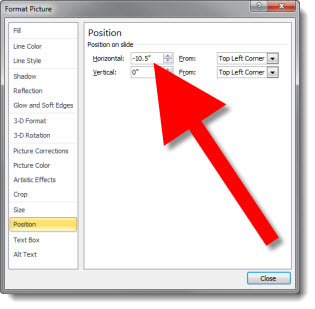
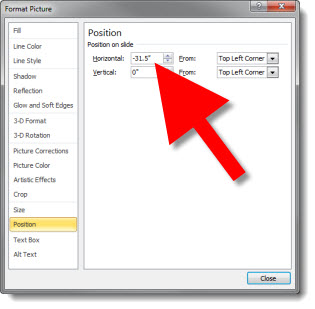
3.Duplicate the slide. Right-click the image >> Format Picture >> Position (left pane) >> set Horizontal to -10.5″ (right pane)

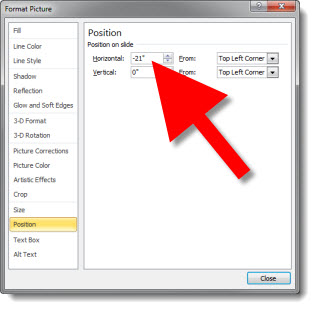
4. Duplicate the slide and repeat process to set horizontal another 10.5″ to the left (-21″)

5. Duplicate the slide and repeat process to set horizontal another 10.5″ to the left (-31.5″)

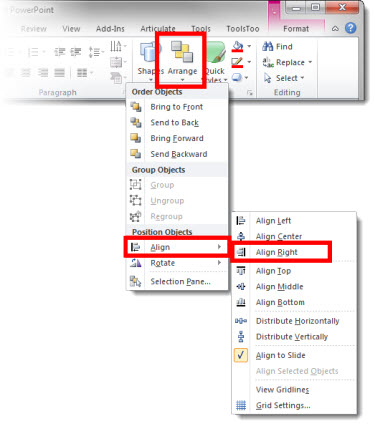
6. Because the image is not exactly another 10.5″ wide, go to HOME tab >> ARANGE >> ALIGN >> ALIGN RIGHT

7. Select all 5 slides and set the slide transition to WIPE

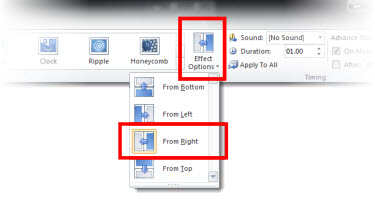
8. With all 5 slides still selected adjust the slide transition – TRANSITIONS tab >> EFFECT OPTIONS >> FROM RIGHT, so the slide transitions visually act as the on-click animations.
The result is a slide show that lets you pan through image from left to right. Download this presntation here.
– Troy @ TLC