The PowerPoint® Blog

I work with PowerPoint on a daily basis and I am very honored to be a Microsoft PowerPoint MVP. We have a talented team of presentation designers at TLC Creative Services and ThePowerPointBlog is our area to highlight PowerPoint tips, tricks, examples and tutorials. Enjoy! Troy Chollar

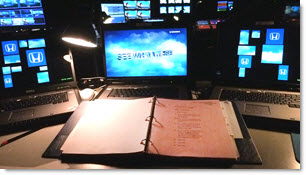
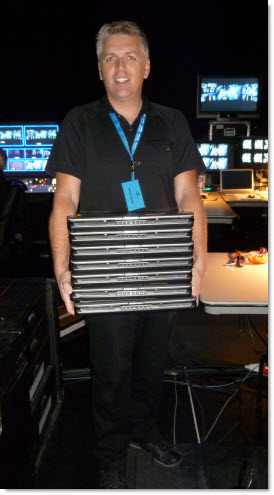
A stack-O-Computers For The Show

Here was my morning activity for a recent show. Bring out the multiple show computers (all running PPT 2010), connect, test output and work. Powerful laptops are big, but I wouldn’t try carrying a stack of desktop computers!

– Troy @ TLC

By |2016-08-16T11:21:43-07:00July 11th, 2010|Personal|

Sample Slide – U.S. Population Growth

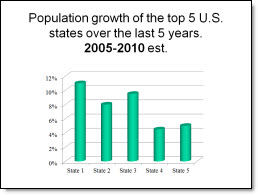
I needed a slide that showed the 5 states with the most population growth over the past 5 years. The original slide had a standard bar chart, which told the statistics but was not very compelling.

I recreated this slide with a map of the U.S. highlighting the top 5 states. I used the 3D tools in PowerPoint to make the states ‘pop’ out of the map and applied a custom gradient fill to each. I also applied a 3D rotation to the state name and percentage text with a white glow to allow the text to be easy to read.

Note: all data in these slides is sample data (eg. I made it up, while I waiting for real data from the client).

– Troy @ TLC

By |2016-08-16T11:22:15-07:00July 9th, 2010|Portfolio|

Perception Slide

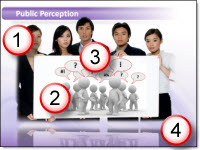
From a project, this slide was about how co-workers perceive the actions of different departments within their own orgranization. The title was shortened to a simple statement of “Public Perception”. The 4 wordy bullets of text eliminated and replaced with a single image that the presenter was able to talk to and use to set the stage for a quick story and explanation of the point being made.

The image was developed from a few Royalty Free images (from Thinkstock.com) that I modified in Photoshop before adding to the slide.
1. Group image holding blank white sign that I dropped out the background from and saved as a .png with transparency (note the middle guys head is able to overlap the title bar)

2. 3D rendering image of a generic group of characters (in this case representing the ‘other’ departments).

3. The speech bubbles and talking symbols where added in PowerPoint. The speech bubbles an imported .emf I created in Illustrator and the text as stylized PPT text.

4. The reflection is from PPT

– Troy @ TLC

By |2016-08-16T11:22:37-07:00July 7th, 2010|Portfolio|

3D vs Flat .JPG Sample

I had a series of slides with a dominant visual of reports, articles and other “Flat” content. Here is a sample showing the inserted .jpg of the Sustainability Report.

Rather than leave the slide with just an inserted graphic I used the 3D Rotation in PPT to add some perspective and a more dynamic slide layout.

I then used the eye dropper tool to pickup the 3D attributes and apply the same effect to each the image on each slide.

– Troy @ TLC

By |2016-08-16T11:22:58-07:00July 5th, 2010|Portfolio|

PPTStyles Templates Review

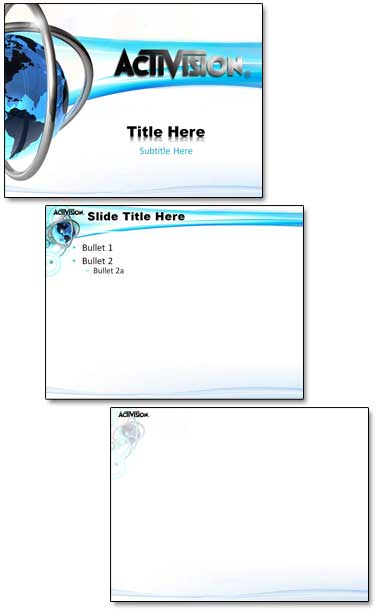
The PowerPoint Styles website had over 200 PowerPoint templates when I reviewed it recently. The templates are image based with stock images for the background and text placeholders formatted to coordinate with the background image.

I have not yet reviewed a stock template resource that I have found worth the expense. In this case all templates are free – and that gives you a nice background image, but not a very functional template (you get what you pay for). The images used for the template backgrounds are very nice, modern and work well for templates. I also appreciated that each image has a credit to its source/photographer. All templates I looked at where the legacy .ppt format.

When I first opened the template I downloaded, all looked good from the thumbnail view. Multiple layouts, PowerPoint placeholders positioned well within the background image, etc.

But the Title slide (viewed in edit view, not master slide view) showed a single text box vs. separate text boxes for the title and subtitle text, which have different formatting. And the background was a placed .jpg (eg. not from a preset master slide).

The Master Slides revealed no formatting, just a placed .jpg for the background. No text placeholders, named master, title slide master, etc.

If you are familiar with the basics of setting up templates with default placeholders, color scheme and transitions the PowerPoint Styles templates offer nice backgrounds to start with.

– Troy @ TLC

By |2016-08-16T11:24:13-07:00June 29th, 2010|Resource/Misc|

Where Are The Add-Ins in Windows 7?

Finding the general Microsoft add-ins folder is very different in Windows 7 vs. Windows XP (I skipped Vista and just recently have been updating office computers from Windows XP to Windows 7). Here is the path the folder:

Windows7_OS (C: ) >> Users >> (Name) >> AppData >> Roaming >> Microsoft >> AddIns

– Troy @ TLC

By |2016-08-16T11:24:35-07:00June 27th, 2010|Tutorial|

When Troubleshooting, What is Your Combination?

When PowerPoint does something unexpected and unexplained, the desire to toss the computer out the window increases (a lot!). But there are lots of online resources to find solutions (here at ThePowerPointBlog, forums, and searching google or bing).

But now there are more variables with multiple OS’s, version of PPT, etc. So what is your combination?
– Windows XP – 32 bit, PPT 2007
– Windows Vista – 64 bit, PPT 2003
– Windows 7 – 64 bit, PPT 2010 64
– Etc.

Finding files in Windows 7 can be different than XP. Add-ins that work in Windows 7 32-bit may not work in Windows 7 64-bit. And the list goes on.

As a best practice, I recommend at a minimum listing:
1. What Operating System (OS)
2. If your OS is 32-bit or 64-bit
3. What version of PowerPoint (or what versions if you have multiple installed on same computer)
4. If PowerPoint 2010, is it 32-bit or 64-bit

– Troy @ TLC

By |2016-08-16T11:24:49-07:00June 25th, 2010|Resource/Misc, Tutorial|
Go to Top