The PowerPoint® Blog

I work with PowerPoint on a daily basis and I am very honored to be a Microsoft PowerPoint MVP. We have a talented team of presentation designers at TLC Creative Services and ThePowerPointBlog is our area to highlight PowerPoint tips, tricks, examples and tutorials. Enjoy! Troy Chollar

Where is the PPTools Expert Mode Setting?

I have been using the PPTools “Starter Set Plus” Memorize Position tool.

Here is a typical use:

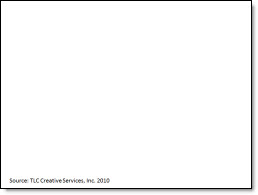
1. I have a reference/source line at the bottom of a slide

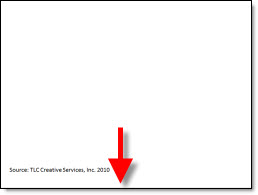
2. I want to have all other reference/source lines throughout the presentation in the exact same position. So on this slide the text box needs to move down

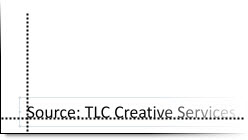
3. A common way to do this, without additional add-ins, but very tedious is to zoom in and position guidelines on the original text and then manually move other text boxes to align with the guidelines

4. The easier and more accurate solution is to select the original text box and pick up its position with the “Memorize Position” addin (left tool)

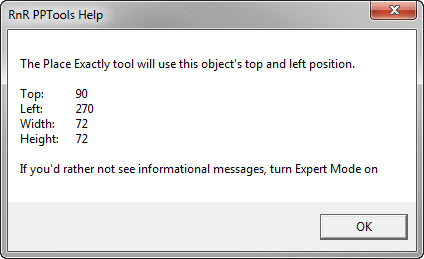
5. But work is interupted by this information dialog

– Note the last line about turning on Expert Mode to not show the dialog – so where is the expert mode?

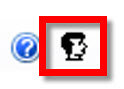
6. Click this icon on the Master Toolbar (one of the toolbars installed with any PPTool add-in)

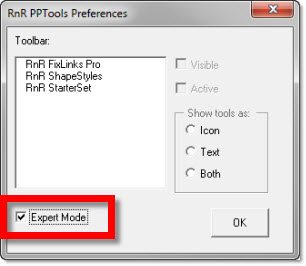
7. The RNR PPTools Preferences dialog opens. It shows all of the PPTools add-ins installed and at the bottom is the check box to turn on/off expert mode

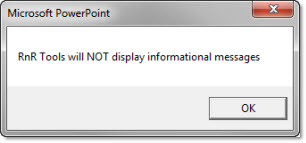
8. This dialog message pops up, click OK

9. Done! Now use the Memorize and Place tools without having an extra dialog interupt the work.

– Troy @ TLC

By |2016-08-16T11:25:04-07:00June 23rd, 2010|Tutorial|

4 Ways To Zoom In/Out While Editing

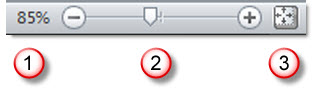
In the lower right is the zoom options.

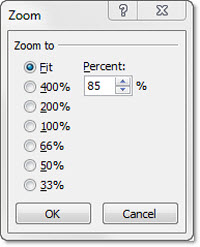
(1) The first option is largely unknown to many users, partially because it is not needed often. Clicking the percentage number opens the zoom dialog that has presets and ability to manually enter a specific zoom.

(2) The zoom slider was introduced in PPT 2007 and a is a great way to adjust the zoom level. Zoom ranges from 10% to 400%.

(3) Clicking the far right box is the ‘Fit to Screen’ option which I use a lot!

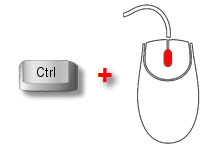
(4) The fourth option is a combination keyboard/mouse feature.
– Hold the CTRL key
– Roll the mouse scroll wheel. Forward = zoom in. Backward = zoom out.

– Troy @ TLC

By |2016-08-16T11:25:22-07:00June 21st, 2010|Tutorial|

The Magic of the Background Removal Tool

With Office 2010 now in full release this is one of those great new features that is difficult to explain, but a great asset to the new features of PowerPoint 2010 and several other Office applications. Back in the November Top 15 PPT 2010 features I listed the new Background Removal tool as #11. Tucker Hatfield is the Microsoft Program Manager I was quoting when I said it worked with “magic coding” – his words, not mine.

Around the same time, Tucker had a detailed post on the Microsoft Office 2010 Engineering blog (I know we all read it daily) about the Background Removal Tool. It is worth revisiting to grasp what this tool is capable of. The next few posts here will be examples and tips of my use of the Background Removal Tool.

View Tucker’s full post on the Microsoft Blog here.

Tucker also did a follow post on MS Engineering Blog here that went into more detail and a pretty cool example of the Background Removal tool in action.

– Troy @ TLC

By |2016-08-16T11:26:01-07:00June 19th, 2010|Resource/Misc, Software/Add-Ins|

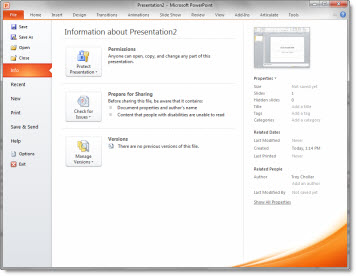
Where is ‘Backstage’ and How to Close It

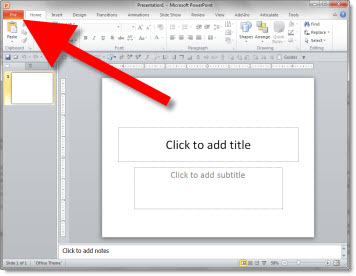
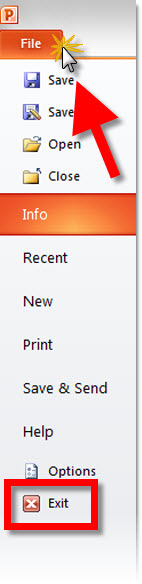
With Office 2010 the circle ‘office button’ in the upper left of all applications is replaced with a simple ‘File’ button that opens the Backstage.

Click the ‘File’ button the Backstage takes over the full application window.

The Backstage is a great consolidation of tools and options. But I have seen many users struggle with how to close, or go back to their slides. If you click the ‘EXIT’ button, it closes the presentation vs. closing the Backstage.

The way to go back to the slides/close the Backstage, click on the ‘FILE’ button again or any of the tabs – home, insert, design, etc.

– Troy @ TLC

By |2016-08-16T11:26:44-07:00June 17th, 2010|Tutorial|

Office 2010 Available – In 5 Versions

Office 2010 is officially available to all, and I highly recommend upgrading. Microsoft has released Office 2010 in 6 versions/bundles. The good news is PowerPoint is in all versions!

Pricing ranges from $150 to $680. Microsoft has a free upgrade from Office 2007 promotion going and I have seen deals as low as $60 using the promo!

– Troy @ TLC

By |2016-08-16T11:27:06-07:00June 15th, 2010|Resource/Misc|

Design For Speed Slide

This is from a recent presentation project.
Designing For Speed Sample Slide

The slide started with 2 original images:

In photoshop I dropped out the background of each and saved as .png images with transparency.

Then each image was inserted to the slide, a simple FADE IN animation applied to the top image for the transformation.

– Troy @ TLC

By |2016-08-16T11:28:32-07:00June 9th, 2010|Portfolio|

Las Vegas Themed Template

Flying to Las Vegas today to coordinate the presentation graphics for a show. In the spirit of Vegas, here is a previous show’s template I developed that was in Las Vegas, with a visual Las Vegas Blvd/Strip theme.

From the top:
1. Content
2. Title
3. Full Frame Content (no logo or title area graphics)
4. Specialty slide for section dividers
5. Theme graphic (no text)

– Troy @ TLC

By |2016-08-16T11:29:59-07:00June 6th, 2010|Templates/Assets|

Why Can’t I Move The Logo on the Master Slide?

Here is my sample slide:

I decide the logo, on the master slide, needs to be moved down for more content area.

When go to VIEW >> SLIDE MASTER and try to move the logo I cannot click and select it.

Because the master slide view opened to the layout slide.

If I click the Master Slide above the layouts I can select the logo, move it and it will update on all of the layout masters.

– Troy @ TLC

By |2016-08-16T11:32:15-07:00June 2nd, 2010|Tutorial|
Go to Top