The PowerPoint® Blog

I work with PowerPoint on a daily basis and I am very honored to be a Microsoft PowerPoint MVP. We have a talented team of presentation designers at TLC Creative Services and ThePowerPointBlog is our area to highlight PowerPoint tips, tricks, examples and tutorials. Enjoy! Troy Chollar

Insert Slide in PPT 2007

QUESTION:
What is missing from the INSERT TAB in PowerPoint 2007?

ANSWER:
The INSERT SLIDE BUTTON.

WHERE DID IT GO?
The User Interface team must have thought this was a common and valuable tool, so they placed it on the “Home”/Draw tab.
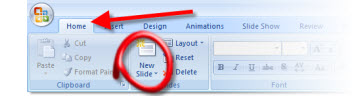
Although this works, it really does not make sense, as the insert tab is, well, to insert things.

SOLUTION:
Steve over at PPTools created a little, FREE, add-in that does this:
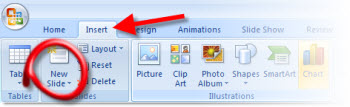
Now the home/draw tab AND the insert tab have the insert slide button!

You can read how to install and download the tiny add-in here.

– Troy @ TLC

By |2016-11-17T12:36:09-08:00September 19th, 2008|Tutorial|

Office 2007 Feedback Page

Hmmm, so as a Microsoft PowerPoint MVP you would think at least I would know of a Microsoft Feedback Page for Office 2007.

But the truth is I just recently discovered this (along with other PPT MVPs). I can say that development and planning for the next version are underway at Microsoft, and that for previous versions the number of incidents reported or requests received did make a difference in the features updated, added, or removed. So if you encounter a bug or have a feature you would like to see in future versions I am guessing this is your best tool of getting that info to Microsoft!

To view click here.

– Troy @ TLC

By |2016-11-17T12:36:35-08:00September 17th, 2008|PowerPoint, Resource/Misc|

Fonts that Ship With PowerPoint

Here is an article on Microsoft Office Online that I collaborated on:

“Fonts that ship with different versions of Office” covers what fonts are installed with each version of Office (from 2000 and up). I have had a version of this information on my computer for years so I can design a presentation using fonts I know the recipient is certain to have on their computer.

To view, click here.

– Troy @ TLC

By |2016-11-17T12:37:24-08:00September 15th, 2008|Tutorial|

Open PowerPoint in Safe Mode

This is one of those – I hope you don’t need to do this – actions. But recently one of the computers here suddenly decided it did not want to have fonts work (line spacing was all messed up). So after troubleshooting everyway possible, verifying files opened fine on other computers, etc. I had the faint memory of being able to start any office application in Safe Mode.

After a quick search on the PPTFAQ (thanks Steve!) I restarted PowerPoint in Safe Mode by holding down the CTRL key.

Not sure what the solution was (not opening with AutoCorrect or Recent Documents…. ?), but the file opened and displayed text as designed. Closed PowerPoint, launched again and all was fine from there.

So when all else fails, starting PowerPoint with no extended features using Safe Mode can be your best friend.

– Troy @ TLC

By |2016-11-17T12:37:52-08:00September 12th, 2008|Tutorial|

PowerPoint eConvention

So what is an “eConvention”? Well, Shawn Toh of PowerPoint Heaven, also a PowerPoint MVP based in Singapore has created an online convention specifically for PowerPoint designers.

September 1-26 (now) is open for anyone to review the entries and vote. Categories are Animation, Artwork, Game and Broadcast. Some are downloadable presentations, some are viewable on YouTube movies – all are very impressive!

Then on Sept. 27 the eConvention comes to a close with all of the award winners posted.

Check out the entries, and how to submit your own entry, here.

– Troy @ TLC

By |2016-11-17T12:39:57-08:00September 10th, 2008|PowerPoint, Resource/Misc|

Point, Click & WOW!

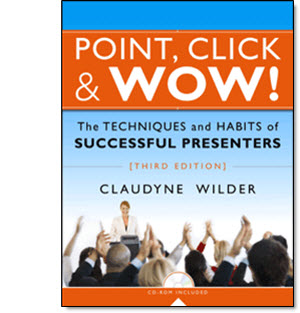
The third edition of “Point, Click & WOW!” is a great resource if you do deliver presentations to an audience of any size. Claudyne Wilder has written a number of excellent books on PowerPoint and presenting, all excellent and provide great insight, support and information that everyone can make use of. And if you happen to be in Boston Thursday, September 18 you can hear Claudyne speak and do a book signing!

Check out the details on her website here (or check out Amazon by searching for the title).

– Troy @ TLC

By |2016-11-17T12:40:23-08:00September 8th, 2008|Resource/Misc|

Blue Lens Template Download

The Blue Lens template I have used as an example was one of the concepts I created for a client. Obviously I ‘debranded’ it by removing any reference to a company or event, but now you can download the full template to review or use!

Download the template (saved as .ppt, not a .pot) here. Enjoy!

– Troy @ TLC

By |2016-11-17T12:41:51-08:00September 5th, 2008|Portfolio, Templates/Assets|

Setup of a Template

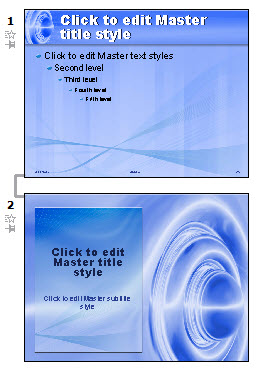
With the background elements developed in Photoshop and saved out as .jpg images the rest of the work happens in PowerPoint. Most of the work in setting up a template happens on the Master Slides. So the first thing for me is to set the background of each slide layout with the background artwork.

The Blue Lens template has a Content slide and a Title slide.

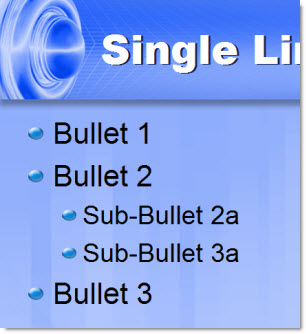
Next is to position the text boxes to fit the background, set the font size-color-line spacing and custom bullets:

I also set default slide transitions for each slide layout (in this case both use a FADE SMOOTHLY), format the header/footer text boxes, etc.

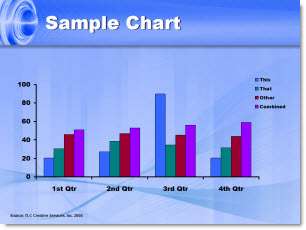
One of the things I think a lot of people overlook is customizing the color scheme. I always include a sample chart that shows all of the default colors I have setup.

Now everything is ready to build a slide show!

– Troy @ TLC

By |2016-11-17T12:42:12-08:00September 3rd, 2008|Portfolio, Templates/Assets, Tutorial|

Template Background Design

When creating a custom PowerPoint template the first step is developing the custom artwork for backgrounds. I am going to break down a template recently designed. In PhotoShop I pull in all of the visual assets and stylize an appropriate to the theme canvas for the PowerPoint slides. Here is the content slide design for the “Blue Lens” template.

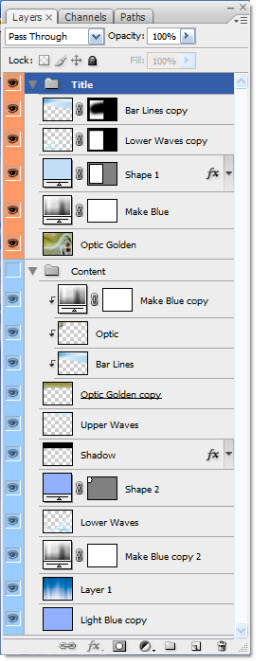
There are a lot of layers to create the desired effect. Here is the PhotoShop layers for this template (shows both the Content and Title slide background layers). Fortunately this was a fairly light template in terms of layered elements so we can show them all in one easy screenshot.


This is a pet peeve, but I really hate receiving Photoshop files with none of layers named – it’s is a huge waste of my time to go hunting for a needed layer by turning on and off layers. So, as seen, I always label all layers in PhotoShop so modifications are easy because the layers can be quickly identified.

I save out each of the backgrounds as a .jpg with a compression level of 10. From there it is all PowerPoint!

– Troy @ TLC

By |2016-11-17T12:42:56-08:00September 1st, 2008|Portfolio, Tutorial|
Go to Top