The PowerPoint® Blog

I work with PowerPoint on a daily basis and I am very honored to be a Microsoft PowerPoint MVP. We have a talented team of presentation designers at TLC Creative Services and ThePowerPointBlog is our area to highlight PowerPoint tips, tricks, examples and tutorials. Enjoy! Troy Chollar

Laptop consideration #1

I recently purchased a new laptop to test before purchasing several (needed to run large multi-screen presentations). The computer has lots of power, but there are a few things that caught me off guard that are not a part of the “usual” specs.

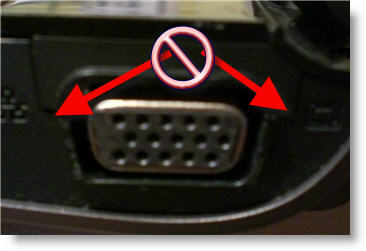
I have a very small Sony laptop I use as my personal/travel computer. One disadvantage of it is the lack of screw downs to secure the VGA cable. In this case not much of a problem, as it is not a show computer.

But on this new computer, a full featured graphics powerhouse with 256MB graphics chip, 2 GB RAM, dou core processor, etc., they are also missing. A feature I did not even think to look for as I figured it as a standard issue item. Guess I was wrong.
– Troy @ TLC
By |2016-11-17T14:26:18-08:00October 11th, 2006|Resource/Misc|

Extended And Smoother Animations

I personally do not use the Presenter View, but I do run many presentations in a similiar format – with slideshow on the secondary monitor/projector and PowerPoint in edit mode on the primary monitor.

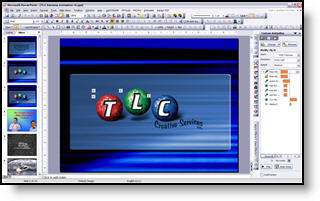
Just like Presenter View, animations can be problematic. Each slide redraws in the edit mode and while it is updates processing power for animations is reduced. But there are some steps to take to minimize the animation lag.

There is a lot of processing power used with each slide transition if you have:
– Slide preview at 100%
– Both left and right action panes open
– PowerPoint running full frame

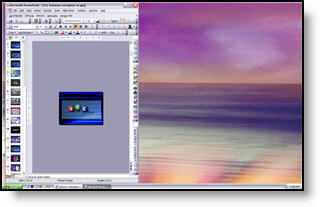
I have found better results when PowerPoint runs like this:
– Close the right action pane
– Reduce size of thumbnails in left action pane, or close all together
– Make slide preview 25% (active slide in center)
– Reduce the actual application window to run in a small vertical area

– Troy @ TLC

By |2016-11-17T14:26:01-08:00October 9th, 2006|Tutorial|

Word of Caution About Presenter View

If you opt to use PowerPoints Presenter View and the presentation contains lots of animation, test your output.

Because the presenter view redraws the slide display it can interfer with animation playback, making it visibly stutter or look choppy.

No easy cure, just something to be aware of.

– Troy @ TLC

By |2016-11-17T14:25:41-08:00October 7th, 2006|Tutorial|

Send Presentation to Second Monitor/Projector

With the computer set for Extended Desktop mode (see October 1 post), next is to setup PowerPoint to make use of the second monitor.

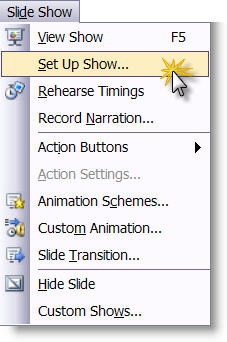
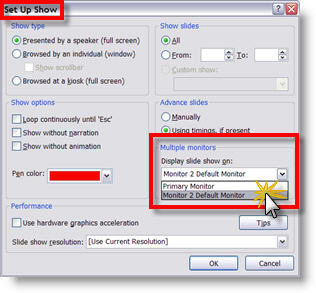
In PowerPoint go to: SLIDE SHOW >> SETUP SHOW

In the Multiple Monitors section click the drop down menu and select “Monitor 2 Default Monitor.”

Now the slide show will be on the second monitor (usually a projector) and your monitor will remain in Slide Design Mode.

– Troy @ TLC

By |2016-11-17T14:25:04-08:00October 3rd, 2006|Tutorial|

Check For, and Turn on, Extended Desktop

If you want to use PowerPoint’s Presenter View, or display the presentation through a projector while having slide design view or slide sorter view on your monitor, the computer must support Extended Desktop.

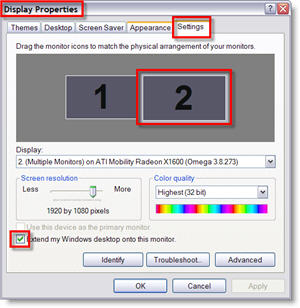
To see if your computer supports extended desktop go to: START >> CONTROL PANEL >> DISPLAYS >> SETTINGS tab. If you have two monitor icons, you should be good to go.

Click on monitor 2 and then activate the “extend my windows desktop onto this monitor.”

– Troy @ TLC

By |2016-11-17T14:24:43-08:00October 1st, 2006|Tutorial|

A Day of Indepth Training

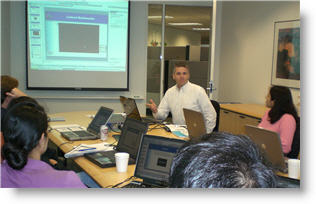
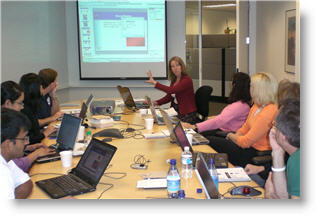
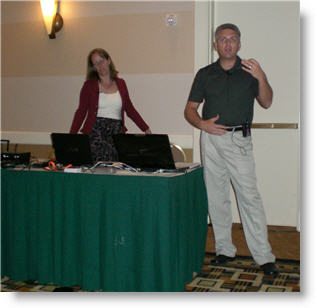
From the middle of August through the middle of the upcoming November we have been in continuous motion. Lots of great projects, super clients and variety. Here are a few photos of a recent “Advanced PowerPoint Training Day.” Lori and I met with a core team of presentation developers at their corporate office for an entire day of indepth how-to’s and design ideas geared to expanding their corporate presentations.

– Troy @ TLC

By |2016-11-17T14:24:16-08:00September 29th, 2006|Personal, Portfolio|

Animated Frame Entrance

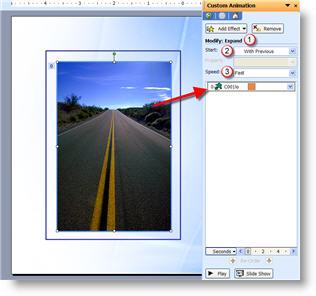
Using native PowerPoint elements and animations, add a dynamic entrance to photos.

1. Insert a photo, or other graphic, to a slide.

2. Add a Line Color (aka stroke) to the photo. Use a color that coordinates with the image or background and is thick enough to be visible (sample here is 2 1/4pt.).

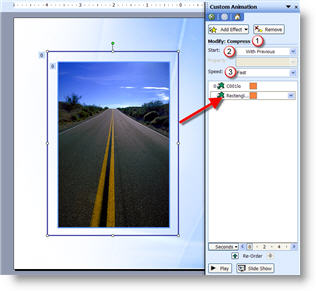
3. Now add a rectangle autoshape. Size it to be slightly larger than the photo and set the Fill to none. Add the same Line Color and weight as applied to the photo.

4. Animate the photo: EXPAND, FAST, WITH PREVIOUS

5. Animate the frame: COMPRESS, FAST, WITH PREVIOUS

Done! I have also uploaded a sample presentation of this animated slide. Click here to download.

Troy @ TLC

By |2016-11-17T14:23:58-08:00September 27th, 2006|Tutorial|

Graphics Cards For PowerPoint

Looking to purchase a new computer, or upgrade the graphics processor of a desktop. Have have added a write-up that overviews the 4 categories of graphics processors and makes some general recommendations specific to presentation use.

Click here to view on TLCCreative.com

-Troy @ TLC

By |2016-11-17T14:23:37-08:00September 25th, 2006|Resource/Misc|

The Icons of Office 2007

After awhile you most likely just look through your list of applications for an icon vs. the name. So get ready to learn some new sights. Here are new application icons of Office 2007.

– Troy @ TLC

By |2016-11-17T14:23:18-08:00September 23rd, 2006|PowerPoint|

PPTLive 2006

The PPTLive conference wrapped up and was a great event! One of the personal highlights is having the opportunity for so many of the PowerPoint MVP’s to be together and have some fun!

Another highlight was presenting the Day 2 General Session on Animation with my wife and business partner, Lori!

Stay tuned for some posts on things learned, recaps of sessions I spoke at, etc.

-Troy @ TLC

By |2016-11-17T14:23:00-08:00September 21st, 2006|Personal|
Go to Top