The PowerPoint® Blog

I work with PowerPoint on a daily basis and I am very honored to be a Microsoft PowerPoint MVP. We have a talented team of presentation designers at TLC Creative Services and ThePowerPointBlog is our area to highlight PowerPoint tips, tricks, examples and tutorials. Enjoy! Troy Chollar

Media Players for Streaming Media

There are four common media players for streaming media to play with.
1. Windows Media Player
2. Flash
3. Quicktime
4. Real Player

See the September 1, 2006 post for an overview of the pro’s and con’s of each player.

All four have browser plug-ins that give a browser the ability to play the streaming media directly in the browser. Note: having the media player application installed does not necessarily mean its browser plug-in is installed. To further complicate things, not all plug-ins work the same in the various browsers. For example, a Windows Media file may not play the same in FireFox as it does in Internet Explorer, or it may playback in Quicktime on a Mac (using the Flip add-in). I personally find Flash to be the most universal format and usually my format of choice.

There are no fix-all solutions. Once you have developed the streaming media it is critical to test on multiple platforms and browser applications. Most important is to be aware of the potential issues – and at least inform viewers of them.

– Troy @ TLC
By |2016-11-17T15:12:19-08:00December 9th, 2006|PowerPoint, Resource/Misc|

What is Streaming Media?

“Streaming” means part of a file is being played while the rest of it is downloading in the background. When you click “play” on a movie, webcast, or audio file initially a small portion of the file is downloaded. While the initial portion is playing, the next portion downloads in the background. The process continues until the entire file has been downloaded.

So the big question is how do you convert a PowerPoint presentation to a streaming format that downloads the fastest? No matter what software is used, or what format is chosen, the overall goal of creating streaming media is to throw away data that is not needed.

There are lots (and lots) of variables in how to decide what is thrown away, what software to use, what format to create, etc. First, there is no one answer or way to create the “best” streaming media. The reason is developing streaming media is all about compromises. How much data can be thrown away while maintaining needed quality? What is the needed playback size? What is the best format for the intended audience? What is the connection speed of the audience? Based on the answers to all of these questions we figure out what process to develop our streaming media in.

– Troy @ TLC

By |2016-11-17T15:11:44-08:00December 7th, 2006|PowerPoint, Resource/Misc|

PowerPoint, Webcasts and Streaming Media

There is an explosion of activity around webcasts. This year I have had a ton of webcast projects – most involving PowerPoint content. The good news is PowerPoint once again finds itself at the center of the universe. The even better news is that software to make PowerPoint presentations web-ready are continuously being added to the mix. The bad news is most PowerPoint designers know very little about streaming media and are unprepared when the almost inevitable request to create a webcast from a presentation is put forth.

So there is at least one place to go and do a quick study of Streaming media/webcasts I have put together an eight part series on the topic. Check back as we cover all the behind-the-scenes “basics” about streaming media over the next week!

– Troy @ TLC

By |2016-11-17T15:10:52-08:00December 5th, 2006|PowerPoint, Resource/Misc|

PPT Viewer Splash Window

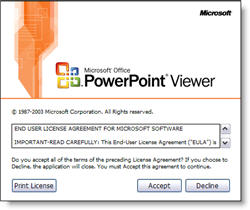
One of the greatest things about the 2003 PowerPoint Viewer is that it does not require administrative rights to install. As a matter a fact, it does not need to be installed at all. It can run from the computer or from a CDROM, USB drive, etc. But it is important to know that on the first use of it on a computer its splash screen, which shows the official EULA, will show up.

– Troy @ TLC

By |2016-11-17T15:09:48-08:00December 3rd, 2006|PowerPoint|

Hey It’s For My Teeth!

Okay, this is way off topic, and off-season for that matter. But earlier this week I went through a fun morning of major dental surgery (you don’t want to know, but if you have kids, tell them to break bones not teeth – it’s a lot easier to deal with later in life!). The upside is that I was given permission to eat ice cream this week, as the cool will help.

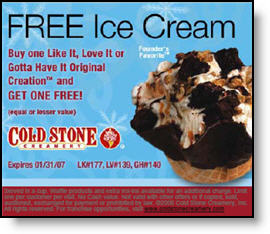
Perfect timing, as Cold Stone Creamery put out a 2-for-1 coupon last week!

Yesterday I decided would be a good opportunity to use this coupon – but the link was dead. I called the corporate number, they said the coupon link was gone, but the coupon would be honored for those that have it through its January 31st expiration. Good thing I had saved the PDF to my computer! I highly recomend the Mocha + Chocolate Syrup + Yellow Cake!

Okay, so here is a link to the print-and-use PDF coupon.

– Troy @ TLC

By |2016-11-17T15:08:47-08:00December 1st, 2006|Personal|

Hardware Acceleration and The PowerPoint Viewer

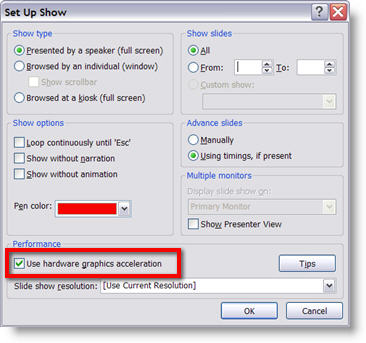
The super-useful PowerPoint Viewer application does have one flaw – it does not have the ability to take advantage of a computers graphics card power with the “Use Hardware Acceleration” feature. So if you have a presentation that is going to be distributed and viewed with the PowerPoint Viewer I would recomend turning off the Hardware Acceleration and viewing the slideshow to get a better idea of what others will see.

– Troy @ TLC

By |2016-11-17T15:07:47-08:00November 29th, 2006|Tutorial|

Should I use Hardware Acceleration?

If your computer has dedicated graphics memory – yes.
If the computer has a shared memory graphics processor – no.

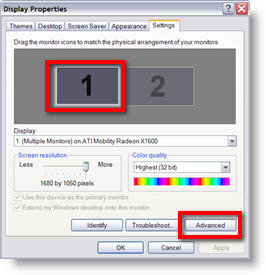
To check what you have, go to:
(1) START >> CONTROL PANEL >> DISPLAY >> SETTINGS tab
(2) Select “Monitor 1”
(3) Click the ADVANCED button

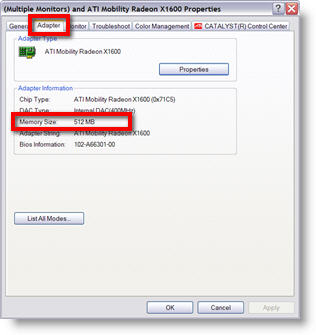
(4) Go to the ADAPTOR tab. Here you can see the manufacturer, model and amount of memory of the graphics card.

TIP: if the computer uses an Intel graphics processor, it is shared memory. ATI and NVidia manufacture both shared memory and dedicated memory cards.

– Troy @ TLC

By |2016-11-17T15:05:58-08:00November 27th, 2006|Tutorial|

Smoother Animation with Hardware Acceleration

If you notice some of your animations are not playing smooth, check to assure you are using all of your graphic processor’s power. Go to SLIDE SHOW >> SETUP SHOW >> check the USE COMPUTER HARDWARE ACCELERATION.

Now run the presentation and things should be running much smoother.

– Troy @ TLC

By |2016-11-17T15:05:01-08:00November 25th, 2006|Tutorial|

What is “Royalty Free”

If adding photos to a presentation they are most likely “royalty-free” photos. The term is used a lot, so here is a quick overview of what it really means.

Royalty free photographs are offered for a one-time fee. When you purchase a rolyalty free image you can use the image as many times as you want, in as many projects as you want. As opposed to a fee for a specified number of times the photo is permitted to be used (which was the dominant business model 10+ years ago).

Royalty free also means the image is purchased for use in a product, not for resale as a stock image or as an image alone. Every royalty free company has slightly different guidelines, so be sure to review before use. The last tip is to check the image size (although with PowerPoint/multimedia this is not as critical as print design).

– Troy @ TLC

By |2016-11-17T14:58:45-08:00November 21st, 2006|Resource/Misc|
Go to Top