The PowerPoint® Blog

I work with PowerPoint on a daily basis and I am very honored to be a Microsoft PowerPoint MVP. We have a talented team of presentation designers at TLC Creative Services and ThePowerPointBlog is our area to highlight PowerPoint tips, tricks, examples and tutorials. Enjoy! Troy Chollar

Advanced Animation Timeline

When you need to fine tune the animation timings, you need to display the very powerful Advanced Timeline. When you open the animation pane, which do you see:
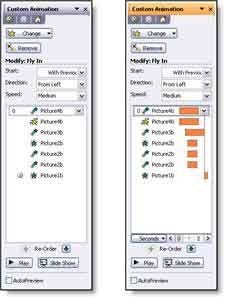
With the advanced Timeline you can see the duration, start and end for each animation in relation to the other animations. For advanced animation needs the WITH PREVIOUS setting is utilized more and the animation start position and duration are adjusted with the Advanced Timeline (as example when a subtle overlapping animation is needed).
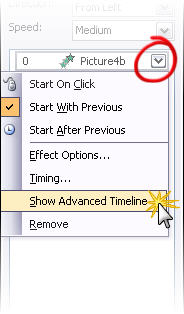
Show the Advanced Timeline
To see the Advanced Timeline, click any animation and choose SHOW ADVANCED TIMELINE.

There are some good examples of the advanced timeline in use on the Tutorials page.

Troy @ TLC
By |2016-09-16T11:28:21-07:00March 3rd, 2006|Tutorial|

Rename Master Slides

Things can get confusing working with a presentation that has multiple masters. Especially if the Master Slides are very similiar (eg. One with a primary bullet, one without). The solution is to name the Master Slides to something meaningful. I have added a tutorial on renaming PowerPoint Master Slides here.

Troy @ TLC

By |2016-09-16T11:26:55-07:00February 25th, 2006|Tutorial|

PPT + .png transparent images = ugly print

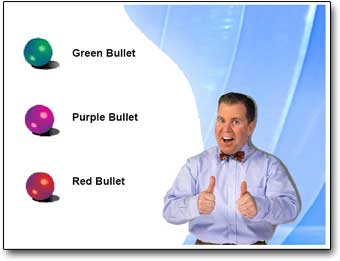
If you have ever printed a presentation that contained a .png image with transparency the results were certainly less than desirable. Here is the printed slide with a number of transparent .png images – not so good…
Tech Table
Note the jagged edges around the 3D spheres, Missing portion of background, solid/jagged dropshadow around the person.

○ The solution is a few easy steps and provides ‘picture’ perfect printouts.
○ Go to SAVE AS and export all slides to .JPG images. It is a good idea to save all of these to a new folder (Note: For higher quality images I use the PPTXtreme Import/Export add-in for this process. I export slides at 1600×1200 pixels for better quality).
○ Create a new presentation
○ Import all of the .jpg images/slides using the Photo Album feature, PPTXtreme’s Import/Export add-in, or Shyam’s Image Importer add-in.
○ Print

Here is a slide that was exported as a .jpg, then placed on a slide and printed
Tech Table

Side Note: If you delete all slides from real presentation, do a SAVE AS, then insert all of the .jpg slide images the master slide, header/footer and properties information will be preserved.

Troy @ TLC

By |2016-09-16T11:26:34-07:00February 23rd, 2006|Tutorial|

It’s official – “Office 2007”

What has been referred to as “Office 12,” the next version of Office has been officially named. And the new name is: “Office 2007“.

ZDNet has a good article providing the details on what bundles will be, some of the new options and of course the official name. Check it all out here.

Troy @ TLC

By |2016-09-16T11:25:28-07:00February 18th, 2006|PowerPoint|
Go to Top