The PowerPoint® Blog

I work with PowerPoint on a daily basis and I am very honored to be a Microsoft PowerPoint MVP. We have a talented team of presentation designers at TLC Creative Services and ThePowerPointBlog is our area to highlight PowerPoint tips, tricks, examples and tutorials. Enjoy! Troy Chollar

The PowerPoint & OfficeArt Team Blog

I just received an email from one of the developers at Microsoft about their Office 2007 blog. Because Office 2007 is now in public beta they are able to talk about more of the nifty stuff it has. They are planning 3+ posts per week specific to PowerPoint 2007 and the new Office Art capabilities, which should prove to be good stuff to read. Visit them at https://blogs.msdn.com/powerpoint.

– Troy @ TLC
By |2016-11-17T14:00:59-08:00June 21st, 2006|PowerPoint|

From Word –to- Bullets –to- Visuals

Here is a good example of the process of developing an audience-friendly presentation. One that visually shows the concept, does not overwhelm the audience with words/statistics and supports the speakers message.

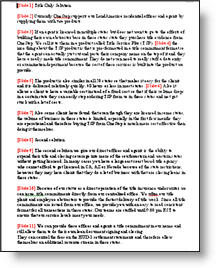
(1) Client provides an outline of the presentation content written in paragraph form. I added the red slide markers.
MS Word Outline

(2) First draft is distilling the paragraphs into bulleted information, which the client reviews and verifies the needed message is intact.
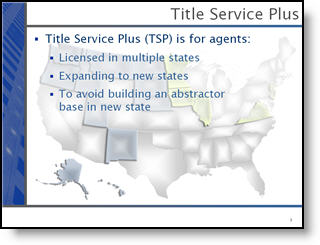
Bulleted PPT

(3) The bullets are then distilled into visual elements. The goal is to minimize the number of words, while adding visual elements that support the remaining text and help convey the message.
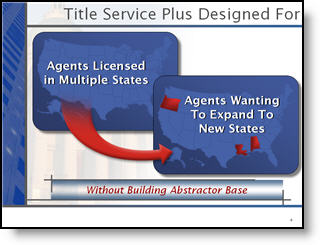
Visual PPT
In addition, slides have animations that allow the speaker to lead the audience through the message of the slide.

– Troy @ TLC

By |2016-11-17T14:00:39-08:00June 19th, 2006|Portfolio|

Double-Click Launches WRONG Version of PPT

If you have multiple version of PowerPoint installed on your computer, you most likely just experienced this issue (or you are about to). The latest round of updates & patches for Office reset the registry entry for Office, so it reverts to Office 2000 (if installed). What this means is that the quick-launch, when you double click an icon, opens the document in Office 2000. Kind of frustrating, but here is the fairly quick and easy solution:

(1) Close PowerPoint.

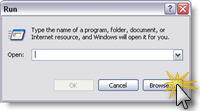
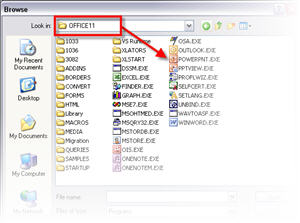
(2) Go to START >> RUN >> BROWSE

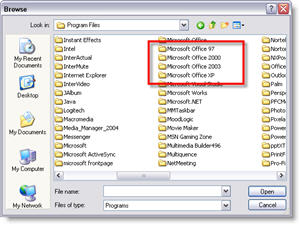
(3) Go to MY COMPUTER >> C: >> MY PROGRAMS and open the most current version of Office (the one you want quick launches to open)

(4) Inside the Office Folder locate the PowerPoint .exe file (careful NOT to select the PowerPoint Viewer) and click okay.

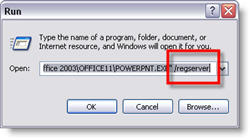
(5) The Run menu has automatically added the path to PowerPoint, at the end of this information (outside the quote mark) add /REGSERVER

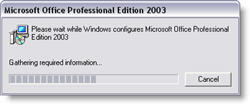
(6) You will get an INSTALL, then a CONFIGURE dialog. When it is done, you are back to the quick launch doing what you expect 🙂

– Troy @ TLC

By |2016-11-17T14:00:08-08:00June 17th, 2006|Tutorial|

Selling Power Magazine Article

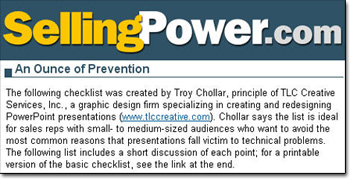
A few weeks ago an interview I had with Selling Power Magazine was posted. It is based on the Pre-Show Checklist I posted back in March. The article goes into a bit more detail, giving samples of why each item is important to address and is overall a great write-up.

Click here to visit Selling Power Magazine and read the article (requires free registration). Or search for “Prevention” from the home page.
Click here to see the original post and link to PDF on the TLC website.

-Troy @ TLC

By |2016-11-17T13:59:44-08:00June 15th, 2006|PowerPoint, Resource/Misc|

Zoom In on the Advanced Animation Timeline

I know I have covered this as part of other tutorials, but here a quick recap of this highly useful trick.

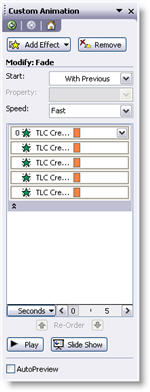
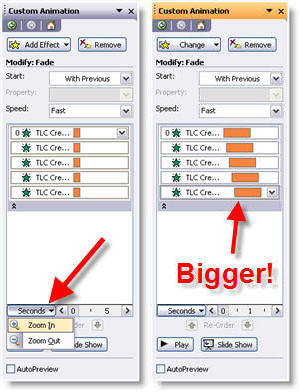
Here is the situation: you want to create a “waterfall” animation for your text (where each line fades in, overlapping the previous fade in animation). You apply the animation, view timeline in Advanced view and go to slide each animation bar but get frustrated with it jumping around…

Try this: click on the word “SECONDS” at the bottom. Choose “ZOOM IN” and do this 2-3x’s. Now the animation pane has been zoomed in and the animation bars are much wider – making it easier to slide them precisely where you want!

– Troy @ TLC

By |2016-11-17T13:49:08-08:00June 11th, 2006|Tutorial|

Perspector 3 Update

This week Steve Hards from Perspector sent me an notice that they have released a minor update to its recently released version 3. The update installs on top of existing versions and in addition to fixing some minor bugs, has a huge upgrade to the image quality!

Perspector is a 3D add-in that allows you to convert any object or text on a slide to a true 3D element. It has a great library of 3D template objects which can be easily modified to match your slide.


Check out Perspector and download the update here.

-Troy @ TLC

By |2016-11-17T13:50:04-08:00June 7th, 2006|Software/Add-Ins|

Animation Sample – Move and Grow

This is a quick animation sample that I created based on yesterday’s posted tutorial. Here I start with a small image and combine a MOTION PATH with a GROW EMPHASIS and finally a fully size image FADE IN. The result is some visually dynamic onscreen action, that overcomes one of PowerPoint’s raster graphic limitations.

Click here to download the PowerPoint file (500k).

-Troy @ TLC

By |2016-11-17T13:50:27-08:00June 5th, 2006|Portfolio, Tutorial|

Grow-Shrink Animation – Part II

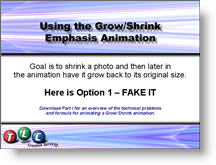
This is a continuation of the Part I post on May 22. In this tutorial PowerPoint presentation I make a photo shrink and then grow back to its 100%, without any resolution loss. Okay, so it is a tutorial on how to use animation to fake it, but the results are great and it is a technique I use on many projects.

Click here to download the PowerPoint file (900k). The entire animation sequence is broken down into individual steps over 10 slides.

And there is a forthcoming part three, which is another technique for making an image grow, without resolution loss.

– Troy @ TLC

By |2016-11-17T13:51:10-08:00June 3rd, 2006|Tutorial|
Go to Top