The PowerPoint® Blog

I work with PowerPoint on a daily basis and I am very honored to be a Microsoft PowerPoint MVP. We have a talented team of presentation designers at TLC Creative Services and ThePowerPointBlog is our area to highlight PowerPoint tips, tricks, examples and tutorials. Enjoy! Troy Chollar

This image is Blurry, How Big is it?

Continuing looking at images in presentations, this time we are literally looking at an image on a slide and noting it appears “blurry”. The question is why? The #1 reason is the image has a small resolution and has been enlarged on the slide. Here is how to check and confirm.

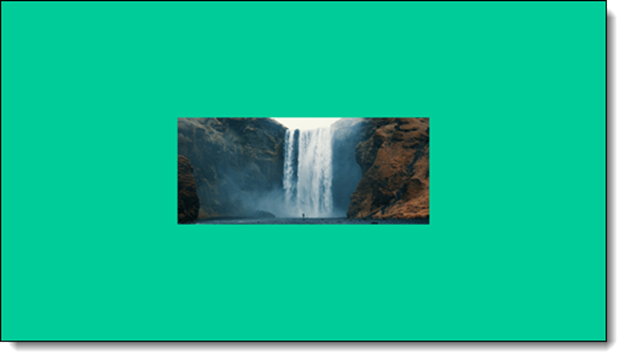
The image here is not full slide, but it is noticeably blurry.

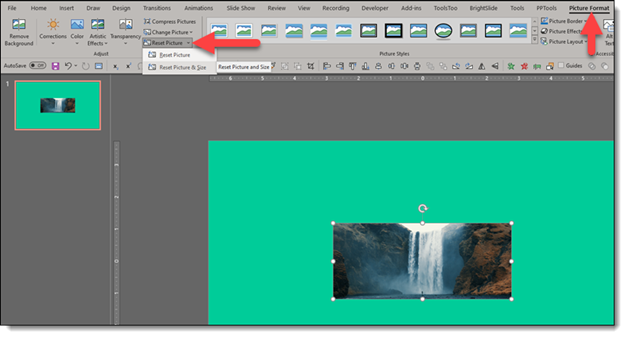
Select the image > go to the PICTURE FORMAT tab > click the RESET PICTURE dropdown menu > click RESET PICTURE AND SIZE.
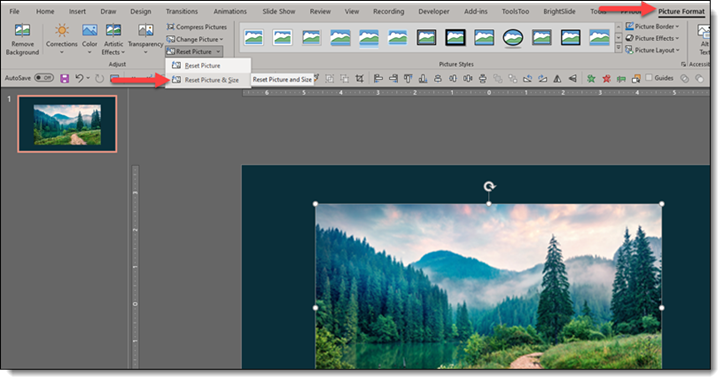
The image will reset to its original/real size. In this example, the guess that the image was small and had been enlarged on the slide is correct. After resetting the image to the original size, it is MUCH smaller, hence the blurry resolution when it was enlarged.

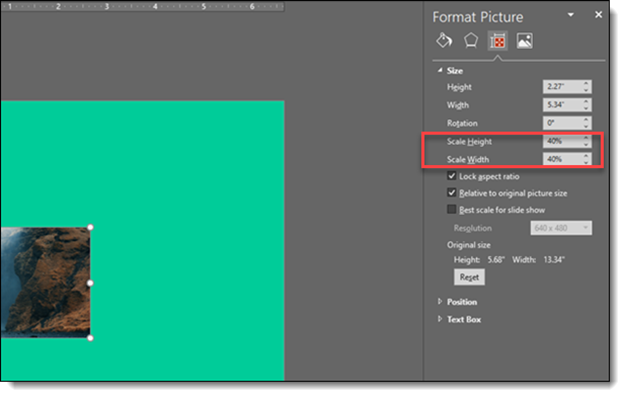
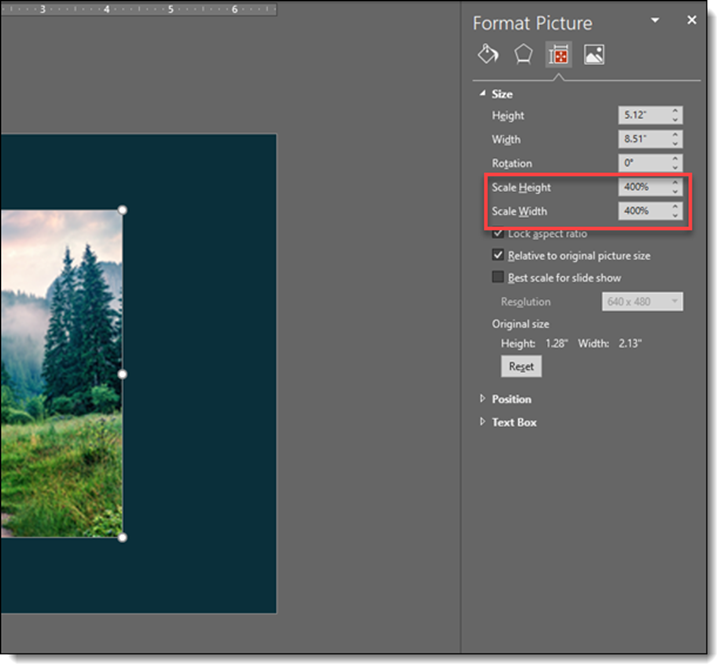
Another option, also describe in the previous post, is to select the image > open the FORMAT PICTURE pane > go to the SIZE AND PROPERITES tab > review the SCALE HEIGHT and SCALE WIDTH settings. This image has been enlarged to 400% from the original (4X its original size). Just from the numbers, we know it is not going to be a crisp image display…

By |2021-05-31T14:44:03-07:00June 16th, 2021|Tutorial|

Listen to The Presentation Podcast

New episode released today! Listen here.

Can a presentation designer be an integral part of the eLearning content development? This episode Troy, Nolan and Sandy talk with Mike Taylor about all things eLearning and focus on how PowerPoint as an app can be integral to the process and how being a presentation designer can make you a valued part of the process.

By |2021-06-12T13:35:12-07:00June 15th, 2021|Resource/Misc|

How Big is This Image?

Looking at an image on a slide, it is not easy to know what the original image size is. Is it HUGE, adding unnecessary file size? Or is it tiny and not going to display well? There is a quick and easy way to figure out original image sizes within in PowerPoint:

On this example slide, the image is on the slide relatively small. But is this its real size?

To visually see the true size of the image, go to the top menu and click the Picture Format tab, then select the “Reset Picture” dropdown, and choose Reset Picture and Size

Once the picture has been reset, it will size to its real size. With this example, the image was MUCH larger than its displayed size (which depending on animation needs, could be okay to keep as is)

If you are “numbers” person, click on any image. Go to the “Size and Properties” tab in the Format Picture settings. Look at the Scale Height and Scale Width percentage. For our example image it shows the small image is displayed at only 40% of its original size. That tells us the image is much bigger, could easily fill the slide at its native 100% size – or it is bigger than needed for the slide and adding to the file size of the presentation.

Just a few tricks of where to look, or what to do, to know if the image on a slide is what you need as far as its file size.

Jake @ TLC

By |2021-06-14T11:38:09-07:00June 14th, 2021|PowerPoint|

PowerPoint Custom Color Schemes and “Indian Jones”

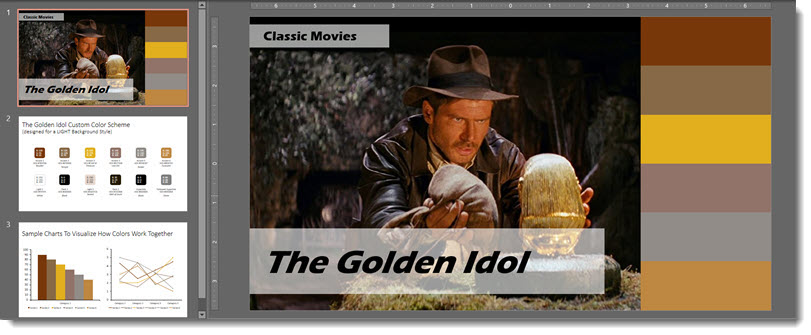
Our final custom PowerPoint color scheme is inspired by the classic trilogy of Indian Jones. The PowerPoint slide shows the reference image, the color chips, and you will need to download the PowerPoint file to enjoy the creative color naming.

Indiana: Warm yellow tones, set as a monochromatic scheme. Colors taken from the main character clothing and the objects in the surrounding background.

Download the PowerPoint deck with preset color scheme here.

By |2021-05-08T12:35:12-07:00June 11th, 2021|PowerPoint|

PowerPoint Custom Color Schemes and “Princess Bride”

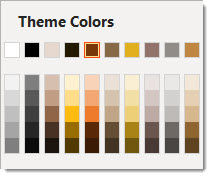
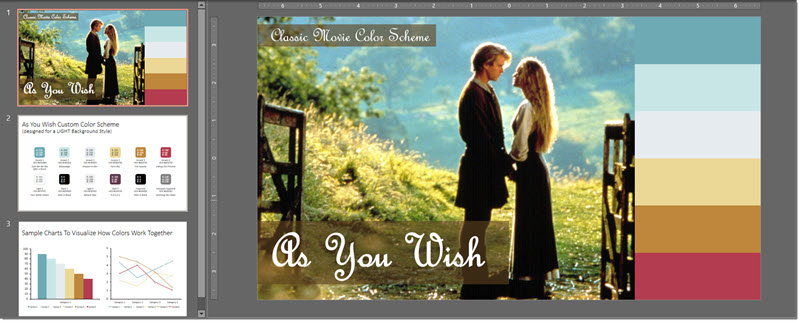
Part 4 of our internal design exercise is the very classic movie Princess Bride. The PowerPoint slide shows the reference image, the color chips, and you will need to download the PowerPoint file to enjoy the creative color naming.

Princess Bride: Soft, light colors for an analogous scheme. Colors taken from the main characters and the surrounding background.

Download the PowerPoint deck with preset color scheme here.

By |2021-05-08T12:36:39-07:00June 9th, 2021|PowerPoint|

PowerPoint Custom Color Schemes and “Beetle Juice”

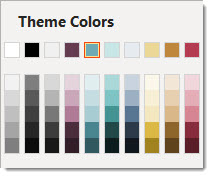
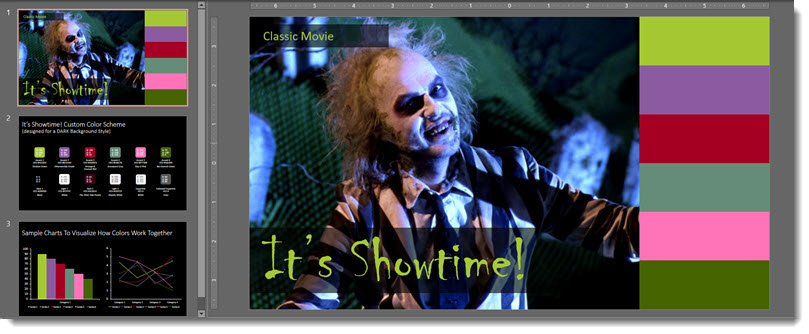
Part 3 of our internal design exercise is the classic movie Beetle Juice. The PowerPoint slide shows the reference image, the color chips, and you will need to download the PowerPoint file to enjoy the creative color naming.

Beetle Juice: A mixture of muted and bright colors. Greens and purple taken from the main character and background objects. Other colors are not pulled directly from the image but are complimentary to the movie’s aesthetic and undertone.

Download the PowerPoint deck with preset color scheme here.

By |2021-05-08T12:36:43-07:00June 7th, 2021|PowerPoint|

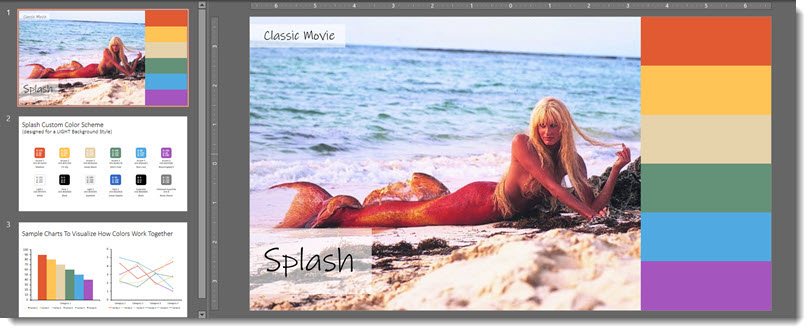
PowerPoint Custom Color Schemes and “Splash”

Part 2 of our internal design exercise is the classic movie Splash. The PowerPoint slide shows the reference image, the color chips, and you will need to download the PowerPoint file to enjoy the creative color naming.

Splash: Vintage, warm rainbow tones. Inspiration from reds and yellows of the fin and tan of the sand. The cool tones taken from the different hues of the ocean.

Download the PowerPoint deck with preset color scheme here.

By |2021-05-08T12:36:48-07:00June 4th, 2021|PowerPoint|

PowerPoint Custom Color Schemes and the Movies

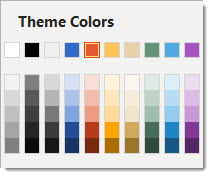
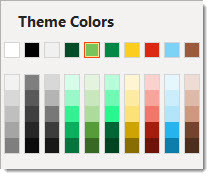
As an internal design project we explored creating custom PowerPoint color schemes (that can also be applied to other Office apps such as Excel and Word). A custom color scheme (this is not a full tutorial) is created by selecting a master slide (if there are multiple master slides in a presentation, each can have their own preset color scheme) and going to DESIGN > VARIANTS > COLORS > CUSTOMIZE COLOR.

For this internal exercise, the design team picked a “classic movie”, found a reference image, and assembled a color scheme that they felt aligned with the movie. The results were so good, we had to share a few of the creations! This is a 6 part blog series, highlighting 6 classic movies (note, “classic movie” as interpreted by our design team!) and the corresponding custom PowerPoint color schemes. And, each will be downloadable 🙂

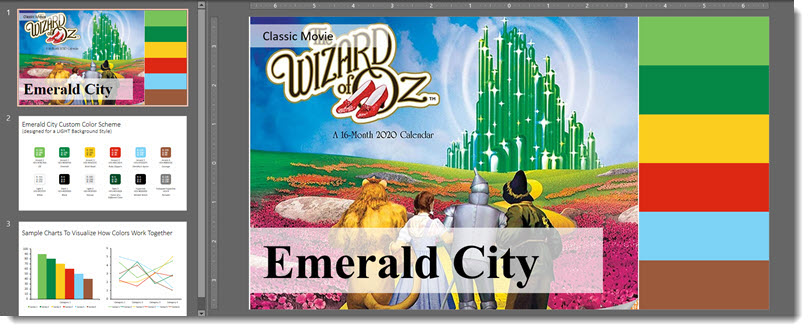
To start things off, from Christie, is a true classic – the original Wizard of Oz.

Wizard of Oz: warm saturated tones. Greens and yellow taken from the main focal point of the emerald city and yellow brick road. The reds, blue and brown mainly from Dorothy’s aesthetic, hair, dress, and shoes.

Download the PowerPoint deck with preset color scheme here.

By |2021-05-08T12:37:29-07:00June 2nd, 2021|PowerPoint|

Create a Custom Puzzle Image for Your Presentation

Puzzles are a great visual metaphor for presentations. We are sharing our process for creating a custom image for a presentation, with a puzzle piece theme. We do not want a single, flat image as that limits our presentation design options. But rather than create dozens of custom puzzle piece images in Illustrator or Photoshop, we prep a few images in these programs and let PowerPoint do most of the work.


1. Using Adobe Illustrator we created a image of 5 connecting puzzle piece shapes. These were exported as .SVG (vector) images.


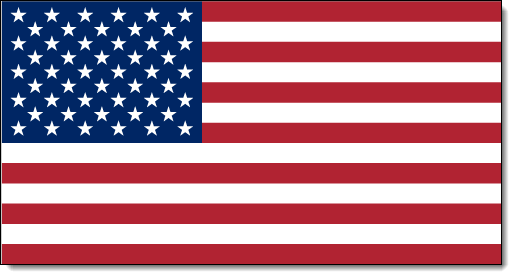
2. Next we created a library of flag images that would be used in the puzzle pieces. These could be PNG or SVG format. We like the scalable nature of vector .svg images, and flags work well in this format. Here is an example of one flag image:

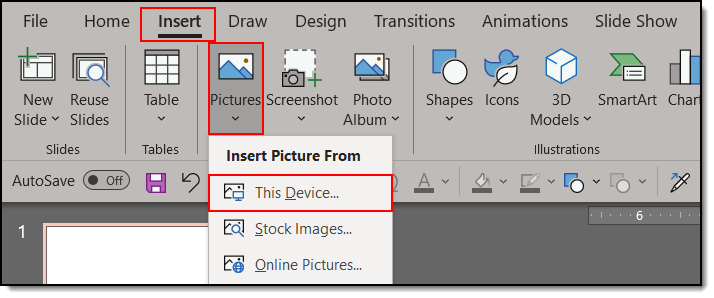
3. Insert the puzzle piece INSERT tab >> PICTURES tab >> FROM THIS DEVICE. From the dialog find the puzzle piece file.

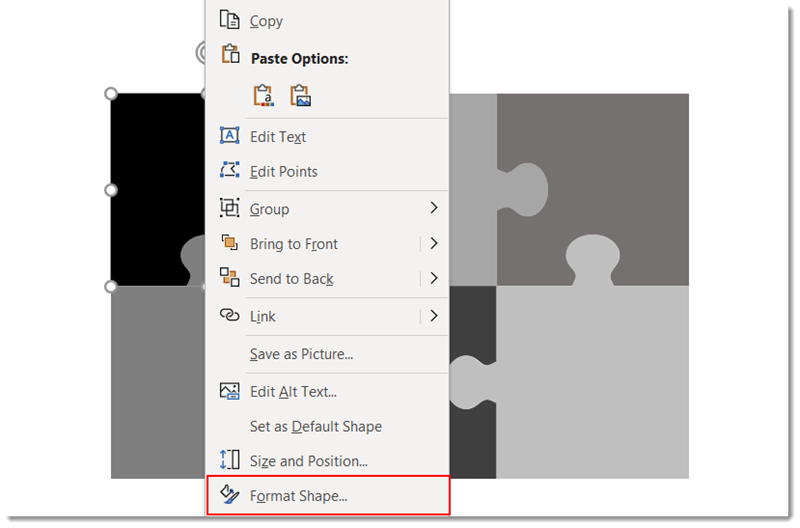
4. Right click the puzzle piece and select FORMAT PICTURE.

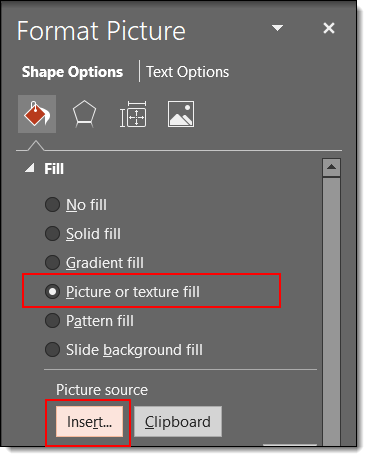
5. On the left pane select FILL. In the right pane select PICTURE OR TEXTURE FILL.

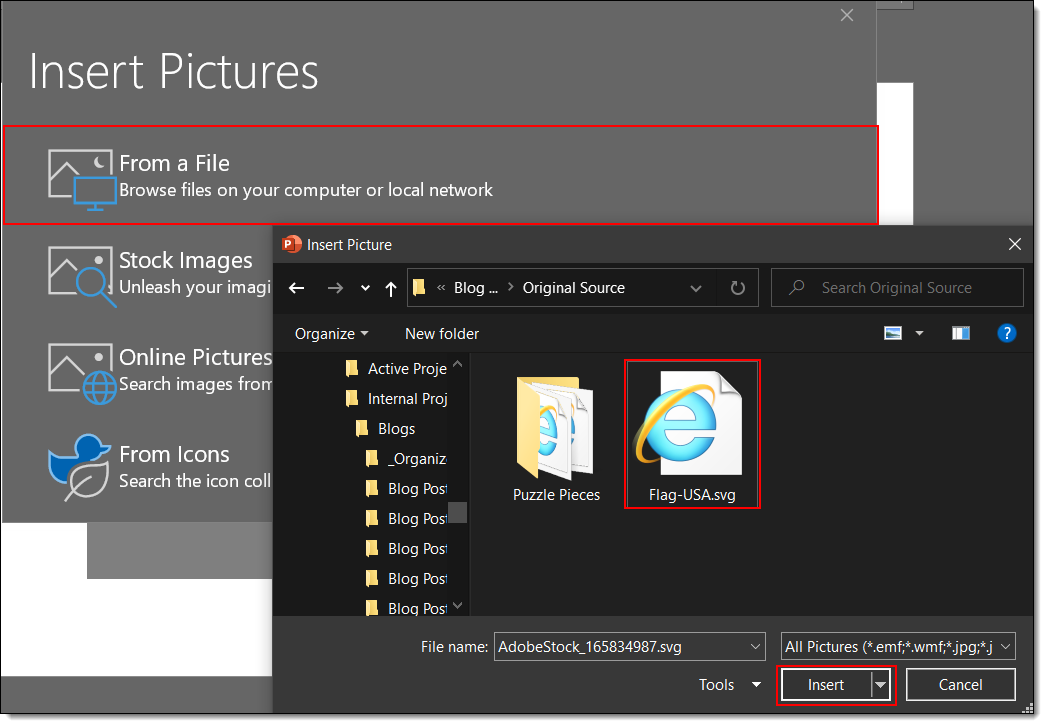
6. Click FILE and from the dialog find the American Flag image.

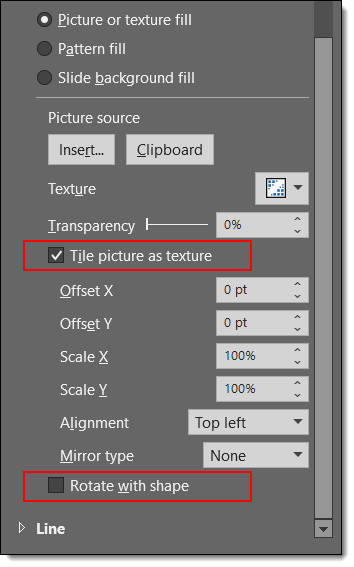
7. Check the box to TILE the picture as texture and UNCHECK the box at the bottom “ROTATE WITH SHAPE”.

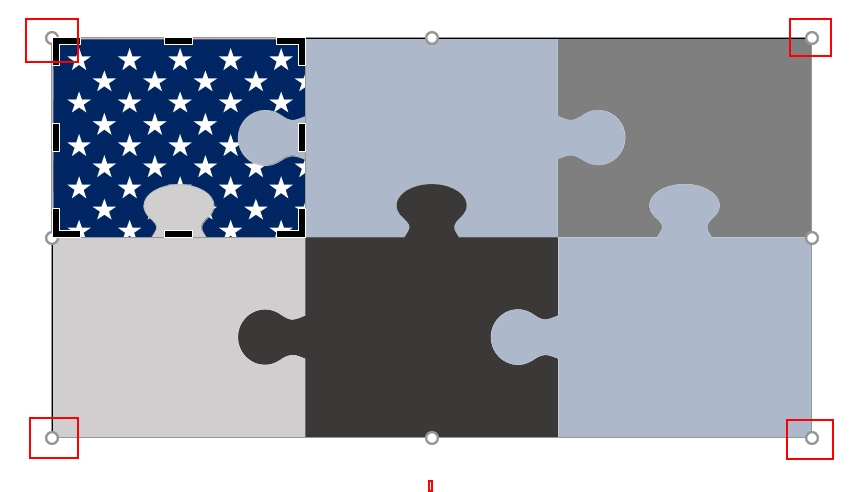
9. However, if you uncheck the TILE picture as texture box, select CROP and then use the outer dots (not crop bars) to adjust the flag image size and position.

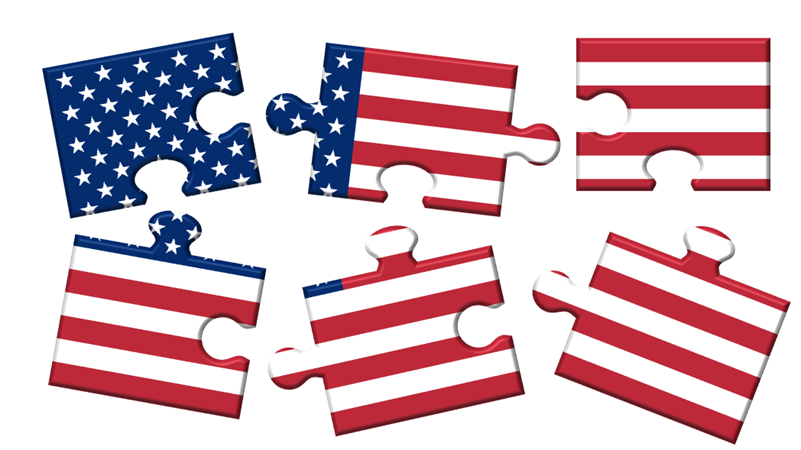
10. Have fun with formatting your shape! All PowerPoint style effects are available: bevel, drop shadow, reflection, etc. Because the ROTATE WITH SHAPE option is turned off the puzzle piece shape rotates, but the flag stays in the same orientation!

Download the PowerPoint slide of the puzzle piece American flag HERE.

Sara @ TLC

By |2021-05-24T11:49:09-07:00May 31st, 2021|Tutorial|
Go to Top