The PowerPoint® Blog

I work with PowerPoint on a daily basis and I am very honored to be a Microsoft PowerPoint MVP. We have a talented team of presentation designers at TLC Creative Services and ThePowerPointBlog is our area to highlight PowerPoint tips, tricks, examples and tutorials. Enjoy! Troy Chollar

The Presentation Podcast Episode #53 Released Today!

 A new episode of The Presentation Podcast with Troy, Nolan, and Sandy is available today! Check out the latest episode, #53 – Colorful Talk About Using Color in PowerPoint.

Color is a major part of presentation design. How a presentation designer goes about using color, both for design and the technical how-to within PowerPoint, have a wide variety approaches. Troy, Nolan and Sandy talk about personal approaches, technical setup and how-to, and using color in presentations.

By |2018-04-30T08:25:36-07:00May 1st, 2018|Resource/Misc|

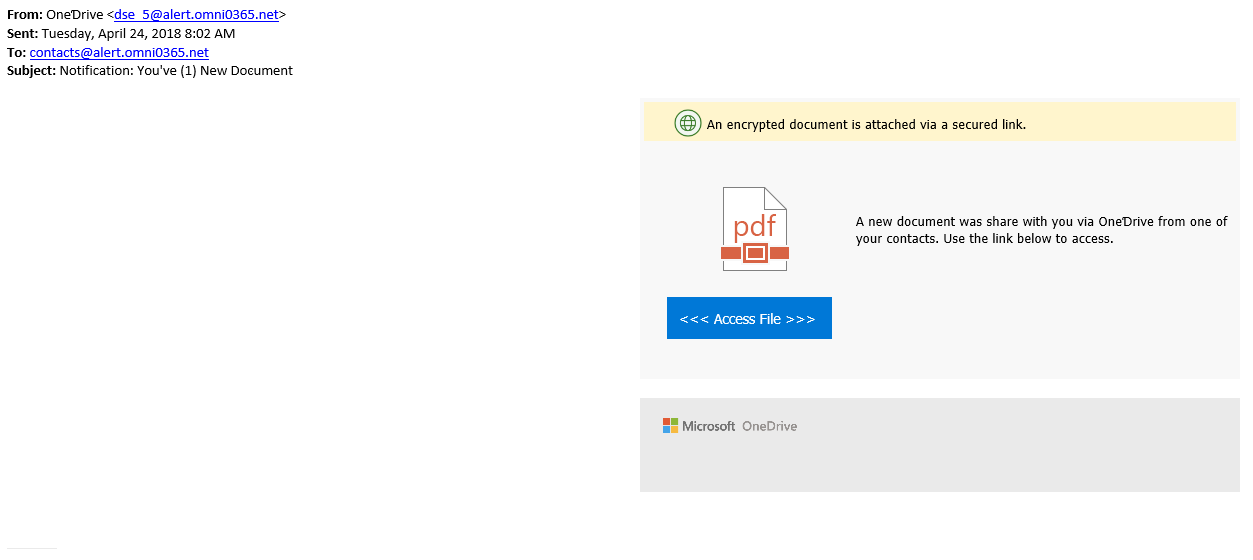
Caution: SCAM Email – Notification: You’ve (1) New Doͼument

Recently, our team has received several spam emails claiming to be from Box, Dropbox and now OneDrive. The subject will likely claim something along the lines of “Notification: You’ve (1) New Document).” Although it’s clearly a spam email, if you’re even slightly unsure, don’t click on the link and go directly to the source instead.


– Troy @ TLC

By |2018-04-25T14:07:59-07:00April 25th, 2018|Personal|

The Presentation Podcast Episode #52 Released Today!

 A new episode of The Presentation Podcast with Troy, Nolan, and Sandy is available today! Check out the latest episode, #52 – A Conversation with PPT Add-In Developers.

The Presentation Podcast continues its conversation about PowerPoint add-ins. This episode, the conversation is from the perspective of the add-in developers themselves, featuring three amazing guests who provide insights, knowledge and company information: Steve Rindsberg of PPTools, Gil Segal of ToolsToo, and Jamie Garroch of YouPresent. The guests’ insights and information are definitely worth a listen, and probably a re-listen, to take notes on everything!

By |2018-04-13T10:46:31-07:00April 17th, 2018|Resource/Misc|

Better, Bigger, 2-Up PDFs

Note: this is a re-post, originally posted April 4, 2016. When planning the posts for this month it made sense to include this tutorial again.

Printing slides is a common need. But the Microsoft presets are not optimal. For example, let’s look at “2-up” printouts directly from PowerPoint and then we’ll look at my preferred option which is using Adobe Acrobat to create the 2-up PDF printout.

Using Microsoft’s PowerPoint preset:

1. Go to File > Export > Create PDF/XPS Document

2-up PDF printout Export_Image1

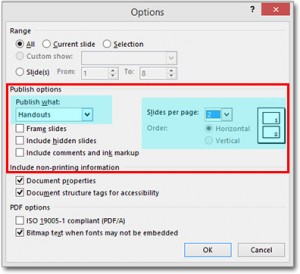
2. In the PUBLISH OPTIONS section, change the drop down menu to HANDOUTS. Slides per page = 2. Keep HORIZONTAL setting. A print preview of the pages will be on the right.

2-up PDF printout PPT_Image2

Select OK and your PDF will be created.

2-up PDF printout PPT_Image3


But, these can be larger images of each slide if we do not use the PowerPoint preset.


To create 2-up printout using Adobe Acrobat (Note: This is a multi-step process, but the result is great):

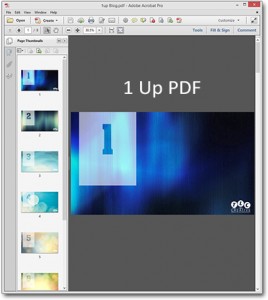
1. Go to File > Export > Create PDF/XPS Document. This time don’t worry about the options, just create PDF with 1 slide per page (the default print setup).

2upBlog_1upPDF_Image4

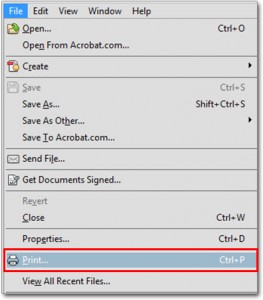
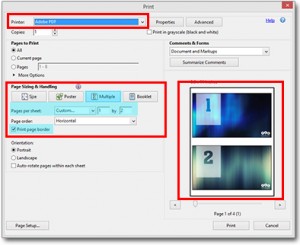
2. Now we are going to print the PDF again. From the PDF of the slides, Go to File >Print

2-up PDF printout PDF_Image5

3. Select ADOBE PDF as your printer.

4. In the Page Sizing and Handling select MULTIPLE.

5. In Pages Per Sheet select Custom.

6. Set to 1 by 2, the small print preview should look like the below example.

7. PRINT.

2upBlog_PrintPDFoptions_Image6

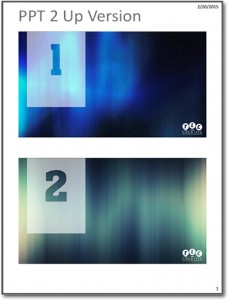
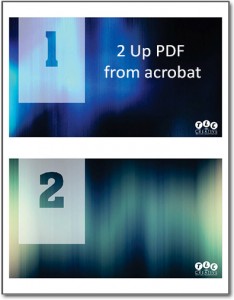
As you can see, side-by-side, the Adobe Acrobat 2-up PDF printout on the left has larger slide images than the PowerPoint 2-up printout, the Adobe Acrobat 2-up takes up the page significantly more than PowerPoint does.

2upBlog_2upPDF_Image72upBlog_2upPPT_Image3

Just a simple option to provide better printouts. 

-Troy @ TLC

By |2018-04-04T11:29:56-07:00April 13th, 2018|Software/Add-Ins, Tutorial|

Snagit Cursor Capture

The interface in the 2018 version of Snagit has been updated. A notable change is we found the cursor capture to be on by default. Even if the setting was turned off before Snagit was updated, it was turned on after updating. After a little investigation, we found that the setting is even easier to find and control now… if you know where to look.

It only takes two steps to keep the cursor from being captured in your images.

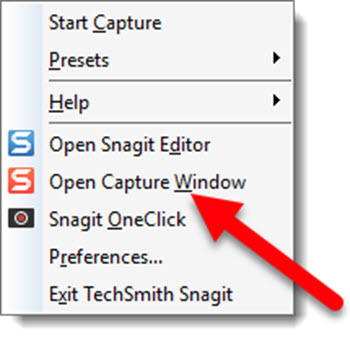
Right click the Snagit icon in the lower right Windows Task Bar and Open Capture Window.

Cursor Capture 1

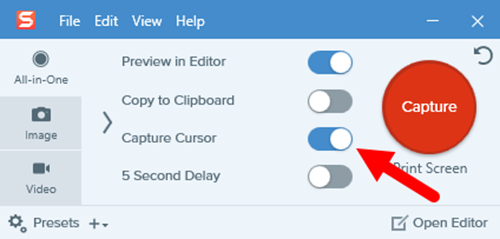
Simply turn off the Capture Cursor setting and close (X) the dialog box.

Cursor Capture 2

It’s as easy as that!

By |2018-04-04T11:02:39-07:00April 9th, 2018|Resource/Misc|

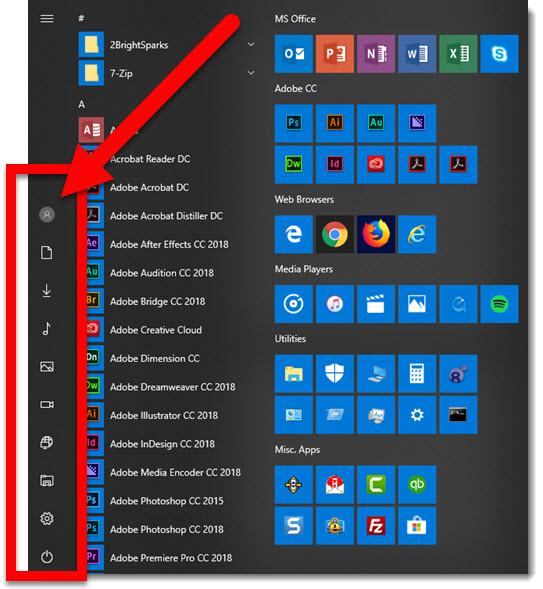
Win 10 Start Menu – Left Column

I received an email with a question from the previous blog post, about how I added the additional options to the far left column of the Windows 10 Start Column (thanks Alessandra!). 

This is definitely a hidden area in the Win 10 Settings. what can be added, or removed, from this column is very limited. To edit:

  • Click the Windows 10 START button (lower left)
  • Click the SETTINGS (gear icon)
  • Click PERONALIZATION
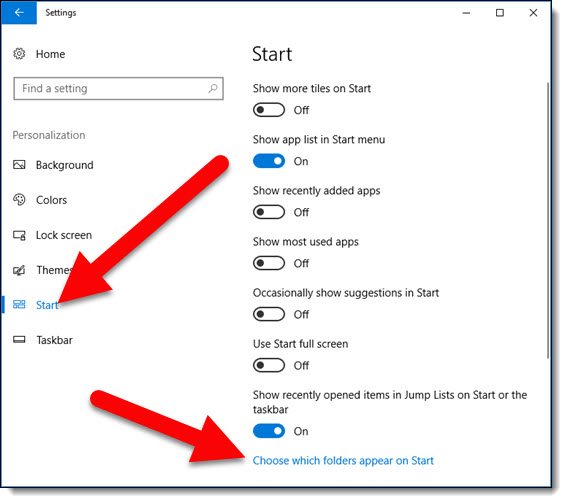
  • Click START on the left
  • Click CHOOSE WHICH FOLDERS APPEAR ON START
  •  
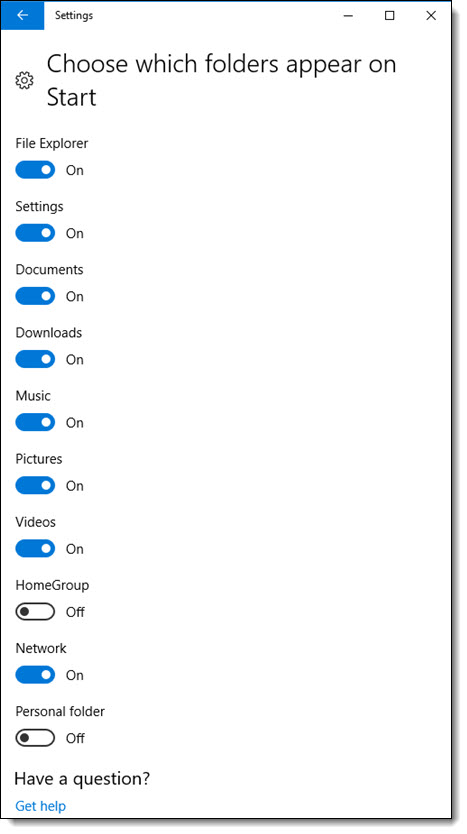
  • There are toggles for each available button on the far left Start Menu. Here are mine:


And that is the answer to the question – definitely a more IT type of question (and TLC Creative has every Win 10 setting for our computers documented like the above to assure everything is running the same setup).

Troy @ TLC

By |2018-04-04T11:00:35-07:00April 5th, 2018|Resource/Misc|

What’s On Your (Windows 10) Start Menu?

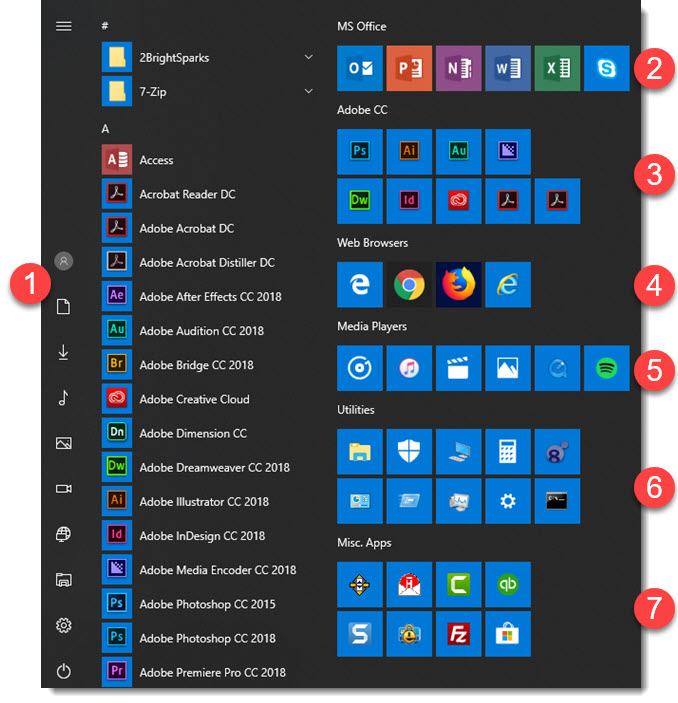
Customizing the Operating System is something that we do to every computer at TLC Creative Services. It assures any computer our team uses is consistent with the same software, and the same way of finding things. Back in late 2015 and again in early 2016 I had posts showing our Windows 10 Start menu setup. Here is our final evolution of the Start Menu we have rolled out on all TLC Creative (Windows) computers:

  1. The default options hide too many of the commonly needed button on the left column. In the Windows 10 Settings dialog we assure every TLC Creative computer has: documents, downloads, music, pictures, video, network, file explorer, settings, and power.
  2. The top group added to our computers is Office 2016 (Office 365 Subscription), and the order of icons is the same on all computers: Outlook, PowerPoint, OneNote, Word, Excel, Skype for Business.
  3. Our next most used set of applications is the Adobe Creative Cloud Suite. There is a bit a variation of apps included depending on the designers expertise. For me it is: Photoshop, Illustrator, Audition, Media Encoder, Dreamweaver, InDesign, Adobe Creative Cloud, Adobe Reader, Adobe Acrobat.
  4. No one web browser works for everything in today’s web-based world, so we have a collection of browsers installed: Microsoft Edge, Chrome, Firefox, Internet Explorer.
  5. Media is a big part of our world, so having lots of media players organized and available makes our work a bit faster: Groove, iTunes, Microsoft Movies & TV, Microsoft Photo, Quicktime, Spotify (half our team has this, the other half Pandora).
  6. The Utilities group helps uncover a number of Microsoft dialogs and apps that have become buried in the newer OS: File Explorer, Windows Defender, My Computer, Calculator, NXPowerlite, Control Panel, Run, Task Manager, Settings, Command Prompt.
  7. And the Misc. Apps group is for everything else, it also is one group that varies on each team member’s computer. My Misc Apps group has: SyncBack Pro, Hightail, Camtasia, QuickBooks, SnagIt, eWallet, Filezilla, Microsoft Store.

Troy @ TLC

By |2018-03-18T08:41:03-07:00April 2nd, 2018|Software/Add-Ins|

PowerPoint Presentation Translator Add-in

Microsoft has a secret garage where lots of amazing things are thought up, and few escape into the public realm. One recent Microsoft Garage app is the PRESENTATION TRANSLATOR. The add-in is really multiple parts; powered by the “Microsoft Translator Live Feature”, part PowerPoint add-in, part mobile app, and part 3-things-in-1, this add-in has a lot to offer a lot of different people.

At its core, the Presentation Translator is an add-in from Microsoft that is designed to help presenters communicate with audience members who speak a different language, or may be deaf/hard of hearing. It does slide translation as automatic narration, live subtitling, and interactive live translation using mobile devices. While not perfect, it is impressive, and fun to use.

To install you need to download direct from the Microsoft Garage webpage here (no Office Store install option yet). 

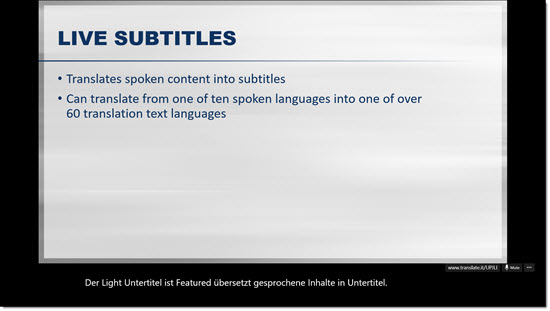
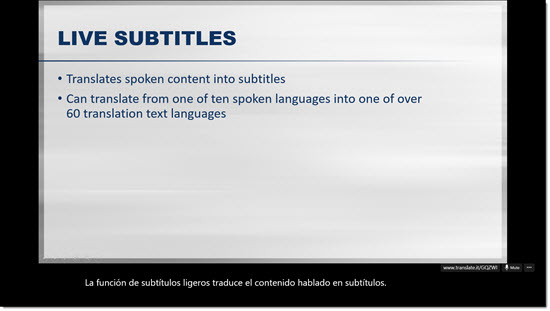
Live subtitling, one of the key features, allows the presenter to speak in 1 of 10 spoken languages while the add-in creates real-time, live subtitles translated into one of more than 60 text translation languages. The customized speech recognition feature uses the slide content to learn your language, helping ensure proper translation.

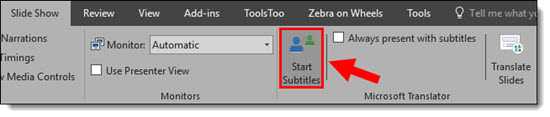
To start the live subtitles, go to the Slide Show tab and select Start Subtitles.
Presentation Translator 1

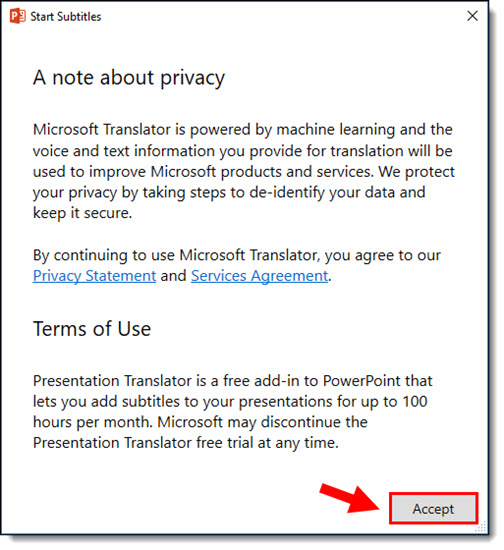
Click Accept to agree to the terms of use.
Presentation Translator 2

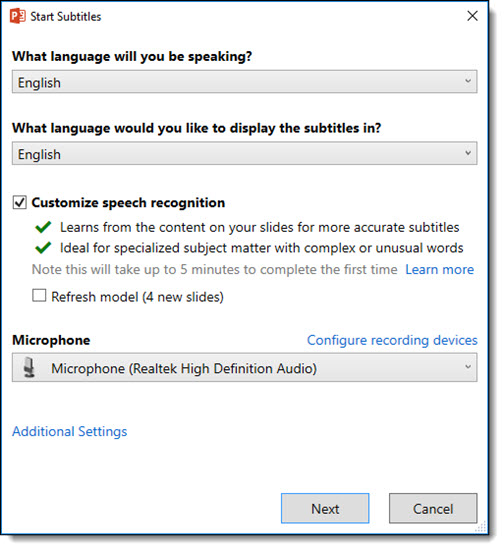
Walk through the overview by clicking Next until you reach the settings options. Select the speaking language and the subtitle display language. Check Customize speech recognition if you would like to use this feature, and select your microphone device.
Presentation Translator 3

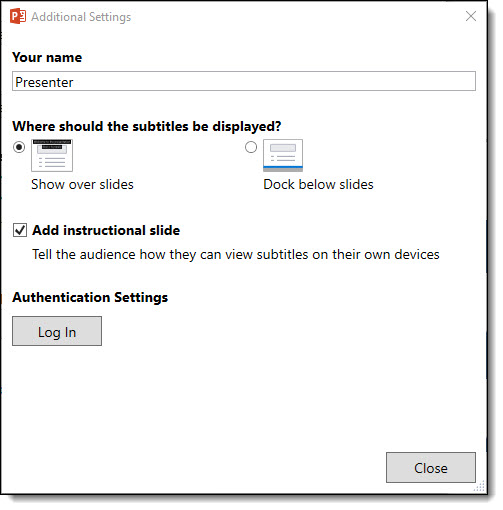
You can also enter a presenter name, select subtitle locations, log in for authentication settings, and turn on or off the optional instructional slide by clicking Additional settings. When finished with all settings, click Next. Once loaded, your presentation will begin and subtitles will appear in the location you selected.
Presentation Translator 4

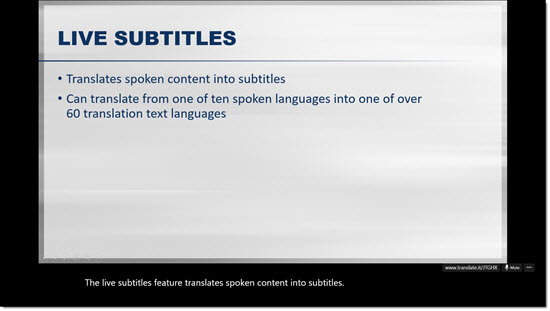
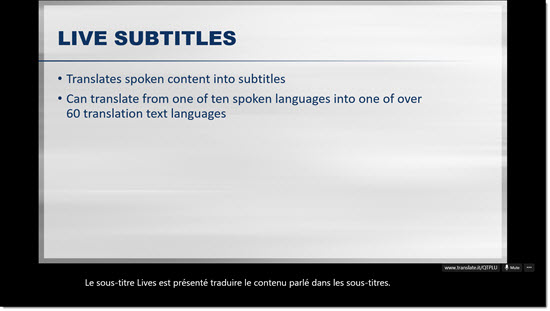
Here is one of our sample slides with the sentence “The Live Subtitles feature translates spoken content into subtitles” translated into English, French, German, and Spanish subtitles.
Presentation Translator 5

Presentation Translator 6

Presentation Translator 7

Presentation Translator 8

Personal Translation: Through the add-in and corresponding mobile app, the audience members can also use a custom code to access personal translations, allowing them to follow along and communicate in their own language. The add-in also translates audience questions during an unmuted Q&A. If the audience members don’t speak one of the ten spoken languages, they can use one of the 60+ text based languages. In turn, those who are deaf or hard of hearing can more easily follow along with the presentation.

To use this feature, you will need to download the Microsoft Translator app on your mobile device and follow instructions provided during the presentation.

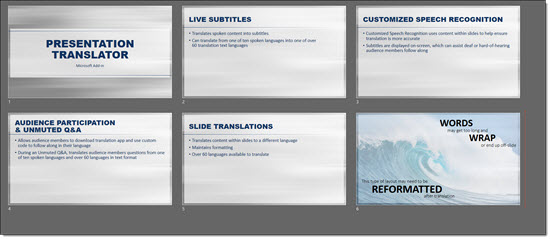
Presentation Content Translation: the add-in also offers a tool to translate an entire presentation, while still maintaining formatting. See our original example here, in English.
Presentation Translator 9

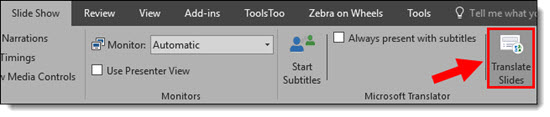
To translate the content, go to the Slide Show tab and select Translate Slides
Presentation Translator 10

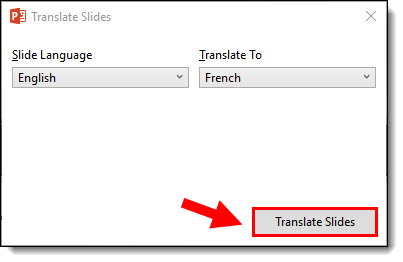
Select the current, slide language and the new language to translate to and click Translate Slides
Presentation Translator 11

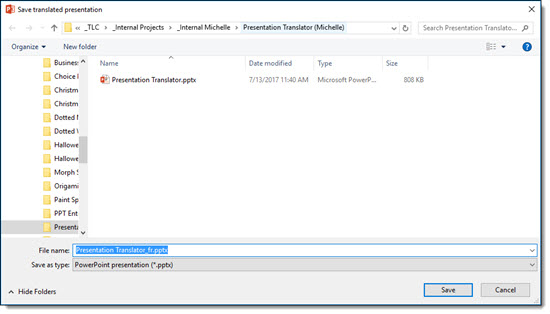
Locate the folder you would like to save the translated version in, rename if desired, and click Save. Note the by default, an abbreviation of the new language is added to the end of the filename.
Presentation Translator 12

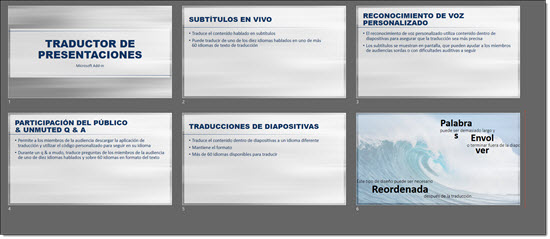
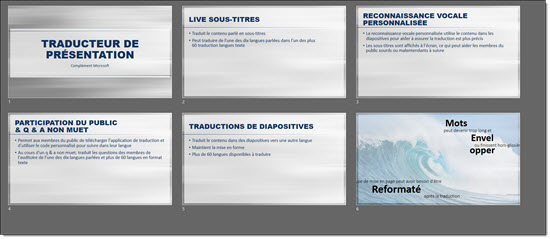
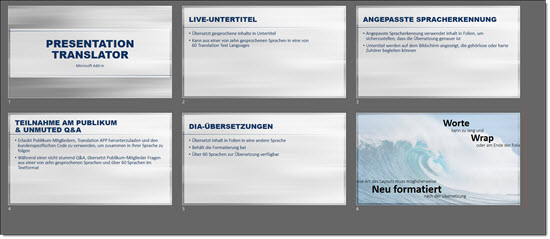
A new file will open with all content translated while still maintaining the original formatting. Here is our example after being translated to French, German and Spanish.
Presentation Translator 13

Presentation Translator 14

Presentation Translator 15

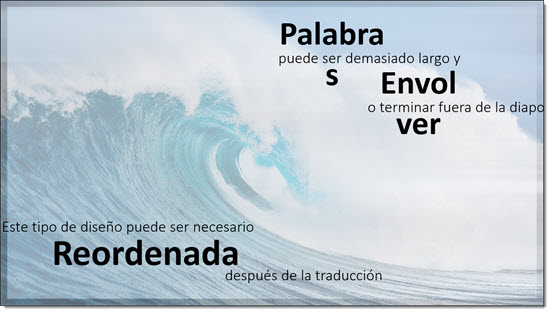
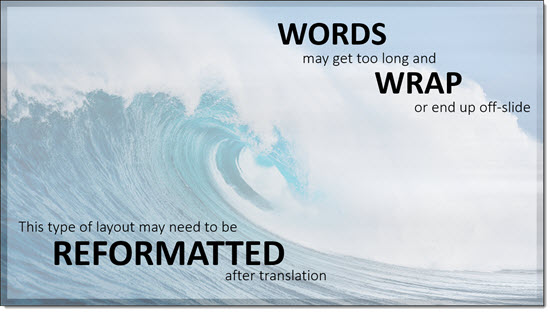
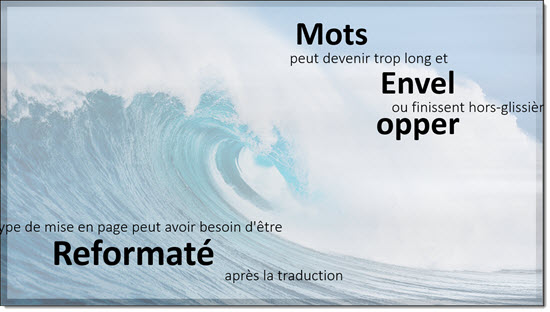
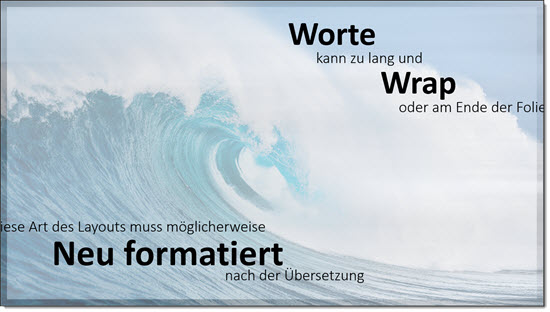
For some layouts, reformatting may be necessary to best display the translated content. For example, here is a slide that features large, stacked text of different sizes.
Presentation Translator 16

When translated into French, German or Spanish, the length of the words change and cause issues with the content fitting into the existing design. Notice that the word “wrap” may become two lines and some text ends up overlapping or off-slide.
Presentation Translator 17

Presentation Translator 18

Presentation Translator 19

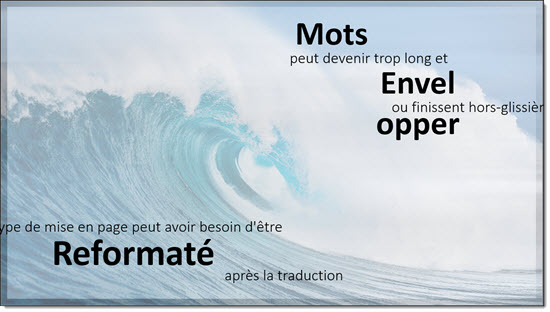
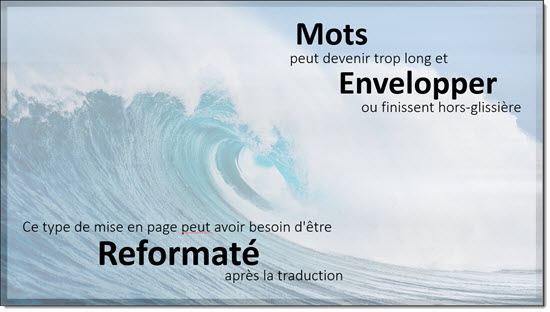
By resizing and moving text, most of these layouts can still function after translation. Here is our French slide before and then after fixing the formatting.
Presentation Translator 20

Presentation Translator 21

The slide content translation was the feature of most interest to me, and for a standard bullet list style presentation it does a good job. As the examples above show, for more stylized layouts, there is still a lot of layout revision needs. And, because I do not fluently speak or read any of the languages used, I cannot say how accurate the translated text really was. The world is becoming much smaller all the time, and the PowerPoint Translator add-in is making it happen sooner than later.

Troy @ TLC

 

By |2018-03-17T22:51:34-07:00March 30th, 2018|Software/Add-Ins|

Pro Word Cloud Generator Add-In

Word Clouds are images composed of words pertaining to a particular subject, in which the size of each word indicates its frequency and importance. They are a popular way to visualize a message and something we have integrated into many presentations.

Pro Word Cloud

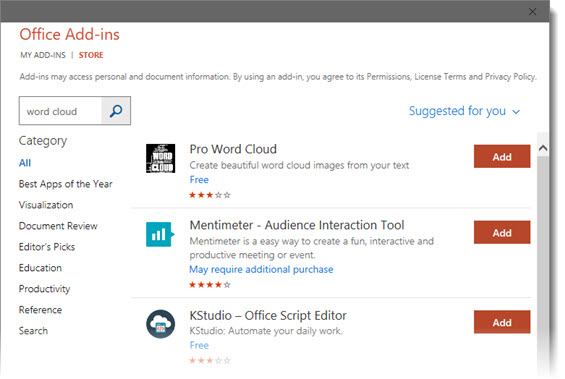
Pro Word Cloud is a Microsoft add-in that is free and can create world clouds with your custom text directly in PowerPoint. To install go to INSERT > STORE > search WORD CLOUD > and ADD the Pro Word Cloud add-in.

Pro Word Cloud

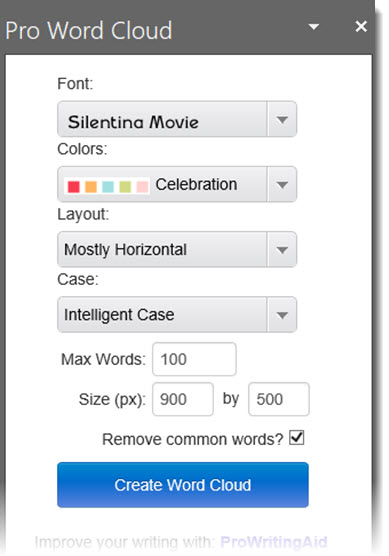
Installing the add-in gives direct access to a side pane to quickly and easily convert on-slide text to stylized word clouds directly from within PowerPoint itself. The action pane provides a nice selection of styling features, including; custom font, many preset color scheme options, word case and size.

Pro Word Cloud


Creating a word cloud with Pro Word Cloud is not completely intuitive. First you need to add all of the words to a text box in PowerPoint. Then select all and copy, because the add-in uses the text copied to the clipboard, there is no text entry area in the app. In the Pro Word Cloud action pane, click CREATE WORD CLOUD. Now, right-click the small word cloud image and copy, then paste onto the slide. 

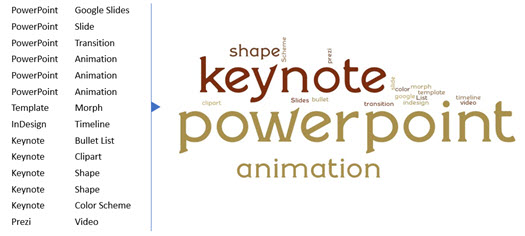
Here is my example, with text I copied on the left and the Word Cloud the add-in created on the right.

Pro

A few observations:

  • Add-in does not use the PowerPoint template color scheme for the Word Cloud
  • Available color options are limited to preset color schemes, with no custom color setup
  • Use the size option to create a large enough word cloud image, I generally use 900x500px as the smallest size
  • The Word Cloud is an inserted flat image, so no animation by word or editing options
  • I recommend adding the word list to the presenter notes or to an off-slide text box to have available for any update needs

Troy @ TLC

By |2018-03-20T13:49:27-07:00March 28th, 2018|Software/Add-Ins|
Go to Top