I work with PowerPoint on a daily basis and I am very honored to be a Microsoft PowerPoint MVP. We have a talented team of presentation designers at TLC Creative Services and ThePowerPointBlog is our area to highlight PowerPoint tips, tricks, examples and tutorials. Enjoy! Troy Chollar
Windows 10 Mobile Hot Spot
The ability to turn a Windows 10 computers into a WiFi hotspot by sharing its internet connection, either wired or wireless!, is an amazingly useful feature. It requires some advance setup, then it is always available.
Go to WINDOWS & SETTINGS
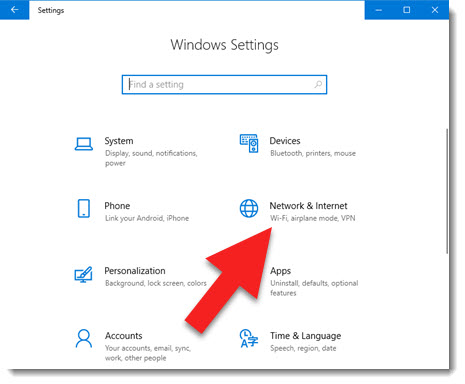
Select NETWORK & INTERNET
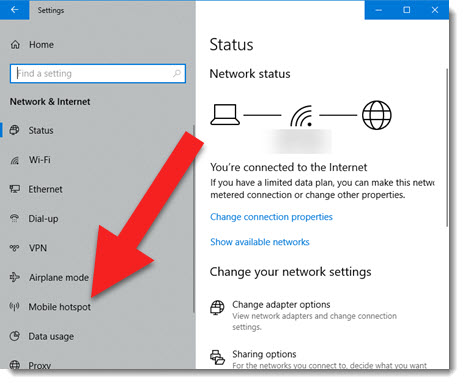
On the left select MOBILE HOTSPOT
TURN ON, confirm Wi-Fi (not Bluetooth) is selected, and click EDIT
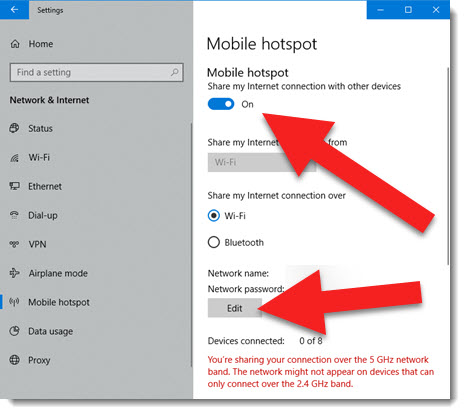
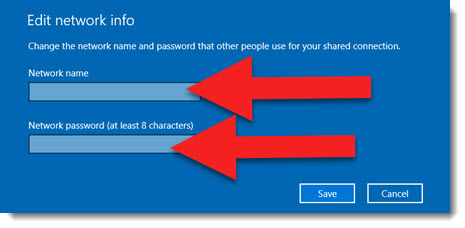
In the Network Info and add a NETWORK NAME (anything you want; Troys WiFi, Secret WiFi Do Not Connect, etc.) and a PASSWORD (something unique, you may share it with others)
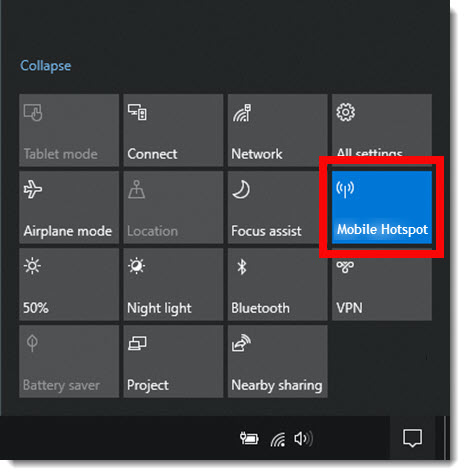
Now the computer is ready to share its internet connection! Click the NOTIFICATIONS icon in the lower right and select MOBILE HOTSPOT
Now on any device (Windows, Mac, phone, tablet, etc.) look for you WiFi SSD and connect!
Troy @ TLC


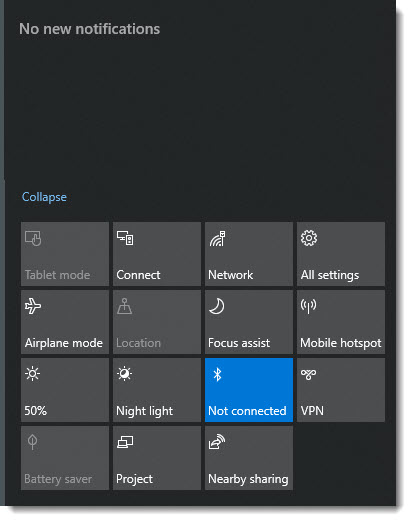
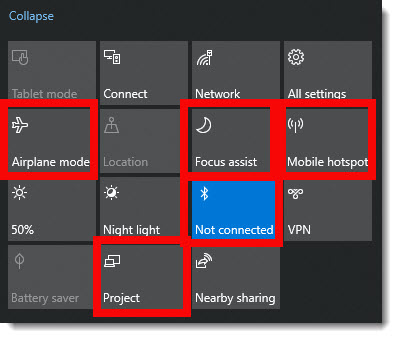
 Airplane mode is just like on your phone, WiFi – Bluetooth – and other features are all turned on or off with a single click. We run Airplane mode note only when flying, but often on our show computers where we do not want anything interfering with that computer displaying presentation graphics to the world.
 Project is just another way to open the video output selection pane, it is the same as Windows + P (for Projection).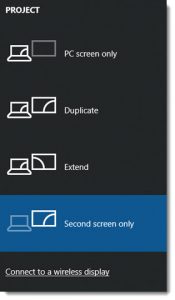
 Mobile hotspot is one of the best features of Windows 10. Easily share that computers internet with other devices – and the internet connection can be wired or wireless that it shares!
 Focus Assist is new, and it has some great features for presenters. Stay tuned, this feature has its own blog post this month.
 Bluetooth is used a lot, mostly to turn it back on after clicking the Airplane mode button and wanting my Bluetooth mouse back!