The PowerPoint® Blog

I work with PowerPoint on a daily basis and I am very honored to be a Microsoft PowerPoint MVP. We have a talented team of presentation designers at TLC Creative Services and ThePowerPointBlog is our area to highlight PowerPoint tips, tricks, examples and tutorials. Enjoy! Troy Chollar

Windows 10 Start Menu

For a recent project, I rebuilt 5 of the supplied show computers as they were all very out-of-date. The Windows 10 Start Menu is a good hybrid of the legacy (ie. Windows 7 and earlier) and interactive Windows 8 options. But I do find much of the preset options unneeded for business (vs. personal) computing. Each show computer has dozens of settings customized to optimize performance. The Start Menu removes all unneeded options and adds many of the now buried features, along with a logical organization to everything (Side note: I am not a fan of forcing users to see the APPS scrolling window and forcing users to only have small icons for the much more used left action buttons). Here is a screen shot of the Windows 10 Start Menu on the 5 graphics computers I setup:
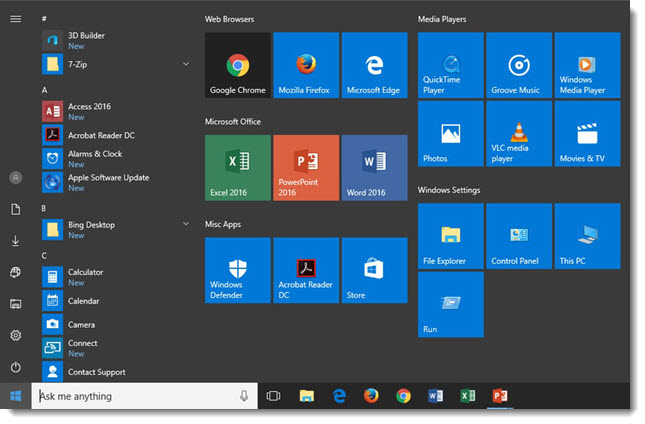
Windows 10 Start Menu

-Troy@TLC

By |2016-10-19T09:35:33-07:00October 17th, 2016|Resource/Misc|

Slide Design Using Images and Illustrations

Just a quick slide from a recent project that I thought was pretty cool.

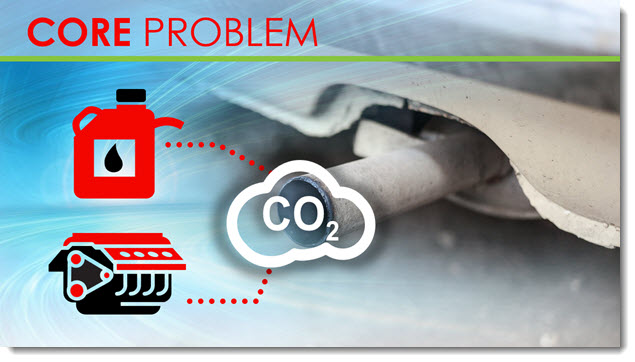
Slide Design Using Images and illustrations 1

Throughout this presentation, we used a layered visual styling of photo images as the base and animated vector illustrations that interacted with the photo. Rather than list the 4-5 talking points about CO2 emissions from vehicles, we visually represented vehicles with a huge tail pipe. Then, to visually support the talking points, the CO2 icon was introduced, followed by the gasoline icon, which supported the talking point about gasoline powered engines with another vector overlay (the story there was how much better gasoline has become over the decades, in terms of CO2 emissions, but that it still creates them).

Overall, the slide design using images and illustrations allowed for a presentation that was visually creative with a unique style and a happy presenter.

-Troy @ TLC

By |2016-10-10T10:55:47-07:00October 12th, 2016|Portfolio|

Columbus Day Animation

Have a great Columbus Day weekend!

Here is a little side project by one of the TLC Creative design team. All animation is done in PowerPoint 2016, some of the art elements developed in Adobe Illustrator and then imported and animated.

[KGVID]https://thepowerpointblog.com/wp-content/uploads/2016/10/unnamed-file-1.mp4[/KGVID]


By |2019-10-31T22:11:24-07:00October 10th, 2016|Portfolio|

DreamForce – It’s Big

 I have been in San Francisco this past week at the largest attendee conference I’ve ever worked. DreamForce is massive, with 160,000+ attendees! I have seen just a fragment of the crowds while coordinating the presentation graphics backstage at the “small” 700 seat Yerba Buena Theater (same venue Apple uses for its product launches).

DreamForce 16

-Troy @ TLC

By |2016-10-10T08:36:28-07:00October 7th, 2016|Personal|

Microsoft MVP Status Renewed!

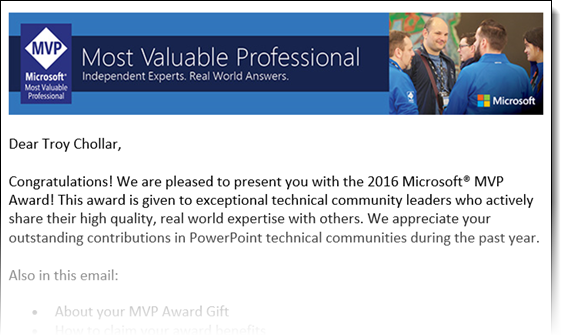
I am extremely excited and humbled that Microsoft has awarded the MVP (Most Valuable Professional) for PowerPoint to me again for the next year!

Microsoft MVP 2017

Curious about the MVP program? Information on what it is here.

Note: The letter from Microsoft lists 2016, which is almost over, but I am on the final review and renewal cycle where other MVPs are awarded at the beginning of the year, so this is my “2017” status.

-Troy @ TLC

By |2016-10-03T14:57:06-07:00October 3rd, 2016|Personal|

PowerPoint’s “What’s New” Dialog

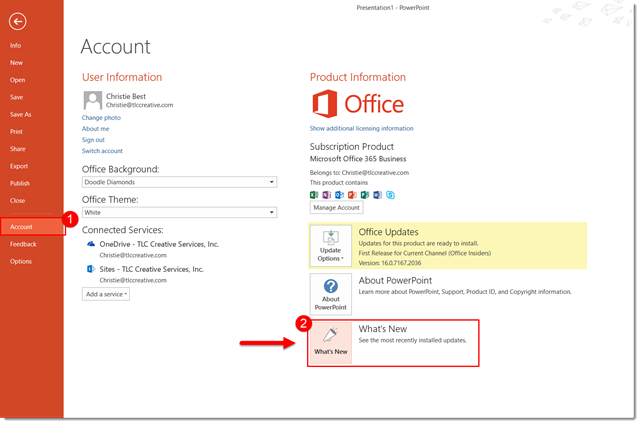
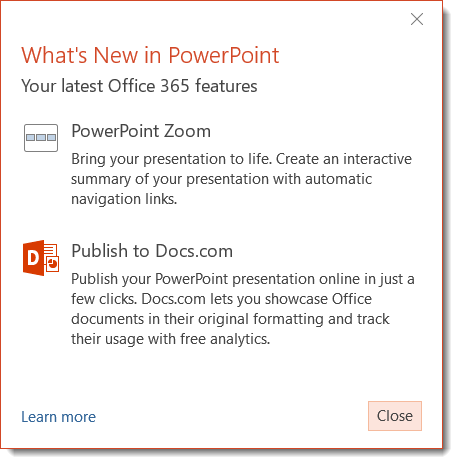
The Office 365 version of Office Apps, including PowerPoint, is on a continuous update cycle. Often, it is difficult to know what is new. Well, there is a newer dialog option within all office apps to give you a summary of “What’s New.”

To see what the new features are in PPT, simply go to the file tab, scroll down to account, and click on the What’s New Dialog below the “Office Updates” box.

Once clicked, a window will pop up either asking the user to update PPT or simply show what new features have been added.


What's New Dialog 1


What's New Dialog 2

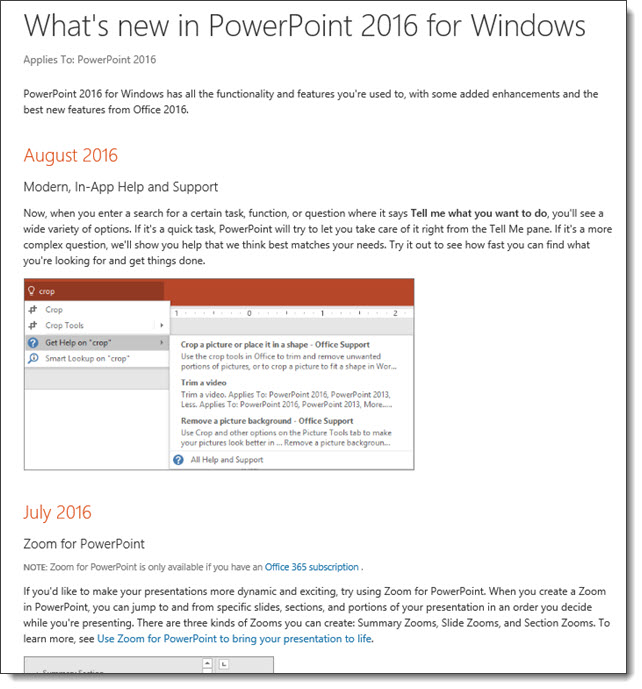
Click the LEARN MORE link to open a web browser and get the full details and history of all feature updates.

What's New Dialog 3


-Troy @ TLC

By |2016-09-20T09:28:11-07:00September 30th, 2016|Resource/Misc, Tutorial|

PowerPuff Fun! A PowerPoint Template

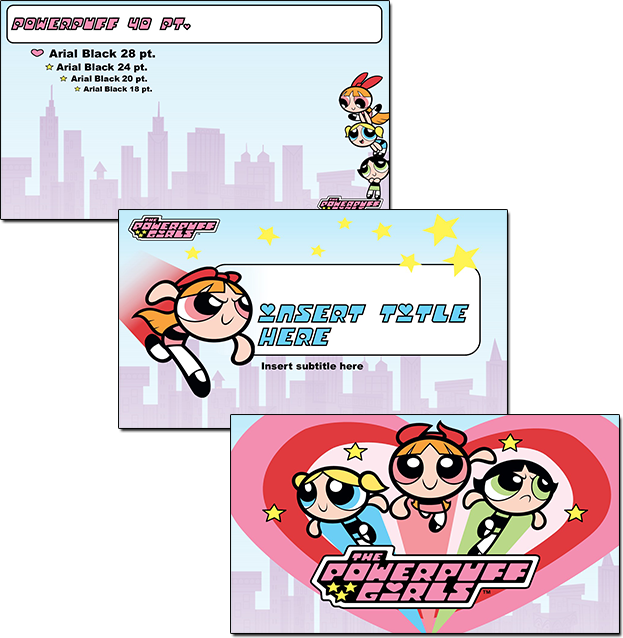
Yes, even cartoons need a reboot to make them work with the next generation of kids. The TLC Creative design team had a ton of fun developing a series of marketing presentation template concepts (the client selected shown here). Just another day in the design studio!

PowerPuff_Concept1

For the TLC Design Team, slide design must maximize usable content area, PowerPoint preset options, and lots of creativity. Creativity such as how to use the provided art elements and creating layouts, color schemes and animation to present dynamic and engaging presentations vs. presentations that have a nice background but are otherwise boring.

Note: This project was developed for a specific client, using licensed art, so we are sorry, but it is not available for download.

-Troy @ TLC

By |2016-09-18T16:38:50-07:00September 28th, 2016|Templates/Assets|

Vector Editing Inside PowerPoint for Text Boxes

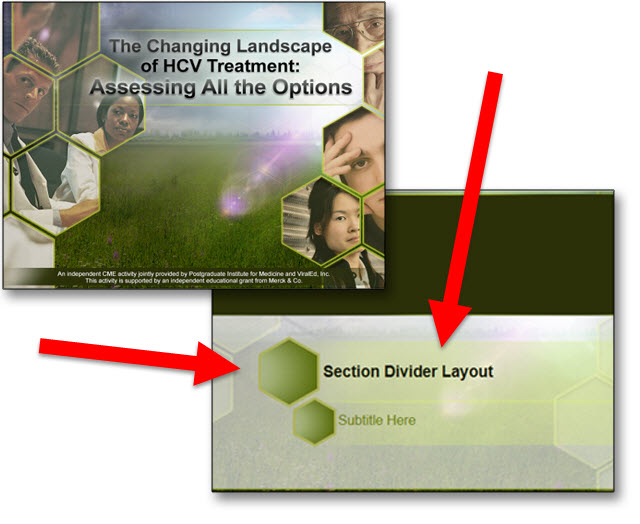
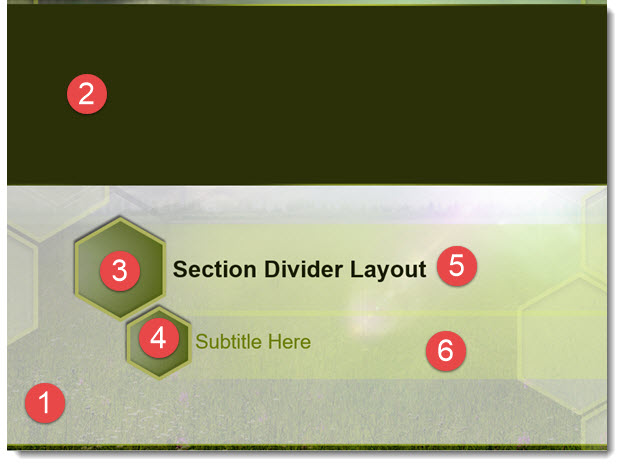
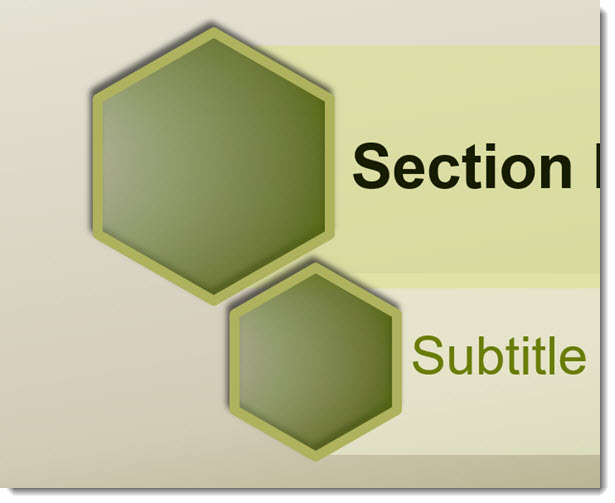
In the previous portfolio sample of a recent PowerPoint template for HCV Treatment Research, the Section Divider layout had some customized formatting.

Vector Editing inside PowerPoint 1

One of the TLC Creative Design Team objectives is to do as much formatting within PowerPoint to preserve future editing options (vs. doing all design in external programs like Adobe Photoshop and Illustrator and importing  a series of uneditable images). The Section Divider in this template is a great example of our process of future proofing templates.

Vector Editing inside PowerPoint 2

  1. Photoshop developed background image
  2. PowerPoint color block
  3. PowerPoint shapes, with custom semi-transparent gradient fill, thick outline, and drop shadow effect
  4. Duplicate of #3, resized
  5. PowerPoint text box with semi-transparent fill, text formatting preset
  6. PowerPoint text box with semi-transparent fill, text formatting preset

The Hexagon accent title boxes actually have a lot of customized PowerPoint formatting in putting them together.

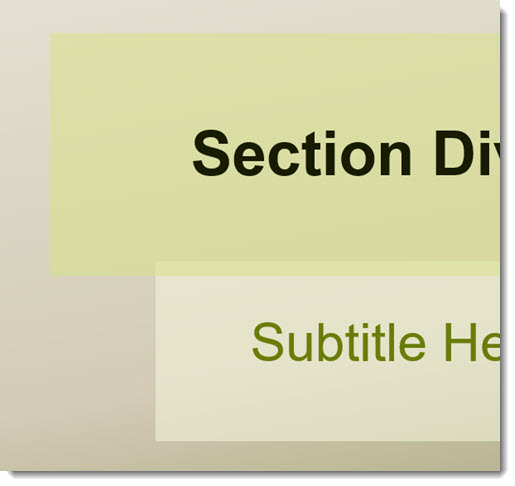
  • Add 2 PowerPoint text boxes, with semi-transparent fills and text formatting options preset (including a custom left margin to move text away from left edge).

Vector Editing inside PowerPoint 3 width=

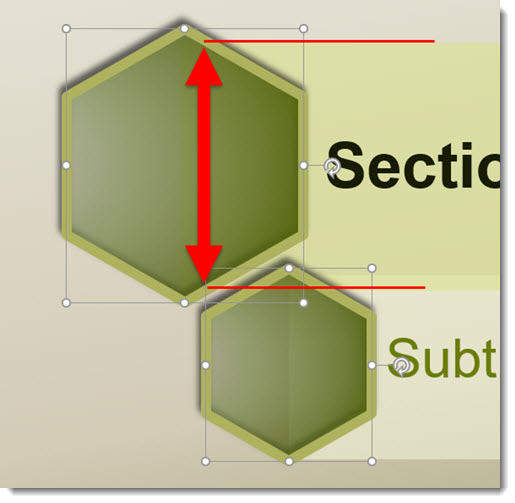
  • Add PowerPoint hexagon shapes with semi-transparent gradient fill, thick outline, shadowing and other styling applied. The position and size was determined by the text boxes. Each was sized to have the outline within the text box shape.

Vector Editing inside PowerPoint 4

  • The dilemma is, even with the text boxes sent to back, the semi-transparent gradient fills of the hexagons show the text box edge.

Vector Editing inside PowerPoint 5

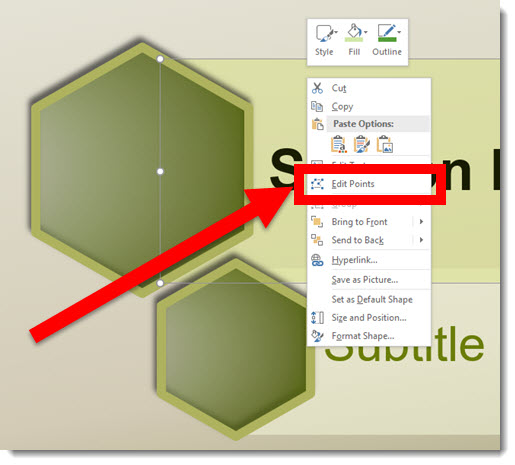
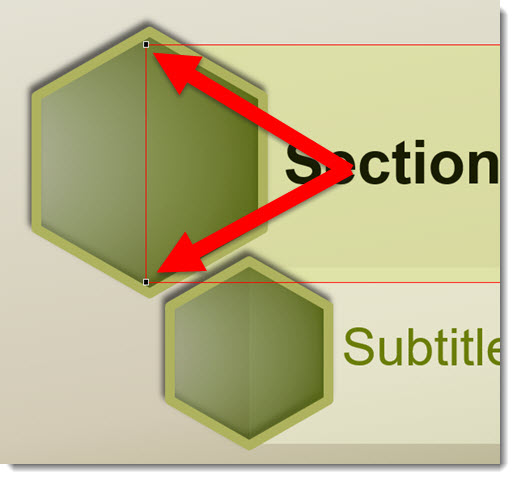
  • Using PowerPoint’s Vector Shape Editing capabilities, we can customize the text boxes further in order to meet the visual needs of the template. Step 1 is selecting a text box and EDIT the vector POINTS.

Vector Editing inside PowerPoint 6

  • The text boxes are simple rectangles with 4 points, these two are the ones we are customizing.

Vector Editing inside PowerPoint 7

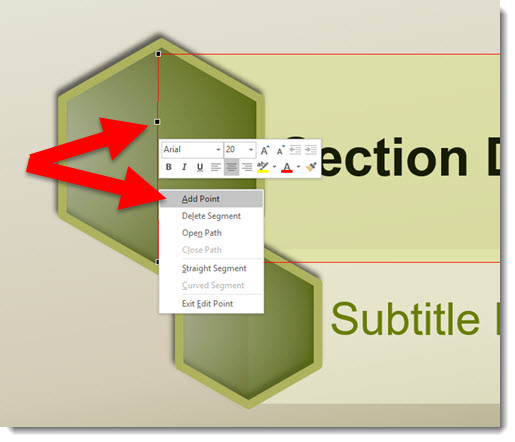
  • Right-click the red shape outline and ADD 2 additional vector points to the vertical left of the rectangle (location is arbitrary).

Vector Editing inside PowerPoint 8

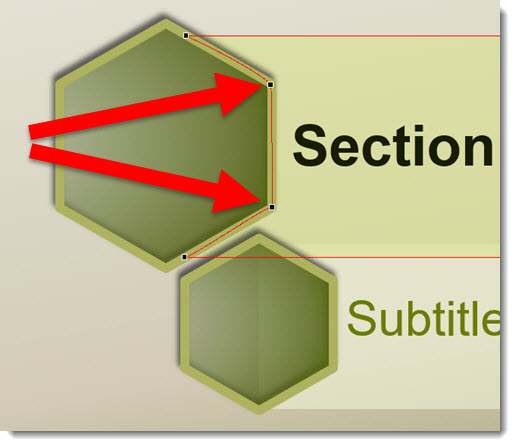
  • The thick (4.5 pt) shape outline was a nice styling accent, but it also makes this vector customization much easier by providing lots of area to “hide” the text box shape under. We moved the 2 new vector anchor point to sit in the middle of the hexagon outline and making the text box shape, when sent to back under the hexagon, hidden from view.

Vector Editing inside PowerPoint 9

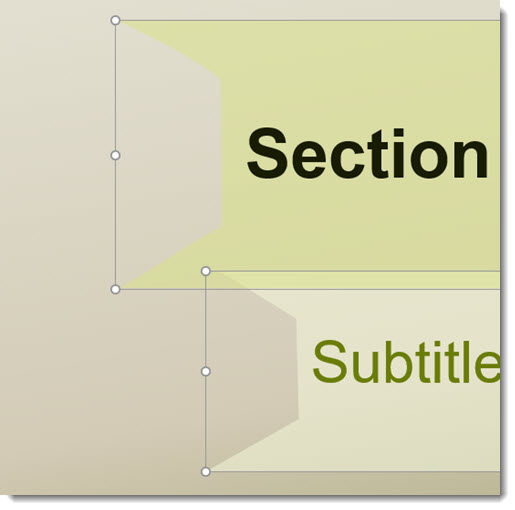
  • Temporarily removing the hexagon shapes, here are the customized text box shapes with their new left edge.

Vector Editing inside PowerPoint 10

  • The end results, Title and Subtitle custom text boxes for the Section Divider layout, are all developed within PowerPoint and maintains template color scheme colors and editability.

Vector Editing inside PowerPoint 11

-Troy @ TLC

By |2016-09-19T15:09:09-07:00September 26th, 2016|Tutorial|

PowerPoint Template for HCV Research

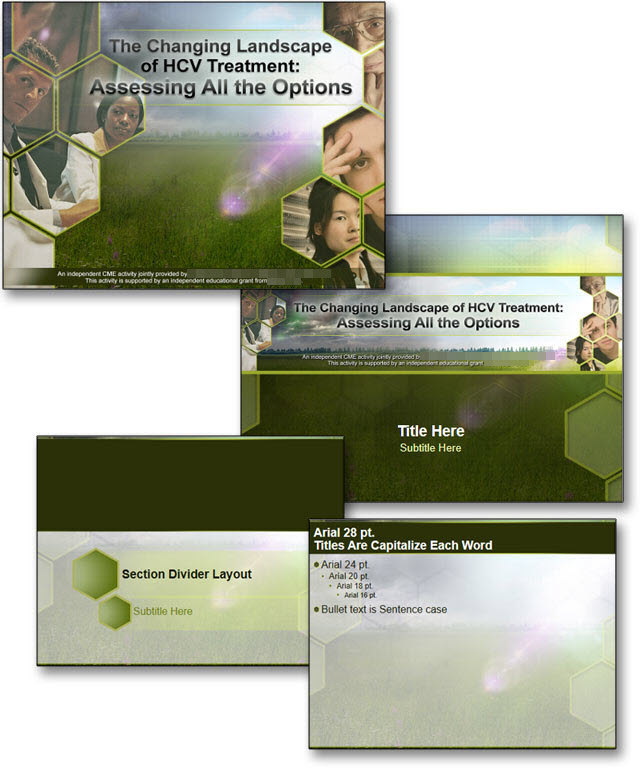
Presentations that focus on in depth medical studies and analysis and are presented to a peer of like minded doctors can also be visually dynamic and professional! The TLC Creative Services Design Team develop a large number of custom templates (and does an even larger number of presentation makeovers) for medical/pharma/device industries every week. This is the PowerPoint template for HCV (Hepatitis C) research that was used recently.

PowerPoint Template for HCV Research

We identified a color scheme, an accent graphic (hexagons), the overall message (difficult, with positive and negatives), patient population demographics and other factors that influence the visual message the template should convey. After a round of concepts, the selected visual was developed into a full featured PowerPoint template with every preset customized to assist the multiple presenters in creating presentations easily and to coordinate with all other presentations.

-Troy @ TLC

By |2016-09-19T14:31:14-07:00September 22nd, 2016|Portfolio, Templates/Assets|
Go to Top