PowerPoint

PPT 2007 Compresses Images By Default

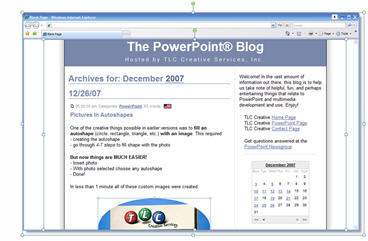
Turns out PowerPoint may be trying to be more helpful than you want. I want to control when, and how many times, an image is compressed. The default setting for PPT 2007 is to compress images every time the file is saved. Here is my example slide, which has just one large image:

With the image selected (1) go to the FORMAT tab, then (2) click the COMPRESS PICTURES option

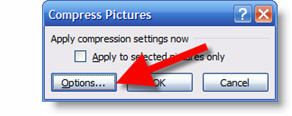
This brings up the basic dialog box, but we want to go into the OPTIONS

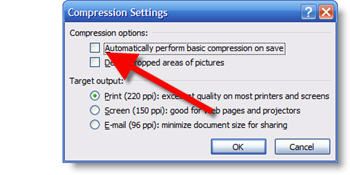
Finally, UNCHECK the automatically compress images option so you can control which images, if any need to be compressed by PowerPoint.

– Troy @ TLC

By |2016-11-17T13:33:34-08:00February 5th, 2008|PowerPoint, Tutorial|

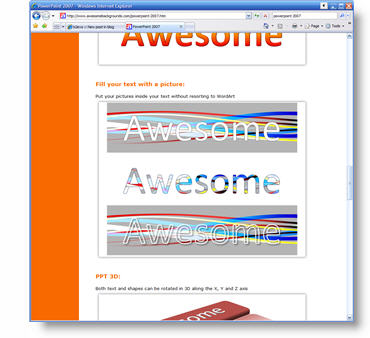
Awesome has Great Examples of PPT 2007

Why reinvent something that already exists… I am coming to the party later than many, so I thought my first stop would be to point out some already great examples of what can be accomplished with PPT 2007.

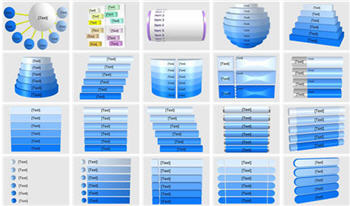
Taj at Awesome Backgrounds has a page that showcases many of the great effects that can be achieved with the graphics engine in PPT 2007.

Click here to go to Awesome Backgrounds.

– Troy @ TLC

By |2016-11-17T14:52:15-08:00November 12th, 2007|PowerPoint|

PowerPoint 2007 Examples, Tips & Tricks

PowerPoint 2007 has been out for a while now and I have finally caught up with things. Actually I have spent the past months working extensively in it. To be honest, my list of “issues” is really long, but those annoyances almost balance out with my list of praises.

Over the next few weeks I have cued up dozens of examples of the visual effects possible with PPT 2007 as well as many real slides and some tips on maximizing the new capabilities!

– Troy @ TLC

By |2016-11-17T14:51:56-08:00November 9th, 2007|PowerPoint, Resource/Misc|

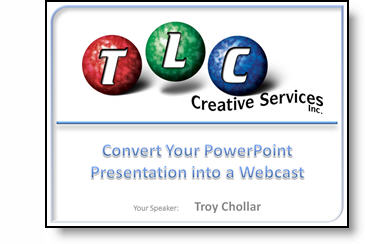
PowerPoint-to-Webcast Seminar

Eli Research and AudioEducator.com have been putting on some great seminars this year. And next week I will be the speaker! I am covering a more technical topic that has kept me very busy this year – converting PowerPoint presentations into webcasts.

The live web-based conference format is one I like best. Log-on from anywhere, view presenters computer (me) to see and hear each topic and demo file. Just like looking over the experts shoulder and getting practical information.

I would love to have anyone who visits ThePowerPointBlog, and has an interest in developing webcasts, to be there next Wednesday (note: there is a fee to audioeducator.com).

Click here for the info page on my “webcast on developing webcasts”

– Troy @ TLC

By |2016-11-17T16:36:38-08:00November 2nd, 2007|PowerPoint, Resource/Misc|

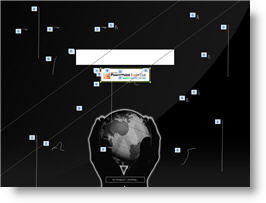
Animation Contest Showcase

Received an email from PowerPoint MVP, Tohlz (Shawn)of PPTHeaven about a PowerPoint Animation Contest held by Korea’s PowerPoint Expert Club.

Shawn has posted the 1st and 2nd place presentations on his site. These are worth the effort to download and look at – lots of great animation effects!

Click here to download and view the winning entry by Coolguy7.

(Note: image shows all of the animations on slide)

Click here to download and view the 2nd place entry by Zzagdol.

– Troy @ TLC

By |2016-11-17T16:24:27-08:00September 7th, 2007|PowerPoint|

Giuliani’s PowerPoint Presentation

Former NY Mayor Rudy Giuliani recently made the news with a link to an PowerPoint presentation used to show the statistics and other information about the current positioning of the political race. If you are interested, click here to read the article (only if you are politically interested in such info).

But the real treat was looking at a ‘professional’ presentation!

Click here to view the presntation.

Now I’m not a big fan of stock templates, but even those would have been a huge help to the aesthetics of this presentation. If anyone knows people in the Giuliani office, feel free to pass along a link to ThePowerPointBlog so they can pick up some design and layout tips.

– Troy @ TLC

By |2016-11-17T16:21:17-08:00August 15th, 2007|PowerPoint|

(Updated) PPT Overlays To Graphics

Sorry for the bad link posted a week ago. I just updated the download link to actually allow you to download the sample file. Here is the original post again (link also works in original post too).

————-
The final element was to create a placeholder for the financial information. I added another custom fill autoshape, this time a rectangle. After sized it was ‘sent to back’ and the appropriate text was added.

If you would like to download this slide, click here.

– Troy @ TLC

By |2016-11-17T16:15:53-08:00July 19th, 2007|PowerPoint|

SpinArt Presentation

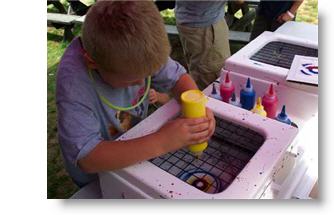
A recent project had me reminiscing about my childhood. This “presentation” was basically very large wall art to accompany the event theme. Remember doing Spin Art projects…

Using some graphics designed in Illustrator (vector based, exported as .EMF’s, and imported into PowerPoint) and some creative animation I recreated these red spin art elements.

Full presentation had several different spin art elements and was a 9 minute loop. Happily, the SpinArt was a huge success and spun all night long!

To see a quick movie of two of the spin art elements animation click here.

– Troy @ TLC

By |2016-11-17T16:13:56-08:00July 12th, 2007|Portfolio, PowerPoint|

iFilm PPT Contest Voting Ends Today – Cast Your Vote

A few weeks ago I mentioned the iFilm PowerPoint contest. The went through all the entries and came up with the finalists for everyone to see and vote on. Well, today is the final day to cast your vote – click here to see the finalists and cast your vote.

I cannot say any of these presentations really jump out and wow me… My personal favorite, primarily because it made good use of many of the PPT 2007 effects (like the opening text) and lots of good animation (always something I look for!) is the “My Best Life Achievement” entry (and it got my vote).

– Troy @ TLC

By |2016-11-17T16:10:10-08:00June 29th, 2007|PowerPoint, Resource/Misc|
Go to Top